
1. Introduction
This manual provides essential instructions for the safe and efficient operation of your Reflecta Combo Album SCAN 64400 Scanner. Please read this manual thoroughly before using the device to ensure proper setup, usage, and maintenance. Keep this manual for future reference.
2. Safety Information
To prevent damage to the device or injury to yourself, observe the following safety precautions:
- External Use Only: This device is designed for scanning photos, film, and slides. Do not attempt to use it for any other purpose.
- Power Source: Use only the power adapter supplied with the scanner. Ensure the voltage matches your local power supply.
- Ventilation: Do not block ventilation openings. Ensure adequate airflow around the scanner to prevent overheating.
- Liquid Exposure: Keep the scanner away from water and other liquids. Do not operate the device with wet hands.
- Cleaning: Disconnect the power before cleaning. Use a soft, dry cloth. Do not use liquid or aerosol cleaners.
- Disassembly: Do not attempt to disassemble or repair the scanner yourself. Refer all servicing to qualified service personnel.
- Children: Keep the device out of reach of children.
3. Package Contents
Verify that all items are present in the package:
- Reflecta Combo Album SCAN 64400 Scanner Unit
- Power Adapter
- USB Cable
- Film Holder (for 35mm film strips)
- Slide Holder (for mounted 35mm slides)
- Cleaning Brush
- User Manual (this document)
4. Product Overview
Familiarize yourself with the components of your scanner.
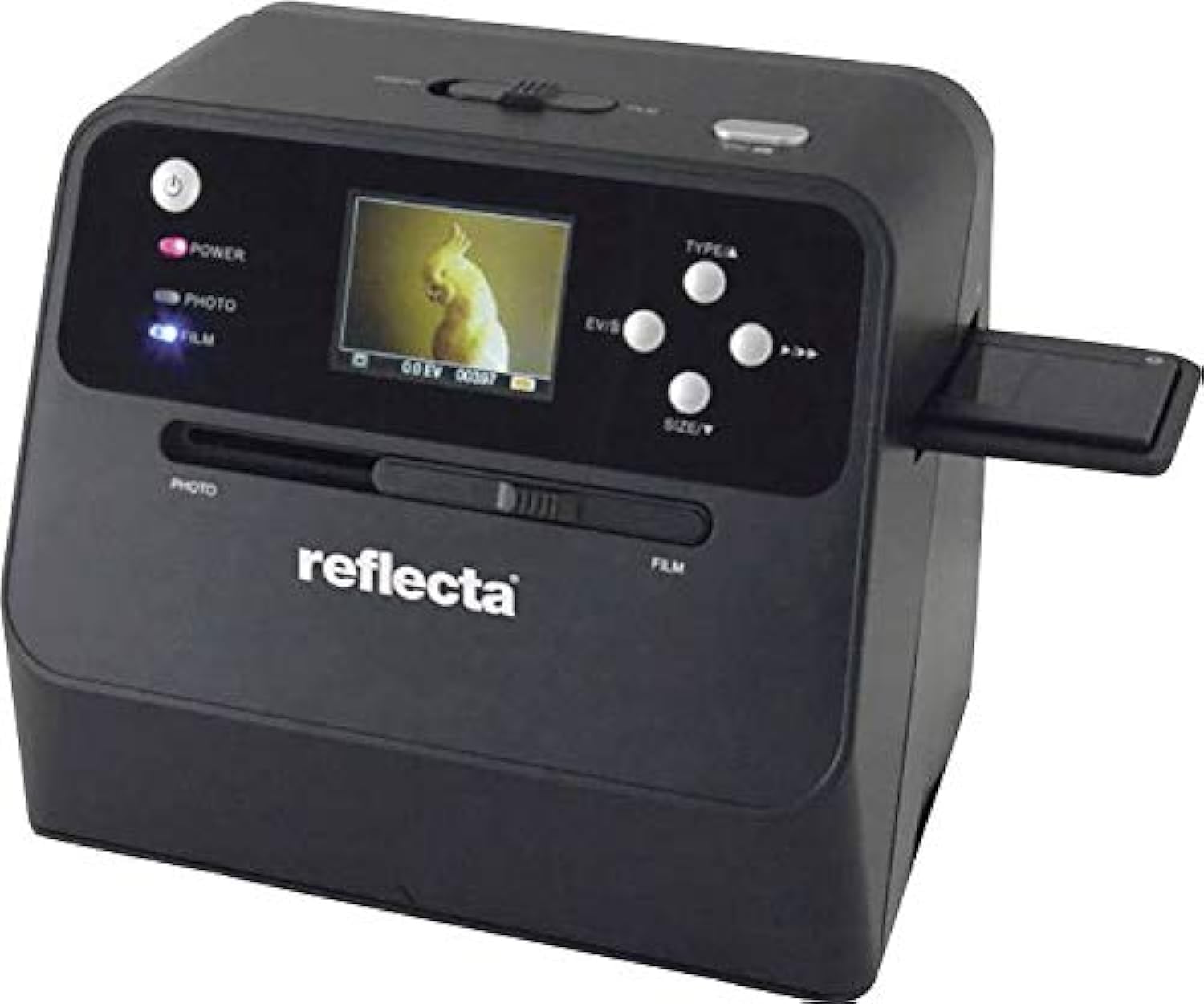
Figure 4.1: Front view of the Reflecta Combo Album SCAN 64400 Scanner, showing the display screen, control buttons, and input slots for photos and film.

Figure 4.2: The scanner unit displayed with its included film holder and a small cleaning brush, essential accessories for film and slide scanning.
4.1. Scanner Components
- Power Button: Turns the scanner on/off.
- LCD Display: Shows scan preview, menu options, and settings.
- Control Buttons: Navigation (Up/Down/Left/Right), OK/Enter, Type (Photo/Film), Size.
- Photo Input Slot: For scanning physical photos.
- Film Input Slot: For inserting film/slide holders.
- SD Card Slot: For saving scanned images (SD card not included).
- USB Port: For connecting to a computer or power adapter.
5. Setup
5.1. Power Connection
- Connect the small end of the USB cable to the USB port on the scanner.
- Connect the large end of the USB cable to the provided power adapter.
- Plug the power adapter into a standard electrical outlet.
- Press the Power button to turn on the scanner.
5.2. Inserting an SD Card (Optional)
The scanner saves images to an SD card. If you wish to save scans, insert an SD card (up to 32GB, Class 10 recommended) into the SD card slot until it clicks into place. Ensure the card is formatted correctly (FAT32).
6. Operating the Scanner
6.1. Scanning Photos
This scanner is designed to digitize physical photos, including those mounted in albums.
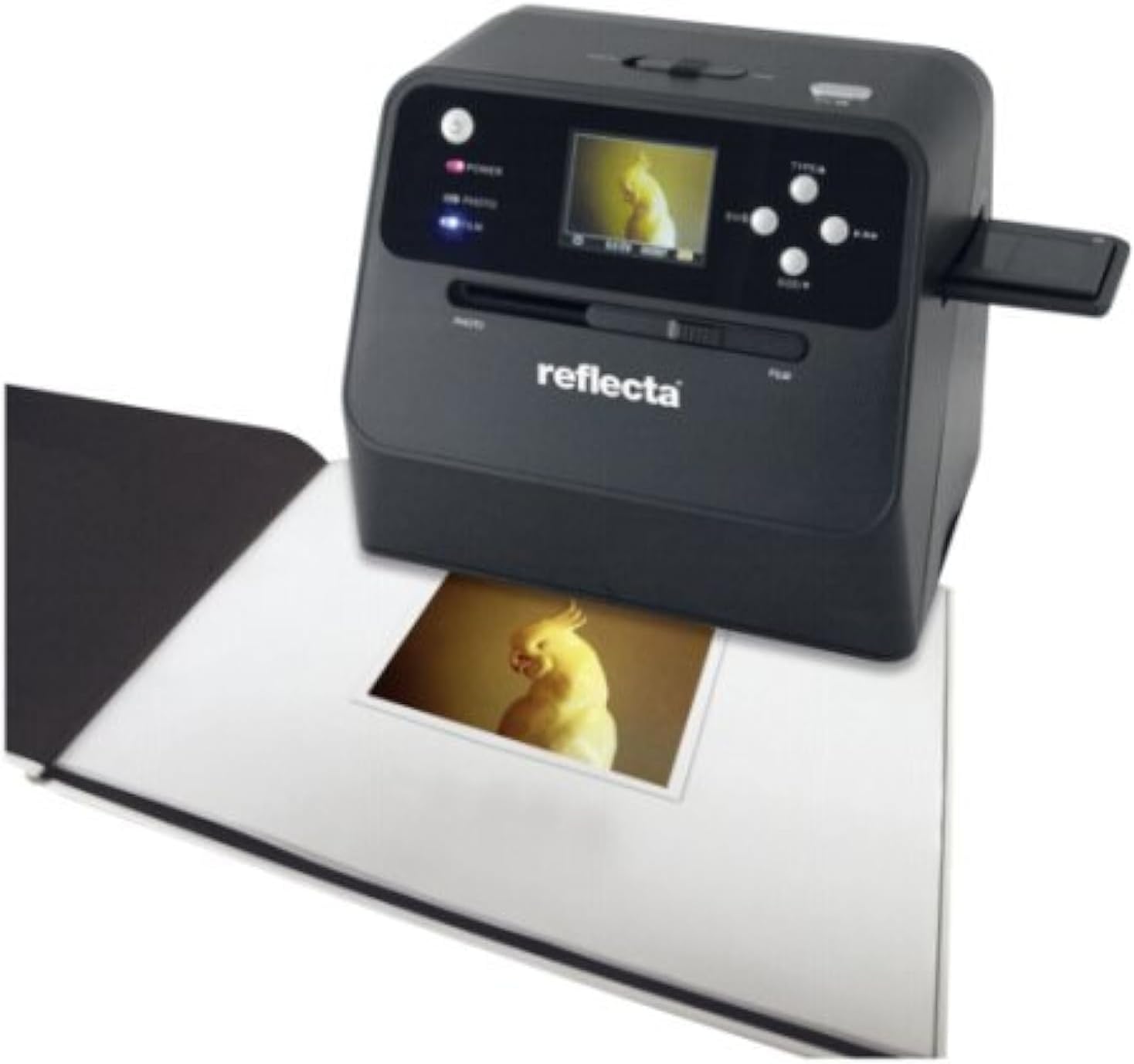
Figure 6.1: The scanner positioned over an open photo album, demonstrating its capability to scan a photo directly from the album without removal.
- Ensure the scanner is powered on.
- Press the TYPE button until "PHOTO" mode is selected on the display.
- Carefully place the scanner over the photo you wish to scan. Ensure the photo is flat and well-lit.
- Use the navigation buttons to adjust the scanning area if necessary.
- Press the OK button to initiate the scan. The scanned image will appear on the display.
- To save the image, press the OK button again. The image will be saved to the inserted SD card.
- You can adjust image settings (e.g., exposure, color balance) using the menu options before scanning. Refer to the on-screen menu for details.
6.2. Scanning Film and Slides
The scanner supports 35mm film strips and mounted slides.
- Ensure the scanner is powered on.
- Press the TYPE button until "FILM" mode is selected on the display.
- Open the appropriate film or slide holder.
- Carefully insert your 35mm film strip or mounted slide into the holder, ensuring it is correctly aligned.
- Close the holder securely.
- Insert the loaded holder into the Film Input Slot on the side of the scanner.
- Use the navigation buttons to preview and adjust the image on the display.
- Press the OK button to initiate the scan.
- To save the image, press the OK button again. The image will be saved to the inserted SD card.
7. Maintenance
7.1. Cleaning the Scanner
Regular cleaning ensures optimal scan quality.
- Exterior: Wipe the exterior of the scanner with a soft, dry, lint-free cloth. Do not use abrasive cleaners or solvents.
- Photo Scanning Area: Gently wipe the glass surface in the photo scanning area with a microfiber cloth. For stubborn smudges, a small amount of lens cleaning solution can be applied to the cloth (not directly to the scanner).
- Film/Slide Input: Use the provided cleaning brush (or a soft, dry brush) to remove dust from the film input slot and film/slide holders. Avoid touching the internal optical components.
- Lens: If dust is visible on the internal lens, use a can of compressed air (held upright) to gently blow away particles. Do not use excessive force.
Always ensure the scanner is powered off and unplugged before cleaning.
8. Troubleshooting
Refer to this section for common issues and their solutions.
| Problem | Possible Cause | Solution |
|---|---|---|
| Scanner does not power on. | Power cable not connected properly; Power adapter faulty. | Check all power connections. Try a different power outlet. Ensure the power adapter is functioning. |
| Scanned images are blurry or unclear. | Dust/smudges on scanning surface/lens; Photo/film not flat or properly inserted. | Clean the scanning surfaces and lens (refer to Section 7.1). Ensure photos are flat and film/slides are correctly seated in their holders. |
| Colors in scanned images are incorrect. | Incorrect color settings; Original photo/film faded. | Adjust color balance and exposure settings in the scanner menu. Some fading in original media may be irreversible. |
| Cannot save images to SD card. | SD card full, locked, or not formatted correctly; SD card faulty. | Check if the SD card is full and delete unnecessary files. Ensure the write-protect tab is unlocked. Format the SD card (this will erase all data). Try a different SD card. |
| Scanner freezes or becomes unresponsive. | Temporary software glitch. | Turn off the scanner, disconnect the power, wait 10 seconds, then reconnect and power on again. |
9. Specifications
Technical specifications for the Reflecta Combo Album SCAN 64400 Scanner.
| Feature | Detail |
|---|---|
| Model Name | Reflecta Combo Album SCAN 64400 |
| Scanner Type | Document, Film, Photo |
| Optical Sensor Technology | CMOS |
| Scanner Resolution | 2400 DPI (Optical), 2944 DPI (Maximum Horizontal) |
| Colour Depth | 24 bpp |
| Light Source Type | LED |
| Maximum Supported Photo Size | 13 x 18 cm (5x7 inches) |
| Supported Film Types | 35mm Film Strips, Mounted 35mm Slides |
| Connectivity Technology | USB |
| Storage Media | SD Card (up to 32GB, not included) |
| Power Source Type | Hand-operated / USB Power Adapter |
| Product Dimensions | 30 x 20 x 23 cm |
| Item Weight | 798 Grams |
| Operating System Compatibility | Windows |
10. Warranty and Support
Reflecta products are manufactured to high-quality standards. For information regarding warranty coverage, technical support, or service, please refer to the warranty card included with your product or visit the official Reflecta website. Please have your model number (64400) and purchase details available when contacting support.
Manufacturer: Reflecta

