
Amazon Echo Dot 2nd Generation
Amazon Echo Dot 2nd Generation User Manual
Comprehensive Operating Guide
Introduction to the Amazon Echo Dot 2nd Generation
The Amazon Echo Dot is a compact, voice-controlled smart speaker that uses the Alexa voice service to play music, make calls, set alarms and timers, ask questions, check your calendar, weather, traffic, and more. The 2nd Generation Echo Dot is an enhanced version designed to integrate seamlessly into your smart home ecosystem, offering hands-free convenience and access to a vast array of services.
This manual provides step-by-step instructions to help you set up, operate, and troubleshoot your device, ensuring you get the most out of your Echo Dot.
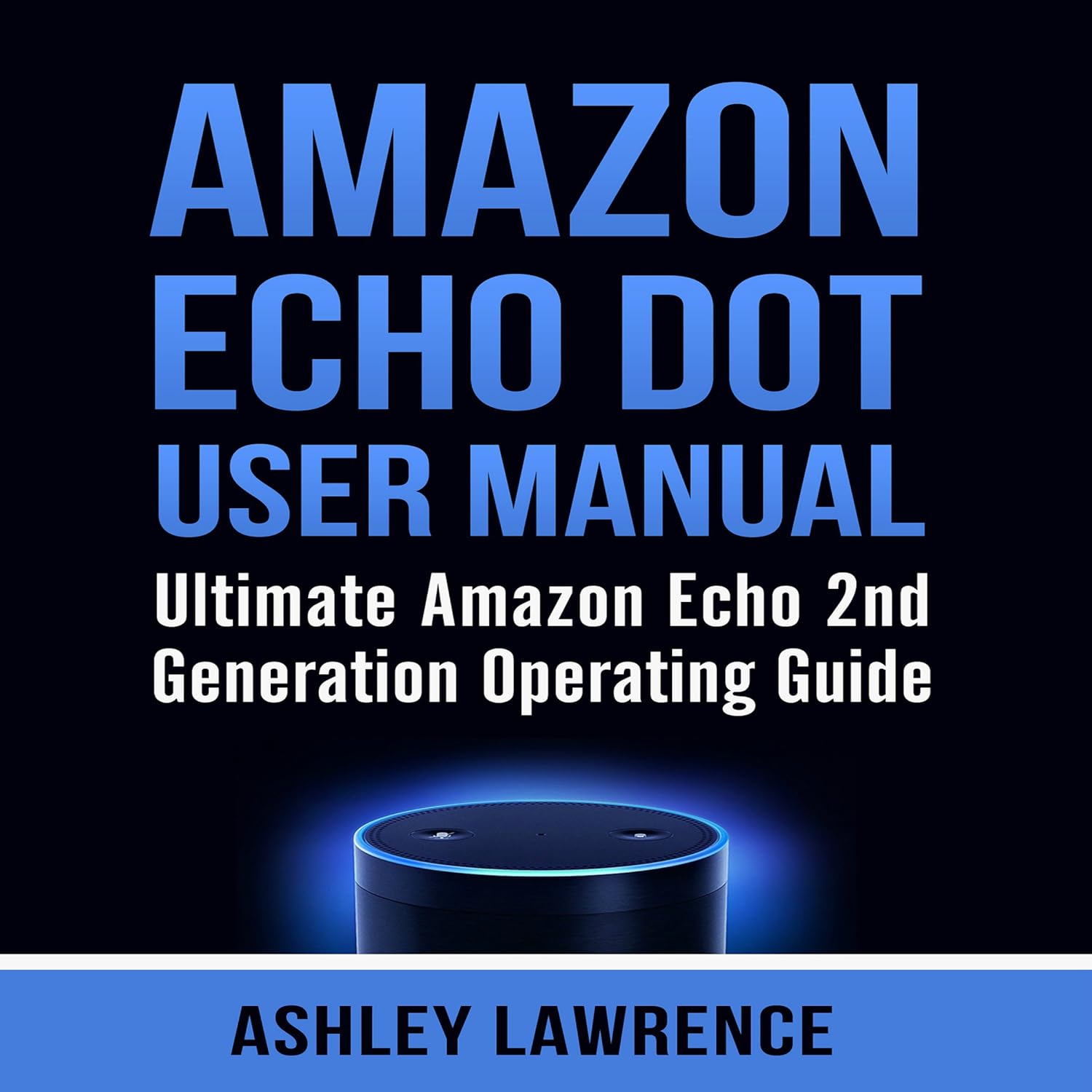
Figure 1: The Amazon Echo Dot 2nd Generation. This image displays the compact, cylindrical device with its signature blue light ring illuminated on the top surface, indicating active listening or processing.
1. Setup Guide
Follow these steps to set up your Amazon Echo Dot 2nd Generation for the first time.
1.1 Unboxing and Power Connection
- Carefully remove the Echo Dot and its power adapter from the packaging.
- Plug the power adapter into the Echo Dot's power port, located on the back of the device.
- Plug the other end of the power adapter into a wall outlet. The light ring on the top of your Echo Dot will turn blue, then orange, indicating it is ready for setup.
1.2 Connecting to Wi-Fi
You will need the Amazon Alexa app on your smartphone or tablet to complete the Wi-Fi setup.
- Download and install the Amazon Alexa app from your device's app store (App Store for iOS, Google Play Store for Android).
- Open the Alexa app and sign in with your Amazon account credentials. If you don't have an Amazon account, you will need to create one.
- In the Alexa app, tap the Menu icon (three horizontal lines) in the top-left corner.
- Select Add Device.
- Choose Amazon Echo, then select Echo Dot, and finally 2nd Generation.
- Follow the on-screen instructions to connect your Echo Dot to your Wi-Fi network. This typically involves connecting your phone to the Echo Dot's temporary Wi-Fi network, then selecting your home Wi-Fi network and entering its password.
- Once connected, the light ring will turn off, and Alexa will greet you.
2. Operating Your Echo Dot
Learn how to interact with your Echo Dot and utilize its various features.
2.1 Basic Voice Commands
To activate Alexa, simply say the wake word "Alexa," followed by your command. The light ring will illuminate blue when Alexa is listening.
- "Alexa, what's the weather?"
- "Alexa, play music."
- "Alexa, set a timer for 10 minutes."
- "Alexa, tell me a joke."
2.2 Connecting to Bluetooth Speakers
You can connect your Echo Dot to external Bluetooth speakers for enhanced audio output.
- Place your Bluetooth speaker in pairing mode. Refer to your speaker's manual for specific instructions.
- Say, "Alexa, pair." The Echo Dot will begin searching for nearby Bluetooth devices.
- Once your speaker is discovered, Alexa will announce its name. The Echo Dot will then connect to it.
- Alternatively, you can manage Bluetooth connections through the Alexa app: Go to Devices > Echo & Alexa > [Your Echo Dot Name] > Bluetooth Devices > Pair a New Device.
2.3 Connecting to External Speakers via Audio Cable
The Echo Dot 2nd Generation includes a 3.5mm audio output jack for wired connections.
- Connect one end of a 3.5mm audio cable (not included) to the audio output jack on your Echo Dot.
- Connect the other end of the cable to the audio input jack on your external speaker system.
- Ensure your external speakers are powered on and set to the correct input source. Audio will now play through the connected speakers.
2.4 Saving Wi-Fi Passwords to Amazon
For convenience, you can save your Wi-Fi passwords to your Amazon account, allowing for easier setup of future Amazon devices.
- During the initial setup process in the Alexa app, you will be prompted to save your Wi-Fi password to Amazon. Select Yes to enable this feature.
- You can manage saved Wi-Fi passwords in your Amazon account settings online.
3. Maintenance
Proper care ensures the longevity and optimal performance of your Echo Dot.
- Cleaning: Use a soft, dry, lint-free cloth to clean the exterior of your Echo Dot. Do not use abrasive cleaners or sprays.
- Placement: Place the device on a stable surface, away from direct sunlight, heat sources, and moisture. Ensure it has adequate ventilation.
- Software Updates: Your Echo Dot automatically receives software updates over Wi-Fi. Ensure it remains connected to the internet to receive the latest features and security enhancements.
4. Troubleshooting
Common issues and their solutions for your Echo Dot.
4.1 Echo Dot Not Responding
- Check Power: Ensure the power adapter is securely plugged into both the Echo Dot and a working wall outlet.
- Check Mute Button: Press the Microphone Off button (the button with a crossed-out microphone icon) on top of the Echo Dot. The light ring will turn red if the microphone is muted.
- Restart Device: Unplug the power adapter from the Echo Dot for a few seconds, then plug it back in.
4.2 Wi-Fi Connectivity Issues
- Check Router: Ensure your Wi-Fi router is powered on and functioning correctly.
- Proximity: Move your Echo Dot closer to your Wi-Fi router.
- Re-enter Password: In the Alexa app, go to Devices > Echo & Alexa > [Your Echo Dot Name] > Wireless > Change to re-enter your Wi-Fi password.
- Reset Echo Dot: If other steps fail, you may need to reset your Echo Dot to factory settings.
4.3 Resetting Your Echo Dot
A factory reset will erase all your personal settings and return the device to its original state. You will need to set it up again.
- On the 2nd Generation Echo Dot, press and hold the Microphone Off button and the Volume Down button simultaneously for about 20 seconds.
- The light ring will turn orange, then blue, then orange again, indicating the reset process has begun.
- Release the buttons when the light ring turns orange. Your Echo Dot is now reset and ready for setup.
5. Specifications
| Feature | Detail |
|---|---|
| Model | Amazon Echo Dot 2nd Generation |
| Connectivity | Dual-band Wi-Fi (2.4 GHz and 5 GHz), Bluetooth |
| Audio Output | Built-in speaker, 3.5 mm stereo audio output |
| Microphones | Far-field voice recognition |
| Power | Power adapter (included) |
| Dimensions | (Specific dimensions not provided in input, placeholder) |
| Weight | (Specific weight not provided in input, placeholder) |
Note: Specific dimensions and weight were not available in the provided product data.
6. Warranty and Support
For information regarding your product's warranty, please refer to the warranty card included with your purchase or visit the official Amazon support website. For further assistance, contact Amazon Customer Service.
- Online Support: Amazon Device Support
- Customer Service: Refer to your Amazon account for contact options.
Related documentsEcho Dot 2nd Generation


Ask a question about this manual
Ask about setup, troubleshooting, compatibility, parts, safety, or missing instructions. Manuals+ will review the question and use this page’s manual context to help answer it.