
PIX-LINK UE02
PIX-LINK WiFi Booster N300 USB WiFi Range Extender
Model: UE02
1. Introduction
This manual provides comprehensive instructions for the installation, operation, and maintenance of your PIX-LINK WiFi Booster N300 USB WiFi Range Extender. Please read this manual carefully before using the device to ensure proper functionality and safety.
2. Safety Information
- Do not expose the device to water or moisture.
- Avoid placing the device near heat sources or in direct sunlight.
- Use only the specified power supply (5V/0.6A USB power).
- Do not attempt to disassemble or repair the device yourself. Contact qualified personnel for service.
- Keep out of reach of children.
3. Package Contents
Please check the package for the following items:
- PIX-LINK WiFi Booster N300 USB WiFi Range Extender (Model: UE02)
- Quick Installation Guide

The PIX-LINK WiFi Extender alongside its Quick Installation Guide.
4. Product Overview
The PIX-LINK WiFi Booster N300 is a compact and portable USB-powered device designed to extend your existing Wi-Fi network coverage. It features 360-degree rotatable antennas for optimized signal reception and transmission.
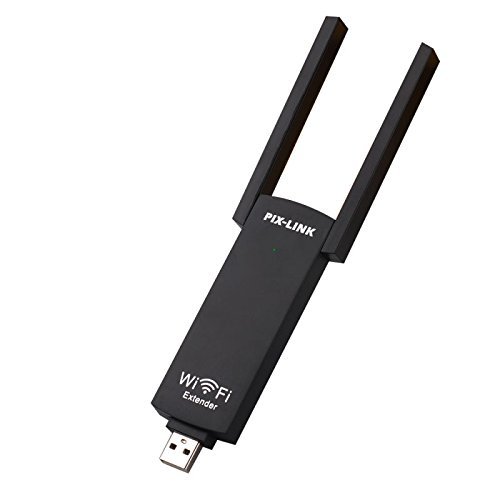
PIX-LINK WiFi Extender N300 with antennas extended.

Diagram illustrating the 360-degree rotatable antennas for optimal signal reception.

Dimensions of the PIX-LINK WiFi Extender: 9.5cm length, 4.7cm width, 1.2cm thickness.
5. Setup
5.1 Powering On the Device
The PIX-LINK WiFi Extender is powered via a standard USB port. It can be connected to a laptop, a USB wall adapter, or a power bank.
- Insert the USB connector of the WiFi Extender into an available USB port on your computer, a USB wall charger, or a power bank.
- Ensure the power source provides 5V/0.6A.
- The LED indicator on the device will illuminate, indicating it is powered on.

The PIX-LINK WiFi Extender connected to a laptop's USB port.

The PIX-LINK WiFi Extender powered via a wall adapter, also capable of charging other USB devices.
5.2 Initial Configuration (Repeater Mode)
To extend your existing Wi-Fi network, follow these steps:
- Connect your computer or mobile device to the Wi-Fi network broadcast by the extender (e.g., "PIX-LINK_Ext"). The default password is usually provided in the Quick Installation Guide or on the device label.
- Open a web browser and enter the default IP address (e.g., 192.168.1.254 or 192.168.10.1) or the setup URL (e.g., pixlink.net) to access the management interface.
- Log in using the default username and password (commonly "admin" for both).
- Follow the on-screen wizard to select your existing Wi-Fi network (SSID) that you wish to extend.
- Enter the password for your existing Wi-Fi network.
- You may choose to keep the same SSID for the extended network or create a new one.
- Save the settings. The extender will restart and begin broadcasting the extended network.
6. Operating Instructions
6.1 LED Indicator Status
The LED indicator provides information about the device's status:
- Solid Green: Device is powered on and operating normally.
- Blinking Green: Data transmission is active.
- No Light: Device is off or not receiving power.
6.2 Optimizing Performance
For best performance, position the extender halfway between your router and the area where you need improved Wi-Fi coverage. Adjust the rotatable antennas to achieve optimal signal strength.
7. Maintenance
7.1 Cleaning
Wipe the device with a soft, dry cloth. Do not use liquid cleaners or aerosol sprays.
7.2 Storage
When not in use, store the device in a cool, dry place away from direct sunlight and extreme temperatures.
8. Troubleshooting
- No Power: Ensure the USB connector is fully inserted into a working USB port or adapter. Check the power source.
- Cannot Access Setup Page: Verify your device is connected to the extender's Wi-Fi network. Try clearing your browser's cache or using a different browser. Ensure the correct IP address or URL is entered.
- No Internet Connection After Setup: Double-check that you entered the correct password for your main Wi-Fi network during setup. Ensure your main router is functioning correctly.
- Poor Signal Strength: Reposition the extender closer to your main router. Adjust the extender's antennas. Reduce interference from other electronic devices.
- Forgotten Password: Perform a factory reset (refer to the Quick Installation Guide for specific instructions, usually involves pressing a reset button for several seconds) and reconfigure the device.
9. Specifications
| Feature | Description |
|---|---|
| Model | UE02 |
| Data Rate | 300 Mbps |
| Frequency Range | 2.412-2.4835 GHz |
| USB Power | 5V/0.6A |
| Wireless Security | WPA/WPA-PSK/WPA2-PSK |
| Wireless Standards | 802.11b, 802.11g, 802.11n |
| Connector Type | USB |
| Product Dimensions | 20 x 10 x 16 cm (approx.) |
| Item Weight | 60 g |
10. Warranty Information
Warranty terms and conditions are typically provided with your purchase documentation or on the manufacturer's official website. Please retain your proof of purchase for warranty claims.
11. Customer Support
For technical assistance or further inquiries, please refer to the contact information provided in your product packaging or visit the official PIX-LINK website.
Related documentsUE02


Ask a question about this manual
Ask about setup, troubleshooting, compatibility, parts, safety, or missing instructions. Manuals+ will review the question and use this page’s manual context to help answer it.