
NETUM NT-1698W
NETUM Wireless 2.4G and USB Wired 1D Laser Barcode Scanner
Model: NT-1698W User Manual
Introduction
The NETUM NT-1698W barcode scanner is a high-performance device designed for efficient and reliable 1D barcode scanning. It offers flexible connectivity options, including 2.4G wireless via a mini USB receiver and direct USB wired connection, ensuring plug-and-play compatibility with various systems. This manual provides essential information for setting up, operating, maintaining, and troubleshooting your scanner to ensure optimal performance.
Setup
Package Contents
- NETUM NT-1698W Barcode Scanner
- 2.4G USB Receiver
- USB Charging/Data Cable
- User Manual (this document)
Connecting the Scanner
The NT-1698W scanner supports two primary connection methods: 2.4G wireless and USB wired. Both methods are plug-and-play, requiring no driver installation.
2.4G Wireless Connection
- Insert the 2.4G USB receiver into an available USB port on your computer (PC, Mac, or Linux system).
- Turn on the barcode scanner. It will automatically attempt to pair with the receiver.
- A successful connection is indicated by a specific sound or light indicator on the scanner.
USB Wired Connection
- Connect one end of the provided USB cable to the scanner's USB port.
- Connect the other end of the USB cable to an available USB port on your computer.
- The scanner will be recognized as a standard input device, ready for use.

Image: The NETUM NT-1698W barcode scanner shown with its 2.4G USB receiver and USB charging/data cables, illustrating the components included for setup.
System Compatibility
The scanner is compatible with a wide range of operating systems, including:
- Windows (all versions)
- Mac OS
- Linux
Operating Instructions
Basic Scanning Operation
To scan a barcode, aim the scanner's laser beam at the center of the barcode and press the trigger button. The scanner will emit a successful scan beep and the data will be transmitted to your connected device.

Image: A hand holding the NETUM NT-1698W scanner, demonstrating the red laser beam actively scanning a barcode on a package.
Scanning Indicators
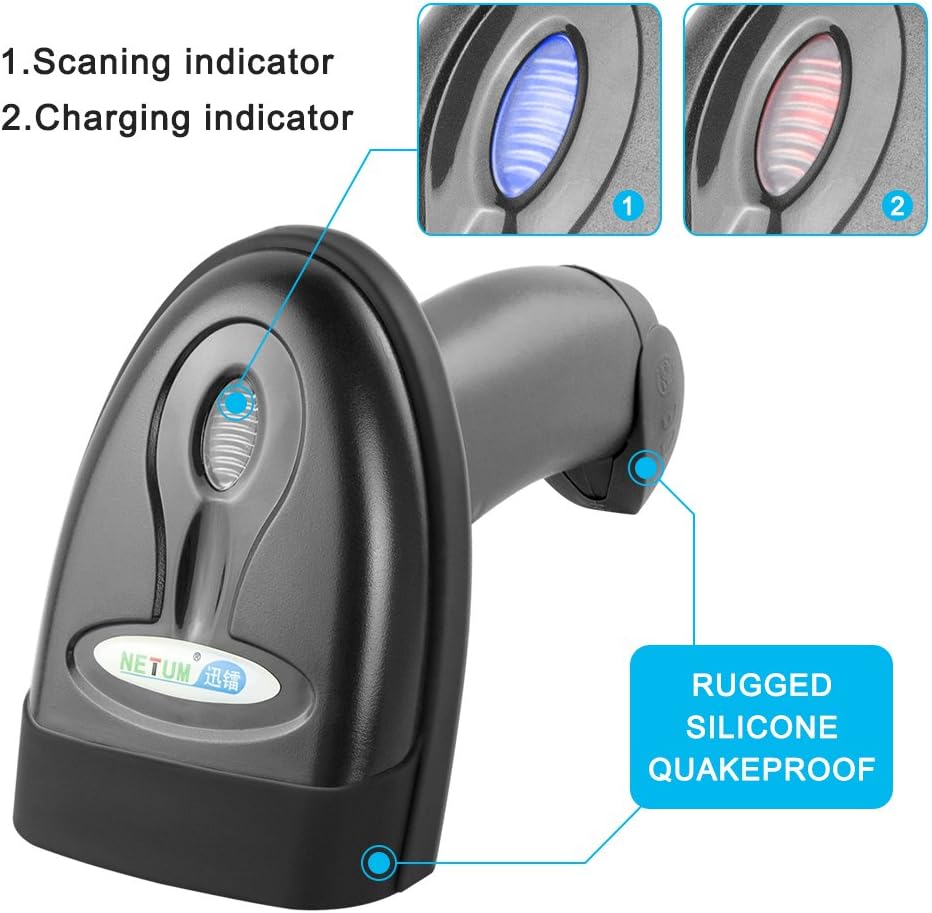
Image: A detailed view of the scanner's top panel, highlighting the scanning indicator (blue light) and charging indicator (red light), labeled for clarity.
- Scanning Indicator: A blue light illuminates when a barcode is successfully scanned.
- Charging Indicator: A red light indicates the device is charging. It typically turns off or changes color when fully charged.
Data Upload Modes
The scanner offers two modes for data transmission:
- Instant Upload Mode: Barcode data is transmitted immediately after scanning. This is the default mode.
- Storage Mode: The scanner's built-in 256KB flash memory can store up to 2000 barcode entries when out of range or disconnected. Data can be uploaded later by scanning a specific command barcode (refer to the full manual for command barcodes).
Supported Barcode Symbologies
The NT-1698W supports a wide range of 1D barcode types, including but not limited to:
- UPC/EAN (with add-ons)
- Code 128, GS1-128
- Code 39, Code 93, Code 11
- Industrial 2 of 5, Interleaved 2 of 5, Matrix 2 of 5
- MSI, Codabar
- Bookland EAN, ISSN, UCC Coupon Code

Image: Illustrates the wide compatibility of the scanner across different environments such as supermarkets, retail stores, libraries, logistics, warehouses, and hospitals.
Maintenance
Battery Charging
The scanner is equipped with a 2600mAh rechargeable Lithium-Ion battery. To charge the battery, connect the scanner to a USB power source (computer USB port or a USB wall adapter) using the provided USB cable.
- A full charge typically takes 3-4 hours.
- A fully charged battery provides continuous scanning for up to 100,000 times or approximately two weeks of typical use.

Image: Side view of the NETUM NT-1698W scanner with an overlay indicating its 2600mAh battery capacity and long-lasting continuous scanning capability.
Cleaning
To maintain optimal performance, keep the scanner's scanning window clean. Use a soft, lint-free cloth, slightly dampened with water or a mild cleaning solution. Avoid abrasive cleaners or solvents that could damage the device.
Troubleshooting
Common Issues and Solutions
- Scanner not connecting:
- Ensure the USB receiver is properly inserted or the USB cable is securely connected.
- Verify the scanner is powered on and charged.
- Try connecting to a different USB port on your computer.
- Scanner not reading barcodes:
- Ensure the barcode is not damaged or poorly printed.
- Check that the laser beam is centered on the barcode.
- Verify the barcode symbology is supported by the scanner.
- Clean the scanning window if it is dirty.
- Data transmission issues:
- In wireless mode, ensure the scanner is within range of the receiver.
- Check if the scanner is in storage mode; if so, upload the stored data.
- Ensure your computer's input settings are correct (e.g., keyboard layout).
Further Assistance
For more detailed troubleshooting or advanced configuration (e.g., changing keyboard layouts for different languages like French, German, Spanish, Italian, Japanese), please refer to the comprehensive PDF manual available from NETUM customer service. You can contact them via their e-service for assistance.
Specifications
| Feature | Description |
|---|---|
| Brand | NETUM |
| Model Number | NT-1698W |
| Connectivity Technology | 2.4G Wireless, USB Wired |
| Scan Type | 1D Laser Barcode Scanner |
| Scan Rate | Up to 200 scans/second |
| Battery Capacity | 2600mAh Lithium-Polymer |
| Memory | 256KB (stores approx. 2000 codes) |
| Operating Systems | Windows, Mac OS, Linux |
| Power Source | Battery Powered, Corded Electric |
| Voltage | 5 Volts |
| Certifications | CE, ISO, RoHS |

Image: Technical drawing showing the dimensions of the NETUM NT-1698W scanner: 8.5cm height, 7.5cm width, and 17.5cm length.
Warranty and Support
Warranty Information
The NETUM NT-1698W barcode scanner comes with a 1-year manufacturer's warranty from the date of purchase. This warranty covers defects in materials and workmanship under normal use.
Customer Support
For any questions, technical support, or warranty claims, please contact NETUM Official Store customer service. They are committed to providing good products and services and can assist with any issues you may encounter.
Please refer to the contact information provided with your product packaging or visit the official NETUM website for support details.
Related documentsNT-1698W


Ask a question about this manual
Ask about setup, troubleshooting, compatibility, parts, safety, or missing instructions. Manuals+ will review the question and use this page’s manual context to help answer it.