
Introduction
This manual provides detailed instructions for the setup, operation, maintenance, and troubleshooting of your Aula Moon Slasher SI-2008 Mechanical Keyboard. Please read this manual thoroughly before using the product to ensure proper function and longevity.
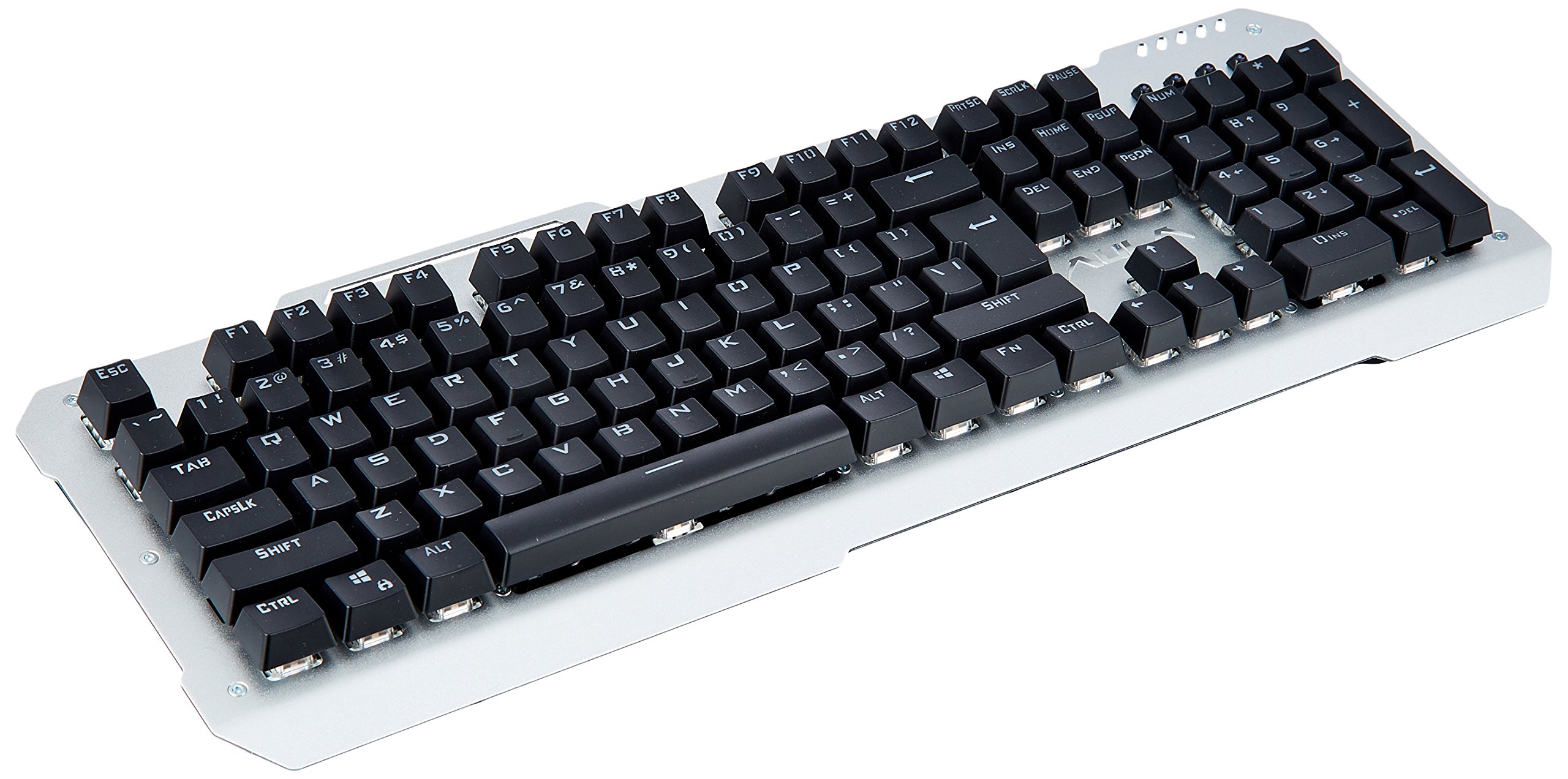
Image: Top-down view of the Aula Moon Slasher SI-2008 Mechanical Keyboard. It features a silver-colored metal frame with black keys, a standard 104-key layout including a numeric keypad, function keys, and navigation keys. The Aula logo is visible above the arrow keys.
Setup Instructions
- Unpack the Keyboard: Carefully remove the keyboard from its packaging. Ensure all components, including the manual and warranty card, are present.
- Connect to Computer: Locate an available USB port on your computer. Insert the gold-plated USB connector of the keyboard into the USB port.
- Driver Installation: The keyboard is typically plug-and-play. Your operating system (e.g., Windows 10) should automatically detect and install the necessary drivers. No additional software installation is usually required.
- Initial Test: Once connected, open a text editor or word processor and test typing to ensure all keys are functioning correctly.
Operating the Keyboard
Key Features:
- Mechanical Switches: The keyboard features blue mechanical switches, providing tactile feedback and an audible click.
- Rainbow Backlight: The keyboard is equipped with a rainbow backlight.
- Waterproof Design: The keyboard is designed to be waterproof, offering protection against accidental spills.
Backlight Control:
The keyboard features various backlight modes and brightness levels. Use the Fn key in combination with specific function keys (F1-F12) or other designated keys to cycle through lighting effects, adjust brightness, or turn the backlight on/off. Refer to the included physical manual for specific key combinations, as these can vary by model revision.
Function Keys:
Standard function keys (F1-F12) perform their usual operations. In combination with the Fn key, they may activate multimedia controls or other system functions. For example, Fn + F1 might mute audio, Fn + F2/F3 might adjust volume, etc. Consult the physical manual for exact mappings.
Maintenance and Care
- Cleaning: To clean the keyboard, disconnect it from your computer. Use a soft, damp cloth to wipe the surface. For dust and debris between keys, use compressed air. Avoid harsh chemicals or abrasive cleaners.
- Spill Resistance: While the keyboard is waterproof, it is recommended to clean up any spills promptly to prevent long-term damage or residue buildup. Do not immerse the keyboard in water.
- Storage: When not in use for extended periods, store the keyboard in a dry, cool place away from direct sunlight.
Troubleshooting
| Problem | Solution |
|---|---|
| Keyboard not responding |
|
| Certain keys are not working |
|
| Backlight is not working or flickering |
|
Product Specifications
| Feature | Detail |
|---|---|
| Brand | Aula |
| Model Number | SI-2008 |
| Series | Moon Slasher |
| Color | Black |
| Keyboard Type | Mechanical |
| Switch Type | Blue switch |
| Connectivity | Wired (Gold-plated USB connector) |
| Backlight | Rainbow backlight |
| Special Feature | Waterproof design |
| Compatible Devices | Laptop |
| Operating System | Windows 10 |
| Item Weight | 1.27 kg |
| Package Dimensions | 50.3 x 22 x 6.3 cm |
Warranty and Support
This product comes with a 1 Year Warranty. Please refer to the included warranty card for detailed terms and conditions. For technical support or warranty claims, please contact your retailer or the manufacturer directly. Keep your purchase receipt as proof of purchase.
Included Components: Manual, Warranty Card.