
1. Product Overview
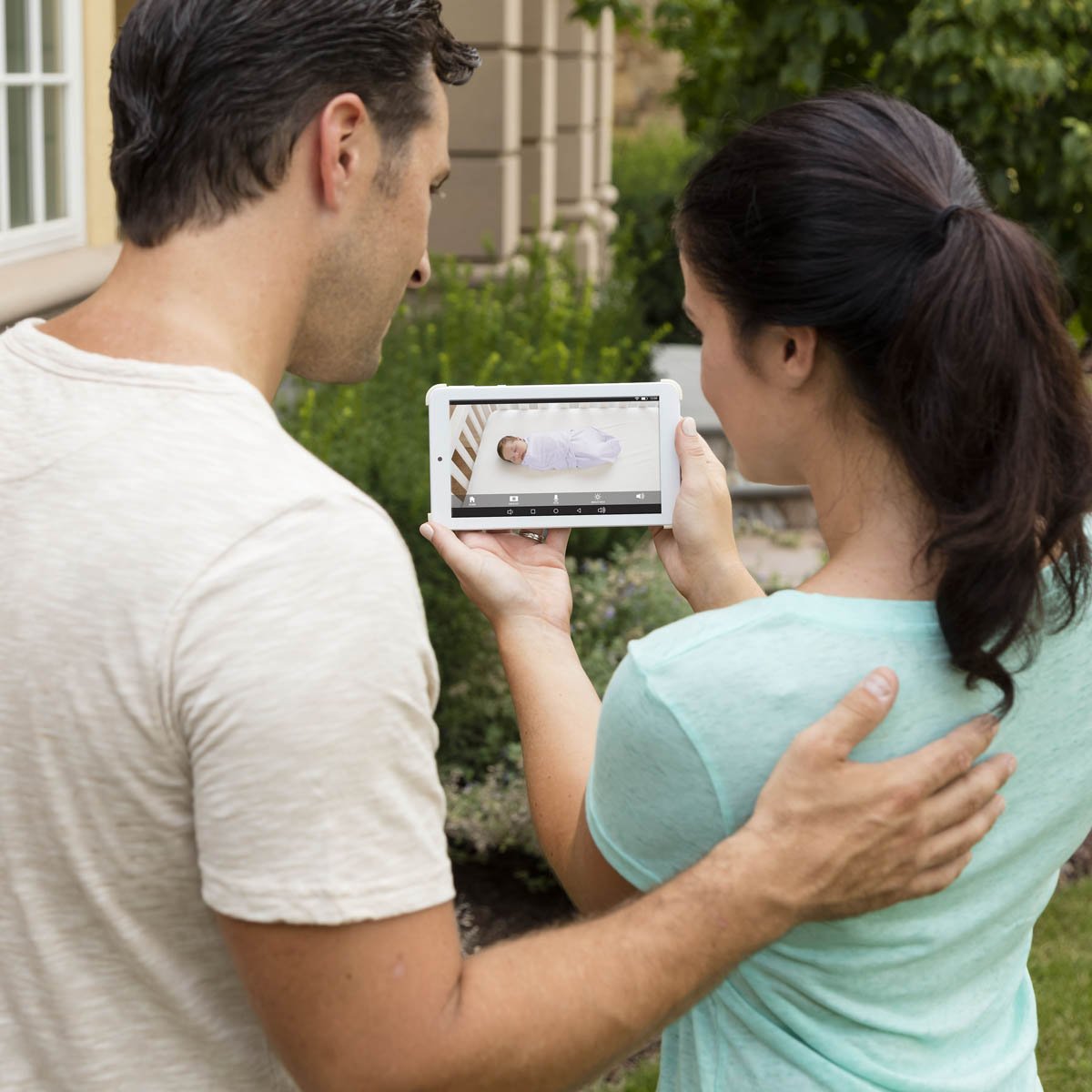
The Baby Delight Snuggle Nest 7-inch HD Tablet and WiFi Video Baby Monitor (Model BD04060) is a comprehensive baby monitoring system. It includes an HD camera and a fully functional 7-inch HD Android Tablet. This system allows for secure monitoring of your baby both inside and outside your home, wherever Wi-Fi is available. The tablet comes pre-loaded with the Baby Delight App, and the app is also compatible with iOS and other Android devices.
2. What's Included
- HD Camera with Night Vision
- 7-inch HD Android Tablet
- Power Adapters for Camera and Tablet
- User Manual (this document)
3. Setup Instructions
3.1 Initial Setup
- Charge the Tablet: Connect the 7-inch HD Android Tablet to a power source using the provided power adapter. Allow it to charge fully before first use.
- Power the Camera: Connect the HD Camera to a power source using its dedicated power adapter. Ensure it is placed in a stable location with a clear view of the monitoring area.
- Power On: Press and hold the power button on both the tablet and the camera until they turn on.
3.2 Connecting the Camera to the Tablet
- Wi-Fi Connection: Ensure both the tablet and the camera are connected to the same Wi-Fi network. Navigate to the Wi-Fi settings on the Android Tablet to connect.
- Launch Baby Delight App: Open the pre-loaded Baby Delight App on the tablet.
- Pairing: Follow the on-screen instructions within the app to pair the HD Camera with the tablet. This typically involves scanning a QR code on the camera or entering a unique device ID.
3.3 Installing the Baby Delight App on Other Devices
- Download App: For iOS devices (iPhone, iPad), download the Baby Delight App from the Apple App Store. For other Android devices, download it from the Google Play Store.
- Account Creation/Login: Create a new account or log in with your existing Baby Delight account credentials.
- Add Camera: Follow the in-app instructions to add your HD Camera to your account. This may involve scanning a QR code or entering the camera's ID.
4. Operating Instructions
4.1 Monitoring Your Baby
- Live View: Open the Baby Delight App on your tablet or mobile device to access the live video feed from the HD Camera.
- Night Vision: The camera automatically switches to night vision in low-light conditions, providing clear black and white video.
- Zoom: Use pinch-to-zoom gestures on the tablet or mobile app to get a closer look at your baby.
- Two-Way Talk: Utilize the two-way talk feature to speak to your baby through the camera. This can help soothe them from another room.
4.2 Using the Tablet Features
- App Switching: The 7-inch HD Android Tablet allows you to switch between the Baby Delight App and other applications. This enables multitasking while monitoring.
- Snapshots and Video Recording: Within the Baby Delight App, you can take still snapshots or record video clips of your baby.
- Sharing: Share captured photos and videos with friends and family directly from the app.
- Additional Cameras: The system supports adding multiple cameras. Refer to the app's settings for instructions on adding more cameras.
5. Product Features
- Includes HD Camera and fully functional 7" HD Android Tablet with real-time color video and night vision.
- Easy and secure setup with the included Baby Delight App.
- Ability to take snapshots, share photos and video with friends and family, and add additional cameras to the system.
- View your baby on your own Android or iOS device with the Baby Delight App.
- The tablet is fully functional, allowing use of other favorite apps and social media.
6. Media Gallery
6.1 Product Images




6.2 Product Videos
Video: An overview of the Baby Delight HD Tablet and WiFi Video Monitor, highlighting its features for safer and smarter sleep monitoring.
Video: Demonstrates how to monitor your baby with ease using the Baby Delight system, showcasing its user-friendly interface and functionality.
7. Troubleshooting
If you encounter issues with your Baby Delight Snuggle Nest monitor, please refer to the following common problems and solutions:
- No Video/Poor Connectivity:
- Ensure both the camera and tablet are powered on and connected to a stable Wi-Fi network.
- Check your Wi-Fi router for proper function and signal strength.
- Restart both the camera and tablet.
- If using the mobile app, try reinstalling the app. - Tablet Battery Drains Quickly:
- The average battery life for the tablet is approximately 3 hours. For extended use, keep the tablet connected to its power adapter.
- Reduce screen brightness to conserve battery. - Lagging Video/Audio:
- This can be due to Wi-Fi interference or a weak signal. Try moving the camera or tablet closer to your Wi-Fi router.
- Ensure no other devices are heavily using your Wi-Fi bandwidth. - App Disconnects or Freezes:
- Close and reopen the Baby Delight App.
- Ensure your app is updated to the latest version.
- If the issue persists, restart your mobile device or tablet. - Camera Not Connecting After Disconnection:
- If the camera was disconnected from the network, you may need to re-pair it through the Baby Delight App's setup process. If persistent issues occur, contact customer support for assistance with resetting the camera. - Charging Cord Issues:
- Use only the original Baby Delight charging cable and adapter. If the cable is damaged, replace it with an official Baby Delight replacement.
8. Specifications
| Feature | Detail |
|---|---|
| Brand | Baby Delight |
| Model Number | BD04060 |
| Screen Size | 7 inches |
| Connectivity Technology | Wireless (Wi-Fi) |
| Video Capture Resolution | 720p |
| Night Vision | Yes (Night Color) |
| Battery Average Life (Tablet) | 3 hours |
| Item Dimensions | 7.5 x 0.5 x 4.25 inches |
| Item Weight | 10.4 ounces |
| Color | White |
| Controller Type | Android |
9. Warranty and Support
9.1 Manufacturer's Warranty
This product comes with a 1-year limited warranty from the manufacturer, Macari Baby, Inc. Please retain your proof of purchase for warranty claims.
9.2 Customer Support
For technical assistance, troubleshooting not covered in this manual, or warranty inquiries, please contact Baby Delight customer support. Refer to the product packaging or the Baby Delight official website for the most current contact information.


