
Introduction
This manual provides detailed instructions for the setup, operation, and maintenance of your 1byone Foldable Wireless Backlit Keyboard. Please read this manual thoroughly before using the product to ensure proper function and longevity.
Package Contents
- 1 x 1byone Foldable Wireless Backlit Keyboard
- 1 x Micro-USB Charging Cable
- 1 x User Manual
Product Overview
Familiarize yourself with the keyboard's components and layout.

Image 1: The 1byone Foldable Wireless Backlit Keyboard shown fully unfolded, displaying the QWERTY layout with function keys and special keys for Android, Windows, and iOS.

Image 2: A close-up view highlighting the Micro-USB port for charging and wired connection, along with the retractable balance supports designed to stabilize the keyboard during use.
Setup
1. Charging the Keyboard
Before first use, fully charge the keyboard. Connect the provided Micro-USB cable to the keyboard's charging port and the other end to a USB power source (e.g., computer USB port, USB wall adapter). The charging indicator light will show the charging status.
2. Unfolding and Folding
- Unfold: Gently open the keyboard. The integrated magnetic switch will automatically power on the device. Ensure the retractable supports are extended for stability.
- Fold: Close the keyboard. The magnetic switch will automatically power off the device, making it compact for storage and travel.
3. Connection Modes
The keyboard supports two connection modes: Bluetooth wireless and Micro-USB wired.
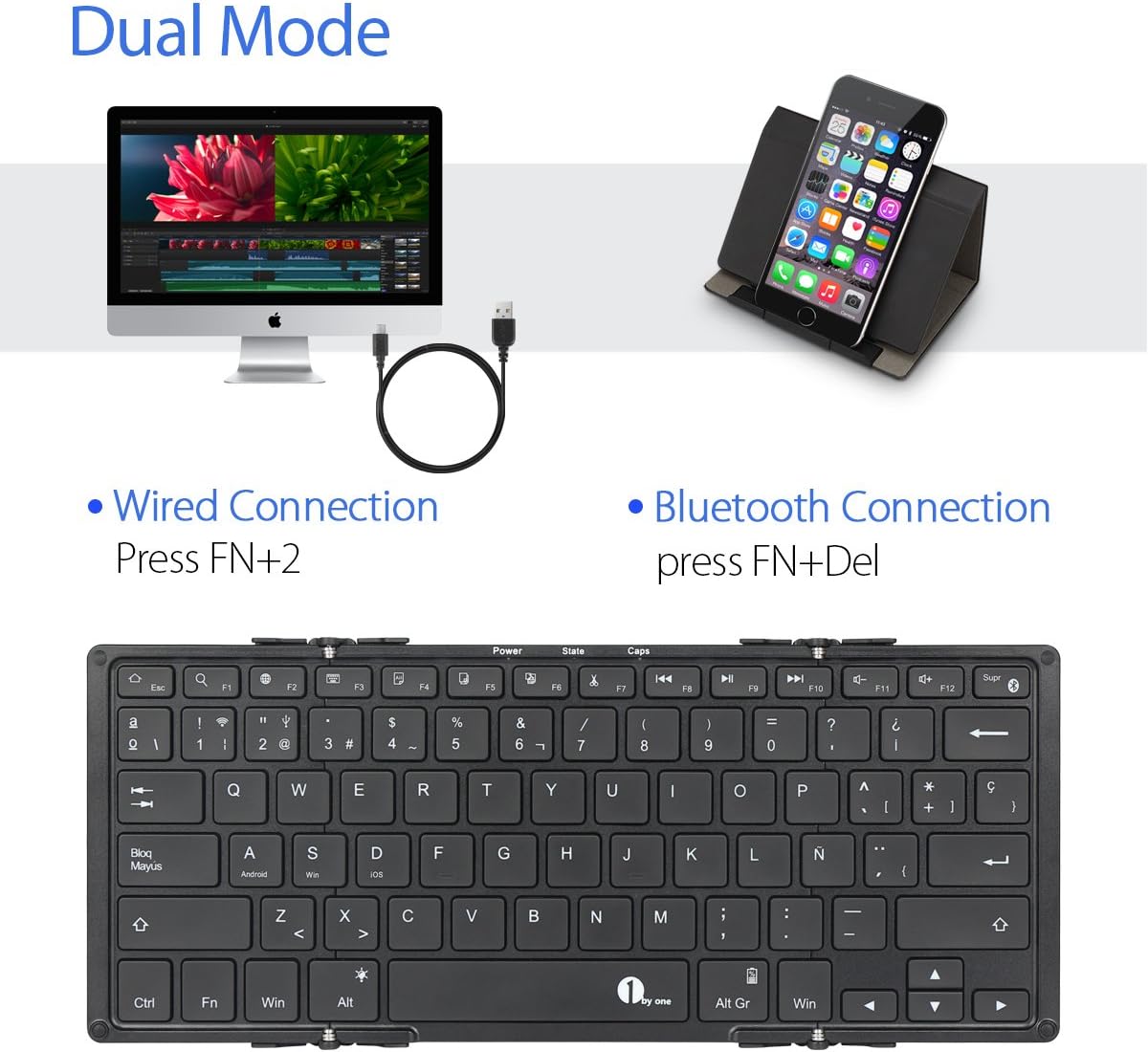
Image 3: Illustration of the dual connection modes: wired via USB cable and wireless via Bluetooth. Instructions for activating each mode are shown.
Bluetooth Connection:
- Unfold the keyboard to power it on.
- Press Fn + Delete simultaneously to activate Bluetooth pairing mode. The Bluetooth indicator light will flash.
- On your device (smartphone, tablet, computer), enable Bluetooth and search for available devices.
- Select "1byone Keyboard" (or similar) from the list of devices.
- Follow any on-screen prompts to complete the pairing process. The indicator light will stop flashing once connected.
Wired Connection:
- Connect the Micro-USB cable to the keyboard's port and the other end to your device's USB port.
- Press Fn + 2 simultaneously to switch to wired mode. The keyboard will now function via the USB cable.
Operating Instructions
1. Backlight Control
The keyboard features a 3-color backlight (red, blue, green) with two adjustable brightness levels for each color.
- Change Color: Press Fn + Alt simultaneously to cycle through backlight colors.
- Adjust Brightness: Press Fn + Up Arrow or Fn + Down Arrow to adjust the backlight brightness.
- Turn Off Backlight: Cycle through brightness levels until the backlight turns off.
2. Operating System Compatibility
The keyboard is compatible with a wide range of operating systems:
- iOS (e.g., iPad Air/Air 2/Mini, iPhone 4s/5/5s/5c/6/6s/6 Plus/6s Plus)
- Android (e.g., Samsung Galaxy tablets, Android smartphones)
- Windows (e.g., Windows tablets/PCs)
- Mac OS (via Bluetooth connection)
Note: Not compatible with Kindle Fire HD 10 (OS 5.6).
3. Special Function Keys
The keyboard includes function keys that may vary in behavior depending on the connected operating system. Look for icons on the keys for specific functions like volume control, media playback, and home screen access.
Maintenance
Cleaning
To clean the keyboard, gently wipe the surface with a soft, damp cloth. Avoid using harsh chemicals or abrasive materials. Ensure the keyboard is powered off and disconnected from any power source before cleaning.
Storage
When not in use, fold the keyboard to protect the keys and make it compact for storage. Store in a dry, cool place away from direct sunlight and extreme temperatures.
Troubleshooting
- Keyboard not connecting via Bluetooth:
- Ensure the keyboard is charged and powered on.
- Make sure Bluetooth is enabled on your device and the keyboard is in pairing mode (Fn + Delete).
- Delete previous pairings on your device and try pairing again.
- Ensure your device is within the 10-meter operating range.
- Keyboard not responding in wired mode:
- Verify the Micro-USB cable is securely connected to both the keyboard and your device.
- Ensure you have pressed Fn + 2 to switch to wired mode.
- Try a different USB port or cable.
- Backlight not working:
- Check if the keyboard battery is sufficiently charged.
- Try adjusting the brightness using Fn + Up/Down Arrow.
- Keys not responding:
- Recharge the keyboard.
- Reconnect the keyboard (either Bluetooth or wired).
- Restart your connected device.
Specifications
| Operating Range | Up to 10 meters (33 feet) |
| Compatibility | iOS, Android, Windows, Mac OS |
| Battery Capacity | 750 mAh Lithium-ion Polymer |
| Key Lifespan | 3 million clicks |
| Operating Time (Backlight ON) | Up to 5 hours |
| Operating Time (Backlight OFF) | Up to 300 hours |
| Standby Time | Up to 90 days |
| Charging Time | Approximately 3.5 hours |
| Material | ABS (front), Aluminum Alloy (rear) |
| Dimensions (Folded) | 16.5 x 12 x 1.5 cm (6.5 x 4.7 x 0.6 inches) |
| Dimensions (Unfolded) | 29.2 x 11.6 x 0.7 cm (11.5 x 4.6 x 0.3 inches) |
| Connectivity | Bluetooth, Micro-USB |
Warranty and Support
For warranty information and technical support, please refer to the official 1byone website or contact their customer service. Keep your purchase receipt for warranty claims.
Online Support: www.1byone.com/support (Example link, actual link not provided in data)


