
DROK 200211
DROK USB Volume Control Knob User Manual
Model: 200211
1. Product Overview
The DROK USB Volume Control Knob provides an external, convenient, and precise way to manage your computer's audio volume. Featuring a robust metal construction and an ALPS rotary shaft, this device offers a tactile and responsive control experience. It includes a one-key mute function and is programmable for various operating systems, enhancing your multimedia and gaming interactions.

Figure 1: The DROK USB Volume Control Knob, showcasing its silver knob and blue LED light on a black base, connected via USB cable.
2. Setup Instructions
The DROK USB Volume Control Knob is designed for plug-and-play functionality, requiring no additional software installation for basic operation on most compatible systems.
2.1 Connecting the Device
- Connect the provided USB cable to the Micro USB port on the back of the volume control knob.
- Plug the other end of the USB cable into an available USB port on your computer (PC or Mac).
- For Android devices, an OTG cable (not included) is required. Connect the knob via the OTG cable to your Android phone. Note: Some Android phones may not support external volume control if they replace the native Android sound control program (e.g., some Samsung models).
2.2 Initial Recognition
Upon connection, your operating system (Windows 10/8/7/Vista/XP, Mac) should automatically recognize the device and enable its volume control functions without driver installation.
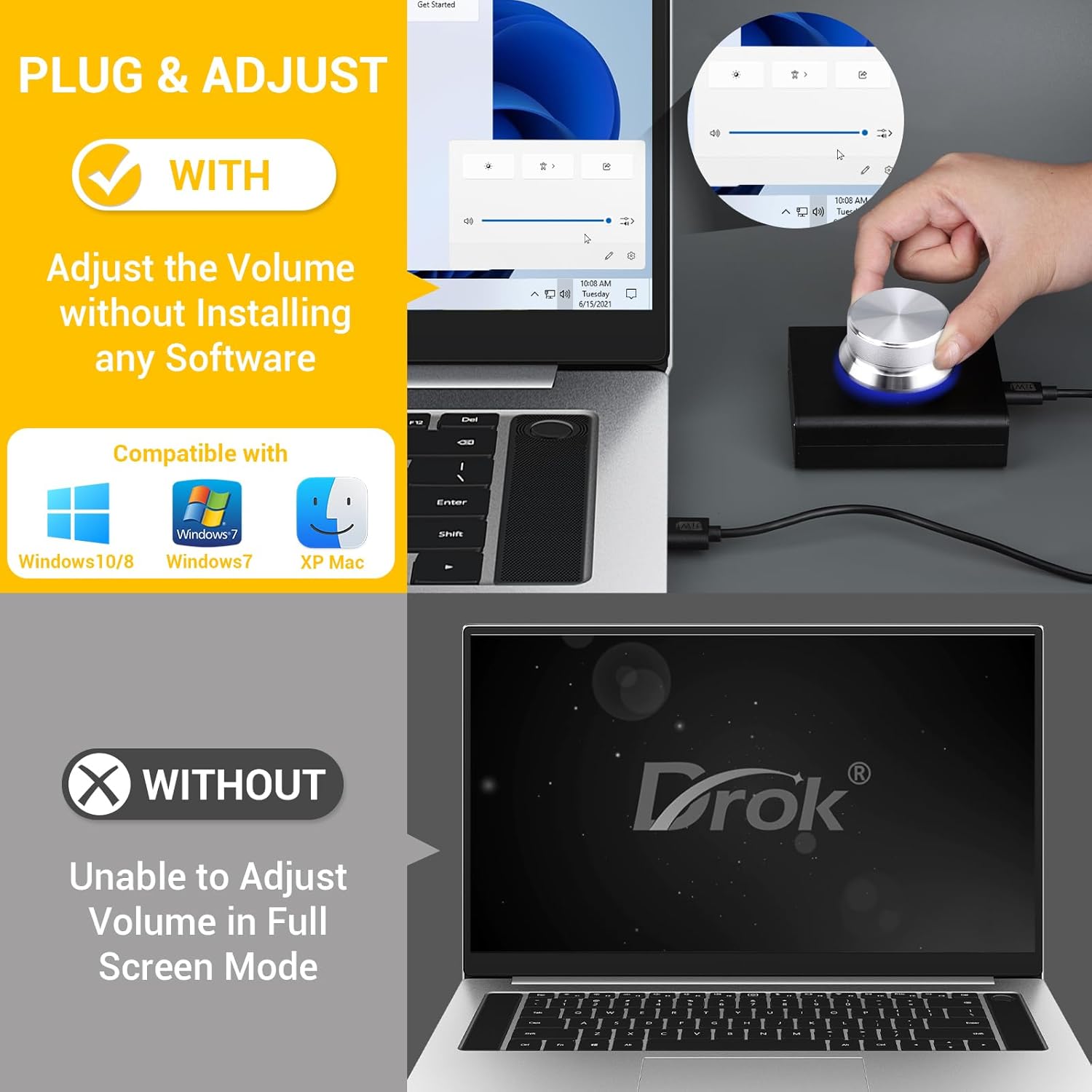
Figure 2: The volume knob connected to a laptop, illustrating its plug-and-play functionality with Windows and Mac operating systems.
3. Operating Instructions
The DROK USB Volume Control Knob offers multiple modes of operation for versatile control.
3.1 Basic Functions
- Rotate: Turn the knob clockwise to increase volume, counter-clockwise to decrease volume.
- Short Press (Mute): Press the knob once to mute the audio. Press again to unmute and resume playback.
- Long Press (Play/Pause): Press and hold the knob for approximately 1-2 seconds to play or pause media.
- Press and Rotate (Adjust Volume Quickly / Switch Songs): Press down on the knob and then rotate it to adjust the volume more quickly. This action can also be programmed to switch songs.
- Long Press for 8s (Night Mode): Press and hold the knob for 8 seconds to enter Night Mode. In this mode, the breathing light will stay on continuously.

Figure 3: Visual representation of the five operational modes: Rotate (Adjust Volume), Short Press (Mute), Long Press (Play/Pause), Press and Rotate (Switch Songs), and Long Press for 8s (Night Mode).
3.2 Programmable Functions for PC/Mac
The knob can be programmed to execute custom key combinations or functions on Windows and Mac. This allows for advanced control beyond standard volume adjustments.
- Ensure the knob is unplugged from your computer.
- Open a blank text editor application, such as Notepad (Windows) or TextEdit (Mac).
- Press and hold down the knob.
- While still holding the knob down, plug the USB cable into your computer's USB port.
- Once connected, turn the knob. The text editor should display a menu with various programming options.
- Use the knob to navigate up and down through the menu options. Press the knob to select an option.
- You can program single keys, mouse functions, or key combinations (e.g., Ctrl+X).
- After configuring your desired functions, select the 'Save' option from the menu.
4. Maintenance
To ensure the longevity and optimal performance of your DROK USB Volume Control Knob, follow these simple maintenance guidelines:
- Keep the device clean by wiping it with a soft, dry cloth. Avoid using harsh chemicals or abrasive materials.
- Do not expose the device to liquids or excessive moisture.
- Avoid dropping the device or subjecting it to strong impacts.
- Store the device in a cool, dry place when not in use.
5. Troubleshooting
- Device Not Responding: Ensure the USB cable is securely connected to both the knob and the computer. Try plugging it into a different USB port. Restart your computer if the issue persists, as sometimes operating system glitches can affect USB device recognition.
- Volume Control Not Working on Android: Verify that your Android device supports external USB audio control. Some phones, particularly certain Samsung models, may have their native sound control program replace external controls.
- Programming Mode Not Activating: Ensure the knob is unplugged before attempting to enter programming mode. Hold the knob down firmly before plugging it in, and then turn the knob to initiate the menu display in your text editor.
- Inconsistent Volume Adjustment: Check for any physical obstructions around the knob. If the issue persists, ensure your operating system's audio drivers are up to date.
6. Specifications
| Feature | Detail |
|---|---|
| Model Name | 200211 |
| Compatible Devices | Desktop, Laptop, Smartphone |
| Connectivity Technology | USB |
| Control Method | Touch (Button Press) |
| Material | Aluminum |
| Color | Silver |
| Product Dimensions | 3.27"D x 2.8"W x 0.98"H (8.3cm D x 7.1cm W x 2.5cm H) |
| Item Weight | 187 Grams (6.6 ounces) |
| Included Components | USB Volume Control, 1.5m USB Lead |
| Mounting Type | Tabletop Mount |
| Power Source | Corded Electric (USB Powered) |

Figure 4: Dimensions of the DROK USB Volume Control Knob (Large version shown, matching product dimensions).
7. Warranty Information
Each DROK product is covered by a one-year service period from the date of purchase. In the event of any quality issues with your item, you are eligible for a brand new replacement.
8. Support
For further assistance, technical support, or inquiries regarding your DROK USB Volume Control Knob, please visit the official DROK store or contact customer service through the retailer where you purchased the product.
Visit the DROK Store on Amazon.
Ask a question about this manual
Ask about setup, troubleshooting, compatibility, parts, safety, or missing instructions. Manuals+ will review the question and use this page’s manual context to help answer it.