
1. Overview
This instruction manual provides essential information for the safe and effective use of your Baofeng UV-5R, BF-F8HP, and compatible series two-way radio battery charger. The kit includes a charger desktop base, a US AC adapter, and a USB charger cable, offering versatile charging options for your radio batteries.
The charger is designed for Li-ion batteries and is compatible with various Baofeng models, including UV-5R, DM-5R, BF-F8HP, UV-5RE, UV-5X3, UV-R3 V2+, and other 5R series two-way radios.
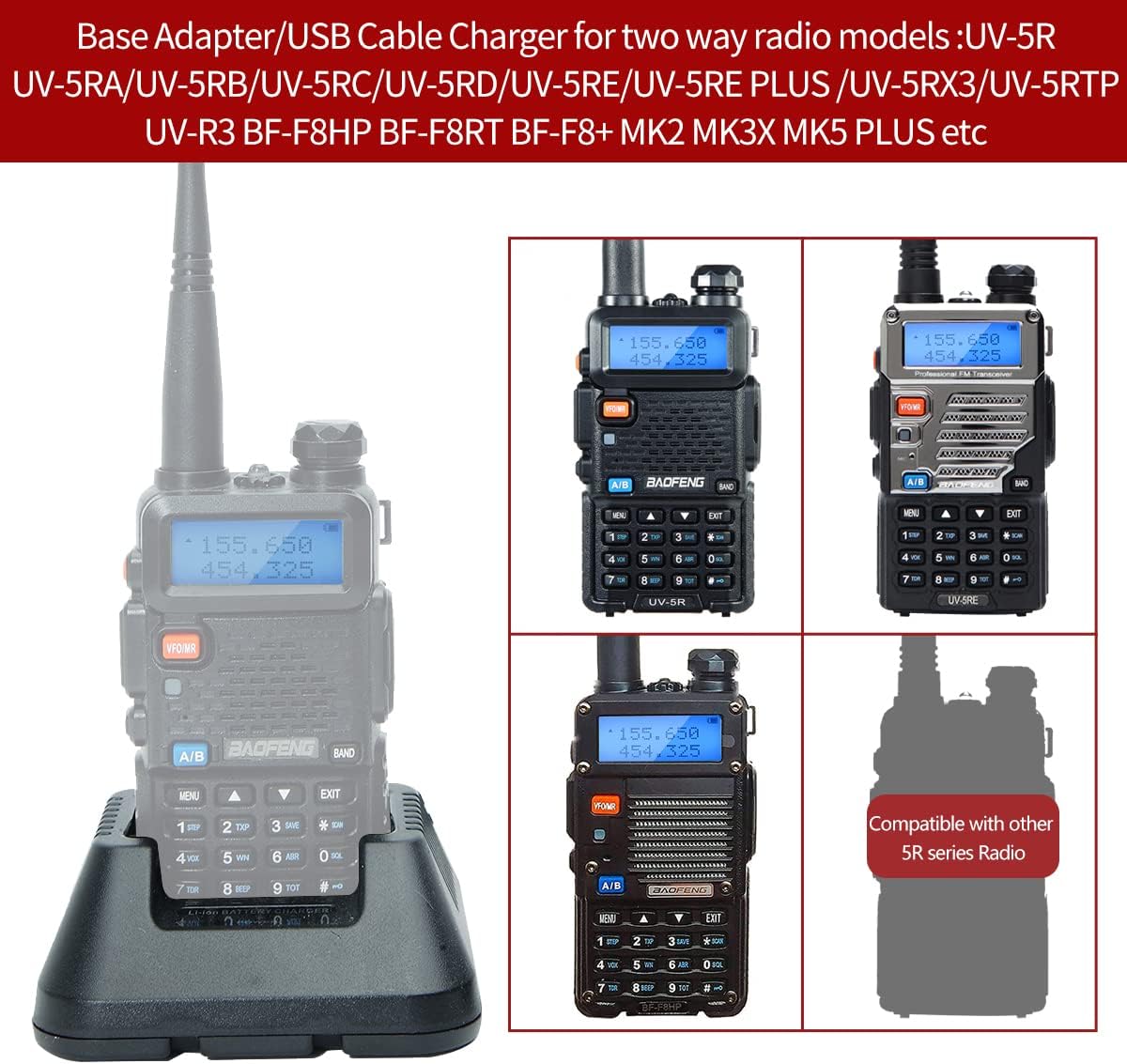
Image: The charger base demonstrating compatibility with multiple Baofeng radio models such as UV-5R, UV-5RA, UV-5RB, UV-5RC, UV-5RD, UV-5RE, UV-5RE PLUS, UV-5RX3, UV-5RTP, UV-R3, BF-F8HP, BF-F8RT, BF-F8+.
2. Setup
2.1 Connecting the Charger Base with AC Adapter
- Connect the US AC adapter to the charger desktop base. Ensure the connection is secure.
- Plug the AC adapter into a standard 100-240V wall power outlet.
- The charger base is now ready for use.

Image: A Baofeng two-way radio seated in the charger base, with the AC adapter connected, illustrating the primary charging method.
2.2 Using the USB Charger Cable
The included USB charger cable provides flexible charging options from various USB power sources.
- Connect the DC plug of the USB charger cable to the input port on the charger desktop base.
- Plug the USB-A end of the cable into a compatible USB power source, such as:
- A wall charger adapter (USB port)
- A power bank
- A car charger (USB port)
- A laptop or PC USB port
- Ensure the USB power source provides sufficient current (minimum 2A recommended for optimal performance).

Image: The USB charging cable, highlighting its versatility for charging from car chargers, laptops, power sockets, and power banks.
3. Operating Instructions
3.1 Charging the Battery
- Ensure the charger base is properly connected to a power source (either via AC adapter or USB cable).
- Carefully place your Baofeng radio (with battery attached) or the battery alone into the charging slot of the desktop base. Ensure the battery contacts align correctly with the charger terminals.
- The charger is designed to support both original and extended batteries.

Image: The charger base illustrating its ability to charge both standard original batteries and larger extended batteries separately.
3.2 Indicator Light Status
The charger base features an indicator light to show the charging status:
- Red Light: Indicates that the battery is currently charging.
- Green Light: Indicates that the battery is fully charged.

Image: Visual representation of the indicator light status, showing red for charging and green for a fully charged battery on both the desktop charger and the USB cable.
4. Maintenance
- Keep the charger base and cables clean and free from dust. Use a soft, dry cloth for cleaning.
- Avoid exposing the charger to water or other liquids.
- Store the charger in a cool, dry place when not in use.
- Do not attempt to disassemble or repair the charger. Refer to qualified personnel for service.
5. Troubleshooting
5.1 Charger Not Powering On
- Ensure the AC adapter or USB cable is securely connected to both the charger base and the power source.
- Verify that the power outlet or USB port is functional by testing with another device.
- Check for any visible damage to the cables or charger.
5.2 Battery Not Charging
- Ensure the radio or battery is correctly seated in the charger base, with contacts fully engaged.
- Check the indicator light. If it remains green immediately after placing the battery, the battery may already be fully charged.
- Confirm that the battery is compatible with the charger and is not damaged.
5.3 Indicator Light Not Changing
- If the light does not turn red when a discharged battery is inserted, re-seat the battery firmly.
- If the light remains red after an extended charging period, the battery may be faulty or the charger may require inspection.
6. Specifications
| Charger Type | Li-ion Battery Charger |
| AC Adapter Input | AC 100-240V / 50-60Hz / 0.25A |
| AC Adapter Output | 10V / 0.5A |
| Desktop Charger Input | DC 10V / DC12~13.8V |
| Desktop Charger Output | DC 8.4V / 400mAh |
| USB Cable Output | DC 10V |
| USB Cable Length | Approx. 1 meter (39.37 inches) |
| Certifications | FCC, CE, RoHS, ISO |
| Product Dimensions | 6.5 x 4.37 x 2.28 inches |
| Item Weight | 5.1 ounces (0.15 Kilograms) |
| Model Number | 4330374064 |
| Brand | BAOFENG |
| Color | Black |

Image: Close-up of the product details, including labels on the AC adapter and charger base, showing input/output specifications and certifications.
7. Warranty and Support
Specific warranty information for this product is not provided in the available details. For warranty claims, technical support, or further assistance, please contact the manufacturer, BAOFENG, or your product retailer directly.
Always refer to the official Baofeng website or authorized distributors for the most current support information.