1. Product Overview
The Tripp Lite B032-VU2 is a 2-port USB VGA KVM Switch designed to allow users to control two computers from a single set of console peripherals, including a keyboard, mouse, and VGA monitor. This device also supports audio and USB peripheral sharing, enhancing workspace efficiency and reducing clutter. It is ideal for home offices, small businesses, or any environment requiring control of multiple systems from one workstation.
2. Features
- 2-Port KVM Control: Access and control two computers using one keyboard, mouse, and VGA monitor.
- Remote Port Switching: Easily switch between connected computers using the integrated remote port selector.
- High Video Resolution: Supports video resolutions up to 2048 x 1536, ensuring clear and crisp display quality.
- USB Peripheral Sharing: Connect an optional USB hub (sold separately) to the USB console mouse port to share additional peripherals such as printers, hard drives, scanners, webcams, and thumb drives between computers.
- Audio Support: Integrated audio ports allow sharing of speakers and microphones between connected computers.
- Plug-and-Play: No software or drivers required for basic operation.
- Durable Design: Built for reliable performance and long-term use.
- 3-Year Limited Warranty: Provides peace of mind with a comprehensive warranty.
3. Setup Instructions
Follow these steps to properly set up your Tripp Lite B032-VU2 KVM Switch:
- Power Off All Devices: Ensure all computers, monitors, and audio devices are powered off before beginning the installation.
- Connect Console Peripherals:
- Connect your USB keyboard to the KVM switch's USB keyboard port.
- Connect your USB mouse to the KVM switch's USB mouse port.
- Connect your VGA monitor to the KVM switch's VGA console port.
- Connect your speakers and microphone (if applicable) to the KVM switch's audio output and input ports.
- Connect Computers to KVM:
- For each computer, connect the integrated KVM cable's VGA connector to the computer's VGA port.
- Connect the integrated KVM cable's USB connector to an available USB port on the computer.
- Connect the integrated KVM cable's audio input and output jacks to the computer's corresponding audio ports.
- Power On Devices: First, power on the KVM switch (if it has an external power adapter, though this model is typically bus-powered). Then, power on your monitor, followed by the connected computers.
- Verify Connections: Once all devices are powered on, ensure that the monitor displays video from the active computer and that the keyboard and mouse are functional.
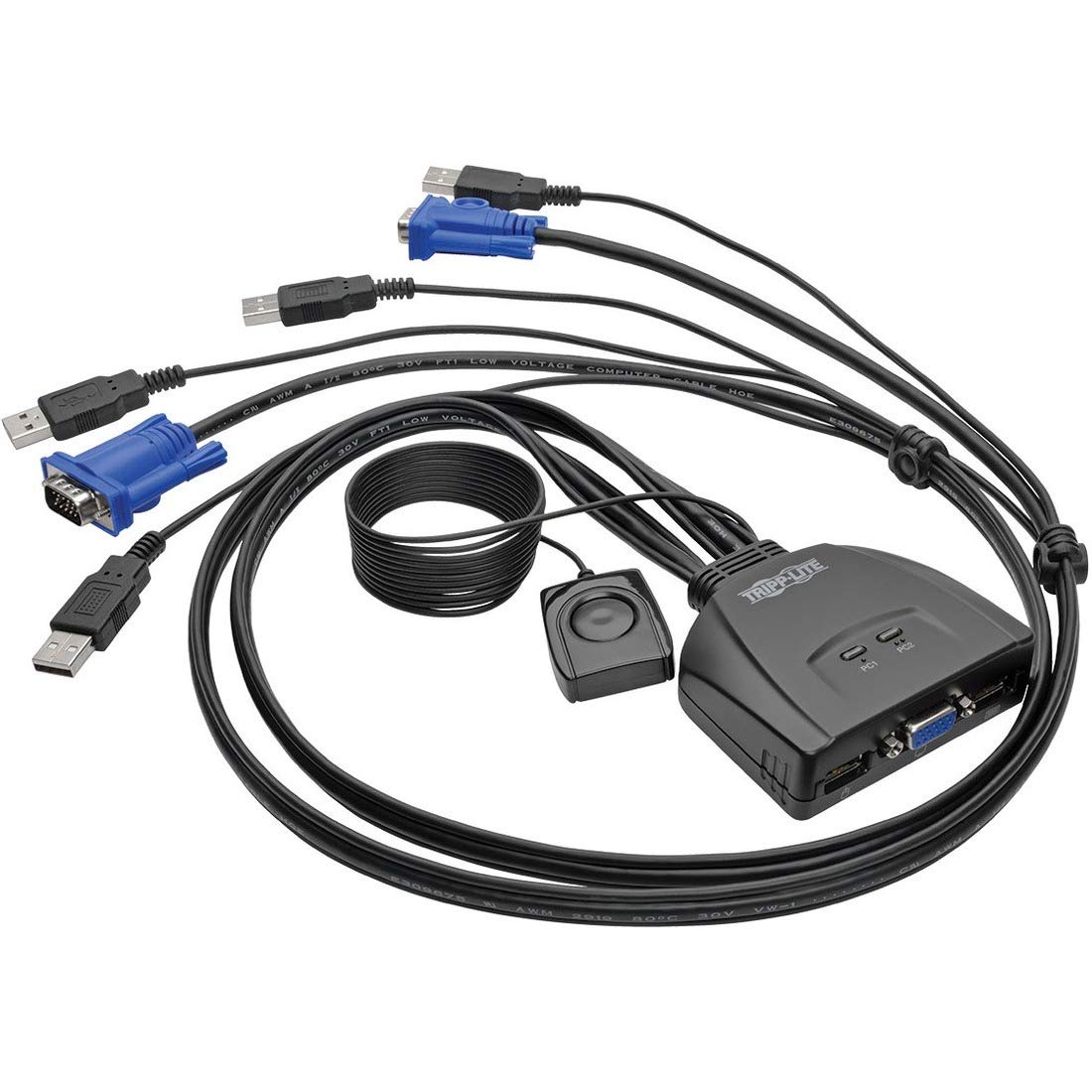
Figure 1: Front and rear view of the Tripp Lite B032-VU2 KVM Switch, illustrating the various connection ports for computers and console peripherals.
4. Operation
The Tripp Lite B032-VU2 KVM Switch provides simple operation for switching between connected computers.
4.1 Switching Between Computers
To switch control between the two connected computers, use the integrated remote port selector. Pressing the button on the remote selector will toggle between Computer 1 and Computer 2. The KVM switch will automatically switch the video, USB keyboard/mouse, and audio to the selected computer.
4.2 USB Peripheral Sharing
If you have connected an optional USB hub to the KVM switch's USB console mouse port, any peripherals connected to that hub (e.g., printers, scanners, external drives) will be shared with the currently active computer. When you switch to another computer, these shared peripherals will also switch to that computer.
Note: For optimal performance, ensure that all USB devices are properly recognized by the operating system of the active computer after switching.
5. Maintenance
The Tripp Lite B032-VU2 KVM Switch requires minimal maintenance to ensure long-term reliable operation.
- Cleaning: Periodically clean the exterior of the KVM switch with a soft, dry cloth. Avoid using liquid cleaners or solvents, as these can damage the device.
- Ventilation: Ensure that the KVM switch is placed in a well-ventilated area to prevent overheating. Do not block any ventilation openings.
- Cable Management: Keep cables organized and free from kinks or excessive bending to prevent damage and ensure stable connections.
- Environmental Conditions: Operate the KVM switch within its specified temperature and humidity ranges. Avoid extreme temperatures or high moisture environments.
6. Troubleshooting
If you encounter issues with your KVM switch, refer to the following common problems and solutions:
| Problem | Possible Cause / Solution |
|---|---|
| No Video Display |
|
| Keyboard or Mouse Not Responding |
|
| No Audio |
|
| Intermittent Switching |
|
7. Specifications
| Attribute | Value |
|---|---|
| Brand | TRIPP LITE |
| Model Number | B032-VU2 |
| Style | 2 ports USB/VGA |
| Product Dimensions (L x W x H) | 24.13 x 16.76 x 6.1 cm (9.5 x 6.6 x 2.4 inches) |
| Product Weight | 303.91 grams (0.67 lbs) |
| Supported Video Resolution | Up to 2048 x 1536 |
| KVM Ports | 2 |
| Console Ports | 1 x VGA, 2 x USB (Keyboard/Mouse), 2 x Audio (Speaker/Mic) |
| Computer Connectors | 2 x VGA, 2 x USB, 4 x Audio (2 Speaker/2 Mic) |
| Power Source | Bus-powered (via USB) |
8. Warranty and Support
8.1 Limited Warranty
The Tripp Lite B032-VU2 KVM Switch is covered by a 3-year limited warranty. This warranty covers defects in materials and workmanship under normal use. For specific terms and conditions, please refer to the warranty documentation included with your product or visit the official Tripp Lite website.
8.2 Technical Support
For technical assistance, troubleshooting, or warranty claims, please contact Tripp Lite customer support. You can find contact information, including phone numbers and online support resources, on the official Tripp Lite website (www.tripplite.com).
Please have your product model number (B032-VU2) and purchase information ready when contacting support.


