
1. Introduction
The SonicWall TZ500 is a high-performance network security/firewall appliance designed to provide robust protection and secure connectivity for businesses, schools, remote offices, and retail sites. This device integrates advanced security features to defend against cyberattacks while offering comprehensive network management capabilities.
Key functionalities include intrusion prevention, malware protection, application control, content filtering, spyware protection, URL filtering, and denial of service (DoS) attack mitigation. The TZ500 operates with stateful packet filtering and signature-based intrusion prevention to ensure a secure network environment.
2. Package Contents
Verify that your SonicWall TZ500 package contains the following items:
- SonicWall TZ500 Network Security/Firewall Appliance
- Power cable
- Rack-mount kit
- Console cable
- Quick Start Guide (if included)
3. Physical Overview
Familiarize yourself with the ports and indicators on your SonicWall TZ500 appliance.

Figure 3.1: Front panel of the SonicWall TZ500 appliance. This image shows the front of the SonicWall TZ500, featuring the SonicWall logo, model number TZ500, two USB 3.0 ports (labeled U0/U1), status indicator LEDs, and eight RJ-45 Gigabit Ethernet ports (labeled X0-X7) with corresponding activity LEDs.
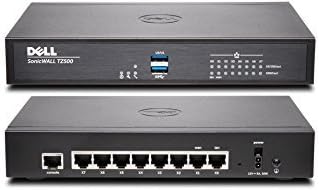
Figure 3.2: Front and rear panels of the SonicWall TZ500 appliance. The top image displays the front panel as described in Figure 3.1. The bottom image shows the rear panel, which includes the power input, a console port, and the eight RJ-45 Gigabit Ethernet ports (X0-X7) from a rear perspective.
3.1 Front Panel
- USB 3.0 Ports (U0/U1): Two SuperSpeed USB ports for connecting external devices such as 3G/4G/5G wireless WAN adapters or for system backups.
- Status LEDs: Indicators for power, system status, and network activity.
- Ethernet Ports (X0-X7): Eight 10/100/1000Base-T Gigabit Ethernet ports for LAN and WAN connections. Each port has dedicated link/activity LEDs.
3.2 Rear Panel
- Power Input: Connector for the power adapter.
- Console Port: RJ-45 serial port for command-line interface (CLI) access.
- Ethernet Ports (X0-X7): Rear view of the eight Gigabit Ethernet ports.
4. Setup
4.1 Unpacking and Placement
- Carefully remove the SonicWall TZ500 appliance and all accessories from the packaging.
- Place the appliance on a stable, flat surface or install it in a rack using the provided rack-mount kit. Ensure adequate ventilation around the device to prevent overheating.
- Avoid placing the device near heat sources or in direct sunlight.
4.2 Connecting the Device
- Connect Power: Plug the power cable into the appliance's power input and then into a suitable power outlet.
- Connect WAN: Connect your internet service provider's modem or router to the designated WAN port (typically X1) on the SonicWall TZ500 using an Ethernet cable.
- Connect LAN: Connect your internal network devices (e.g., switches, computers) to the LAN ports (e.g., X0, X2-X7) using Ethernet cables.
- Console Connection (Optional): For initial CLI configuration, connect the console cable from the appliance's console port to a serial port on your computer.
4.3 Initial Configuration
After connecting the hardware, power on the device. The SonicWall TZ500 can be configured via a web-based management interface or through the command-line interface (CLI).
- Web Interface: Open a web browser on a computer connected to the LAN side of the TZ500. Enter the default IP address (e.g., 192.168.168.168) in the address bar. Follow the on-screen prompts for initial setup, including changing default passwords and configuring network settings.
- CLI: Use a terminal emulator (e.g., PuTTY) to connect to the console port. Refer to the SonicWall documentation for CLI commands and procedures.
5. Operating the Device
The SonicWall TZ500 provides a comprehensive suite of features to manage and secure your network.
5.1 Basic Functions
- Firewall: Controls inbound and outbound network traffic based on predefined security rules.
- Network Address Translation (NAT): Translates private IP addresses to public IP addresses, allowing multiple devices on a private network to share a single public IP address.
- VPN (Virtual Private Network): Establishes secure, encrypted connections over public networks.
5.2 Security Features
The TZ500 integrates advanced security services to protect your network:
- Intrusion Prevention System (IPS): Detects and blocks network intrusions and exploits.
- Malware Protection: Scans and blocks viruses, worms, and other malicious software.
- Application Control: Manages and restricts access to specific applications or application categories.
- Content Filtering: Blocks access to inappropriate or unproductive web content.
- Spyware Protection: Prevents and removes spyware infections.
- URL Filtering: Filters web access based on URL categories and reputation.
- Denial of Service (DoS) Protection: Defends against various DoS and Distributed Denial of Service (DDoS) attacks.
5.3 Network Configuration
The web management interface provides tools for configuring:
- Interface Settings: Configure IP addresses, subnet masks, and other parameters for LAN and WAN interfaces.
- Routing: Define static routes or enable dynamic routing protocols.
- DHCP Server: Configure the appliance to assign IP addresses to network devices automatically.
- Wireless Settings (if applicable): Configure integrated wireless access points.
6. Maintenance
Regular maintenance ensures optimal performance and security of your SonicWall TZ500 appliance.
- Firmware Updates: Periodically check for and install the latest firmware updates from the SonicWall support portal. Firmware updates often include security patches and new features.
- Configuration Backup: Regularly back up your appliance's configuration settings. This allows for quick restoration in case of a system failure or misconfiguration.
- Log Monitoring: Review system logs regularly for any unusual activity or security alerts.
- Physical Inspection: Ensure all cables are securely connected and that the appliance has adequate airflow. Keep the device free from dust and debris.
7. Troubleshooting
This section provides basic troubleshooting steps for common issues.
7.1 No Power
- Verify that the power cable is securely connected to both the appliance and a working power outlet.
- Check the power outlet with another device to ensure it is functional.
- Ensure the power adapter is the correct one supplied with the device.
7.2 No Network Connectivity
- Check the Ethernet cable connections to the WAN and LAN ports. Ensure the link/activity LEDs are illuminated.
- Verify IP address configurations on the appliance and connected devices.
- Confirm that your internet service provider's modem is operational.
- Restart the SonicWall appliance and connected network devices.
7.3 Cannot Access Web Management Interface
- Ensure your computer is connected to a LAN port of the TZ500.
- Verify that your computer's IP address is in the same subnet as the TZ500's LAN interface (e.g., if TZ500 is 192.168.168.168, your computer should be 192.168.168.x).
- Try clearing your browser's cache or using a different browser.
- If the default IP address has been changed, use the new IP address.
8. Specifications
Technical specifications for the SonicWall TZ500 Network Security/Firewall Appliance:
| Feature | Specification |
|---|---|
| Model Number | 01-SSC-0445 |
| Item Weight | 1.05 Kilograms (2.31 pounds) |
| Product Dimensions (LxWxH) | 5.91 x 8.86 x 1.38 inches |
| Case Material | Plastic |
| Interface Type | RJ45 |
| Data Transfer Rate | 1000 Megabits Per Second (Gigabit Ethernet) |
| RAM | 1024 MB |
| Wireless Type | 802.11a, 802.11n (if applicable to specific model variant) |
| Number of USB 2.0 Ports | 2 (USB 3.0 ports are present, often backward compatible) |
| Operating System | SonicOS 6.x |
| Flash Memory Size | 64 MB |
| Number of Ports | 8 (Gigabit Ethernet) |
| Included Components | Power cable, rack-mount kit, console cable |
9. Warranty and Support
The SonicWall TZ500 appliance typically includes a 1-year Comprehensive Gateway Security Suite and 24x7 Support. This suite provides ongoing protection and access to technical assistance.
For detailed warranty information, technical support, or to renew your security services, please visit the official SonicWall support website or contact your authorized SonicWall reseller. Ensure you have your product's serial number available when contacting support.
Online Resources: For the latest documentation, firmware, and knowledge base articles, please refer to the SonicWall support portal.


