
Grandstream GS-HT814
Grandstream HT814 4-Port Analog Telephone Adapter User Manual
Model: GS-HT814
1. Product Overview
The Grandstream HT814 is a powerful 4-port Analog Telephone Adapter (ATA) designed for home and office environments. It features four FXS ports for connecting analog phones or fax machines and an integrated Gigabit NAT router. This device enables users to connect their traditional analog devices to a modern Voice over IP (VoIP) network, offering exceptional voice quality, strong security features, and automated provisioning for efficient deployment and management.

Figure 1: Grandstream HT814 4-Port ATA. This image shows the front and top of the device, highlighting its compact black casing and the Grandstream logo.
2. Package Contents
Verify that all items are present in your package:
- Grandstream HT814 Analog Telephone Adapter (ATA)
- Power Adapter
- Ethernet Cable
- Quick Installation Guide (User Manual)
3. Product Features
The HT814 offers a robust set of features for reliable VoIP communication:
- Supports 4 SIP profiles through 4 FXS ports.
- Dual Gigabit Ethernet ports for network connectivity.
- Integrated NAT router with routing speeds up to 100Mbps.
- Advanced security encryption technology (TLS and SRTP) to protect calls and accounts.
- Automated provisioning options for large-scale deployment.
- Failover SIP server functionality, automatically switching to a secondary server if the main server connection is lost.
- Support for TR-069 and XML config files for device management.

Figure 2: Top view of the HT814 showing the LED indicators for power, FXS ports (1-4), WAN, and LAN. These indicators provide real-time status of the device's operation.
4. Setup and Installation
Follow these steps to set up your Grandstream HT814:
- Connect to Network: Connect one end of the Ethernet cable to the WAN port (blue) on the HT814 and the other end to your broadband router or modem.
- Connect Analog Devices: Connect your analog telephone(s) or fax machine(s) to the FXS ports (green, labeled 1-4) on the HT814 using standard RJ11 phone cables.
- Connect Power: Plug the power adapter into the DC 12V port on the HT814 and then into a power outlet.
- Power On: The device will automatically power on. Wait for the Power LED and WAN LED to turn solid green, indicating a successful network connection. The FXS port LEDs will illuminate when a phone is connected and off-hook.
- Configuration: Access the device's web configuration interface by typing its IP address into a web browser. The default IP address can usually be found via a connected analog phone by dialing *** then 02. Refer to the full user manual for detailed configuration steps.
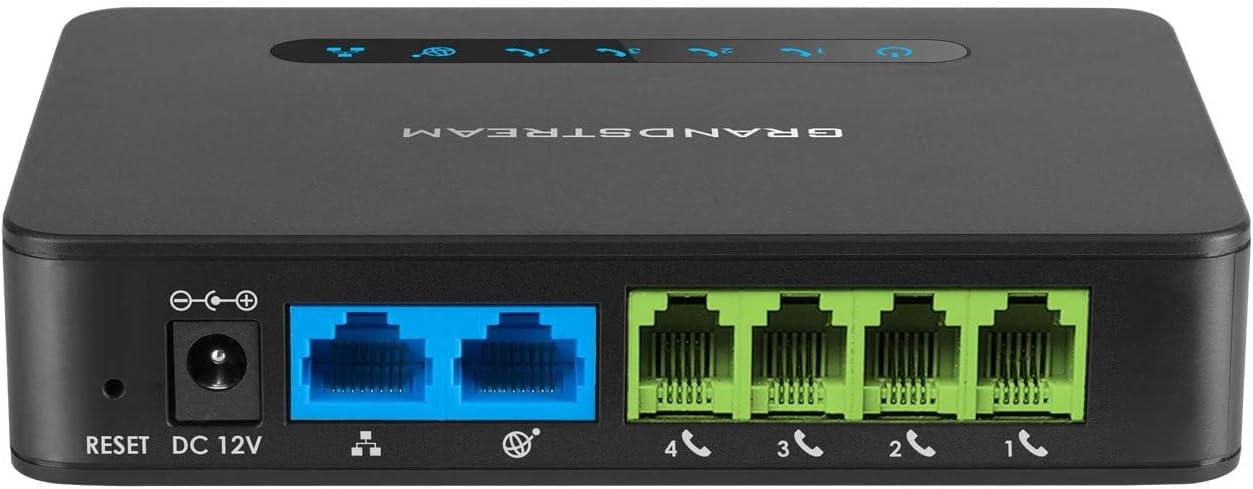
Figure 3: Rear view of the HT814 showing the DC 12V power input, Reset button, two blue Gigabit Ethernet ports (WAN/LAN), and four green FXS ports (1-4) for analog devices.
5. Operating Instructions
Once configured, the HT814 operates like a standard telephone line, but over your internet connection.
- Making Calls: Pick up the connected analog phone handset. You should hear a dial tone. Dial the desired phone number.
- Receiving Calls: The connected analog phone will ring when an incoming call is received. Pick up the handset to answer.
- VoIP Features: Depending on your VoIP service provider and HT814 configuration, you may have access to features like call waiting, call forwarding, three-way conferencing, and voicemail. Consult your VoIP service provider for available features and their activation codes.
6. Maintenance
To ensure optimal performance and longevity of your HT814:
- Keep the device in a cool, dry place, away from direct sunlight and excessive heat or moisture.
- Do not block ventilation openings.
- Clean the device with a soft, dry cloth. Do not use liquid or aerosol cleaners.
- Periodically check for firmware updates from the Grandstream website to ensure the device has the latest features and security patches.
7. Troubleshooting
Common issues and their solutions:
- No Dial Tone:
- Ensure the power adapter is securely connected and the Power LED is solid green.
- Verify the analog phone is correctly plugged into an FXS port.
- Check network connectivity; the WAN LED should be solid green.
- Confirm your VoIP service is active and configured correctly on the device.
- Cannot Make/Receive Calls:
- Check your internet connection.
- Verify SIP registration status in the device's web interface.
- Ensure correct dialing patterns are used.
- If using a firewall, ensure necessary VoIP ports are open.
- Poor Voice Quality:
- Check your internet bandwidth and ensure it meets VoIP requirements.
- Reduce network congestion if other devices are heavily using the internet.
- Ensure the HT814 is connected directly to your router/modem, avoiding multiple network hops.
- Device Not Accessible via Web Interface:
- Ensure your computer is on the same network as the HT814.
- Verify the IP address of the HT814.
- Try restarting the device.
8. Specifications
| Model | GS-HT814 |
| Ports | 4 x FXS ports, 2 x Gigabit Ethernet ports (WAN/LAN) |
| Dimensions | 5 x 1 x 4 inches (12.7 x 2.54 x 10.16 cm) |
| Item Weight | 6.4 ounces (0.18 kg) |
| Power Input | DC 12V |
| Connectivity Technology | Ethernet |
| Manufacturer | Grandstream |
| First Available Date | November 21, 2016 |

Figure 4: The HT814 held in a hand, illustrating its compact size and dimensions (3.8 inches / 9 cm shown).
9. Warranty and Support
For warranty information and technical support, please refer to the official Grandstream website or contact their customer service. A comprehensive user manual in PDF format is also available for download from the manufacturer's support page, which provides more detailed configuration and troubleshooting information.
You can find the official user manual here.
Related documentsGS-HT814


Ask a question about this manual
Ask about setup, troubleshooting, compatibility, parts, safety, or missing instructions. Manuals+ will review the question and use this page’s manual context to help answer it.