Introduction
This manual provides comprehensive instructions for the setup, operation, and maintenance of your Sonnet Echo Express SE1 Thunderbolt 3 Expansion Chassis. Please read this manual thoroughly before using the device to ensure proper functionality and safety.

Image: The Sonnet Echo Express SE1 Thunderbolt 3 Expansion Chassis, a compact black enclosure designed to house a single PCIe card.
Setup
Package Contents
Verify that all components are present:
- Sonnet Echo Express SE1 Thunderbolt 3 Expansion Chassis
- Thunderbolt 3 Cable
- Power Adapter
- Documentation (this manual)
Installing a PCIe Card
- Prepare the Chassis: Ensure the chassis is powered off and disconnected from your computer.
- Open the Chassis: Carefully remove the screws securing the chassis cover.
- Insert PCIe Card: Align your half-length+, full-height, single-width PCIe card (or a card with a daughter card) into the x8 PCIe 3.0 slot. Press firmly until it is seated correctly.
- Secure the Card: Use the provided screw to secure the PCIe card's bracket to the chassis.
- Close the Chassis: Replace the cover and secure it with the screws.
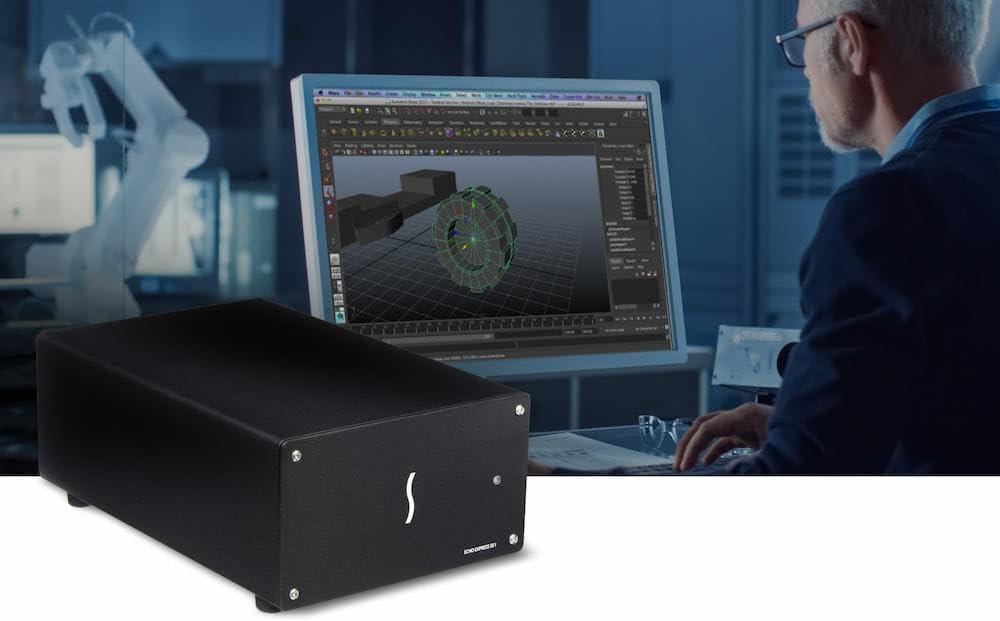
Image: An internal view of the Echo Express SE1 chassis showing a PCIe card installed in the slot, with cables connected to its ports. This illustrates the process of inserting and securing a PCIe card.
Note: The chassis supports one half-length+ (up to 7.75 inches long), full-height, single-width PCIe card, plus one daughter card if applicable. It is not designed for use as a GPU chassis.
Connecting to Your Computer
- Connect Power: Plug the power adapter into the chassis and then into a power outlet.
- Connect Thunderbolt 3 Cable: Use the supplied Thunderbolt 3 cable to connect one of the chassis's Thunderbolt 3 (USB-C) ports to a Thunderbolt 3 port on your Mac or Windows PC.
- Daisy-Chaining (Optional): The second Thunderbolt 3 port can be used to daisy-chain up to five additional Thunderbolt devices, connect a single USB peripheral, or connect up to two 4K displays or one 5K display.
Operating Instructions
Power On/Off
The Echo Express SE1 features an Energy Saver Mode, automatically powering on/off with your connected computer. There is no manual power switch on the unit.
Driver Installation
Ensure that the necessary drivers for your installed PCIe card are installed on your computer. Refer to the PCIe card manufacturer's documentation for driver installation instructions.
Performance Considerations
- The 40Gbps Thunderbolt 3 interface provides 2750 MB/s of PCIe bandwidth, ensuring full performance for compatible PCIe cards.
- The chassis is compatible with Apple M series Macs (with PCIe cards that have compatible drivers), Intel Macs with Thunderbolt 3 ports, and Windows computers with Thunderbolt 3 ports. Linux compatibility is also supported.

Image: The Sonnet Echo Express SE1 chassis positioned next to a MacBook Pro, illustrating its compact size and connectivity with a modern laptop. The laptop screen displays vibrant colors, suggesting use in creative or professional environments.
Maintenance
Cleaning
Wipe the exterior of the chassis with a soft, dry cloth. Do not use liquid cleaners or solvents. Ensure the device is powered off and disconnected before cleaning.
Fan Maintenance
The chassis includes a temperature-controlled, variable-speed fan for cooling. Periodically check the fan vents for dust accumulation. If necessary, use compressed air to gently clear dust from the vents while the unit is powered off.
Troubleshooting
- Device Not Recognized:
- Ensure the Thunderbolt 3 cable is securely connected to both the chassis and your computer.
- Verify that your computer's Thunderbolt 3 port is functional.
- Check if the PCIe card is properly seated in the chassis slot.
- Confirm that the necessary drivers for the installed PCIe card are installed on your operating system.
- Restart your computer.
- No Power:
- Ensure the power adapter is securely connected to the chassis and a working power outlet.
- Check if the power outlet is active.
- The unit powers on automatically with the computer; ensure your computer is powered on.
- Fan Noise:
- The fan is temperature-controlled and its speed varies. Increased fan noise may indicate higher internal temperatures.
- Ensure adequate airflow around the chassis and that vents are not obstructed.
- Clean any dust accumulation from the fan vents.
- Performance Issues:
- Verify that your computer's Thunderbolt 3 port is operating at full speed.
- Ensure the PCIe card is compatible with the Thunderbolt 3 interface and the chassis. Refer to Sonnet's compatibility list on their website.
Specifications
| Feature | Detail |
|---|---|
| Model Name | ECHO-EXP-SE1-T3 |
| Brand | Sonnet |
| Interface | Thunderbolt 3 (40Gbps) |
| PCIe Slot | One PCIe 3.0 x8 slot |
| Card Compatibility | One half-length+ (up to 7.75 inches long), full-height, single-width PCIe card (plus one daughter card) |
| Thunderbolt Ports | Two (one for host connection, one for daisy-chaining/peripherals) |
| Power for Peripherals | Up to 15W via daisy chain port |
| Operating System Compatibility | macOS (Apple M series, Intel), Windows, Linux |
| Dimensions (LxWxH) | 8.25 x 4 x 2.8 inches |
| Item Weight | 2.6 pounds |
| Cooling | Temperature-controlled, variable-speed fan |
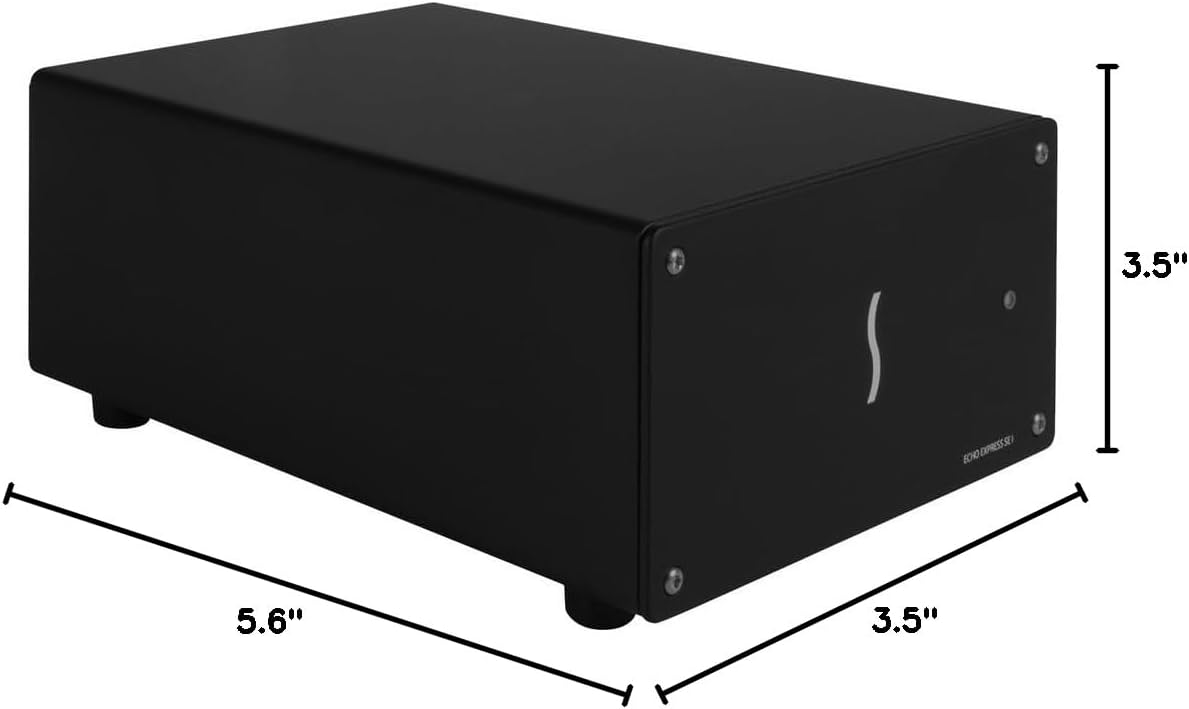
Image: A diagram showing the physical dimensions of the Sonnet Echo Express SE1 chassis, indicating its length, width, and height for reference.
Warranty Information
For detailed warranty information, please refer to the official Sonnet Technologies website or the warranty card included with your product. Keep your proof of purchase for warranty claims.
Support and Contact
For technical support, driver downloads, or further product information, please visit the official Sonnet Technologies support website:
You can also contact Sonnet customer service through the contact information provided on their website.