
1. Product Overview
This manual provides instructions for the econtrolly Replacement Remote Control, model AA59-00790A. This remote is designed as a direct replacement for various Samsung Smart 3D LCD LED HDTV TV models, ensuring seamless operation without the need for complex programming.
It is compatible with a wide range of Samsung TV models, including but not limited to: AA59-00793A, AA59-00579A, UE40ES7000, UE75F6300, UE32F6200, UE40F6200, UE46F6200, UE50F6200, Series 5 UE32F5300, UE40F5300, UE42F5300, UE46F5300, UE39F5300, UE22F5400, UE22F5410, UE40F6320, UE46F6320, UE22F5400AK, UE22F5400AKXXU, UE22F5400AW, 22F5470SS, UE32F4000AW, UE32F4500AK, UE32F4500AW, UE32F4570SS, UE32F4580SS, UE32F5000AW, UE32F5070SS, UE32F5300AK, UE32F5300AW, UE32F5370SS, UE32F5500AK, UE32F5500AW, UE32F5570SS, UE32F5700AW, UE32F6200AK, UE32F6270SS, UE39F5070SS, UE39F5300AK, UE39F5300AW, UE39F5370SS, UE39F5500AK, UE39F5500AKXXU, UE39F5500AW, UE39F5570SS, UE39F5700AW, UE40F6200AK, UE40F6200AKXXU, UE40F6270SS, UE42F5000AW, UE42F5300AW, UE42F5500AKXXU, UE42F5500AW, UE42F5700AW, UE46F5000AW, UE46F5070SS, UE46F5300AK, UE46F5300AW, UE46F5370SS, UE46F5500AK, UE46F5500AKXXU, UE46F5500AW, UE46F5570SS, UE46F6200AK, UE46F6200AKXXU, UE46F6200AW, UE46F6270SS, UE50F5500AK, UE50F5500AKXXU, UE50F5500AW, UE50F5570SS, UE50F6200, UE50F6200AKXXU, UE60F6300AK, UE60F6300AW, UE60F6370SS.

Figure 1: Front view of the AA59-00790A Replacement Remote Control, showing all buttons and layout.
2. Setup
2.1. Battery Installation
The remote control requires two AAA alkaline batteries (not included). Follow these steps to install the batteries:
- Locate the battery compartment on the back of the remote control.
- Slide the battery cover downwards to open it.
- Insert two AAA alkaline batteries, ensuring the positive (+) and negative (-) terminals align correctly with the indicators inside the compartment.
- Slide the battery cover back into place until it clicks securely.
Once batteries are installed, the remote is ready for use. No programming or pairing is required for this replacement remote.
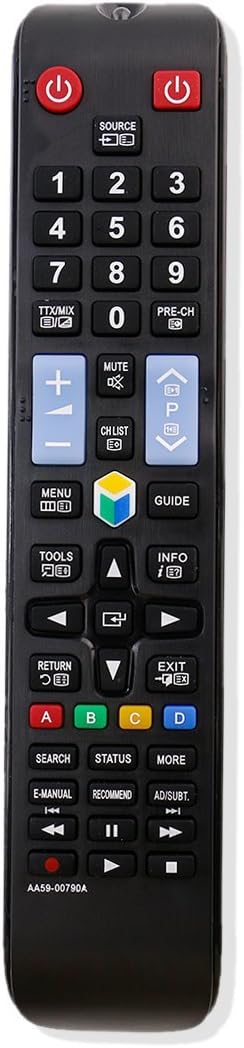
Figure 2: Rear view of the remote control with the battery cover open, illustrating the battery insertion process.
3. Operating Instructions
This replacement remote functions identically to the original Samsung remote control. Point the remote directly at your Samsung TV's infrared receiver for optimal performance.
3.1. Basic Functions
- Power Button (⏻): Turns the TV on or off.
- Source Button: Cycles through input sources (HDMI, AV, TV, etc.).
- Number Buttons (0-9): Directly select channels.
- Volume Up/Down (+ / -): Adjusts the TV volume.
- Mute Button: Mutes or unmutes the TV audio.
- Channel Up/Down (▲ / ▼): Changes channels sequentially.
3.2. Smart TV and Navigation Functions
- Menu Button: Accesses the TV's main menu.
- Guide Button: Displays the electronic program guide (EPG).
- Directional Pad (Up, Down, Left, Right) and Enter Button: Navigates through menus and selects options.
- Return Button: Goes back to the previous screen or menu.
- Exit Button: Exits the current menu or application.
- Colored Buttons (A, B, C, D): Perform specific functions within certain applications or menus, as indicated on the TV screen.
3.3. Media Playback Controls
- Play/Pause Button: Starts or pauses media playback.
- Stop Button: Stops media playback.
- Fast Forward/Rewind Buttons: Skips forward or backward in media.
4. Maintenance
4.1. Battery Replacement
When the remote control's performance degrades or it stops responding, it is likely time to replace the batteries. Refer to Section 2.1 for detailed battery installation instructions. Always use new AAA alkaline batteries for optimal performance.
4.2. Cleaning
To clean the remote control, gently wipe its surface with a soft, dry cloth. For stubborn dirt, slightly dampen the cloth with water. Do not use abrasive cleaners, solvents, or excessive moisture, as these can damage the remote's electronics or finish.
5. Troubleshooting
- Remote not responding:
- Ensure the remote is pointed directly at the TV's infrared receiver.
- Check if the batteries are correctly installed with the correct polarity.
- Replace old batteries with new AAA alkaline batteries.
- Remove any obstructions between the remote and the TV.
- Specific buttons not working:
- This can sometimes indicate a faulty button or internal issue. Ensure the remote is clean and free of debris around the buttons. If the issue persists after battery replacement, the remote may need to be replaced.
- Remote requires programming:
- This replacement remote control does not require any programming or setup. If your TV is not responding, please ensure it is a compatible Samsung model and that the batteries are fresh and correctly installed.
6. Specifications
| Feature | Detail |
|---|---|
| Brand | econtrolly |
| Model Number | Remote-(AA59-00790A) |
| Compatible Devices | Samsung Televisions (various models listed in Overview) |
| Connectivity Technology | Infrared (IR) |
| Battery Type | 2 x AAA Alkaline batteries (not included) |
| Special Features | Ergonomic design, No programming required |
| Product Dimensions | 12.7 x 2.54 x 0.64 cm (5 x 1 x 0.25 inches) |
| Product Weight | 28.35 g (1 oz) |
7. Warranty and Support
Specific warranty information for this product is not provided in the available data. For any issues or support inquiries, please contact the seller or manufacturer directly through your purchase platform.
For general troubleshooting or further assistance, refer to the troubleshooting section of this manual or consult your Samsung TV's original user manual for TV-specific settings and functions.