
NEC NP-PA653U
NEC NP-PA653U LCD Projector User Manual
Model: NP-PA653U
1. Introduction
This manual provides essential information for the safe and efficient operation of your NEC NP-PA653U LCD Projector. Please read this manual thoroughly before using the projector and retain it for future reference. The NEC NP-PA653U is an advanced professional installation projector designed for higher education and corporate environments, offering high brightness and flexible installation options.
2. Safety Information
Important Safety Instructions:
- Always connect the projector to a grounded power outlet.
- Do not block ventilation openings. Ensure adequate space around the projector for proper airflow.
- Do not look directly into the projector lens when the lamp is on, as this can cause eye damage.
- Avoid placing the projector in direct sunlight, near heat sources, or in environments with excessive dust or humidity.
- Refer all servicing to qualified service personnel. Do not attempt to open or repair the projector yourself.
- Use only attachments/accessories specified by the manufacturer.
3. Package Contents
Verify that all items listed below are included in your package:
- NEC NP-PA653U LCD Projector
- Lens hole cover
- Wireless remote control
- Lens lock screw
- Power Cord
- User Manual (this document)
4. Product Overview
The NEC NP-PA653U is a high-performance LCD projector designed for professional installations. It features 6500 lumens brightness, WUXGA (1920x1200) resolution, and advanced connectivity options including HDBaseT.
4.1 Front View

Figure 4.1: Front view of the NEC NP-PA653U LCD Projector. This image shows the main lens assembly and the overall white casing of the projector.
4.2 Rear View (Input/Output Panel)
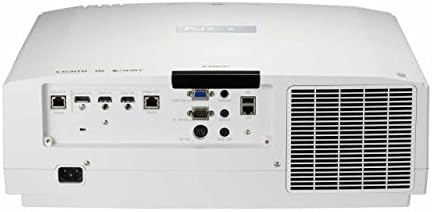
Figure 4.2: Rear view of the NEC NP-PA653U LCD Projector. This panel includes various connectivity options such as HDMI, HDBaseT, VGA, audio inputs/outputs, and network ports.
4.3 Side View (Control Panel)
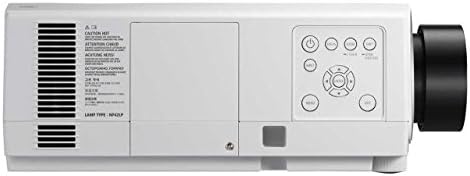
Figure 4.3: Side view of the NEC NP-PA653U LCD Projector. This image highlights the integrated control panel with buttons for power, menu navigation, and input selection.
5. Setup
5.1 Physical Placement
The NP-PA653U offers flexible installation options, including tilt-free and portrait installation capabilities. Ensure the projector is placed on a stable, level surface or securely mounted. Maintain adequate ventilation space around the unit.
- Lens Installation: This projector uses optional powered lenses. Align the lens with the lens mount and secure it according to the lens-specific instructions. Use the provided lens lock screw.
- Projection Distance: Adjust the distance from the screen to achieve the desired image size. The optional powered lenses allow for lens shift, focus, and zoom adjustments.
5.2 Connecting Devices
Connect your source devices (e.g., computer, Blu-ray player) to the appropriate input ports on the projector's rear panel (refer to Figure 4.2).
- HDBaseT: For uncompressed Full HD digital video, audio, Ethernet, power, and control signals over a single cable. The HDBaseT input and separate HDBaseT loop out provide versatile connectivity.
- HDMI: Connect devices using HDMI cables for high-definition digital video and audio.
- VGA: Connect computers using a VGA cable for analog video signals.
- Network (Ethernet): Connect to a network for control and monitoring.
5.3 Power On/Off
- Connect the power cord to the projector and a grounded electrical outlet.
- Press the Power button on the projector's control panel or the remote control to turn on the projector. The power indicator light will change.
- To turn off, press the Power button again. Confirm shutdown if prompted. Allow the projector to cool down before unplugging.
6. Operating Instructions
6.1 Basic Operation
- Input Selection: Use the "Input" button on the remote or control panel to cycle through available input sources (HDMI, HDBaseT, VGA, etc.).
- Menu Navigation: Press the "Menu" button to access the on-screen display (OSD) menu. Use the arrow keys to navigate and "Enter" to select options.
- Focus and Zoom: Adjust the focus and zoom using the controls on the optional powered lens or via the remote control/OSD menu.
- Lens Shift: Utilize the lens shift function (horizontal and vertical) to adjust the image position without moving the projector.
6.2 Advanced Features
- 4K Ready (HDR10, BT.2020): The projector supports HDR10 and BT.2020 signal formats, making it compatible with Ultra HD Blu-ray and 4K TV broadcasting content. Ensure your source device is configured for these formats.
- TileMatrix: This feature enables the creation of a large 4K x 2K resolution image by utilizing up to four projectors. Connect multiple projectors via the HDBaseT loop out and configure TileMatrix settings in the OSD menu.
- Edge Blending: For seamless multi-projector installations, use the built-in edge blending feature to smoothly combine images from adjacent projectors, eliminating visible seams.
- Stacking: The projector supports stacking, allowing two or more projectors to be aligned to increase brightness or provide redundancy.
- High Performance Video Processing/Scaling: The projector incorporates advanced video processing to create life-like images from various input resolutions.
7. Maintenance
7.1 Cleaning
- Projector Casing: Wipe the casing with a soft, dry cloth. For stubborn dirt, use a slightly damp cloth with a mild, non-abrasive cleaner.
- Lens: Gently clean the lens with a lens cleaning cloth or lens paper. Avoid using abrasive materials or harsh chemicals.
- Air Filters: Regularly check and clean the air filters to prevent dust buildup, which can affect performance and lamp life. Refer to the OSD menu for filter usage time.
7.2 Lamp Replacement
The projector lamp has a finite lifespan. When the lamp life approaches its end, a warning message will appear. Replace the lamp with an authentic NEC replacement lamp (Lamp Type: NP42LP) to ensure optimal performance and safety.
- Turn off the projector and unplug the power cord. Allow it to cool completely (at least 60 minutes).
- Locate the lamp cover (refer to Figure 4.3 for general location on the side panel).
- Unscrew the lamp cover and carefully remove the old lamp module.
- Insert the new lamp module, ensuring it is seated correctly.
- Replace the lamp cover and secure it with screws.
- Reset the lamp timer in the projector's OSD menu.
8. Troubleshooting
This section addresses common issues you might encounter. For more complex problems, contact NEC customer support.
| Problem | Possible Cause | Solution |
|---|---|---|
| No image displayed |
|
|
| Image is blurry |
|
|
| Projector overheats and shuts down |
|
|
9. Specifications
| Feature | Detail |
|---|---|
| Model Number | NP-PA653U |
| Brand | NEC |
| Brightness | 6500 Lumens |
| Display Resolution | 1920 x 1080 (supports 4K signals) |
| Connectivity Technology | Ethernet, HDBaseT, HDMI, VGA |
| Product Dimensions | 19.8 x 16.2 x 6.6 inches |
| Item Weight | 22.5 pounds |
| Recommended Uses | Business, Education |
| Special Feature | Portable |
| Manufacturer | NEC Solutions (America), Inc. |
| Date First Available | January 7, 2017 |
10. Warranty and Support
For warranty information, technical support, or service inquiries, please refer to the official NEC website or contact your authorized NEC dealer. Keep your purchase receipt as proof of purchase for warranty claims.
Online Resources: Visit the official NEC website for the latest drivers, firmware updates, and additional support documentation.
Related documentsNP-PA653U


Ask a question about this manual
Ask about setup, troubleshooting, compatibility, parts, safety, or missing instructions. Manuals+ will review the question and use this page’s manual context to help answer it.