
1. Introduction
This manual provides comprehensive instructions for the installation, operation, and maintenance of your ASUS Prime Z270M-PLUS motherboard. Please read this manual thoroughly before installing or using the product to ensure correct setup and optimal performance.
2. Safety Information
Observe the following safety precautions to prevent damage to the motherboard and injury to yourself:
- Always disconnect the power cord from the wall outlet before touching any components.
- Wear an anti-static wrist strap or frequently touch a grounded object to discharge static electricity before handling components.
- Handle components by their edges to avoid touching sensitive parts.
- Ensure proper ventilation within your PC case to prevent overheating.
- Keep the motherboard away from moisture and extreme temperatures.
3. Package Contents
Verify that all items are present in your package:
- ASUS Prime Z270M-PLUS Motherboard
- SATA Cable(s)
- User Manual
4. Product Overview
The ASUS Prime Z270M-PLUS is a micro-ATX motherboard designed for Intel LGA 1151 socket processors. It features robust hardware safeguards, advanced cooling controls, and high-speed connectivity options.
Key Features:
- 5X Protection III: Hardware-level safeguards to ensure component longevity and reliability against electrical overloads.
- LED Illumination: Customizable lighting control for PCIe slots.
- Fan Xpert 4 Core: Advanced fan controls for optimized cooling and reduced noise.
- Dual Native M.2 and NVMe PCIe RAID Support: Provides high-speed storage solutions.
- USB Type-C: Convenient and reversible connectivity.
- DDR4 Support: Supports memory speeds up to 3866 MHz.
- Audio: Realtek ALC887 8-channel high-definition audio.
- Multi-GPU Support: Features AMD CrossFireX Technology.

Figure 4.1: Top-down view of the ASUS Prime Z270M-PLUS motherboard, highlighting the CPU socket, RAM slots, and PCIe slots.

Figure 4.2: Angled view of the ASUS Prime Z270M-PLUS motherboard, showcasing its various components and heatsinks.
5. Setup
5.1. CPU Installation
- Locate the LGA 1151 socket on the motherboard.
- Open the CPU socket lever and lift the load plate.
- Carefully align the CPU with the socket, ensuring the gold triangle on the CPU matches the triangle on the socket.
- Gently place the CPU into the socket without forcing it.
- Close the load plate and push down the lever until it locks into place.
5.2. Memory (RAM) Installation
The motherboard supports DDR4 memory up to 64GB with speeds up to 3866 MHz.
- Open the clips at both ends of the DIMM slot.
- Align the notch on the DDR4 memory module with the key in the DIMM slot.
- Insert the memory module firmly into the slot until the clips snap into place.
5.3. Storage Device Installation
The motherboard supports SATA III devices and NVMe PCIe M.2 drives.
- SATA Devices: Connect SATA data cables from your storage drives (HDDs/SSDs) to the SATA III ports on the motherboard. Connect power cables from your power supply to the drives.
- M.2 Devices: Locate the M.2 slot. Insert the M.2 drive at an angle and secure it with the provided screw.
5.4. Expansion Card Installation
The motherboard features PCIe 3.0 slots for graphics cards and other expansion cards.
- Align the expansion card with the appropriate PCIe slot.
- Press down firmly until the card is seated correctly and the retention clip locks.
- Secure the card to the PC case with a screw.
5.5. Power Connections
Connect the 24-pin ATX power connector and the 8-pin ATX 12V power connector from your power supply to the corresponding ports on the motherboard.
5.6. Front Panel Connections
Connect the cables from your PC case's front panel (USB ports, audio jacks, power button, reset button, LED indicators) to the corresponding headers on the motherboard. Refer to the motherboard diagram in your physical manual for exact header locations.
5.7. Rear I/O Panel
The rear I/O panel provides various ports for connecting external devices.
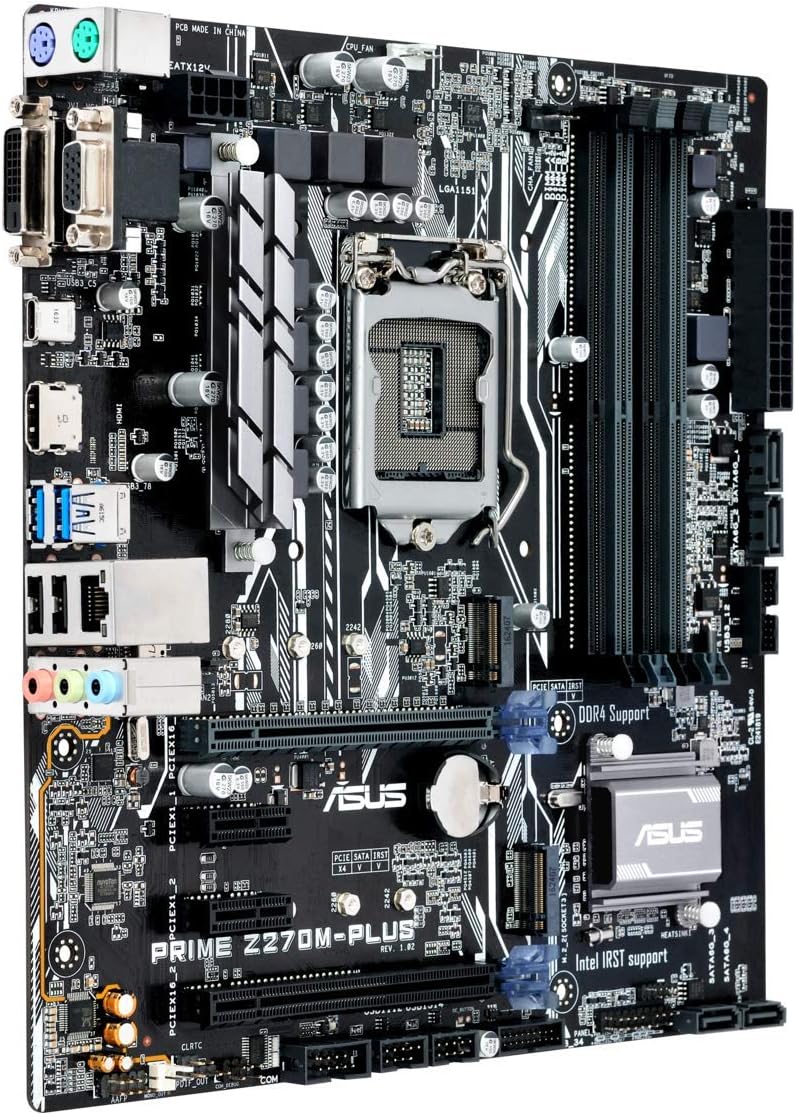
Figure 5.1: Rear I/O panel of the ASUS Prime Z270M-PLUS motherboard, showing various connectivity ports.
Common ports include:
- PS/2 Keyboard/Mouse Combo Port
- DVI-D Port
- VGA Port
- HDMI Port
- USB 3.0 Ports
- USB 2.0 Ports
- LAN (RJ-45) Port
- Audio Jacks (Line In, Line Out, Microphone)
6. Operating
6.1. Initial Boot and BIOS/UEFI Setup
Upon the first power-on, the system will typically enter the BIOS/UEFI setup utility. Here you can configure system settings, boot order, and monitor hardware status. Press the DEL key during startup to enter the BIOS/UEFI.
6.2. Driver Installation
After installing your operating system, install the necessary drivers for the motherboard components (chipset, audio, LAN, graphics, etc.). These drivers are typically provided on a support DVD or can be downloaded from the ASUS official website.
6.3. System Boot
Once the operating system and drivers are installed, your system should boot normally. Ensure all peripherals are connected correctly.
7. Maintenance
7.1. Cleaning
Regularly clean your PC case and motherboard to prevent dust buildup, which can lead to overheating and component failure. Use compressed air to remove dust from fans, heatsinks, and other components. Ensure the system is powered off and unplugged before cleaning.
7.2. BIOS Updates
Periodically check the ASUS support website for BIOS updates. BIOS updates can improve system stability, add support for new hardware, or fix bugs. Follow the instructions provided by ASUS carefully when performing a BIOS update to avoid system damage.
8. Troubleshooting
If you encounter issues with your motherboard, consider the following general troubleshooting steps:
- No Power: Ensure all power cables (24-pin ATX, 8-pin CPU) are securely connected. Check your power supply unit (PSU) for functionality.
- No Display: Verify that your graphics card is properly seated and connected to the monitor. If using integrated graphics, ensure your monitor is connected to the motherboard's video output. Try reseating RAM modules.
- System Instability/Crashes: Check for overheating. Ensure all drivers are up to date. Test memory modules individually.
- Component Not Detected: Ensure the component (e.g., hard drive, expansion card) is correctly installed and all necessary cables are connected. Check BIOS settings to ensure the component is enabled.
- BIOS Reset: If system settings become unmanageable, you can clear the CMOS by removing the CMOS battery for a few minutes or using the Clear CMOS jumper (refer to your physical manual for location).
9. Specifications
| Feature | Specification |
|---|---|
| Model Name | Prime Z270M-PLUS |
| CPU Socket | LGA 1151 |
| Compatible Processors | Celeron, Core i3, Core i5, Core i7, Pentium (14nm CPUs) |
| Chipset | Intel Z270 |
| Memory Technology | DDR4 |
| Max. Memory Capacity | 64 GB |
| Memory Clock Speed | Up to 3866 MHz |
| Storage Interfaces | SATA III, Dual Native M.2 (NVMe PCIe support) |
| Expansion Slots | PCIe 3.0 |
| USB Ports | USB 3.0, USB 2.0, USB Type-C |
| Video Output | HDMI, DVI-D, VGA (via integrated graphics) |
| Audio | Realtek ALC887 8-Channel High Definition Audio |
| LAN | 1x Gigabit Ethernet |
| Form Factor | mATX (23 x 20 x 2 cm) |
| Weight | 900 g |
| Manufacturer Model Number | B990M80 |
10. Warranty Information
The product warranty for the ASUS Prime Z270M-PLUS motherboard is not applicable as per the provided product information. Please refer to your point of purchase or local ASUS support for specific warranty terms and conditions that may apply in your region.
11. Support
For further assistance, technical support, or driver downloads, please visit the official ASUS support website. You can also find additional resources and FAQs there.
ASUS Official Website: www.asus.com
ASUS Brand Store: ASUS Spain Store on Amazon


