
Mobiwire XZ-LSSSDP-S3645
Contents
Mobiwire Pictor Basic Mobile Phone User Manual
Model: XZ-LSSSDP-S3645
Introduction
This manual provides detailed instructions for the safe and efficient use of your Mobiwire Pictor Basic Mobile Phone. Please read this manual thoroughly before operating your device to ensure optimal performance and longevity. The Mobiwire Pictor is a reliable basic mobile phone featuring a 2.4-inch screen, 2.0 MP camera, and Bluetooth connectivity, designed for essential communication needs.
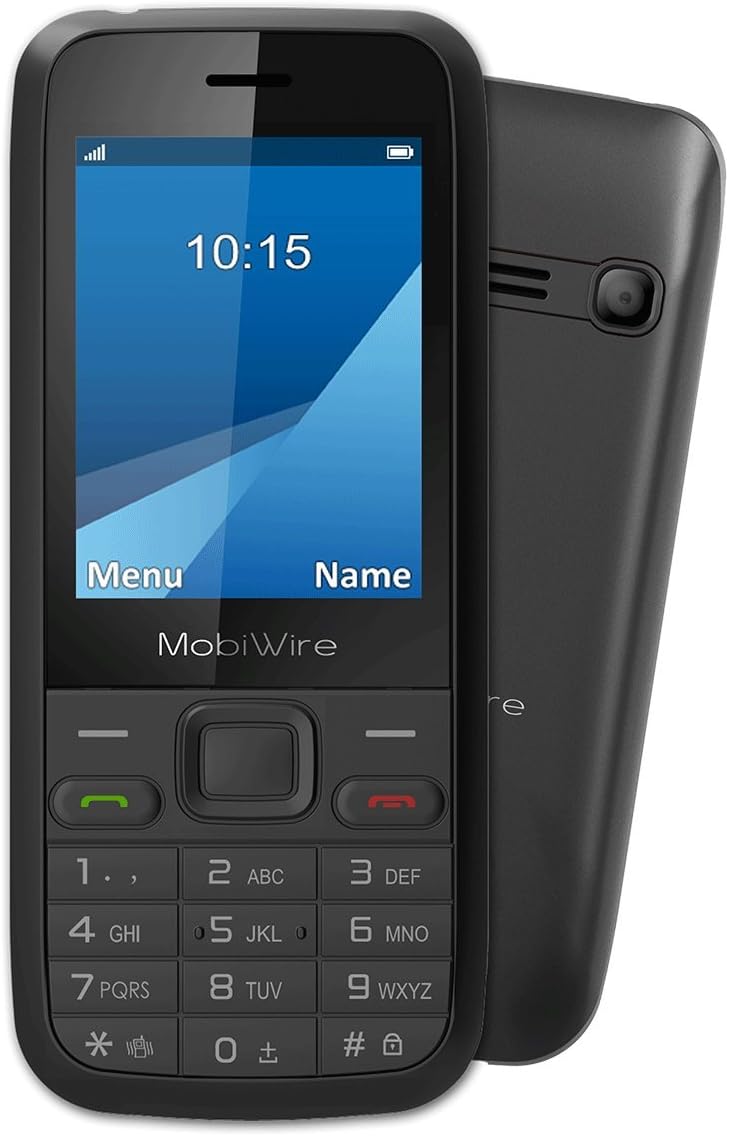
Image: Front view of the Mobiwire Pictor Basic Mobile Phone, displaying the screen, keypad, and brand logo.
What's in the Box
Upon opening the package, verify that all the following items are present:
- Mobiwire Pictor Basic Mobile Phone
- Battery
- Charger
- User Manual (this document)
- Warranty Card
- SIM Card (if provided by your service provider)

Image: All components included in the Mobiwire Pictor package: the phone, battery, charger, USB cable, and earphones.
Setup
1. Installing the Battery and SIM Card
- Remove the back cover of the phone by gently prying it from the notch at the bottom.
- Insert your SIM card(s) into the designated slot(s) with the gold contacts facing down.
- Align the battery with the contacts in the battery compartment and press it down gently until it clicks into place.
- Replace the back cover, ensuring it snaps securely into position.

Image: Rear view of the Mobiwire Pictor phone, showing the camera lens and speaker grille.
2. Charging the Phone
- Connect the charger to the charging port on the phone.
- Plug the charger into a power outlet.
- Allow the phone to charge completely before first use. The battery indicator on the screen will show charging status.
Operating Instructions
Power On/Off
- To power on, press and hold the Power/End Call button until the screen lights up.
- To power off, press and hold the Power/End Call button until the power-off options appear, then select "Power off".
Making Calls
- From the home screen, enter the phone number using the keypad.
- Press the Call button (green icon) to initiate the call.
- To end a call, press the End Call button (red icon).
Sending Messages
- Navigate to Menu > Messages.
- Select Write message.
- Enter your message using the keypad.
- Add the recipient's number or select from contacts.
- Select Send.
Using the Camera
- From the menu, select Camera.
- Frame your shot using the screen as a viewfinder.
- Press the OK button or the dedicated camera button to take a picture.
Music Player
- Access the music player via Menu > Multimedia > Audio player.
- Ensure your music files are stored on a compatible memory card (up to 32 GB).
- Use the navigation keys to select and play tracks.
Bluetooth Connectivity
- Go to Menu > Settings > Connectivity > Bluetooth.
- Turn Bluetooth On.
- Select Paired devices or Search new device to connect to other Bluetooth-enabled devices.
Maintenance
- Cleaning: Use a soft, dry cloth to clean the phone's surface. Avoid using liquid cleaners or aerosols.
- Battery Care: Do not expose the battery to extreme temperatures. If the phone will not be used for an extended period, charge the battery to about 50% before storing it.
- Storage: Store the phone in a cool, dry place away from direct sunlight and moisture.
- Avoid Drops: Protect the phone from physical shocks and drops, which can damage internal components.
Troubleshooting
| Problem | Possible Cause | Solution |
|---|---|---|
| Phone does not power on | Battery is drained or not properly installed. | Charge the battery. Ensure the battery is correctly inserted. |
| Cannot make or receive calls | No SIM card, SIM card not properly inserted, or no network signal. | Check SIM card insertion. Move to an area with better network coverage. Contact your service provider. |
| Poor call quality | Weak network signal or interference. | Move to an area with stronger signal. Avoid using the phone near other electronic devices that may cause interference. |
| Battery drains quickly | Excessive usage, background applications, or old battery. | Reduce screen brightness. Close unused applications. Consider replacing the battery if it's old. |
| Screen is faint or hard to read | Brightness setting is low or environmental lighting. | Adjust screen brightness in settings. Avoid direct sunlight when viewing the screen. |
Specifications
- Model: XZ-LSSSDP-S3645
- Screen Size: 2.4 Inches
- Resolution: 320x240 pixels
- Main Camera: 2.0 MP
- External Memory Support: Up to 32 GB
- Battery Capacity: 1000 mAh
- Connectivity: Bluetooth, 2G Cellular Technology
- Operating System: Symbian
- Colour: Black
- Dimensions: 12.19 x 8.38 x 5.33 cm
- Weight: 200 g
Warranty and Support
Your Mobiwire Pictor Basic Mobile Phone comes with a standard manufacturer's warranty. Please refer to the included Warranty Card for specific terms and conditions, including warranty period and coverage details.
Customer Support
For technical assistance, troubleshooting beyond this manual, or warranty claims, please contact Mobiwire customer support. Contact information can typically be found on the Warranty Card or the official Mobiwire website.
Website: www.mobiwire.com (Please check the specific regional website for your country, e.g., mobiwire.com/fr/de/it/.co.uk as indicated on the product box image)
Please have your product model number (XZ-LSSSDP-S3645) and purchase details ready when contacting support.
Ask a question about this manual
Ask about setup, troubleshooting, compatibility, parts, safety, or missing instructions. Manuals+ will review the question and use this page’s manual context to help answer it.