
1. Introduction
The Grandstream GWN7610 is a high-performance 802.11ac Wi-Fi Access Point designed for various environments such as office buildings, multi-floor locations, branch offices, and commercial/retail settings. It offers high network throughput, extensive wireless coverage, robust security features, and integrated network management without requiring external controllers. This manual provides essential information for the proper installation, configuration, and operation of your GWN7610 Access Point.
2. Package Contents
Verify that your package contains the following items:
- Grandstream GWN7610 Access Point
- Mounting Equipment (bracket, screws)
- Quick Installation Guide (this document)
Note: A power adapter is not included. The device supports Power over Ethernet (PoE/PoE+).
3. Physical Overview
Familiarize yourself with the ports and indicators on your GWN7610 Access Point.

Figure 3.1: Top-down view of the GWN7610 Access Point, showing its circular design and ventilation.
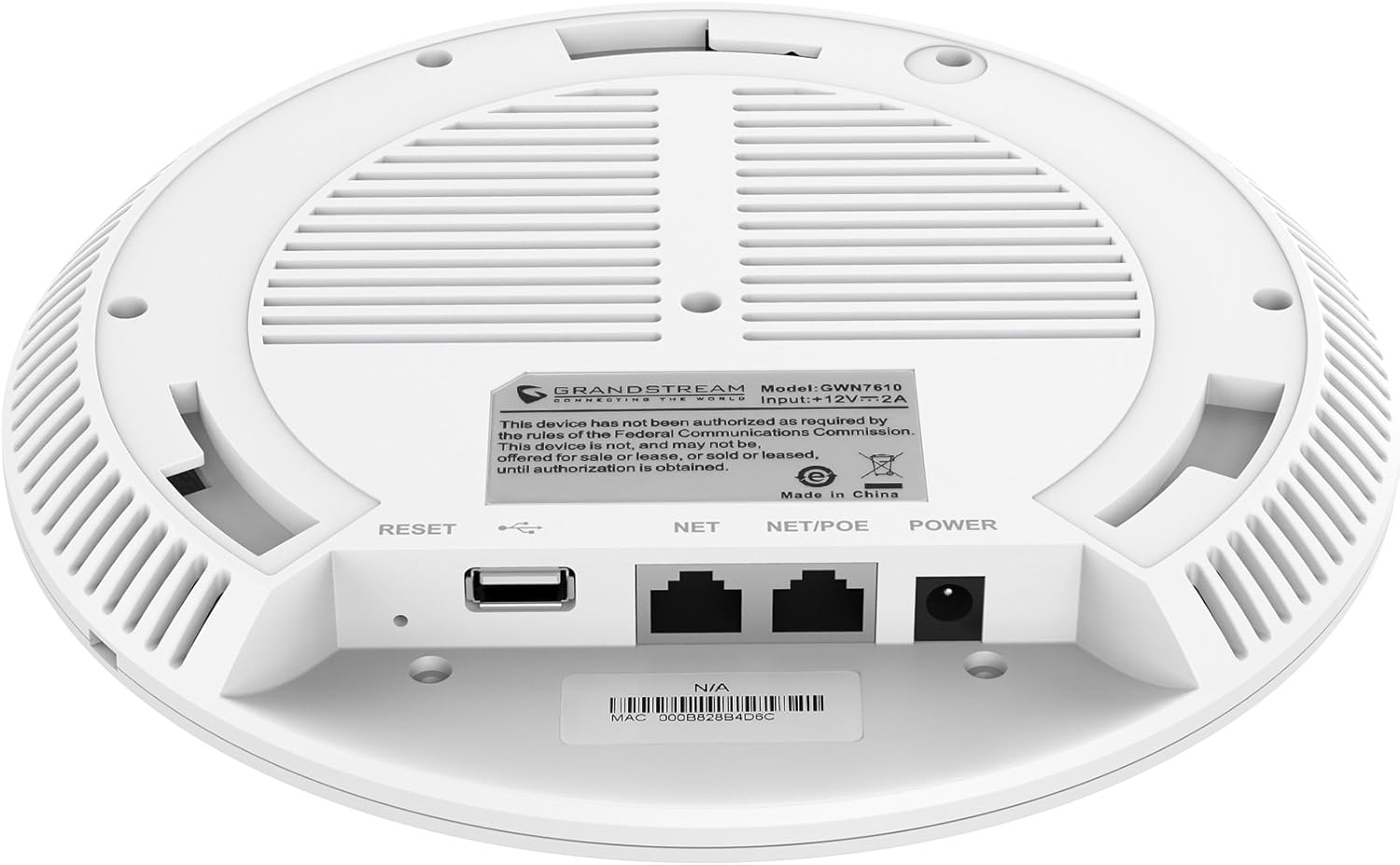
Figure 3.2: Bottom view of the GWN7610 Access Point, highlighting the connectivity ports and regulatory information.
- RESET Button: Used to reset the device to factory default settings. Press and hold for 10 seconds while the device is powered on.
- USB Port: For future applications such as location-based services and other IoT (Internet of Things) applications.
- NET/POE Port: Gigabit Ethernet port that supports Power over Ethernet (PoE/PoE+) for both data and power supply.
- POWER Port: DC power input (12V===2A) if not using PoE.
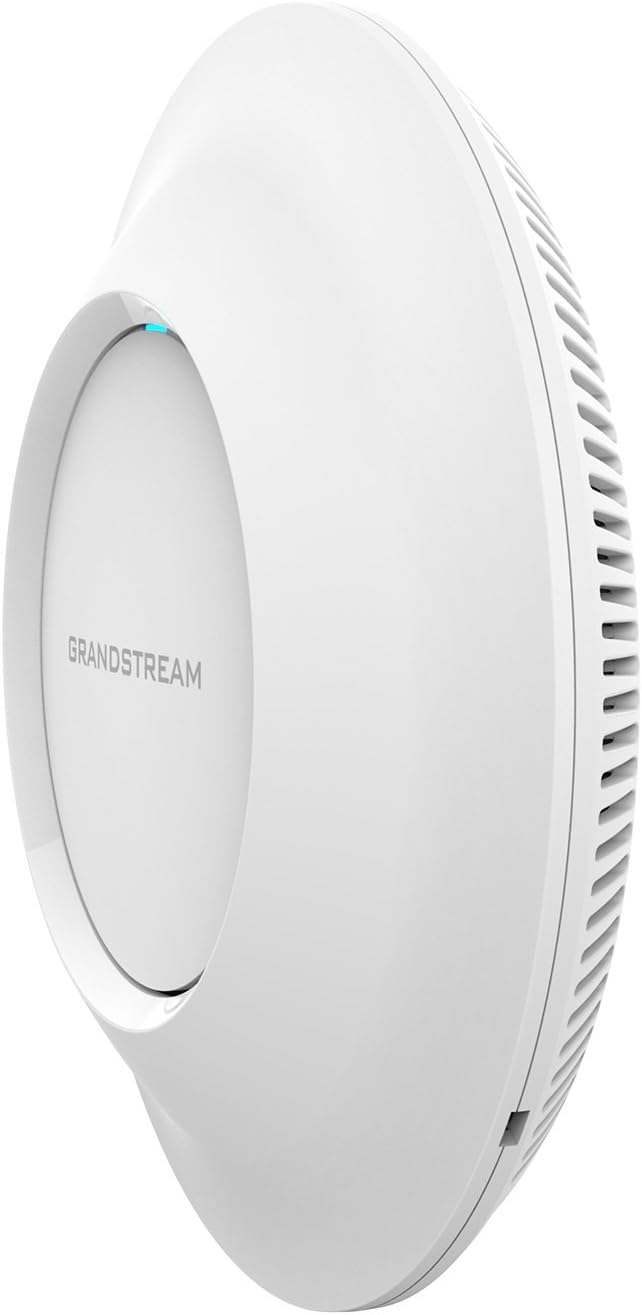
Figure 3.3: Side view of the GWN7610 Access Point, illustrating its sleek profile.
4. Installation and Mounting
The GWN7610 can be mounted on a wall or ceiling. The included mounting equipment facilitates installation. For optimal wireless coverage, choose a central location free from obstructions and sources of interference. Ensure the device is positioned away from large metal objects, concrete walls, and other electronic devices that may cause signal degradation.
Refer to the specific instructions provided with the mounting kit for detailed steps on securing the access point.
5. Setup
The GWN7610 features embedded network management, allowing for easy setup and configuration without the need for external controllers. Follow these general steps for initial setup:
- Power On: Connect the GWN7610 to a PoE/PoE+ enabled switch or injector using an Ethernet cable, or connect a 12V===2A DC power adapter to the POWER port.
- Network Connection: Connect the NET/POE port to your network infrastructure (router or switch).
- Accessing the Web Interface: Once powered on and connected, the GWN7610 will obtain an IP address via DHCP. You can discover the device's IP address using Grandstream's discovery tools or by checking your DHCP server's client list. Enter the IP address into a web browser to access the management interface.
- Initial Configuration: Log in with the default credentials (usually found in the Quick Installation Guide or on the device label) and proceed with configuring your Wi-Fi networks (SSIDs), security settings, and other network parameters.
6. Operating Instructions
The GWN7610 is designed for robust and efficient wireless operation. Key operational features include:
- Multiple SSIDs: Supports up to 16 SSIDs per radio, allowing for flexible network segmentation (e.g., separate networks for employees, guests, IoT devices).
- Client Capacity: Capable of supporting over 250 concurrent Wi-Fi clients, making it suitable for high-density environments.
- Dual-Band MIMO: Utilizes dual-band 3x3:3 MIMO technology for enhanced performance and reliability across both 2.4GHz and 5GHz frequencies.
- High Throughput: Delivers a maximum network throughput of up to 1.75Gbps, ensuring fast data transfer rates.
- Extended Coverage: Provides an expanded coverage range of up to 175 meters, minimizing dead zones.
- Integrated Controller: Manage multiple GWN7610 units from a single master access point, simplifying network administration.
7. Maintenance
Regular maintenance ensures optimal performance and longevity of your GWN7610 Access Point.
- Firmware Updates: Periodically check the Grandstream website for the latest firmware versions. Firmware updates often include performance improvements, security patches, and new features. Follow the instructions provided by Grandstream for updating firmware. Note that some updates may require using a TFTP server.
- Cleaning: Keep the device clean and free from dust. Use a soft, dry cloth for cleaning. Do not use liquid or aerosol cleaners.
- Environmental Conditions: Ensure the device operates within its specified temperature and humidity ranges to prevent damage.
8. Troubleshooting
If you encounter issues with your GWN7610, consider the following troubleshooting steps:
- No Power: Verify that the device is properly connected to a PoE/PoE+ source or a compatible 12V===2A power adapter. Check the power indicator light.
- No Network Connectivity: Ensure the Ethernet cable is securely connected to the NET/POE port and your network switch/router. Check the status of your network infrastructure.
- Cannot Access Web Interface: Confirm the device has an IP address and that your computer is on the same network segment. Try pinging the device's IP address. If the IP address is unknown, use Grandstream's discovery utility.
- Poor Wi-Fi Performance: Check for sources of interference (e.g., microwaves, cordless phones). Ensure the access point is optimally placed. Adjust Wi-Fi channel settings to avoid congestion.
- Device Unresponsive: Perform a soft reboot by disconnecting and reconnecting power. If the issue persists, perform a factory reset using the RESET button (refer to Section 3).
9. Specifications
| Feature | Specification |
|---|---|
| Wireless Type | 802.11a/g/n/ac |
| Number of USB 2.0 Ports | 1 |
| Brand | Grandstream |
| Series | Grandstream GWN7610 |
| Item Model Number | GWN7610 |
| Operating System | RouterOS |
| Item Weight | 1.9 pounds |
| Product Dimensions (LxWxH) | 9 x 9 x 3 inches |
| Color | White |
| Manufacturer | Grandstream |
10. Safety Information
Please read and follow these safety guidelines to prevent damage to the device or injury to yourself:
- Do not expose the device to water or moisture.
- Do not open or attempt to repair the device. Refer all servicing to qualified personnel.
- Use only the power sources specified (PoE/PoE+ or 12V===2A DC adapter).
- Install the device in a well-ventilated area.
- Proposition 65 Warning: This product may contain chemicals known to the State of California to cause cancer and birth defects or other reproductive harm.
11. Regulatory Compliance
This device complies with relevant regulatory standards. Please note the following:
FCC Warning: This device has not been authorized as required by the rules of the Federal Communications Commission. This device is not, and may not be, offered for sale or lease, or sold or leased, until authorization is obtained.
Users are advised to ensure compliance with local regulations regarding wireless device operation.
12. Warranty and Support
For warranty information and technical support, please refer to the official Grandstream website or contact your authorized reseller. Keep your purchase receipt for warranty claims.


