
Introduction
This manual provides detailed instructions for the ORICO 3.5 inch Hard Drive Docking Station (Model 6139U3). This device allows for easy external access to 2.5-inch and 3.5-inch SATA I/II/III hard drives and SSDs, supporting capacities up to 12TB. Please read this manual carefully before use to ensure proper operation and to maximize the lifespan of your device.
Package Contents
- 1 x USB 3.0 to SATA Hard Drive Dock
- 1 x 12V 3A Power Adaptor
- 1 x USB 3.0 Data Cable
- 1 x User Manual
Product Overview

Transparent Design: The docking station features a transparent case, allowing visibility of the internal components and a modern aesthetic.

High-Speed Data Transfer: Equipped with a USB 3.0 interface and UASP protocol, it supports data transfer rates up to 5Gbps, enabling quick file transfers.

Efficient Heat Dissipation: The vertical design promotes superior heat dissipation for the hard drive while providing shock absorption.

Automatic Sleep Function: To extend the lifespan of your hard drive, the device automatically enters sleep mode after 10 minutes of inactivity.

Enhanced Durability and User Feedback: Features an anti-slip rubber pad for stability, a blue LED indicator for operational status (solid blue for power, flashing for data transfer), and a curved, high-hardness PC enhanced case.
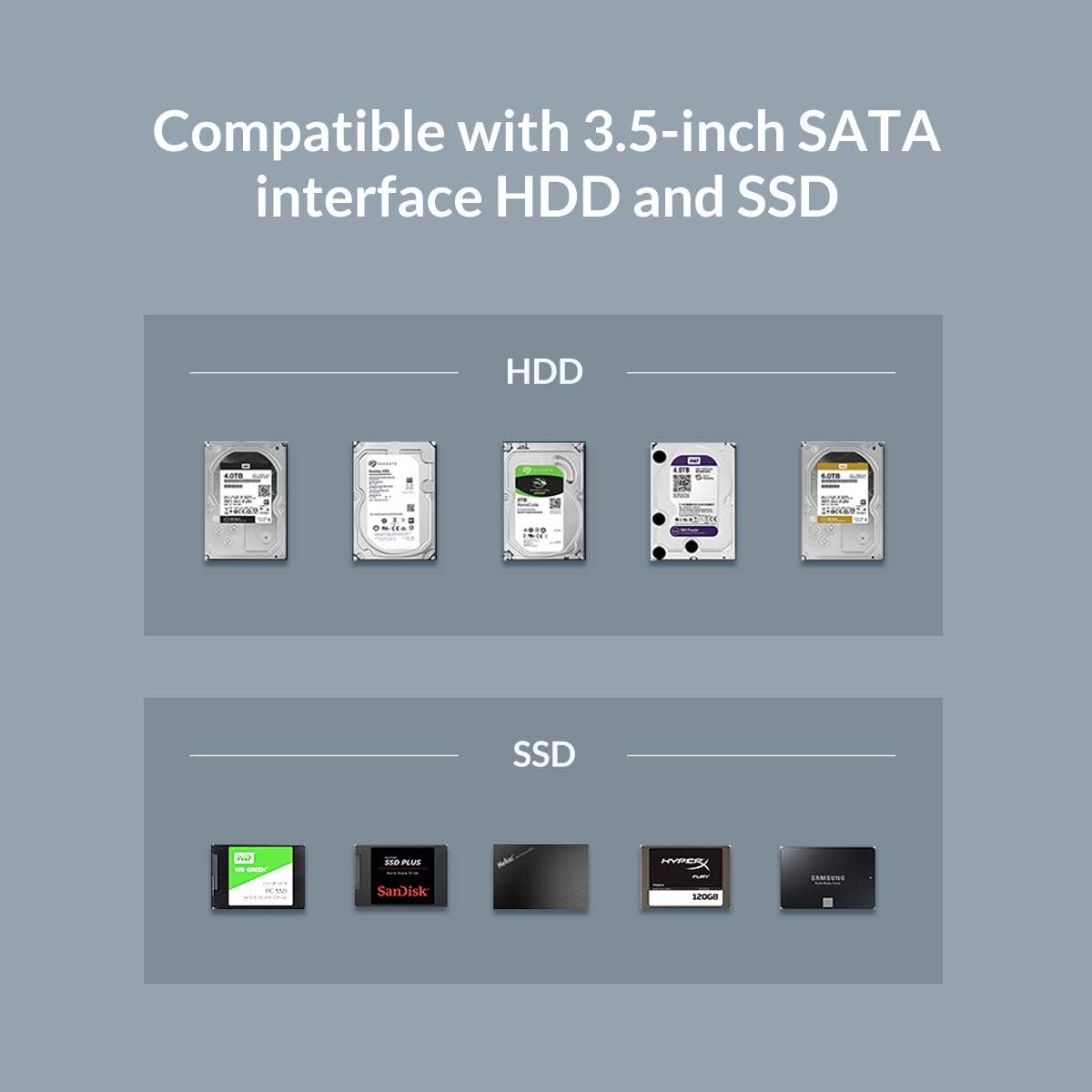
Broad Compatibility: Supports all 2.5-inch and 3.5-inch SATA I/II/III hard drives and SSDs, with a maximum capacity of 12TB.
Setup Instructions
- Connect Power: Connect the provided 12V 3A power adapter to the docking station's power input port, then plug the adapter into a standard power outlet.
- Connect to Computer: Connect the USB 3.0 data cable from the docking station's USB 3.0 port to an available USB 3.0 port on your computer.
- Insert Hard Drive: Gently insert your 2.5-inch or 3.5-inch SATA hard drive or SSD into the docking slot until it is securely seated. Ensure the SATA connectors align properly.
- Power On: Press the power button on the docking station. The blue LED indicator will illuminate, signifying that the device is powered on and ready for use.
Operating Instructions
- Automatic Detection: Once powered on and connected, your computer should automatically detect the hard drive. No additional drivers are typically required for Windows, Linux, or Mac OS 10.10 or higher.
- Data Transfer: To transfer data, simply drag and drop files to and from the detected drive in your operating system's file explorer. The blue LED will flash during data transfer.
- Hot-Swapping: The docking station supports hot-swapping, allowing you to insert and remove drives without rebooting your computer, provided the drive is not actively in use. Always safely eject the drive from your operating system before physical removal.
- UASP Support: The UASP (USB Attached SCSI Protocol) support ensures optimized data transfer speeds, especially with compatible operating systems and drives.
- Automatic Sleep: The device will automatically enter sleep mode after 10 minutes of inactivity to conserve energy and extend the lifespan of your hard drive.
Maintenance
- Cleaning: Keep the docking station clean and free from dust. Use a soft, dry cloth for cleaning. Avoid liquid cleaners.
- Ventilation: Ensure proper ventilation around the device to prevent overheating, especially during prolonged use.
- Environmental Conditions: Avoid exposing the device to moisture, extreme temperatures, or direct sunlight.
- Safe Ejection: Always safely eject the hard drive from your operating system before physically removing it from the docking station or powering off the device to prevent data loss or corruption.
Troubleshooting
- Drive Not Detected or Recognized:
- Ensure the power adapter is securely connected and the docking station is powered on (blue LED should be solid).
- Verify the USB 3.0 data cable is firmly connected to both the docking station and a functional USB 3.0 port on your computer. Try a different USB port or cable if available.
- Confirm the hard drive is correctly inserted into the docking slot.
- For new drives or drives not appearing in 'My Computer'/'This PC', check Disk Management (Windows) or Disk Utility (Mac) to see if the drive needs to be initialized, partitioned, or formatted.
- If using a 4TB or larger drive and experiencing recognition issues (e.g., showing as a 2TB GPT protected partition), ensure your operating system and the docking station's firmware (if applicable, check manufacturer's website) support large drives. Some older systems or firmware might have limitations.
- Try a different hard drive to rule out an issue with the original drive.
- Slow Data Transfer Speeds:
- Ensure you are connected to a USB 3.0 port on your computer. USB 2.0 ports will result in significantly slower speeds.
- Verify that UASP is enabled and supported by your operating system and computer's USB controller for optimal performance.
- The actual transfer speed can be affected by the hard drive's performance, file size, and system load.
- Device Powers Off Unexpectedly:
- Check the power adapter and cable for any damage or loose connections.
- The device has an automatic sleep function after 10 minutes of inactivity. This is normal behavior to conserve energy and extend drive life.
Specifications
| Feature | Specification |
|---|---|
| Brand | ORICO |
| Model Number | 6139U3 |
| Compatible Devices | 2.5" / 3.5" SATA I / II / III Hard Drive and SSD |
| Max Storage Capacity | Up to 12TB (as per product title, JSON spec says 8TB, using title's higher value) |
| Data Transfer Rate | 5 Gigabytes Per Second (5Gbps) |
| Connectivity Technology | USB 3.0 |
| Hardware Interface | USB |
| Hard Disk Form Factor | 3.5 Inches |
| Max Number of Supported Devices | 1 |
| Item Weight | 15.5 ounces (440 Grams) |
| Product Dimensions | 5.71 x 3.07 x 2.36 inches |
| Color | Clear |
| Material | Plastic |
| Hardware Platform | Windows (also supports Linux/Mac OS) |
Warranty and Support
ORICO provides customer support for this product. If you encounter any issues or have questions, please contact ORICO customer service. Information regarding specific warranty periods can be found on the official ORICO website or by contacting their support team. As per product information, support is available 24 hours.


