
Introduction
The Thermaltake Toughpower Grand RGB 850W 80+ Gold Power Supply is designed to deliver stable and reliable power to your computer system. It features a fully modular cable design, an 80 PLUS Gold certification for high efficiency, and a patented 256-color Riing 14 RGB fan with multiple lighting modes. This manual provides essential information for the proper installation, operation, and maintenance of your power supply unit.
Safety Information
- Do not open the power supply unit. High voltages are present inside, posing a risk of electric shock.
- Ensure the power supply is properly grounded.
- Do not operate the power supply in high humidity or extreme temperatures.
- Use only genuine Thermaltake modular cables. Third-party cables might not be compatible and could cause serious damage to your system.
- Always disconnect the AC power cord from the wall outlet before installing or removing the power supply.
Package Contents
Verify that all items are present in the package:
- Thermaltake Toughpower Grand RGB 850W Power Supply Unit
- Modular Cable Set (Main Power, ATX 12V, SATA, PCI-E, Peripheral, FDD Adapter)
- AC Power Cord
- Mounting Screws
- User Manual
- Cable Straps

Figure 1: Top view of the Thermaltake Toughpower Grand RGB 850W Power Supply, highlighting the integrated RGB fan.

Figure 2: The modular cable connection panel of the power supply, showing various ports for system components.
Setup
1. Physical Installation
- Ensure your computer is powered off and unplugged from the wall outlet.
- Remove the side panel of your computer case to access the power supply mounting area.
- Carefully slide the Thermaltake Toughpower Grand RGB 850W Power Supply into the designated bay in your PC case.
- Secure the power supply to the case using the provided mounting screws.

Figure 3: An angled view of the power supply, illustrating its compact form factor for installation within a PC case.
2. Cable Connection
Connect the necessary modular cables to the power supply and your system components:
- Main Power (24-Pin): Connect to your motherboard.
- ATX 12V (4+4 Pin): Connect to your motherboard's CPU power connector.
- PCI-E (6+2 Pin): Connect to your graphics card(s).
- SATA (5 Pin): Connect to SATA devices like SSDs, HDDs, or optical drives.
- Peripheral (4 Pin): Connect to older peripherals or case fans.
- FDD Adapter: Use for floppy disk drives if needed.
Ensure all cables are firmly seated to prevent power issues.
3. Power On/Off
- After all connections are made, replace the computer case side panel.
- Plug the AC power cord into the power supply and then into a wall outlet.
- Flip the main power switch on the rear panel of the power supply to the "ON" position.

Figure 4: The rear panel of the power supply, showing the main power switch and the RGB lighting control button.
Operating
1. RGB Fan Control
The power supply features a patented 256-color Riing 14 RGB fan. Use the RGB Lighting button on the rear panel to cycle through 5 different lighting modes:
- RGB Cycle (dynamic color change)
- Red (solid color)
- Green (solid color)
- Blue (solid color)
- White (solid color)
- LED Off
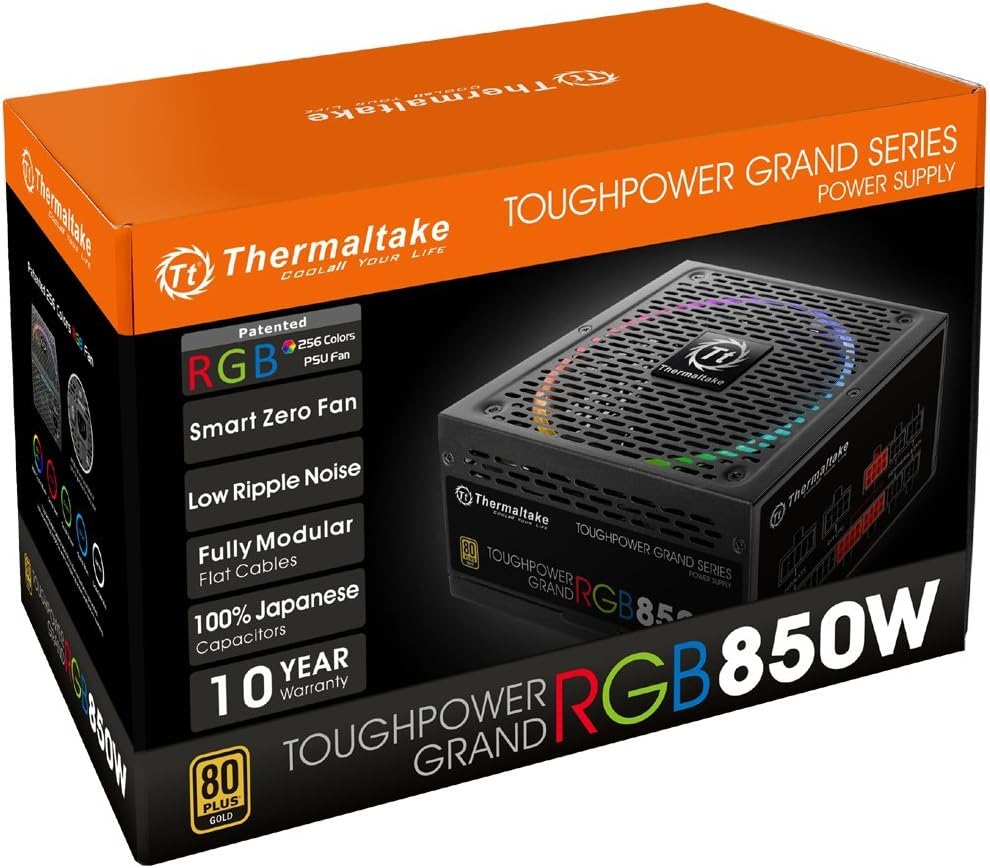
Figure 5: The power supply fan illuminated in a solid blue color.

Figure 6: The power supply fan illuminated in a solid green color.

Figure 7: The power supply fan illuminated in a solid red color.

Figure 8: The power supply fan illuminated in a solid white color.
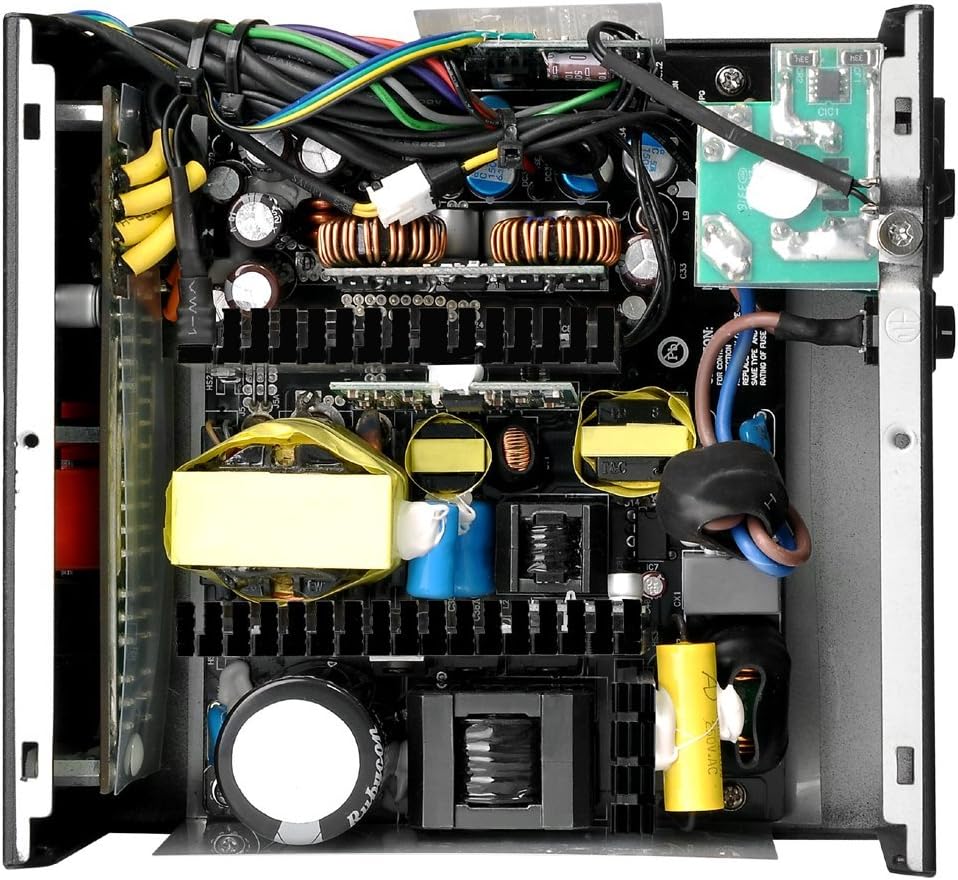
Figure 9: The power supply fan in its dynamic RGB color cycling mode.
2. Smart Zero Fan Feature
The Smart Zero Fan feature ensures zero noise when the power supply's working load is below 20%. The fan will only activate when the load exceeds this threshold to minimize audible noise. A switch on the rear panel allows you to turn this feature off, causing the fan to spin constantly regardless of load.

Figure 10: The Smart Zero Fan switch located on the rear panel, allowing users to enable or disable the silent operation mode.
3. Official Product Video
Video 1: An official Thermaltake video showcasing the features and design of the Toughpower Grand RGB Power Supply.
Maintenance
1. Cleaning
Regular cleaning helps maintain optimal performance and extends the lifespan of your power supply. Use compressed air to gently remove dust from the fan and ventilation grilles. Ensure the power supply is unplugged before cleaning.
2. Fan Maintenance
The 14cm hydraulic bearing fan is designed for durability. If you notice unusual noise or reduced airflow, inspect the fan for obstructions. Do not attempt to disassemble the fan or power supply unit.
Troubleshooting
- No Power:
- Check if the AC power cord is securely connected to both the power supply and the wall outlet.
- Ensure the main power switch on the rear panel is in the "ON" position.
- Verify that the wall outlet is functional.
- System Instability/Crashes:
- Ensure all modular cables are correctly and firmly connected to both the power supply and the components.
- Confirm that your system's power requirements do not exceed the 850W capacity of the power supply.
- Fan Not Spinning (at low load):
- This is normal if the Smart Zero Fan feature is enabled and the system load is below 20%. The fan will start automatically when needed.
- If you prefer the fan to spin constantly, switch the Smart Zero Fan feature to "OFF" on the rear panel.
- RGB Lighting Issues:
- Press the RGB Lighting button on the rear panel to cycle through different modes and ensure it's not set to "LED Off".
Specifications
| Feature | Detail |
|---|---|
| Type | ATX 12V v2.4 and EPS v2.92 |
| Max. Output Capacity | 850W |
| Peak Output Capacity | 1020W |
| Dimension (W / H / D) | 150mm (W) x 86mm (H) x 160mm (D) |
| PFC (Power Factor Correction) | Active PFC |
| Input Voltage | 100V – 240V |
| Input Current | 12A |
| Input Frequency Range | 50Hz - 60Hz |
| Operating Temperature | 0°C to + 50°C |
| Operating Humidity | 20% to 90%, non-condensing |
| Cooling System | 14cm hydraulic bearing fan |
| Efficiency | 80 PLUS Gold at 115Vac input |
| MTBF | 120,000 hrs minimum |
| Safety Approval | CE/cTUVus/TÜV SÜD/FCC/CCC/BSMI/EAC |
| Protection | UVP, OVP, OCP, SCP, OPP, OTP |
4. Power Consumption Test Video
Video 2: A review video demonstrating the power consumption and performance of a Thermaltake Smart BM3 850W Power Supply under various loads.
Warranty and Support
The Thermaltake Toughpower Grand RGB 850W Power Supply comes with an outstanding 10-year warranty, ensuring long-term reliability and peace of mind. For technical support, warranty claims, or further assistance, please visit the official Thermaltake website or contact their customer service department.
Online Support: www.thermaltake.com