
1. Introduction
The NEC MultiSync E241N is a 24-inch LCD monitor designed for business and office environments. It features an IPS panel with LED backlighting, offering a Full HD resolution of 1920 x 1080 pixels for clear and vibrant visuals. This monitor provides versatile connectivity options including HDMI and USB, along with ergonomic adjustments for enhanced user comfort.
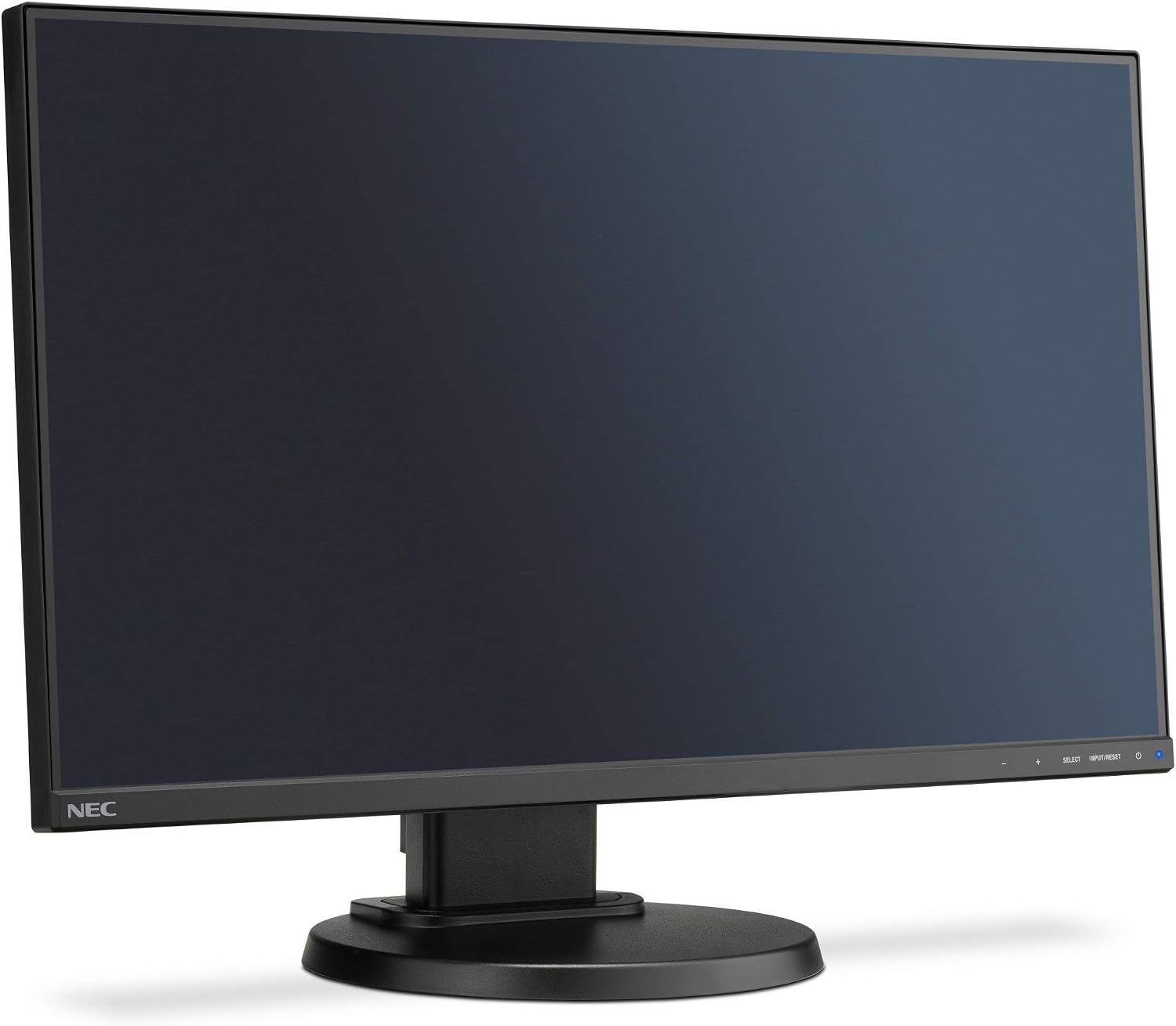
Figure 1: NEC MultiSync E241N monitor in landscape orientation, front view with stand.
2. Safety Information
Please read all safety instructions carefully before using the monitor. Keep this manual for future reference.
- This product is designed for external use only.
- Do not expose the monitor to rain or moisture to prevent fire or shock hazards.
- Do not open the monitor casing. There are no user-serviceable parts inside. Refer all servicing to qualified service personnel.
- Ensure proper ventilation. Do not block ventilation openings.
- Use only the power cord and adapter supplied with the monitor.
- Place the monitor on a stable, flat surface to prevent it from falling.
3. Package Contents
Verify that all items are present in the package:
- NEC MultiSync E241N Monitor
- Monitor Stand (Base and Neck)
- Power Cable
- HDMI Cable
- USB Cable (for USB hub functionality)
- User Manual (this document)
4. Setup
Follow these steps to set up your NEC MultiSync E241N monitor:
- Unpack Components: Carefully remove all components from the packaging.
- Assemble the Stand: Attach the stand neck to the monitor panel, then secure the base to the neck. Ensure all screws are tightened.
- Connect Video Cable: Connect one end of the HDMI cable to the HDMI port on your computer and the other end to an HDMI input port on the monitor. Alternatively, use a DisplayPort or VGA cable if your system supports it.
- Connect USB Cable (Optional): If you wish to use the integrated USB hub, connect the upstream USB cable from your computer to the monitor's upstream USB port.
- Connect Power Cable: Plug the power cable into the monitor's power input, then plug the other end into a grounded electrical outlet.
- Power On: Press the power button on the monitor to turn it on.

Figure 2: Rear view of the monitor showing various input ports.
5. Operating the Monitor
This section describes the basic operation and adjustments of your monitor.
5.1 Power On/Off
Locate the power button on the front bezel of the monitor. Press it to turn the monitor on or off. The power indicator LED will illuminate when the monitor is on.
5.2 Input Selection
Use the input selection button (often labeled 'Input' or 'Select') on the front panel to cycle through available video input sources (HDMI, DisplayPort, VGA).
5.3 On-Screen Display (OSD) Menu
The OSD menu allows you to adjust various monitor settings. Press the 'Menu' button to access the OSD. Use the navigation buttons (+, -) to move through options and 'Select' to confirm. Common settings include:
- Brightness/Contrast: Adjust the overall luminance and difference between light and dark areas.
- Color Settings: Modify color temperature, gamma, and individual RGB levels.
- Picture Mode: Select predefined display modes (e.g., Standard, Text, Movie).
- Input Select: Manually choose the active input source.
- Audio: Adjust volume for integrated speakers or headphone output.

Figure 3: Front view of the monitor with control buttons.
5.4 Ergonomic Adjustments
The monitor stand allows for various adjustments to optimize your viewing experience:
- Height Adjustment: Gently push or pull the monitor panel up or down to adjust its height.
- Tilt: Tilt the monitor screen forward or backward to find the optimal viewing angle.
- Swivel: Rotate the monitor left or right on its base.
- Pivot: Rotate the monitor 90 degrees to switch between landscape and portrait orientation.

Figure 4: Monitor swivel functionality.

Figure 5: Monitor height adjustment.
6. Maintenance
Proper maintenance ensures the longevity and optimal performance of your monitor.
- Cleaning the Screen: Gently wipe the screen with a soft, lint-free cloth. For stubborn marks, slightly dampen the cloth with water or a mild, non-abrasive screen cleaner. Do not spray cleaner directly onto the screen.
- Cleaning the Casing: Use a soft, dry cloth to clean the monitor casing. Avoid using strong detergents or abrasive cleaners.
- Ventilation: Ensure that the ventilation openings on the monitor are not blocked to prevent overheating.
- Handling: Avoid placing heavy objects on the monitor or its stand. Do not apply excessive force to the screen.
- Power Off: When not in use for extended periods, it is recommended to power off the monitor and unplug it from the electrical outlet.
7. Troubleshooting
If you encounter issues with your monitor, refer to the following troubleshooting guide:
| Problem | Possible Cause | Solution |
|---|---|---|
| No power / Power LED off | Power cable disconnected; Power outlet faulty; Monitor power button off. | Check power cable connections; Try a different outlet; Press the monitor power button. |
| No image / "No Signal" message | Video cable disconnected; Incorrect input source selected; Computer not outputting video. | Check video cable connections; Select correct input source via OSD; Ensure computer is on and outputting video. |
| Poor image quality (blurry, distorted) | Incorrect resolution or refresh rate; Cable issue; Monitor settings. | Set computer resolution to 1920x1080 and refresh rate to 60Hz; Try a different video cable; Adjust brightness, contrast, and sharpness in OSD. |
| Buttons not responding | Temporary software glitch. | Unplug the monitor's power cable, wait 30 seconds, then plug it back in and power on. |
8. Specifications
Detailed technical specifications for the NEC MultiSync E241N monitor:
- Brand: NEC
- Model Name: E241N
- Model Number: 60004222
- Screen Size: 23.8 Inches (60.5 cm)
- Display Technology: LED Backlight, IPS Panel
- Resolution: 1920 x 1080 Pixels (Full HD)
- Max Display Resolution: 1080p Full HD
- Aspect Ratio: 16:9
- Contrast Ratio: 1000:1
- Refresh Rate: 60 Hz
- Viewing Angle: 178 Degrees (Horizontal/Vertical)
- Response Time: 6 ms
- Connectivity Technology: HDMI, VGA, DisplayPort (implied by feature bullets and images)
- Total HDMI Ports: 1
- Total USB Ports: 2 (USB 2.0)
- Special Features: Integrated Speakers, Cable Lock Slot, Adjustable Tilt, Height Adjustment, Swivel, Pivot, RoHS Compliant, Energy Star Certified.
- VESA Mount Type: Wall Mount (VESA compatible)
- Item Weight: 7.5 Kilograms
- Color: Black
- Manufacturer: Nec Display Solutions
9. Warranty and Support
For warranty information, technical support, or service inquiries, please refer to the official NEC Display Solutions website or contact your local NEC dealer. Keep your purchase receipt as proof of purchase for warranty claims.
Online resources may include:
- NEC Display Solutions Official Website
- Product registration
- Driver downloads
- Additional troubleshooting guides


