
Epson ES-200
Epson WorkForce ES-200 Portable Document Scanner User Manual
Model: ES-200
Introduction
The Epson WorkForce ES-200 is a portable duplex document scanner designed for efficient organization, whether in the office or on the go. It features fast scanning speeds and Single-Step Technology for scanning both sides of documents simultaneously.
This manual provides detailed instructions for setting up, operating, maintaining, and troubleshooting your ES-200 scanner.

Image: The Epson WorkForce ES-200 portable document scanner in its closed, compact state.
What's in the Box
Verify that all items listed below are included in your package:
- WorkForce ES-200 Document Scanner
- Start Here poster
- SuperSpeed USB cable
- AC adapter and power cable
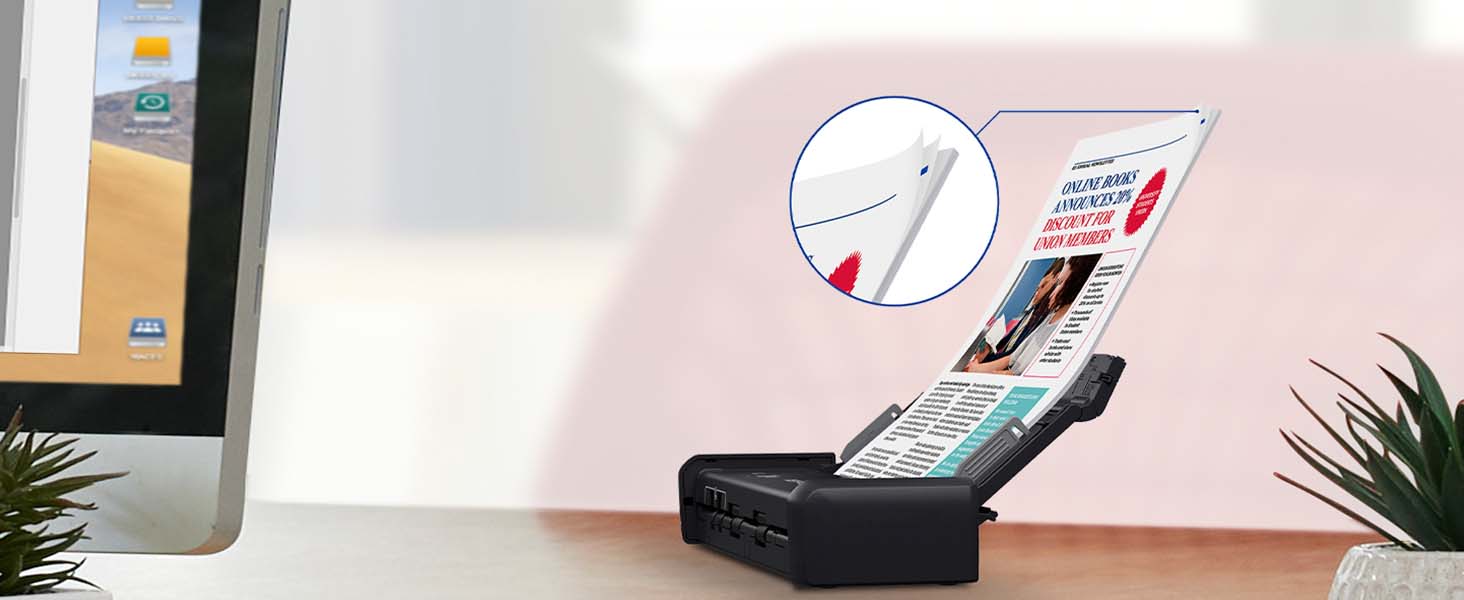
Image: A visual representation of the items included in the Epson WorkForce ES-200 package: the scanner, a "Start Here" poster, a SuperSpeed USB cable, and an AC adapter with power cable.
Setup
Follow these steps to set up your Epson WorkForce ES-200 scanner:
- Unpack the Scanner: Carefully remove the scanner and all accessories from the packaging.
- Connect Power: Connect the AC adapter to the scanner and plug it into a power outlet. Alternatively, for convenient portability, you can use a USB 3.0 connection from your computer for power.
- Connect to Computer: Use the provided SuperSpeed USB cable to connect the scanner to your computer.
- Install Software: Install the Epson ScanSmart Software on your Windows PC or Mac. An internet connection is required for software installation. This software enables previewing, emailing, uploading, and automatic file naming.
- Open the Scanner: Lift the top cover of the scanner to reveal the document feeder mechanism. Extend the paper supports as needed.
Video: A demonstration of opening the Epson ES-200 scanner and preparing it for use, highlighting the internal components and paper guides.
Operating Instructions
Loading Documents
The ES-200 features a 20-page Auto Document Feeder (ADF) for batch scanning. It can also handle individual items like business cards and plastic IDs.
- For Multiple Pages: Place up to 20 pages into the Auto Document Feeder. Ensure the pages are aligned properly.
- For Single Items (e.g., Business Cards, IDs): Insert the item into the designated slot. The versatile design allows for scanning various media types.

Image: A hand demonstrating how to insert a business card into the versatile scanning slot of the Epson WorkForce ES-200 scanner.

Image: A stack of documents loaded into the 20-page Auto Document Feeder of the Epson WorkForce ES-200, ready for batch scanning.
Scanning Documents
The ES-200 offers Single-Step Technology for efficient duplex scanning.
- Start Scan: Once documents are loaded, initiate the scan using the Epson ScanSmart Software on your computer or by pressing the scan button on the device.
- Review and Save: The software will display a preview of your scanned documents. You can then choose to save them to cloud storage accounts, searchable PDFs, or editable Word and Excel files.

Image: The Epson WorkForce ES-200 scanner in operation, feeding documents through its system, with a laptop displaying the scanning interface in the background.

Image: The Epson ScanSmart Software interface displayed on a computer monitor, showing options for scanning and managing documents, with the ES-200 scanner visible on the desk.
Maintenance
Regular maintenance ensures optimal performance and longevity of your scanner.
- Cleaning the Rollers: Over time, dust and paper residue can accumulate on the rollers, affecting document feeding. Refer to the full user manual for detailed cleaning instructions.
- Cleaning the Scan Glass: Use a soft, lint-free cloth lightly dampened with water or a mild glass cleaner to wipe the scan glass. Avoid abrasive materials.
- Software Updates: Periodically check for and install software updates for Epson ScanSmart to ensure compatibility and access to the latest features.
Troubleshooting
This section addresses common issues you might encounter with your ES-200 scanner.
Common Issues and Solutions
| Problem | Solution |
|---|---|
| Scanner not recognized by computer | Ensure the USB cable is securely connected. Try a different USB port. Reinstall Epson ScanSmart Software. Check if the scanner is powered on. |
| Paper jams | Remove any jammed paper carefully. Ensure documents are not wrinkled or torn before feeding. Do not overload the ADF (max 20 pages). Adjust paper guides to fit the document width. |
| Poor scan quality | Clean the scan glass and rollers. Adjust scan settings (resolution, color mode) in the Epson ScanSmart Software. Ensure original documents are clean and free of debris. |
| Software pop-up window not appearing automatically | Manually open the Epson ScanSmart Software. Check software settings for automatic launch options. Ensure the scanner is not in sleep mode. |
For more detailed troubleshooting, please refer to the official Epson support website or the comprehensive User Manual PDF.
Official User Manual (PDF): Download Here
Specifications
| Feature | Detail |
|---|---|
| Product Dimensions | 11.3 x 3.5 x 2 inches (28.7 x 8.9 x 5.1 cm) |
| Item Weight | 2.4 pounds (1.09 kg) |
| Model Number | ES-200 |
| Scanner Type | Document |
| Connectivity Technology | USB |
| Resolution | 600 dpi |
| Media Type | Business Card, Paper, Receipt |
| Sheet Size | Letter |
| Wattage | 8 watts |
| Auto Document Feeder (ADF) | 20 pages |
| Scan Speed | Up to 25 ppm/50 ipm (based on letter-sized scans at 300 dpi using AC adapter) |
Warranty and Support
For warranty information and technical support, please visit the official Epson support website or contact their customer service. Keep your purchase receipt as proof of purchase.
Epson Support: epson.com/support
Product Registration: Register your product online to receive updates and support.
Related documentsES-200


Ask a question about this manual
Ask about setup, troubleshooting, compatibility, parts, safety, or missing instructions. Manuals+ will review the question and use this page’s manual context to help answer it.