
1. Introduction
This manual provides essential information for the installation, operation, and maintenance of your EVGA GeForce GTX 1050 Ti SC GAMING graphics card. Please read these instructions carefully before proceeding with installation to ensure proper functionality and to prevent damage to your system components.
The EVGA GeForce GTX 1050 Ti SC GAMING is a high-performance graphics card designed for an enhanced computing experience, featuring NVIDIA Pascal architecture and 4GB of GDDR5 memory. It is optimized for gaming at 1080p resolution and supports multiple display outputs.
2. System Requirements
- PCI Express-compliant motherboard with one x16 graphics slot.
- Minimum 300W or greater system power supply (with a minimum 18A on the +12V rail).
- 350MB of available hard-disk space.
- 4GB system memory (6GB or higher recommended).
- Microsoft Windows 10, Windows 8, or Windows 7 (32/64-bit).
- CD-ROM/DVD-ROM drive or internet connection for driver installation.
3. Hardware Installation
- Prepare Your System: Power off your computer and disconnect the power cable from the wall outlet. Open your computer case.
- Locate PCI Express Slot: Identify an available PCI Express x16 slot on your motherboard. This is typically the longest slot.
- Remove Slot Cover: Remove the metal slot cover from the back of your computer case corresponding to the chosen PCI Express slot.
- Install Graphics Card: Carefully align the graphics card with the PCI Express x16 slot. Press down firmly and evenly until the card is securely seated in the slot. Ensure the retention clip on the slot engages.
- Secure the Card: Use a screw to fasten the graphics card's mounting bracket to the computer case.
- Connect Display Cables: Connect your monitor(s) to the appropriate video output ports on the graphics card (DisplayPort, HDMI, or DVI-D).
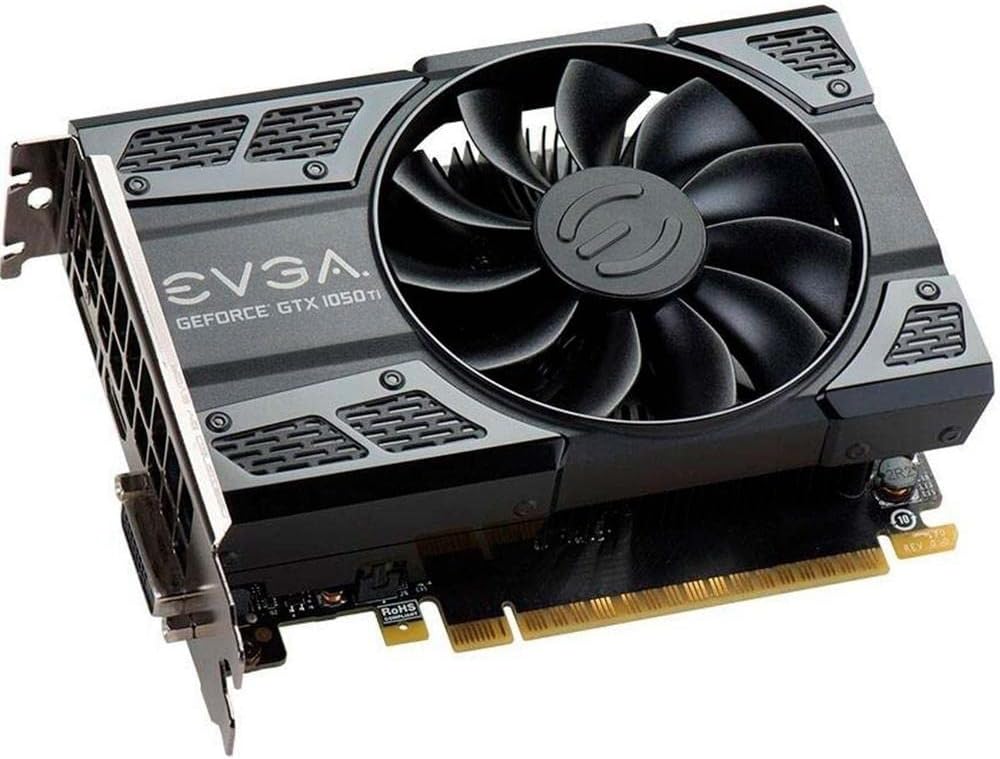
This image shows the front of the EVGA GeForce GTX 1050 Ti SC GAMING graphics card, highlighting its single cooling fan and EVGA branding.
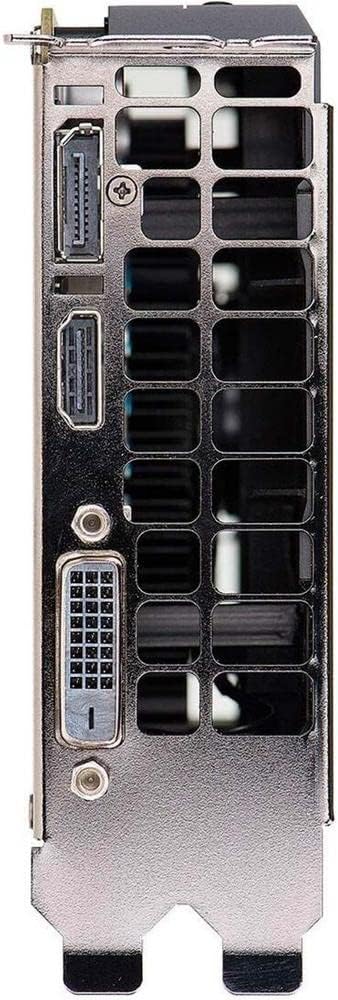
This image displays the video output ports on the graphics card, including DisplayPort, HDMI, and DVI-D connectors.
- Close Case and Power On: Close your computer case, reconnect the power cable, and power on your system.
4. Driver Installation
After hardware installation, the operating system may install generic drivers. For optimal performance and full functionality, install the latest drivers from EVGA or NVIDIA.
- Download Drivers: Visit the official EVGA website (www.evga.com/drivers/) or NVIDIA website (www.nvidia.com/drivers).
- Select Product: Choose your graphics card model (GeForce GTX 1050 Ti) and operating system.
- Download and Run: Download the recommended driver package and run the installer.
- Follow On-Screen Prompts: Follow the instructions provided by the driver installer. A system restart may be required to complete the installation.
Consider installing EVGA Precision XOC software for advanced monitoring, overclocking, and fan control features, which supports DX12 OSD (On-Screen Display).
5. Operating Your Graphics Card
Once drivers are installed, your EVGA GeForce GTX 1050 Ti SC GAMING graphics card is ready for use. It will automatically handle graphics processing for applications and games. Ensure your display settings are configured correctly for resolution and refresh rate.
- Display Settings: Access your operating system's display settings to set the desired resolution (up to 1080p for optimal performance) and refresh rate (up to 240 Hz max).
- Multi-Monitor Setup: The card supports up to three monitors simultaneously. Configure extended desktop or duplicate display modes through your operating system's display settings or the NVIDIA Control Panel.
- Gaming: For gaming, ensure your game settings are optimized for your system's capabilities to achieve smooth frame rates.
6. Maintenance
Regular maintenance helps ensure the longevity and optimal performance of your graphics card.
- Driver Updates: Periodically check for and install the latest graphics drivers from EVGA or NVIDIA. Driver updates often include performance improvements, bug fixes, and support for new games.
- Dust Cleaning: Over time, dust can accumulate on the fan and heatsink, reducing cooling efficiency. Carefully clean the fan and heatsink using compressed air. Ensure the system is powered off and unplugged before cleaning. Avoid touching the fan blades directly.
- Airflow: Ensure your computer case has adequate airflow to prevent overheating. Keep the area around your computer clear of obstructions.
7. Troubleshooting
If you encounter issues with your graphics card, refer to the following troubleshooting steps:
- No Display Output:
- Ensure the monitor is powered on and the display cable is securely connected to both the graphics card and the monitor.
- Verify the graphics card is fully seated in the PCI Express slot.
- Test with a different display cable or monitor if possible.
- Check if your monitor is set to the correct input source.
- Driver Issues:
- If you experience crashes or display artifacts, try reinstalling the graphics drivers. Use a clean installation option if available in the driver installer.
- Ensure you have downloaded the correct drivers for your specific graphics card model and operating system.
- Performance Problems:
- Ensure your system meets the recommended requirements for the applications or games you are running.
- Monitor GPU temperatures using software like EVGA Precision XOC. High temperatures can lead to performance throttling.
- Close unnecessary background applications to free up system resources.
- System Instability:
- Ensure your power supply unit (PSU) meets the minimum wattage requirements.
- Check for any loose connections inside your computer case.
8. Specifications
| Feature | Specification |
|---|---|
| Graphics Coprocessor | NVIDIA GeForce GTX 1050 Ti |
| Brand | EVGA |
| Model Number | 04G-P4-6253-KR |
| Graphics RAM Size | 4 GB GDDR5 |
| Video Output Interface | DVI-D, DisplayPort, HDMI |
| Graphics Processor Manufacturer | NVIDIA |
| Base Clock | 1354 MHz |
| Boost Clock | 1468 MHz |
| Interface | PCI Express 3.0 |
| Max Monitors Supported | 3 |
| Max Refresh Rate | 240 Hz |
| Dimensions (Height x Length) | 4.4 inch x 5.7 inch (Compact Size) |
| Operating System Support | Windows 10 (32/64bit), Windows 8 (32/64bit), Windows 7 (32/64bit) |
9. Warranty and Support
For warranty information, technical support, and additional resources, please visit the official EVGA website or contact EVGA customer service. Keep your proof of purchase for warranty claims.
EVGA Official Website: www.evga.com


