
1. Introduction and Overview
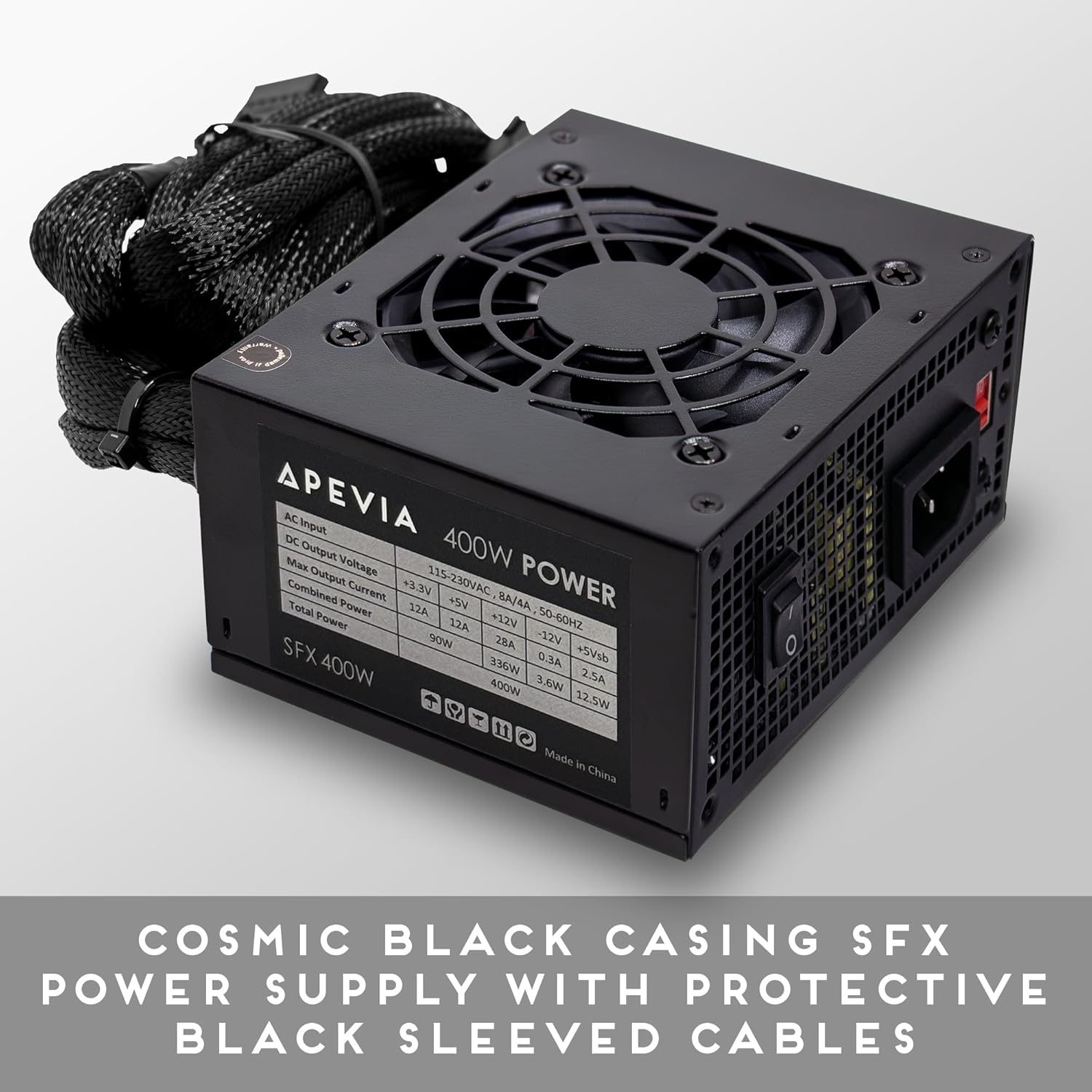
The Apevia SFX-AP400W is a 400W power supply unit (PSU) specifically designed for compact, small form factor systems, including Mini ITX and Micro ATX builds. It delivers a steady 400W output and features a built-in 80mm fan with automatic thermal sensing for efficient and quiet cooling. This power supply is suitable for powering a wide range of computer components and peripherals.
2. Safety Information
Please read and understand all safety instructions before installing or operating this power supply unit. Failure to follow these instructions may result in electric shock, fire, or damage to the product and other components.
- Do not overload, abuse, or modify the power supply unit.
- Ensure the power supply is disconnected from the main power outlet before installation or maintenance.
- Do not operate the power supply in wet or damp conditions.
- Keep the power supply away from heat sources and direct sunlight.
- Ensure proper ventilation around the power supply to prevent overheating.
- Using this unit for Bitcoin mining or similar intensive, continuous load applications is not recommended as it can shorten the lifespan and cause failures. Such usage is not covered by the product warranty.
3. Package Contents
Upon opening your Apevia SFX-AP400W Power Supply package, you should find the following items:
- APEVIA SFX-AP400W Power Supply Unit
- AC Power Cord
- Mounting Screws

4. Product Features
The Apevia SFX-AP400W Power Supply is engineered with several features to ensure reliable performance and compatibility with small form factor systems.
- Compact Design: Features a cosmic black casing designed for SFX form factor computer system builds.
- Protective Sleeved Cables: All cables are sleeved for improved cable management and durability.
- Efficient Cooling: Equipped with a single 80mm quiet fan that utilizes forced air ventilation and a smart thermal fan speed control circuit for optimal temperature regulation.
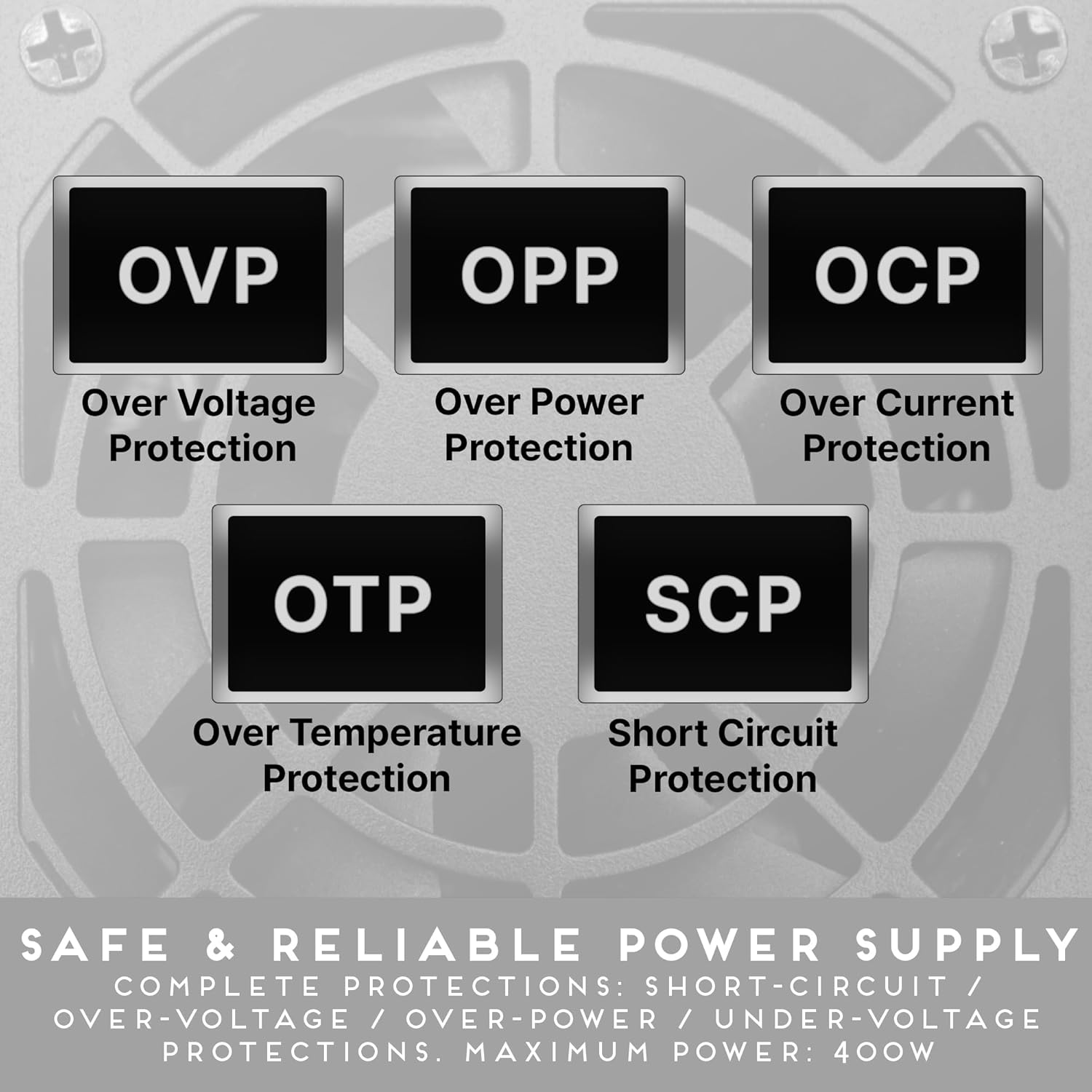
- Comprehensive Protections: Includes Over Voltage Protection (OVP), Over Power Protection (OPP), Over Current Protection (OCP), Over Temperature Protection (OTP), and Short Circuit Protection (SCP) for enhanced safety and component longevity.

5. Setup and Installation
Follow these general steps to install your Apevia SFX-AP400W Power Supply into your computer system. Always refer to your computer case and motherboard manuals for specific instructions.
- Prepare Your System: Ensure your computer is completely powered off and unplugged from the wall outlet. Open your computer case.
- Remove Old PSU (if applicable): Disconnect all cables from your old power supply. Unscrew and remove the old PSU from the case.
- Install New PSU: Carefully place the Apevia SFX-AP400W into the designated SFX power supply bay in your computer case. Secure it with the provided mounting screws.
- Connect Main Power: Connect the 20+4pin Main Power connector to your motherboard.
- Connect CPU Power: Connect the 4pin 12V (P4) connector to your motherboard's CPU power socket.
- Connect PCIe Power (if applicable): If your graphics card requires external power, connect the 6/8pin PCIe connector to it.
- Connect Peripherals: Use the SATA, Molex, and Floppy connectors to power your storage drives, optical drives, and other peripherals as needed.
- Cable Management: Organize cables to ensure proper airflow within the case.
- Close Case: Once all connections are secure, close your computer case.

6. Operating Instructions
Operating the Apevia SFX-AP400W Power Supply is straightforward once installed.
- Connect to Power: Plug the AC power cord into the power supply's inlet and then into a wall outlet.
- Power On: Flip the power switch on the back of the PSU to the 'I' (On) position.
- System Start-up: Power on your computer system using its main power button. The PSU fan will activate and adjust its speed automatically based on the internal temperature to maintain optimal cooling.
- Power Off: To shut down your system, use the operating system's shutdown procedure. For complete power disconnection, flip the PSU switch to 'O' (Off) and unplug the AC power cord.
7. Maintenance
Regular maintenance helps ensure the longevity and optimal performance of your power supply.
- Keep Vents Clear: Periodically check that the air intake and exhaust vents on the power supply are free from dust and obstructions. Blocked vents can lead to overheating.
- Dust Removal: Use compressed air to gently clean dust from the fan and internal components of the PSU. Do this only when the unit is powered off and unplugged.
- Cable Inspection: Occasionally inspect all power cables for any signs of wear, fraying, or damage. Replace damaged cables immediately.
8. Troubleshooting
If you encounter issues with your Apevia SFX-AP400W Power Supply, refer to the following common troubleshooting steps:
- No Power to System:
- Ensure the AC power cord is securely plugged into both the PSU and the wall outlet.
- Verify the power switch on the back of the PSU is in the 'I' (On) position.
- Check all internal power connections (20+4pin, 4pin 12V, PCIe, SATA, Molex) to ensure they are firmly seated.
- Test the wall outlet with another device to confirm it is supplying power.
- System Instability/Random Shutdowns:
- This could indicate an overloaded or failing power supply. Ensure your system's power requirements do not exceed the PSU's 400W capacity.
- Check for proper ventilation to prevent overheating, which can cause shutdowns.
- Unusual Noises (e.g., rattling, high-pitched whine):
- A rattling noise might indicate a loose component or a fan issue. If the noise is persistent or severe, discontinue use and contact support.
- A high-pitched whine (coil whine) can occur in some power supplies, especially under certain loads. While often not indicative of a fault, if it is excessively loud or new, monitor the PSU's performance.
- Burning Smell:
- Immediately power off and unplug the system. Do not attempt to use the PSU again. Contact support.
9. Specifications
| Feature | Specification |
|---|---|
| Model Number | SFX-AP400W |
| Brand | Apevia |
| Output Wattage | 400 Watts |
| Form Factor | SFX, ATX, Micro, Mini |
| Cooling Method | Air |
| Number of Fans | 1 |
| Fan Size | 80 Millimeters |
| Power Supply Design | Non-Modular |
| Connectors | 1 x 20+4pin Main Power, 1 x 4pin 12V(P4), 1 x 6/8pin PCIe, 2 x SATA, 2 x 4pin Molex, 1 x 4pin Floppy |
| Output Voltages/Currents | +3.3V@12A, +5V@12A, +12V@28A, -12V@0.3A, +5Vsb@2.5A |
| Dimensions (L x W x H) | 125mm x 100mm x 63.5mm (4.92" x 3.94" x 2.5") |
| Item Weight | 921 Grams |
| Minimum Input Voltage | 100 Volts |
| Maximum Input Voltage | 230 Volts (AC) |

10. Warranty Information
The Apevia SFX-AP400W Power Supply comes with a 1-Year Warranty from the date of purchase. This warranty covers defects in materials and workmanship under normal use.
Please note that the warranty does not cover damages resulting from:
- Overloading, abuse, or modification of the unit.
- Improper installation or operation.
- Use for Bitcoin mining or similar intensive, continuous load applications.
- Accidental damage, natural disasters, or unauthorized repairs.
Retain your proof of purchase for warranty claims.
11. Support
For technical assistance, warranty claims, or further inquiries regarding your Apevia SFX-AP400W Power Supply, please contact Apevia customer support through their official website or the retailer from whom you purchased the product.
When contacting support, please have your product model number (SFX-AP400W) and proof of purchase readily available to expedite the process.

