
UY CHAN TS101
UY CHAN TS101 Smart Soldering Iron User Manual
Model: TS101 | Brand: UY CHAN
1. Introduction
The UY CHAN TS101 Smart Soldering Iron is an advanced, portable soldering tool designed for precision and efficiency. It features dual power input options (DC and PD), rapid heating capabilities, and intelligent temperature control. Its compact design makes it ideal for both professional and hobbyist use, offering versatility for various soldering tasks, from home repairs to field work.
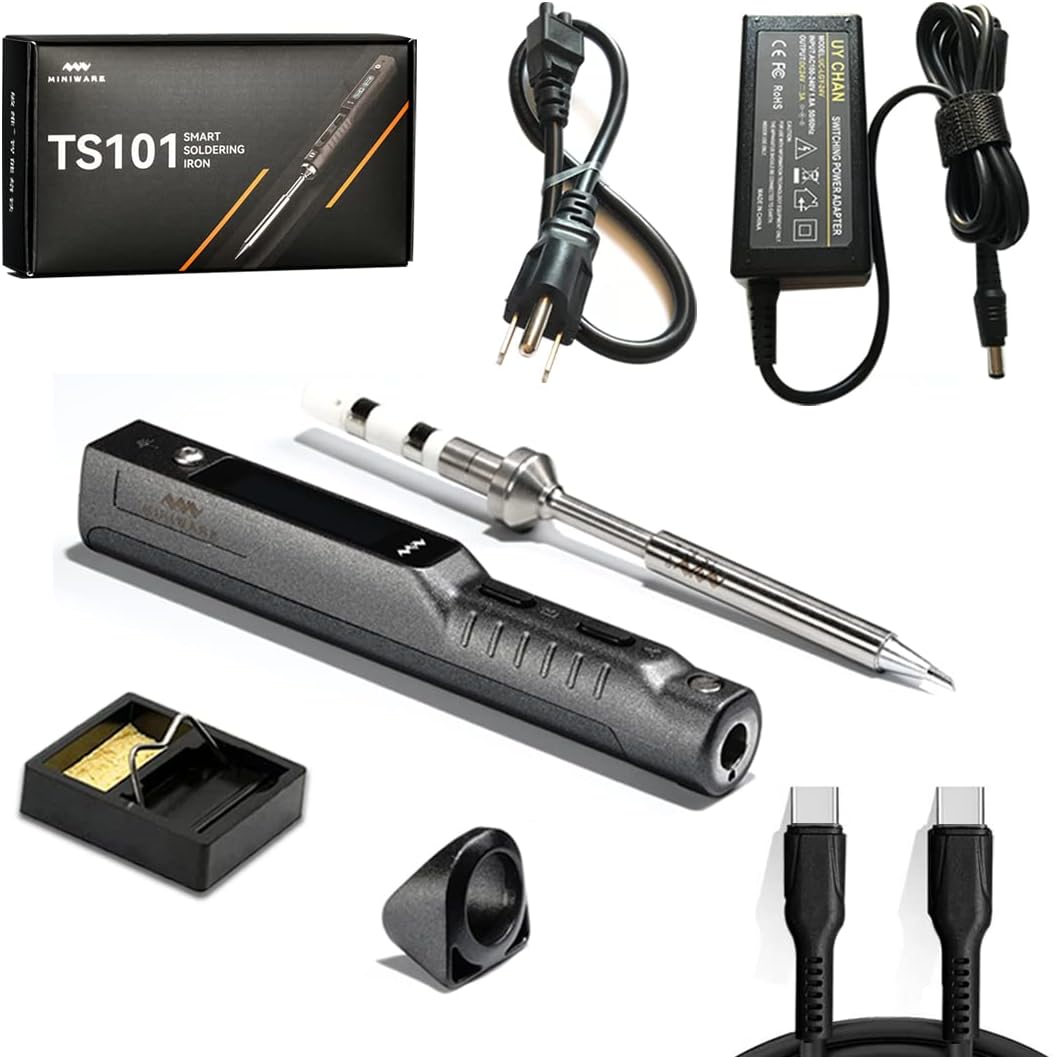
Image: The TS101 Smart Soldering Iron, showing the main unit, soldering tip, power adapter, USB-C cable, and stand.
2. Package Contents
Please verify that all items listed below are included in your package:
- Soldering Iron Controller (TS101)
- TS-BC2 Soldering Iron Tip
- 24V US Standard DC Power Supply
- Type C-C Silicone Cable (for data transfer & PD input)
- Soldering Iron Stand
- User Manual
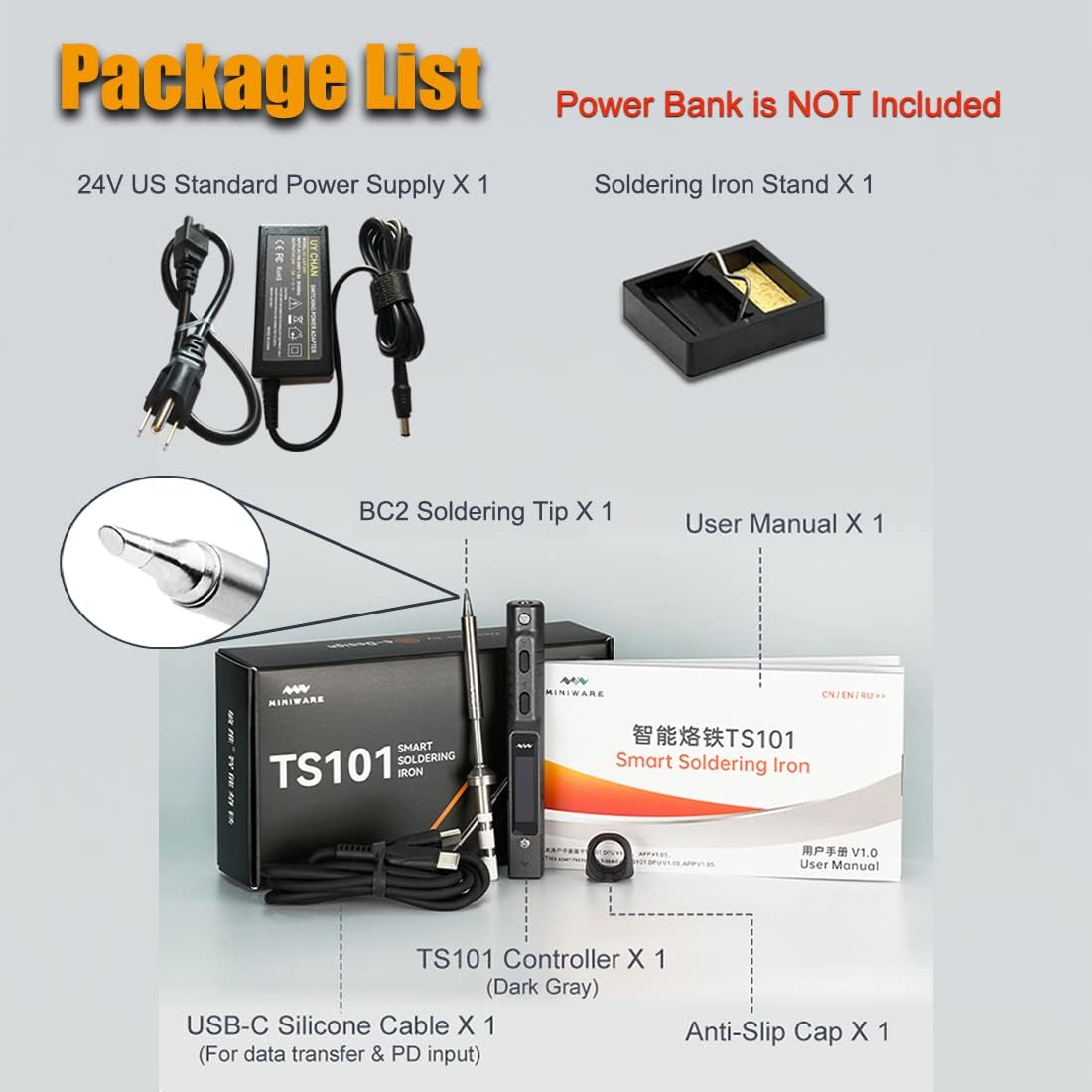
Image: A visual representation of the TS101 kit contents, including the soldering iron, tip, power supply, USB-C cable, stand, and user manual.
3. Specifications
| Feature | Description |
|---|---|
| Model | TS101 |
| Power Input | DC 9-24V (65W MAX) / PD 12-24V (45W MAX) |
| Wattage | 64 Watts |
| Temperature Range | 50°C to 400°C (122°F to 752°F) |
| Display | OLED Screen |
| Sensors | Dual Temperature Sensors, Acceleration Sensors |
| Special Features | Programmable, Automatic Sleep Mode, Overheat Warning, Boost Heating Function |
| Dimensions (Iron) | Approx. 168mm / 6.6 inches (with tip) |
| Weight | Approx. 100 grams (3.53 ounces) |
4. Setup
4.1 Attaching the Soldering Tip
- Ensure the soldering iron controller is powered off and cool.
- Carefully insert the TS-BC2 soldering tip into the front end of the TS101 controller. Ensure it is fully seated.
- Tighten the small screw on the side of the controller to secure the tip. Do not overtighten.

Image: The TS101 soldering iron shown in both assembled and disassembled states, highlighting its easy portability and compact size.
4.2 Powering the Device
The TS101 supports two power input methods:
- DC Power Adapter: Connect the provided 24V US Standard DC Power Supply to the DC input port on the rear of the soldering iron. Plug the power supply into a standard wall outlet.
- PD Power (USB Type-C): Use the included USB Type-C to Type-C silicone cable to connect the soldering iron to a compatible PD (Power Delivery) adapter or power bank (not included). Ensure the PD source can provide sufficient power (up to 45W MAX).

Image: Illustrations demonstrating how to power the TS101 using a DC power adapter, Lipo battery, charger plug, and power bank.
5. Operating Instructions
5.1 Power On and Temperature Adjustment
Once powered, the OLED screen will display the current temperature. Use the 'A' and 'B' buttons to adjust the target temperature. The temperature can be set between 50°C and 400°C (122°F to 752°F).

Image: The TS101's OLED screen displaying temperature and power, with icons for Auto Sleep, Auto Screen Off, Detailed Menu, Accurate Temp Control, and Smart Algorithm Compensation.
5.2 Fast Heating and Boost Function
The TS101 heats up rapidly. For an immediate temperature boost during operation, press and hold Button A. The iron will quickly heat up to a preset boost temperature, ideal for demanding soldering joints. Release the button to return to the set working temperature.
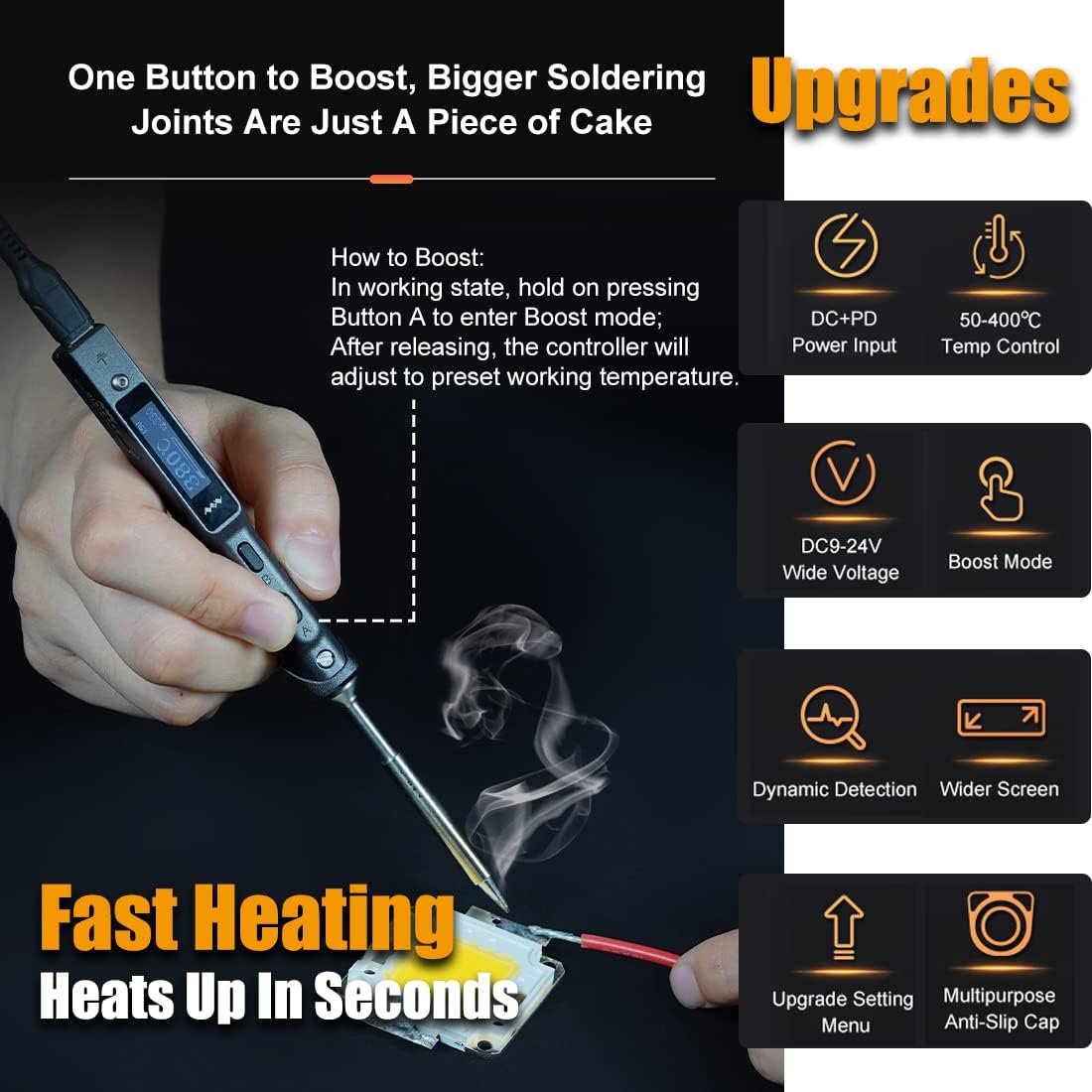
Image: The TS101 in use, demonstrating the "Boost" function by holding Button A for quick heating, along with a list of 9 innovative upgrades.
5.3 Smart Features
- Automatic Sleep Mode: The iron will enter sleep mode if inactive for a set period, reducing tip wear and saving energy.
- Automatic Overheat Warning: Built-in sensors monitor temperature to prevent overheating, ensuring safe operation.
- Reprogrammable Firmware: Connect the TS101 to a computer via the USB-C cable to customize temperature curves and other functions.
5.4 Operational Demonstration Video
Watch this official video from UY CHAN demonstrating the TS101's fast heating, soldering capabilities, adjustable temperature, and sleep mode features.
Video: A demonstration of the UY CHAN TS101 Soldering Iron, showcasing its quick heat-up time, ease of soldering, adjustable temperature settings, and automatic sleep mode. It also highlights its portability and ability to be powered by a battery for field repairs.
6. Maintenance
6.1 Tip Care and Cleaning
- Always clean the soldering tip before and after use. Use a damp sponge or brass wool to remove excess solder and oxidation.
- Tin the tip with a small amount of fresh solder after cleaning to prevent oxidation and prolong its lifespan.
- Replace the soldering tip when it becomes excessively worn or corroded to maintain optimal performance.

Image: A detailed view of the TS-BC2 soldering tip, including its total length (106mm) and weight (10.5g).
6.2 Storage
When not in use, store the soldering iron in a dry, safe place. It is recommended to remove the tip for long-term storage to prevent damage and allow for easier portability.
7. Troubleshooting
- "No Tip!" Error: If the screen displays "No Tip!", ensure the soldering tip is correctly inserted and the retaining screw is tightened. If the issue persists, the tip may be faulty and require replacement.
- Iron Not Heating:
- Check power connections. Ensure the power adapter or PD source is properly connected and providing sufficient power.
- Verify the power source meets the required voltage and wattage specifications (DC 9-24V / PD 12-24V).
- Ensure the tip is correctly installed and making proper contact with the heating element.
- Inconsistent Temperature:
- Clean the soldering tip thoroughly. Oxidation can affect heat transfer.
- Ensure the tip is securely fastened. A loose tip can lead to poor heat transfer.
- Consider recalibrating the temperature if available through the firmware settings (requires connecting to a computer).
8. Warranty and Support
For warranty information, technical support, or service inquiries, please contact UY CHAN customer service through the retailer where the product was purchased or visit the official UY CHAN website. Please retain your proof of purchase for warranty claims.
For additional resources and community support, you may find helpful information on online forums dedicated to portable soldering irons and electronics hobbyists.
Ask a question about this manual
Ask about setup, troubleshooting, compatibility, parts, safety, or missing instructions. Manuals+ will review the question and use this page’s manual context to help answer it.