
1. Introduction
The Sensor Switch NGWY2-GFX nLight Gateway 2 Graphic Touch Screen is a crucial component of the nLight lighting control system. This device acts as a network interface controller, providing a graphic touch screen for intuitive interaction and management of your nLight network. It is designed to integrate seamlessly with other nLight components, enabling comprehensive control over lighting and other connected devices.
Key Features:
- Part of the nLight System (operates exclusively within nLight environments)
- Designed for use with nLight nGWY2 CTRL Units
- Low Voltage operation: 60 mA @ 12-24 VAC/VDC
- Requires a separately sold power pack for operation

The product packaging for the Sensor Switch nLight Gateway 2 Graphic Touch Screen. The box displays the 'Sensor Switch' and 'nLight' logos, along with the model number NGWY2 GFX and a barcode (0753573465850).
2. Setup and Installation
Proper installation of the NGWY2-GFX is essential for its functionality within the nLight system. This device requires connection to an nLight network and a low-voltage power source.
2.1 Package Contents
- NGWY2-GFX nLight Gateway 2 Graphic Touch Screen unit
- Mounting hardware (if included)
Note: A low-voltage power pack is required and sold separately. Ensure you have the necessary nLight nGWY2 CTRL units for a complete system.
2.2 Physical Installation
- Mounting: Select a suitable location for the NGWY2-GFX, typically a wall or panel, ensuring it is easily accessible for operation and viewing. Use appropriate mounting hardware to secure the unit.
- Network Connection: Connect the NGWY2-GFX to your nLight network using standard RJ45 Ethernet cables. The device features two RJ45 ports for network integration.
- Power Connection: Connect the low-voltage power supply (12-24 VAC/VDC) to the designated power terminals on the unit. Ensure correct polarity if applicable. The device requires 60 mA.
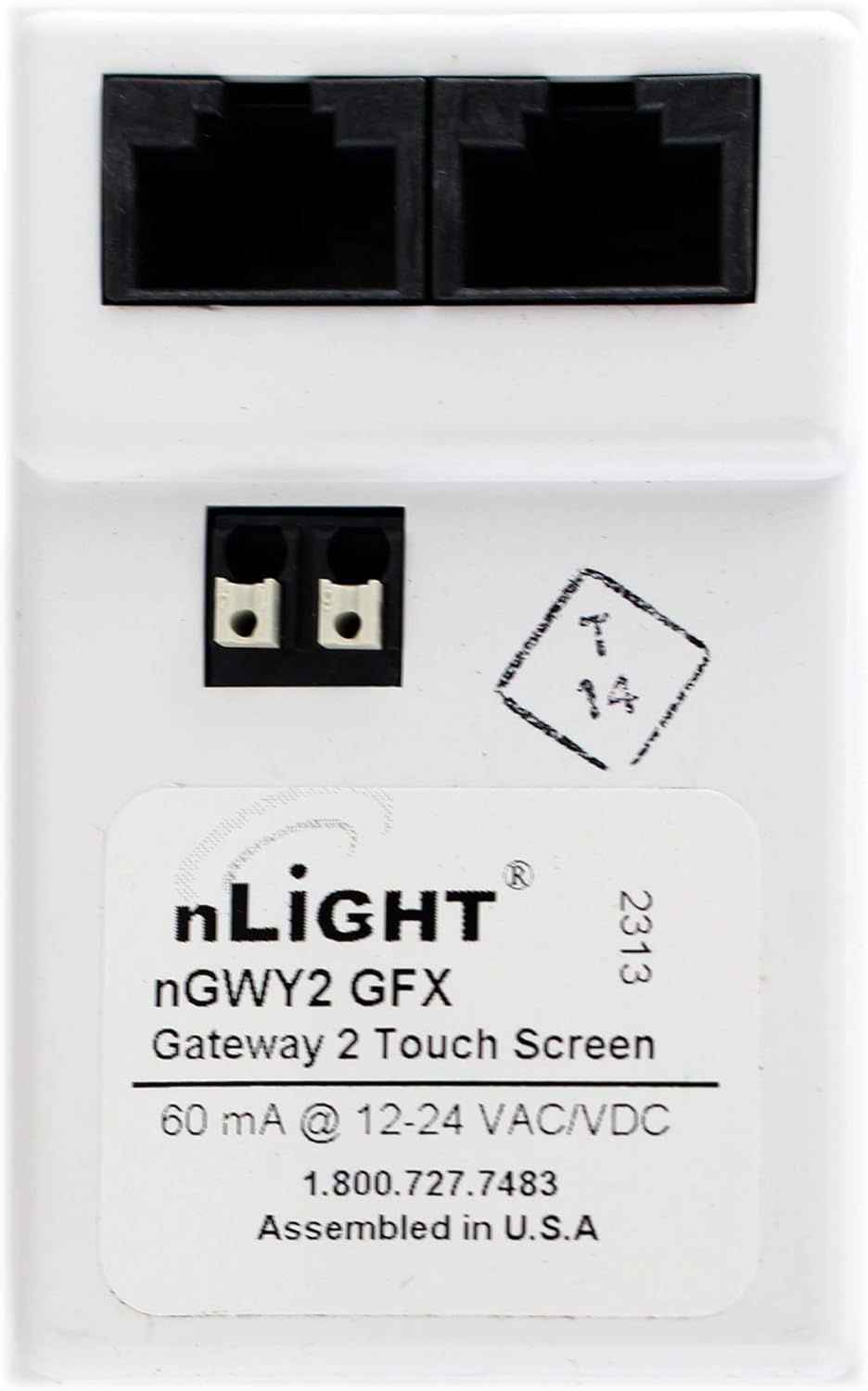
This image displays the back panel of the nLight Gateway 2, highlighting the two RJ45 network ports at the top and the low-voltage power terminals below them. A product label with model number NGWY2 GFX and power specifications (60 mA @ 12-24 VAC/VDC) is visible.
After physical connections are made, power on the connected low-voltage power pack. The device should initialize and display the nLight graphic interface.
3. Operation
The NGWY2-GFX provides a graphic touch screen interface for managing your nLight system. Its primary function is to serve as a central point of control and monitoring for various nLight-enabled devices.
3.1 Navigating the Interface
- The touch screen allows for intuitive navigation through menus and settings.
- Specific functionalities, such as scene recall, zone control, and scheduling, are accessed via the graphic interface.
- Refer to the comprehensive nLight system documentation for detailed instructions on configuring and operating specific nLight features through the Gateway 2.
3.2 System Integration
As an nLight Gateway, this device facilitates communication between different nLight components and can bridge to other building management systems. It processes commands and relays status information across the network.
4. Maintenance
The NGWY2-GFX is designed for reliable, long-term operation with minimal maintenance. Follow these guidelines to ensure optimal performance:
- Cleaning: Use a soft, dry, lint-free cloth to clean the touch screen and exterior surfaces. Avoid abrasive cleaners, solvents, or harsh chemicals, as these can damage the finish or screen.
- Environment: Ensure the device is operated within its specified environmental conditions (temperature, humidity) to prevent damage.
- Firmware Updates: Periodically check the Sensor Switch or nLight official website for any available firmware updates. Follow the provided instructions carefully for any update procedures.
5. Troubleshooting
If you encounter issues with your NGWY2-GFX, refer to the following common troubleshooting steps:
- Device Not Powering On:
- Verify that the low-voltage power pack is connected and receiving power.
- Check the power connections to the NGWY2-GFX unit for secure contact and correct polarity.
- Ensure the power supply meets the 12-24 VAC/VDC, 60 mA requirement.
- No Communication with nLight System:
- Inspect the RJ45 network cables for secure connections at both the NGWY2-GFX and the nLight network devices.
- Confirm that the nLight nGWY2 CTRL units are properly installed and functioning.
- Consult the nLight system documentation for network configuration and diagnostic tools.
- Touch Screen Unresponsive:
- Attempt a soft reset by cycling power to the unit (disconnect and reconnect the low-voltage power).
- Ensure the screen is clean and free from obstructions.
For persistent issues or advanced troubleshooting, contact Sensor Switch technical support or refer to the official nLight system documentation.
6. Specifications
| Feature | Detail |
|---|---|
| Product Dimensions | 6 x 6 x 6 inches |
| Item Weight | 1 pounds |
| ASIN | B01MCTDD37 |
| Item Model Number | NGWY2-GFX |
| Power Requirements | 60 mA @ 12-24 VAC/VDC |
| Manufacturer | Sensor Switch |
| Date First Available | January 1, 2014 |
7. Warranty and Support
The Sensor Switch NGWY2-GFX is covered by the manufacturer's standard warranty. Please refer to the warranty documentation provided with your purchase or visit the official Sensor Switch website for detailed terms and conditions.
For technical assistance, product inquiries, or warranty claims, please contact Sensor Switch customer support:
- Phone: 1.800.727.7483
- Website: www.sensorswitch.com (Please verify the current official website for Sensor Switch)
When contacting support, please have your product model number (NGWY2-GFX) and any relevant purchase information ready.


