
1. Introduction
This manual provides essential information for the proper setup, operation, and maintenance of your Sharp EL-334WB Business Calculator. This 12-digit desktop calculator features an extra-large LCD for clear display, durable and well-spaced keys for accurate data entry, and specialized functions for business calculations.
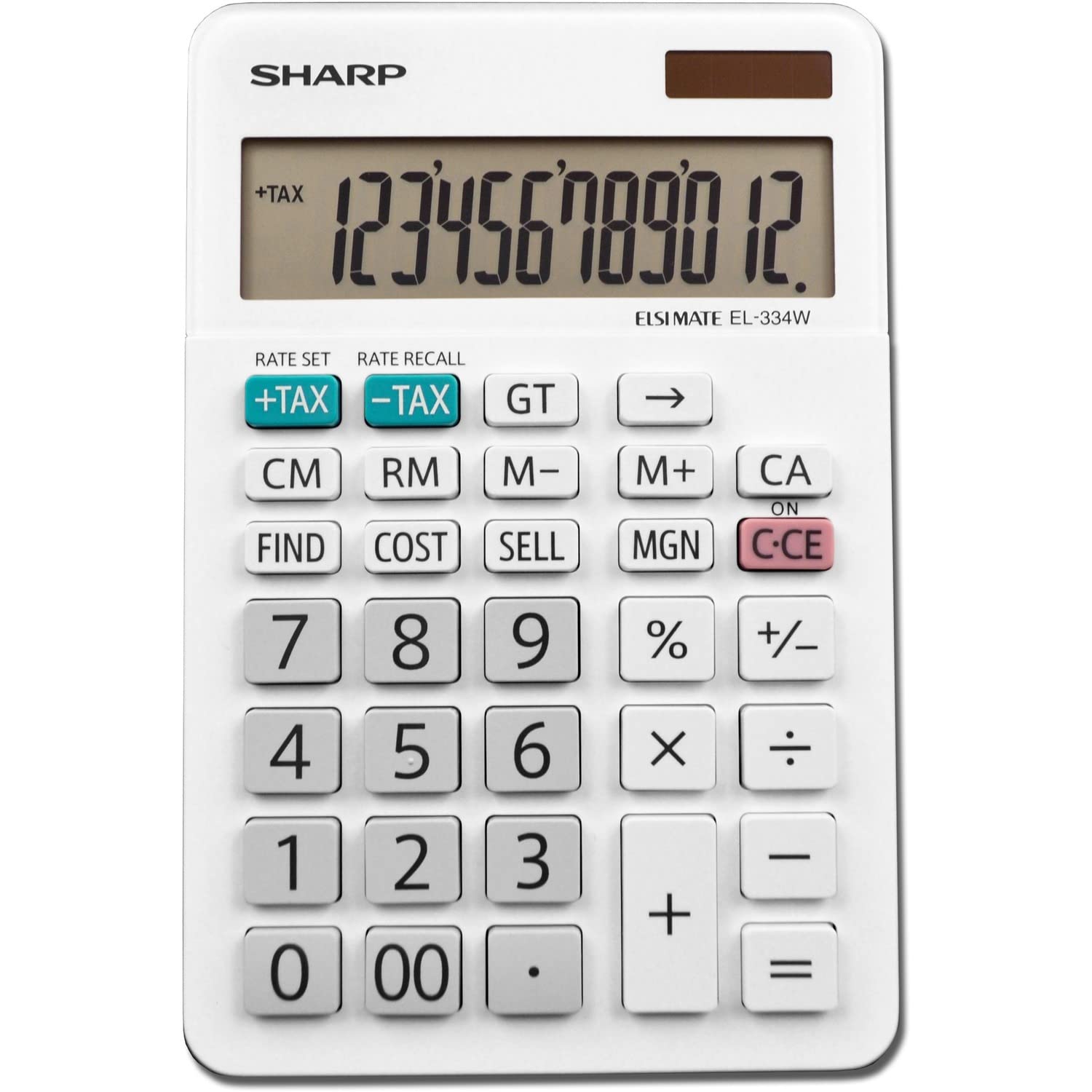
Figure 1: Front view of the Sharp EL-334WB Business Calculator.
2. Setup
2.1 Power Source
The Sharp EL-334WB calculator operates on a twin-power system, utilizing both solar energy and a battery backup. This ensures consistent and reliable performance in various lighting conditions.
- Solar Power: The calculator primarily uses solar energy when sufficient light is available. Ensure the solar panel, located above the display, is exposed to light for operation.
- Battery Backup: For low-light conditions or when solar power is insufficient, the calculator uses a 1 LR44 battery (included).
2.2 Initial Use
To power on the calculator, simply ensure the solar panel is exposed to light or press any numeric key. The calculator features an automatic power-down function to conserve energy when not in use.
3. Operating Instructions
The EL-334WB is designed for ease of use with its large, clearly labeled keys and extra-large 12-digit LCD display.

Figure 2: Key features and functions of the Sharp EL-334WB.
3.1 Basic Arithmetic Operations
Perform standard addition, subtraction, multiplication, and division using the dedicated keys. Input numbers and operators in sequence, then press the = key for the result.
3.2 Specialized Business Functions
- Cost-Sell-Margin (CSM) Keys: These keys simplify profit margin calculations. Enter any two variables (Cost, Sell, or Margin), and the calculator will automatically compute the third.
- Automatic Tax Keys (+TAX, -TAX): Use these keys to easily add or subtract a pre-set tax rate from a value. The tax rate can typically be set and stored in the calculator's memory.
- Four-Key Independent Memory (M+, M-, MR, MC):
- M+: Adds the displayed value to the memory.
- M-: Subtracts the displayed value from the memory.
- MR: Recalls the value stored in memory.
- MC: Clears the memory.
- Grand Total (GT) Key: Accumulates the results of multiple calculations.
- Double-Zero (00) Key: For quick entry of double zeros.
3.3 Correction and Clearing
- Backspace Key (→): Allows for single-digit corrections, deleting the last entered digit.
- Clear Entry (CE) Key: Clears the last entered number without affecting previous calculations or memory.
- All Clear (CA/ON/C-CE) Key: Clears all entries, calculations, and memory, resetting the calculator.
4. Maintenance
4.1 Cleaning
To maintain the calculator's appearance and functionality, wipe the unit with a soft, dry cloth. For stubborn dirt, a slightly damp cloth can be used, followed by a dry cloth. Avoid using harsh chemicals or abrasive cleaners, as these can damage the plastic enclosure and display.
4.2 Battery Replacement
The calculator uses one LR44 battery as a backup power source. If the display becomes dim or unresponsive in low light, the battery may need replacement. Refer to the battery compartment on the back of the unit for instructions on how to open and replace the battery.
4.3 Storage
Store the calculator in a cool, dry place away from direct sunlight and extreme temperatures. The compact dimensions (16.76 x 11.18 x 3.81 cm) make it easy to store in a desk drawer or bag.

Figure 3: Side view showing the integrated kickstand for easy viewing.
5. Troubleshooting
5.1 Display is Blank or Dim
- Check Lighting: Ensure the solar panel is exposed to sufficient light.
- Replace Battery: If the issue persists in adequate lighting, the LR44 backup battery may need to be replaced.
5.2 Incorrect Calculation Results
- Clear All: Press the CA or ON/C-CE key to clear any previous entries or memory contents that might be affecting the calculation.
- Review Input: Double-check the numbers and operations entered.
5.3 Keys are Unresponsive
- Clean Keys: Ensure no debris is lodged under the keys. Gently clean around the keys with a soft, dry cloth.
- Power Cycle: Turn the calculator off and then on again (if applicable, or ensure solar panel is exposed to light).
6. Specifications
| Feature | Detail |
|---|---|
| Model Number | EL-334WB |
| Display Type | LCD |
| Screen Size | 4 Inches |
| Number of Digits | 12 |
| Power Source | Solar Powered with 1 LR44 battery backup (included) |
| Product Dimensions (L x W x H) | 16.76 x 11.18 x 3.81 cm |
| Item Weight | 141.97 g |
| Enclosure Material | Plastic |
| Color | White |
| Calculator Type | Financial |

Figure 4: Dimensions of the Sharp EL-334WB Business Calculator.
7. Product Videos
7.1 Large LCD Display Button 12 Digits Desktop Calculator
Video 1: A demonstration of a 12-digit desktop calculator with a large LCD display and responsive buttons, showcasing basic operations and ease of use. This video is provided by Huizhi Stationery Store CA.
7.2 Standard Function Electronics Desktop Calculators
Video 2: An overview of standard functions on an electronic desktop calculator, highlighting its utility for everyday calculations. This video is provided by HANDA-ONXE.
8. Warranty Information
The Sharp EL-334WB Business Calculator comes with a 1-year warranty from the date of purchase. This warranty covers defects in materials and workmanship under normal use. Please retain your proof of purchase for warranty claims.
9. Support and Contact
For further assistance, technical support, or inquiries regarding your Sharp EL-334WB Business Calculator, please contact the manufacturer:
- Manufacturer: Victor Technology LLC
- Contact Address: SMYRNA, GA, 30082 US
- Brand Store: Visit the Sharp Store on Amazon