
Zebra ET55AE-W22E
Zebra ET55AE-W22E ET55 8.3" Tablet User Manual
Model: ET55AE-W22E
Introduction
This manual provides essential instructions for the proper setup, operation, and maintenance of your Zebra ET55AE-W22E ET55 8.3" Tablet. Please read this manual thoroughly before using the device to ensure optimal performance and longevity.
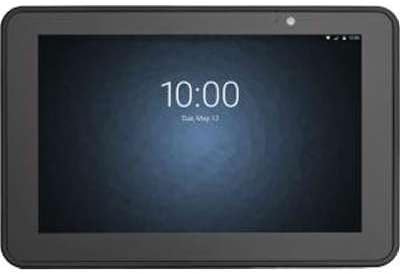
Image: Front view of the Zebra ET55AE-W22E ET55 8.3" Tablet. The screen displays the time "10:00" and the date "Tue, May 12". The tablet has a dark gray bezel and a front-facing camera visible at the top center.
Package Contents
Upon unpacking, verify that all items are present and undamaged. The standard package for the Zebra ET55AE-W22E includes:
- Zebra ET55AE-W22E ET55 8.3" Tablet unit
- (Additional accessories such as power adapter, USB cable, and documentation may be sold separately or included depending on region/bundle.)
Setup
1. Initial Charging
Before first use, fully charge the tablet's battery. Connect the appropriate power adapter (not included with all models) to the tablet's charging port and then to a power outlet. The charging indicator will typically illuminate during this process.
2. Powering On/Off
- To Power On: Press and hold the Power button located on the side of the tablet until the screen illuminates.
- To Power Off: Press and hold the Power button, then select "Shut down" from the options that appear on the screen.
3. Initial Configuration (Windows 8.1)
Upon first power-on, the tablet will guide you through the Windows 8.1 setup process. This includes:
- Selecting your language and region.
- Accepting the license terms.
- Connecting to a Wi-Fi network (if available).
- Creating or signing in with a Microsoft account.
- Setting up basic privacy and security settings.
Operating Instructions
Navigating Windows 8.1
The Zebra ET55AE-W22E runs on Windows 8.1, optimized for touch interaction. Key navigation elements include:
- Start Screen: Swipe in from the right edge of the screen or press the Windows button to access the Start screen with live tiles.
- Charms Bar: Swipe in from the right edge of the screen to access the Charms bar (Search, Share, Start, Devices, Settings).
- App Switching: Swipe in from the left edge to switch between open applications.
- Desktop: Tap the Desktop tile on the Start screen to access the traditional Windows desktop environment.
Connecting to Networks
- Wi-Fi: Access the Charms bar, select Settings, then click the Wi-Fi icon to view available networks. Select your desired network and enter the password if prompted.
- Bluetooth: Access the Charms bar, select Settings, then Change PC settings, and navigate to PC and devices > Bluetooth. Turn Bluetooth on and pair with desired devices.
- WAN (Wireless Area Network): This model supports WAN connectivity. Insert your SIM card (if applicable and provided by your service provider) into the designated slot. Follow on-screen prompts or consult your service provider for configuration details.
Using the Camera
The tablet is equipped with a camera. To use it, locate and tap the Camera application icon on the Start screen or Desktop. Follow the on-screen instructions to capture photos or record videos.
Maintenance
Cleaning the Device
- Use a soft, lint-free cloth to clean the screen and exterior.
- For stubborn marks, slightly dampen the cloth with water or a screen-cleaning solution.
- Avoid using harsh chemicals, abrasive cleaners, or aerosol sprays directly on the device.
Battery Care
- Avoid exposing the tablet to extreme temperatures.
- For optimal battery life, avoid frequently discharging the battery completely.
- If the device will not be used for an extended period, charge it to approximately 50% before storage.
Software Updates
Regularly check for and install Windows 8.1 updates to ensure system stability, security, and performance. Access Settings > Change PC settings > Update and recovery > Windows Update.
Troubleshooting
| Problem | Possible Solution |
|---|---|
| Device does not power on. | Ensure the battery is charged. Connect the tablet to a power source and attempt to power on after a few minutes. |
| Cannot connect to Wi-Fi. | Verify Wi-Fi is enabled in settings. Check if the network password is correct. Restart the tablet and the Wi-Fi router. |
| Screen is unresponsive. | Perform a soft reset by holding the power button until the device restarts. Ensure the screen is clean and free of debris. |
| Applications are slow or crashing. | Close unnecessary applications. Check for and install system updates. Consider uninstalling recently installed applications that may be causing issues. |
Specifications
| Feature | Detail |
|---|---|
| Model | Zebra ET55AE-W22E |
| Screen Size | 8.3 Inches |
| Screen Resolution | 1920 x 1080 pixels |
| RAM | 4GB |
| Memory Storage | 64 GB Flash |
| Operating System | Windows 8.1 |
| Processor Brand | Intel |
| Wireless Type | Bluetooth, WAN |
| Item Weight | 2 pounds |
| Product Dimensions (LxWxH) | 1 x 1 x 1 inches |
Warranty and Support
For information regarding warranty coverage, technical support, or service, please refer to the official Zebra website or contact their customer service department. Specific warranty terms may vary by region and purchase date.
Online Support: Visit the official Zebra support portal for drivers, FAQs, and additional documentation.
Contact Information: Refer to your product packaging or the Zebra website for current contact details for technical assistance.
Related documentsET55AE-W22E


Ask a question about this manual
Ask about setup, troubleshooting, compatibility, parts, safety, or missing instructions. Manuals+ will review the question and use this page’s manual context to help answer it.