
1. Introduction
The Autel AutoLink AL419 is a powerful and user-friendly diagnostic tool designed to quickly and efficiently troubleshoot OBDII/CAN compliant vehicles. This device allows you to read and clear Diagnostic Trouble Codes (DTCs), view live data, perform I/M readiness tests, and retrieve vehicle information, helping you identify and resolve vehicle issues.

Image 1.1: Autel AutoLink AL419 device highlighting key functions.
2. Package Contents
Please check the contents of your package carefully. If any items are missing or damaged, contact your vendor.

Image 2.1: Package contents of the Autel AutoLink AL419.
- Autel AutoLink AL419 Unit
- OBDII Cable
- USB Cable
- User Manual
- Carrying Case
3. Product Overview
The AL419 features a TFT color display and an intuitive button layout for easy navigation. Key components include:
- LCD Display: Shows test results and menu options.
- OBDII Connector: Connects to the vehicle's Data Link Connector (DLC).
- USB Connector: For connecting to a PC for updates or printing data.
- I/M Button: One-Click I/M Readiness check.
- ESC Button: Exits current screen or cancels an action.
- OK Button: Confirms a selection or action.
- Directional Pad: Navigates through menus and options.
- Help Button: Provides context-sensitive help.

Image 3.1: Labeled components of the Autel AutoLink AL419.
4. Setup
Before using the AL419, ensure your vehicle is OBDII compliant and the ignition is in the ON position.
- Locate the DLC: The Data Link Connector (DLC) is typically located under the dashboard on the driver's side. Refer to your vehicle's service manual for the exact location.
- Connect the Scanner: Plug the AL419's OBDII cable into the vehicle's DLC. The scanner will automatically power on.
- System Initialization: The scanner will perform a system initialization. Once complete, the main menu will appear.
5. Operating Instructions
The AL419 offers various diagnostic functions accessible from the main menu.
5.1. Reading Codes
This function retrieves Diagnostic Trouble Codes (DTCs) from the vehicle's computer.
- From the main menu, select 'Read Codes' and press OK.
- The scanner will display any stored or pending DTCs.
- Use the directional pad to scroll through the codes and their definitions.
5.2. Clearing Codes
This function erases DTCs from the vehicle's computer and turns off the Check Engine Light (MIL).
- From the main menu, select 'Erase Codes' and press OK.
- Confirm the action when prompted.
- Note: Clearing codes does not fix the underlying problem. Address the issue before clearing codes to prevent them from reappearing.
5.3. I/M Readiness Test
The I/M Readiness function checks the status of the emission-related monitoring systems on the vehicle.

Image 5.1: I/M Readiness status display on the AL419.
- Press the dedicated I/M button on the device or select 'I/M Readiness' from the menu.
- The screen will display the status of various monitors. A green checkmark indicates the monitor has completed its test, while a red 'X' indicates it has not.
- Color-coded LEDs (Green, Yellow, Red) and an audible tone provide quick status indication.
5.4. Viewing Live Data
This function displays real-time data from the vehicle's sensors and components.

Image 5.2: Live Data and RPM graph display.
- From the main menu, select 'Live Data' and press OK.
- Choose to view data in a list format or graphical format (if supported).
- Observe parameters such as engine RPM, vehicle speed, oxygen sensor readings, and more.
5.5. Viewing Freeze Frame Data
Freeze Frame Data captures a snapshot of the vehicle's operating conditions at the moment a DTC was set.
- From the main menu, select 'Freeze Frame' and press OK.
- The scanner will display various parameters recorded when the fault occurred, aiding in diagnosis.
5.6. DTC Lookup
This feature provides detailed definitions for Diagnostic Trouble Codes.
- From the main menu, select 'DTC Lookup' and press OK.
- Enter the DTC code manually or select a code from a previously read list.
- The scanner will display the definition of the code.
5.7. Retrieving Vehicle Information (VIN, CIN, CVN)
This function allows you to retrieve the Vehicle Identification Number (VIN), Calibration Identification (CIN), and Calibration Verification Number (CVN).
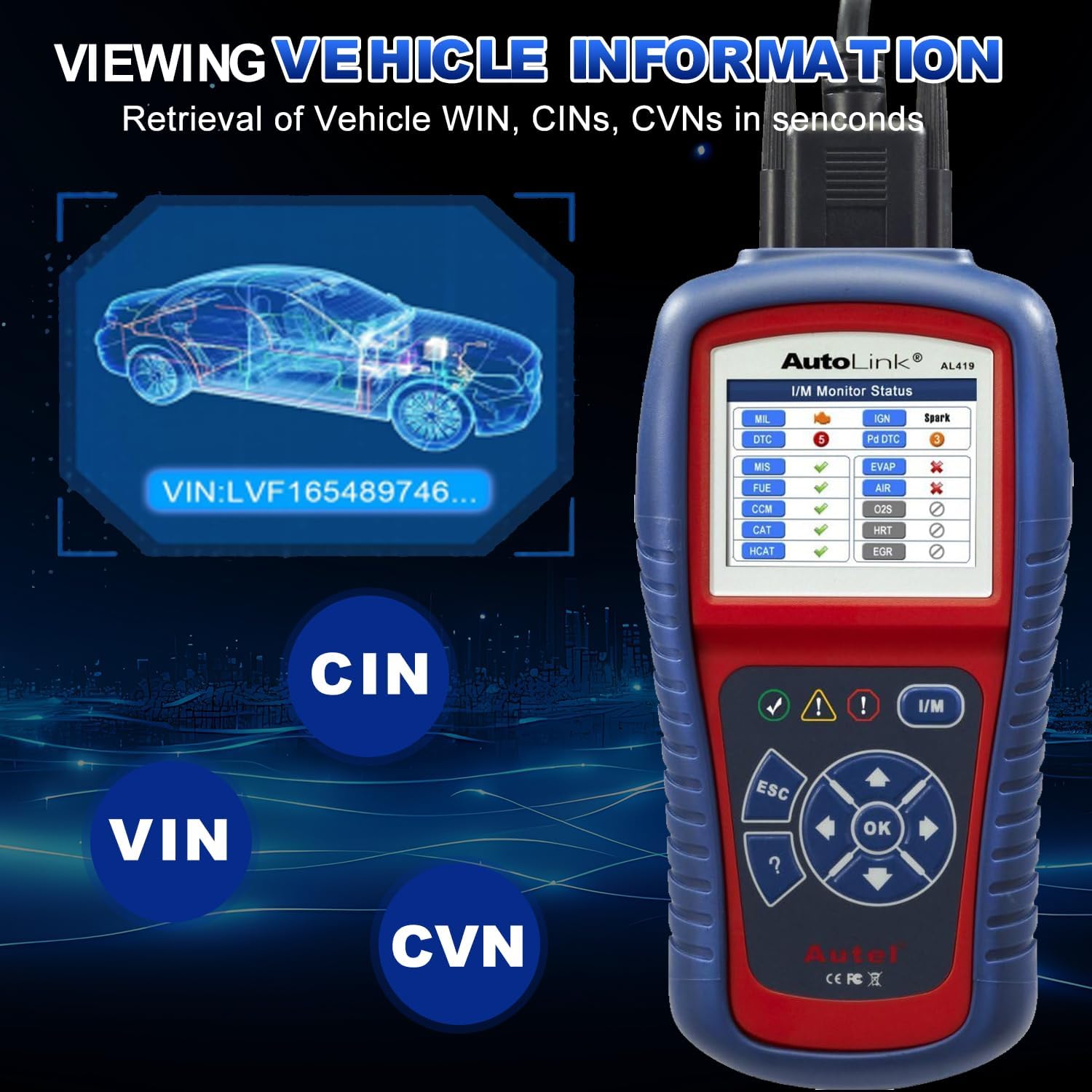
Image 5.3: Viewing Vehicle Information on the AL419.
- From the main menu, select 'Vehicle Info' and press OK.
- The scanner will display the available vehicle identification data.
5.8. Data Playback and Printing
The AL419 can store diagnostic data for later review and printing.

Image 5.4: Additional features including Data Playback and Printing.
- Data Playback: Review previously recorded diagnostic data directly on the device.
- Data Printing: Connect the AL419 to a PC via the USB cable and use the provided software to print diagnostic reports.
6. Vehicle Compatibility
The Autel AutoLink AL419 is designed for broad vehicle compatibility, supporting most 1996 and newer vehicles that comply with OBDII & CAN protocols.
- Domestic & Imported Models: Works with a wide range of vehicles from various manufacturers.
- Petrol Vehicles: Applicable to models manufactured from 2001 onwards.
- Diesel Vehicles: Applicable to models manufactured from 2004 onwards.

Image 6.1: Examples of vehicle brands supported by the AL419.
7. Maintenance
To ensure the longevity and optimal performance of your AL419, follow these maintenance guidelines:
- Cleaning: Use a soft, damp cloth to clean the device. Do not use abrasive cleaners or solvents.
- Storage: Store the device in its carrying case in a dry, cool environment when not in use.
- Software Updates: Regularly check for software updates on the Autel official website to ensure the scanner has the latest vehicle data and features. Connect the device to a PC via the USB cable for updates.
- Cable Care: Avoid bending or twisting the OBDII cable excessively. Store it neatly to prevent damage.
8. Troubleshooting
If you encounter issues with your AL419, refer to the following common problems and solutions:
- Scanner Fails to Power On:
- Ensure the OBDII cable is securely connected to the vehicle's DLC.
- Verify the vehicle's ignition is in the ON position.
- Check the vehicle's battery voltage; a low battery might prevent the scanner from powering on.
- Link Error:
- Confirm the vehicle is OBDII compliant (most 1996 and newer vehicles).
- Check for a loose connection at the DLC.
- Turn the ignition off, wait 10 seconds, then turn it back on and retry.
- Try the scanner on another OBDII compliant vehicle to rule out a vehicle-specific issue.
- DTCs Not Clearing:
- Ensure the ignition is ON and the engine is OFF.
- If the underlying fault is still present, the codes will reappear immediately after clearing. Address the vehicle issue first.
9. Specifications
| Brand | Autel |
| Model | AL419 |
| Display | TFT Color Display (320 x 240 dpi) |
| Power Source | 8.0 to 18.0 V power provided via vehicle battery |
| Operating Temperature | 0 to 60° C (32 to 140° F) |
| Storage Temperature | -20 to 70° C (-4 to 158° F) |
| Item Weight | 2.2 pounds |
| Package Dimensions | 10.31 x 7.48 x 3.54 inches |
| OSD Language | English, Spanish, French |
10. Warranty and Support
Autel provides a limited warranty for its products. For specific warranty terms and conditions, please refer to the warranty card included with your product or visit the official Autel website.
For technical assistance, product inquiries, or after-sales support, please contact Autel customer service. The product includes 24/7 after-sale support.
Official Autel Website: www.autel.com


