
1. Introduction and Product Overview
This manual provides essential instructions for the KODAK Dock Plus & Dock Photo Printer Cartridge PHC-120. This product includes a combination ink cartridge and photo sheets designed for use with compatible Kodak Dock Printers. It utilizes D2T2 innovation for advanced dye diffusion transfer technology, ensuring bold, vibrant colors and maximum gradation to reduce blurring and distortion. A unique 4th layer overcoat laminates the paper, preserving image quality and creating a humidity and fingerprint-resistant finish that will not fade.
The PHC-120 pack contains supplies for 120 photos, making it suitable for printing various types of images, including portrait photos, landscapes, family pictures, and greeting cards.

2. Setup and Installation
Installing the KODAK Dock Plus & Dock Photo Printer Cartridge and photo sheets is a straightforward process. Ensure your printer is powered off before beginning installation.
2.1. Installing the Photo Paper
- Open the paper slot on your Kodak Dock Printer.
- Carefully insert the stack of photo paper into the paper tray. Ensure the glossy side of the paper is facing up and the stack is aligned correctly. Do not touch the print side of the photo paper.
- Close the paper slot securely.

2.2. Installing the Ink Cartridge
- Locate the cartridge slot on your Kodak Dock Printer.
- If an old cartridge is present, gently pull it out with two fingers to eject it.
- Unpack the new PHC-120 ink cartridge.
- Align the new cartridge with the slot and gently push it in until you hear a click, indicating it is securely in place.
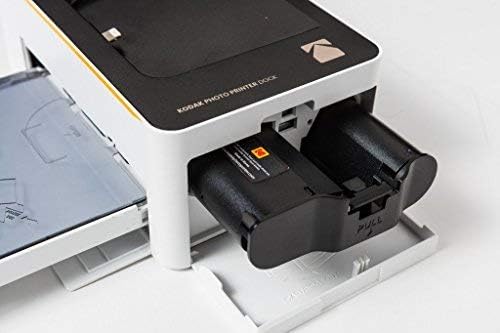
2.3. Video Guide: Cartridge and Paper Installation
Video 1: This video demonstrates the process of installing the Kodak cartridge and paper pack into the printer, showing how to open the paper tray, load paper, and insert the ink cartridge.
Video 2: This video provides a visual guide on how to install the 80-sheet photo paper and two cartridges, detailing the steps for proper placement.
3. Operating Instructions
Once the cartridge and paper are installed, you can begin printing high-quality photos from your compatible Kodak Dock Printer. The printer uses advanced dye diffusion transfer technology (D2T2) to apply colors quickly and evenly, resulting in maximum gradation and reduced blurring.
3.1. Printing Process
- Connect your smartphone or device to the Kodak Dock Printer via Bluetooth or by docking it directly.
- Open the Kodak Photo Printer application on your device.
- Select the desired photo(s) from your gallery.
- Choose your preferred print settings (e.g., border or borderless, quantity).
- Initiate the print command from the app. The printer will process the image in multiple passes, applying yellow, magenta, cyan, and a protective overcoat layer.
- Once printing is complete, the photo will be ejected. Allow a moment for the print to fully dry and set.

3.2. Print Options and Quality
The KODAK Dock Printer supports 4x6 inch photo sizes and offers both border and borderless printing options. The unique 4th layer overcoat provides a protective laminate, making prints resistant to humidity and fingerprints, ensuring they won't fade over time.

3.3. Video Guide: Printing Demonstration
Video 3: This video provides a review of the Kodak Dock Plus 4PASS, including an app and print demonstration, showcasing the printing process and results.
Video 4: This video demonstrates printing a picture from a phone using the Kodak Dock Printer, highlighting the ease of use and the final print quality.
4. Maintenance
The KODAK Dock Plus & Dock Photo Printer Cartridge PHC-120 is designed for easy maintenance. The simple cartridge refills are effortless to remove and replace. When the cartridge is empty or needs replacement, simply pull it out with two fingers and insert a new one to resume printing.

5. Troubleshooting
If you encounter issues with your KODAK Dock Photo Printer or cartridge, consider the following common troubleshooting steps:
- Printer Not Responding: Ensure the printer is properly connected to a power source and turned on. Check the connection between your device and the printer (Bluetooth or docked connection).
- Poor Print Quality: Verify that the ink cartridge is correctly installed and not empty. Ensure the photo paper is loaded correctly with the glossy side up and is not damaged.
- Paper Jams: Make sure the paper tray is not overloaded and the paper is aligned properly. Remove any jammed paper carefully according to your printer's specific instructions.
- Cartridge Error: Re-insert the ink cartridge to ensure it is seated correctly. If the error persists, the cartridge may be faulty or empty and require replacement.
For more detailed troubleshooting, refer to the complete user manual provided with your Kodak Dock Printer or visit the official KODAK support website.
6. Specifications
| Feature | Detail |
|---|---|
| Product Dimensions | 4.33 x 7.87 x 3.54 inches |
| Item Weight | 1 pounds |
| Item Model Number | KPHC-120 |
| Brand | KODAK |
| Ink Color | Black (for color printing) |
| Page Yield | 2400 (This value seems to be for a different product, actual yield is 120 photos per pack) |
| Compatibility Options | Printer |
| Compatible Printer Models | KODAK PD450, KODAK PD450WIFI, KODAK PD460, KODAK PD480 |
| Number of Items | 1 (containing cartridge and paper for 120 prints) |
| Date First Available | September 29, 2016 |
7. Warranty and Support
For information regarding product warranty, returns, or technical support, please refer to the documentation included with your KODAK Dock Plus & Dock Photo Printer Cartridge PHC-120 or visit the official KODAK website. You can also find additional support and FAQs on the product's Amazon page or by contacting KODAK customer service directly.