
Introduction
This manual provides comprehensive instructions for the setup, operation, and maintenance of your Adesso NUSCAN 4100B Bluetooth Waterproof Barcode Scanner. Designed for durability and efficiency, this scanner offers reliable barcode reading in various environments, including those requiring water resistance. Please read this manual thoroughly before using the device to ensure optimal performance and longevity.
Product Overview
Key Features
- Bluetooth Connectivity: Seamless wireless connection to various devices.
- Waterproof Design: Enhanced durability for challenging environments.
- Ergonomic Handheld Design: Comfortable for extended use.
- Versatile Compatibility: Works with Desktop, Laptop, Smartphone, and Tablet devices.
- Battery Powered: Portable operation without constant power connection.
Package Contents
- Adesso NUSCAN 4100B Barcode Scanner
- Charging Cradle
- USB Charging Cable
- User Manual (this document)
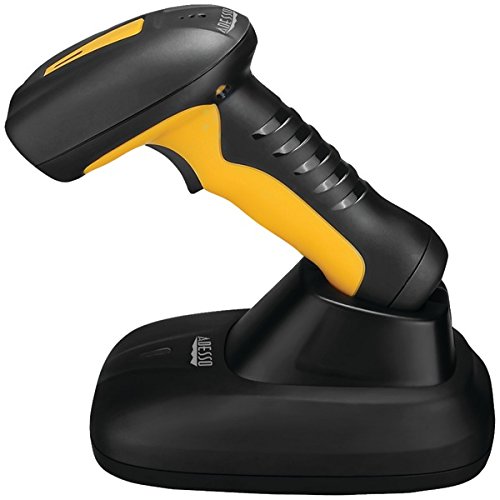
An image showing the Adesso NUSCAN 4100B Bluetooth Waterproof Barcode Scanner, a black and yellow handheld device, resting in its black charging cradle. The scanner features a comfortable grip and a trigger button, while the cradle provides a stable base for charging and storage.
Setup
1. Charging the Scanner
Before initial use, fully charge the scanner.
- Connect the USB charging cable to the charging cradle.
- Plug the other end of the USB cable into a compatible USB power adapter (not included) or a computer's USB port.
- Place the NUSCAN 4100B scanner into the charging cradle. Ensure it is seated correctly.
- The charging indicator light on the scanner (or cradle) will illuminate, indicating that charging is in progress.
- Allow approximately hours for a full charge.
2. Bluetooth Pairing
The NUSCAN 4100B connects wirelessly via Bluetooth to your host device.
- Power On: Press and hold the power button on the scanner until it powers on.
- Enter Pairing Mode: Refer to the quick start guide or specific barcode commands (often found on a separate sheet or inside the manual cover) to put the scanner into Bluetooth pairing mode. This usually involves scanning a specific "Pairing Mode" barcode. The indicator light will typically flash rapidly when in pairing mode.
- Enable Bluetooth on Host Device: On your computer, smartphone, or tablet, go to the Bluetooth settings.
- Search for Devices: Scan for available Bluetooth devices. The scanner should appear as "NUSCAN 4100B" or similar.
- Connect: Select the scanner from the list to initiate the pairing process.
- Confirmation: Once successfully paired, the scanner's indicator light will change (e.g., solid blue) and your device will confirm the connection.
Note: If prompted for a PIN, try "0000" or "1234". Consult the quick start guide for specific pairing barcodes for different operating systems (e.g., iOS, Android, Windows).
Operating the Scanner
Basic Scanning
- Ensure the scanner is powered on and successfully paired with your host device.
- Open an application on your host device where you want the scanned data to appear (e.g., a text editor, spreadsheet, or POS software).
- Point the scanner's window at the barcode you wish to scan.
- Press the trigger button firmly. A red scanning line or beam will emit from the scanner.
- Hold the scanner steady until you hear a beep or see a successful scan indicator (e.g., green light flash). The barcode data will then be transmitted to your host device.
Scanning Tips
- Distance: Maintain an optimal distance from the barcode, typically a few inches, for best results.
- Angle: Scan barcodes at a slight angle to avoid glare and improve readability.
- Damaged Barcodes: For partially damaged or poorly printed barcodes, try scanning from different angles or distances.
- Multiple Scans: If scanning multiple items, ensure each scan is registered before moving to the next.
Maintenance
Cleaning the Scanner
Regular cleaning helps maintain the scanner's performance and appearance.
- Use a soft, lint-free cloth slightly dampened with water or a mild, non-abrasive cleaning solution.
- Gently wipe the exterior of the scanner, paying attention to the scanning window.
- Do not use harsh chemicals, abrasive cleaners, or solvents, as these can damage the device.
- Ensure no liquid enters the device through ports or openings.
Waterproof Considerations
The NUSCAN 4100B is designed to be waterproof, offering protection against water ingress.
- While waterproof, avoid intentionally submerging the device for extended periods or beyond its specified IP rating (if available).
- Ensure all port covers (if any) are securely closed before exposing the device to water.
- If the scanner gets wet, wipe it dry with a clean cloth before placing it in the charging cradle or connecting any cables.
- Do not charge the scanner if the charging contacts or port are wet.
Troubleshooting
| Problem | Possible Cause | Solution |
|---|---|---|
| Scanner does not power on. | Low battery or no charge. | Charge the scanner fully using the charging cradle and USB cable. |
| Scanner does not connect via Bluetooth. | Not in pairing mode, out of range, or host device Bluetooth is off. |
|
| Scanner does not read barcodes. | Barcode damaged, incorrect scanning angle/distance, or scanner not configured for barcode type. |
|
| Scanned data appears incorrectly. | Keyboard layout mismatch or data formatting issue. |
|
Specifications
| Attribute | Detail |
|---|---|
| Model Number | DWS-AEONUSCAN4100B |
| Product Dimensions | 10.6 x 7.3 x 4.5 inches |
| Item Weight | 1.68 pounds |
| ASIN | B01M7MFCZ6 |
| Date First Available | November 24, 2016 |
| Manufacturer | Adesso, Inc |
| Compatible Devices | Desktop, Laptop, Smartphone, Tablet |
| Power Source | Battery Powered |
| Brand | Adesso |
| Connectivity Technology | Bluetooth |
| Real Angle of View | 42 Degrees |
Warranty and Support
Adesso products are backed by a limited warranty. For specific warranty terms and conditions, please refer to the warranty card included with your product or visit the official Adesso website.
For technical support, troubleshooting assistance, or to inquire about replacement parts, please contact Adesso Customer Service:
- Website: www.adesso.com/support
- Email: support@adesso.com
- Phone:
When contacting support, please have your product model number (DWS-AEONUSCAN4100B) and purchase information ready.