
Introduction
This manual provides essential information for the proper installation, operation, and maintenance of your Sony CDX-G1200U Car Stereo Receiver. Please read this manual thoroughly before using the unit and retain it for future reference.
The Sony CDX-G1200U is designed to enhance your in-car audio experience, offering versatile connectivity and powerful sound. Key features include:
- 55 watt x 4 Dynamic Reality Amplifier for clear and powerful sound.
- Enhanced smartphone connectivity with AOA 2.0 (Android Open Accessory Protocol version 2.0) for seamless control of music from compatible Android devices.
- Advanced sound customization with EQ10 (10-band equalizer), EXTRA Bass function, and HPF/LPF (High-Pass Filter/Low-Pass Filter) crossovers.
- Front AUX and USB inputs for connecting and charging MSC/MTP (Mass Storage Class/Media Transfer Protocol) compatible devices.
- Support for MP3, WMA, and FLAC music file playback via USB.
Safety Information
WARNING: To prevent fire or shock hazard, do not expose the unit to rain or moisture. To avoid electrical shock, do not open the cabinet. Refer servicing to qualified personnel only.
- Always operate the vehicle safely. Distraction from operating the audio system can lead to accidents.
- Keep the volume at a level where you can still hear outside sounds, such as emergency vehicle sirens.
- Do not disassemble or modify the unit. This can cause accidents, fire, or electric shock.
- Consult your car dealer or a qualified technician for installation. Incorrect installation can cause damage to the unit or vehicle.
Package Contents
Verify that all items are present in the package:
- Sony CDX-G1200U Car Stereo Receiver Unit
- Trim Ring (Collar) (Black)
- Wiring Harness
- Instruction Manual (this document)
- Warranty Card
Installation
Proper installation is crucial for optimal performance and safety. If you are unsure about any step, consult a professional installer.
Before Installation
- Disconnect the negative terminal of the car battery to prevent short circuits.
- Ensure you have the necessary tools and wiring adapters for your specific vehicle.
Wiring Connections
Refer to the wiring diagram provided with the unit and the rear view image below for correct connections. Incorrect wiring can damage the unit or vehicle electrical system.

Image: Rear view of the Sony CDX-G1200U receiver, illustrating the wiring harness connector, RCA pre-outputs (Rear/Sub), remote control input, and fuse location.
- Power Connection: Connect the yellow wire to constant 12V, red wire to accessory 12V, and black wire to ground.
- Speaker Connections: Connect speaker wires according to their polarity (+/-) to the corresponding vehicle speakers.
- Antenna Connection: Connect the car's antenna cable to the unit's antenna input.
- RCA Outputs: For connecting external amplifiers (Rear/Sub).
- Remote Input: For connecting a wired remote control or steering wheel control interface (if applicable).
Mounting the Unit
Install the unit into the dashboard opening using the supplied mounting sleeve and trim ring. Secure the unit firmly to prevent vibration and movement.
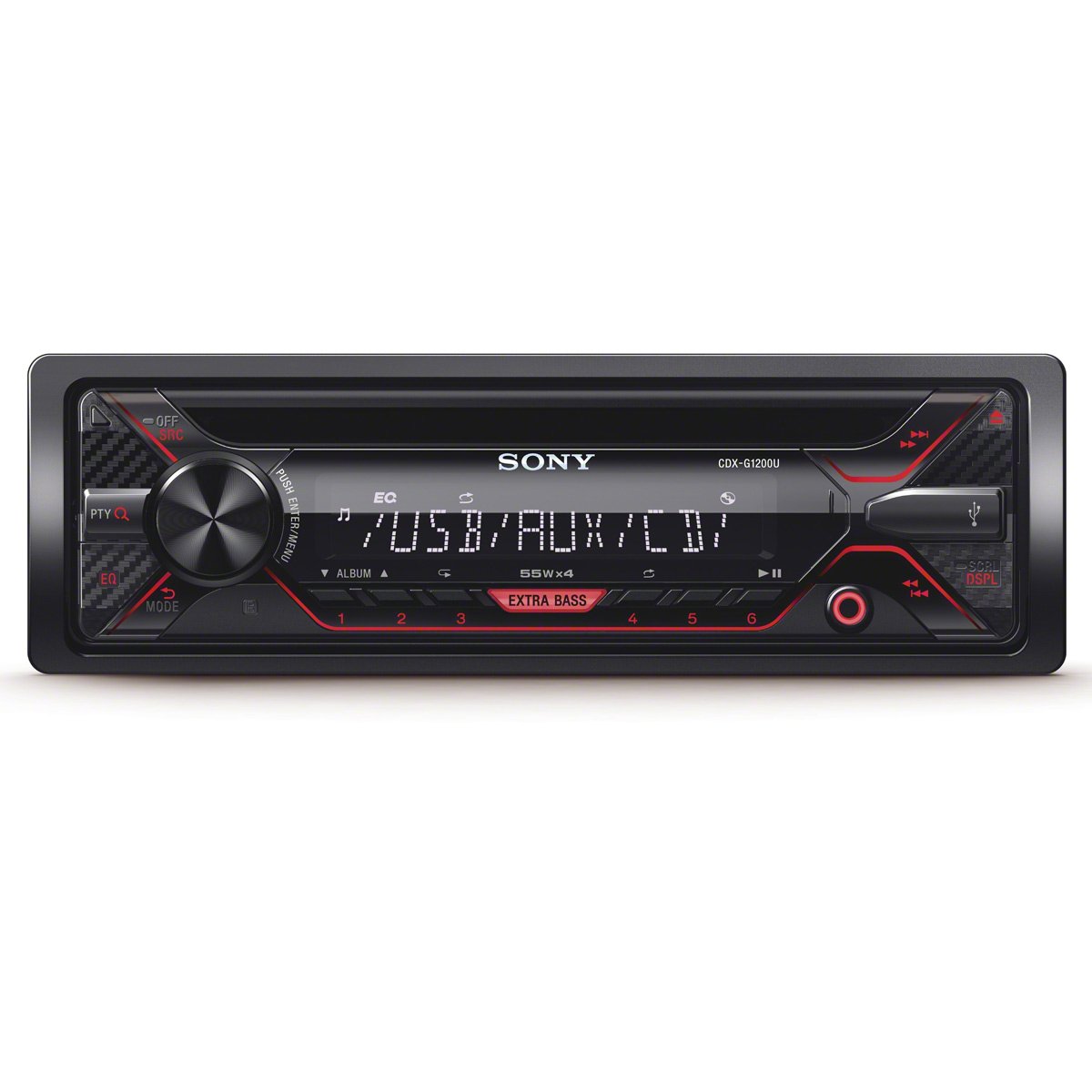
Image: Front view of the Sony CDX-G1200U car stereo receiver, showing the display, control knob, buttons for source selection, EQ, EXTRA BASS, and USB/AUX inputs.
Operating Instructions
Familiarize yourself with the front panel controls for easy operation.

Image: A hand adjusting the controls on the Sony CDX-G1200U receiver, which is installed in a car's dashboard, demonstrating typical user interaction.
Basic Operations
- Power On/Off: Press the SRC/OFF button to turn the unit on. Press and hold to turn off.
- Source Selection: Press the SRC button repeatedly to cycle through available sources (Tuner, CD, USB, AUX).
- Volume Control: Rotate the central knob to adjust the volume level.
Tuner (Radio) Operation
- Band Selection: Press the BAND button to select FM1, FM2, FM3, AM.
- Manual Tuning: Press the SEEK +/- buttons briefly to tune step-by-step.
- Automatic Tuning: Press and hold the SEEK +/- buttons to automatically search for the next strong station.
- Preset Stations: Store your favorite stations by pressing and holding a number button (1-6) after tuning to a station. Recall by pressing the number button briefly.
CD/USB Playback
- Inserting a CD: Gently insert a CD into the disc slot with the label side up. The unit will automatically begin playback.
- Connecting USB: Insert a USB device into the front USB port. The unit will automatically switch to USB source and begin playback.
- Play/Pause: Press the PLAY/PAUSE button.
- Skip Track: Press the SEEK +/- buttons briefly.
- Fast Forward/Rewind: Press and hold the SEEK +/- buttons.
- Folder Navigation: Use the FOLDER +/- buttons to navigate through folders on USB devices.
AUX Input
Connect an external audio player (e.g., MP3 player) to the front AUX input using a 3.5mm stereo mini-plug cable. Select AUX as the source to listen to audio from the connected device.
Sound Settings
- EQ10: Press the EQ button to access the 10-band equalizer. Use the control knob to select and adjust frequency bands for customized sound.
- EXTRA Bass: Press the EXTRA BASS button to activate or deactivate the bass boost function.
- HPF/LPF Crossovers: Access these settings through the menu to optimize audio output for connected speakers and subwoofers.
Smartphone Connectivity (AOA 2.0)
Connect your compatible Android smartphone via the USB port. With AOA 2.0, you can control music playback directly from the receiver, including track selection and basic app control for supported applications.
Maintenance
Cleaning the Unit
- Wipe the front panel with a soft, dry cloth. Do not use abrasive pads, scouring powder, or solvents such as alcohol or benzene.
- For stubborn stains, dampen the cloth with a mild detergent solution and wipe gently.
CD Care
- Handle CDs by their edges to avoid fingerprints on the playing surface.
- Clean CDs with a soft, lint-free cloth, wiping from the center outwards.
- Do not use solvents or abrasive cleaners on CDs.
Troubleshooting
If you encounter issues with your unit, refer to the following common problems and solutions:
| Problem | Possible Cause / Solution |
|---|---|
| No power / Unit does not turn on. | Check the car battery connection. Verify the fuse is not blown. Ensure wiring harness is correctly connected. |
| No sound. | Check speaker connections. Ensure volume is not muted or set too low. Verify source selection is correct. |
| CD does not play / Disc error. | Disc may be dirty, scratched, or inserted incorrectly. Try a different CD. Ensure the disc format is supported. |
| USB device not recognized. | Ensure the USB device is formatted correctly (FAT16/FAT32). The device may not be compatible or requires too much power. Try a different USB device. |
| Cannot connect iPhone via USB. | This unit's AOA 2.0 feature is designed for Android devices. iPhone connectivity via USB for music control is not supported. Use the AUX input for iPhone audio. |
| Poor radio reception. | Check antenna connection. Ensure antenna is fully extended (if applicable). Move to an area with better signal. |
Specifications
| Feature | Specification |
|---|---|
| Brand | Sony |
| Model Number | CDX-G1200U |
| Output Power | 55 Watts x 4 channels (max) |
| Connectivity Technology | Auxiliary, USB |
| Compatible Devices | Smartphone (Android via AOA 2.0) |
| Audio Output Mode | Stereo |
| Supported Audio Formats (USB) | MP3, WMA, FLAC |
| Supported Audio Formats (CD) | CD-DA, MP3, WMA |
| Item Weight | 2.6 Pounds |
| Special Features | Steering Wheel Control Ready, EQ10, EXTRA Bass, HPF/LPF Crossovers, AOA 2.0 |
| Control Method | Remote, Unit Controls |
| UPC | 027242900905 |
Warranty and Support
Your Sony CDX-G1200U Car Stereo Receiver comes with a manufacturer's warranty. Please refer to the included Warranty Card for detailed terms, conditions, and duration of coverage.
For technical support, service, or warranty claims, please contact Sony customer support or visit the official Sony website. Keep your proof of purchase and the product's serial number handy when contacting support.


