
Generalscan GS X5
Generalscan Scanbuddy GS X5 2D Imager Barcode Scanner User Manual
Model: GS X5
Introduction
The Generalscan Scanbuddy GS X5 is a compact and versatile 2D imager barcode scanner designed for seamless integration with Android phones and Windows tablets. This manual provides essential information for setting up, operating, and maintaining your GS X5 scanner, ensuring optimal performance and longevity.

Figure 1: Front view of the Generalscan Scanbuddy GS X5 barcode scanner, showing its compact design and scanning window.
Setup
Follow these steps to set up your GS X5 scanner with your compatible device.
- Check Compatibility: Ensure your Android phone or Windows tablet supports USB On-The-Go (OTG) functionality, as the scanner connects via Micro USB.
- Connect the Scanner: Carefully insert the Micro USB connector of the GS X5 scanner into the Micro USB port of your Android phone or Windows tablet.
- Install Application (if required): Depending on your device and intended use, you may need to install a specific barcode scanning application from your device's app store. Refer to the application's instructions for setup.
- Verify Connection: Once connected, your device should recognize the scanner. Some applications may provide a connection status indicator.
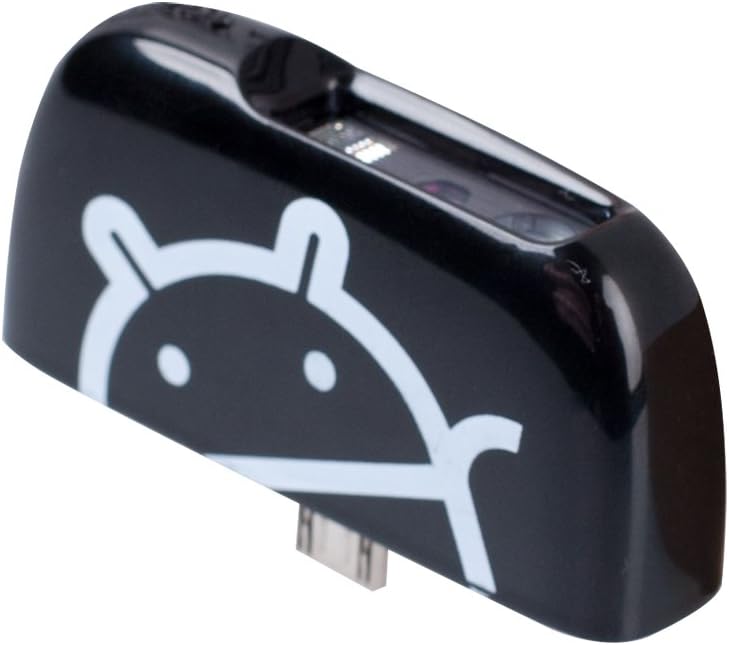
Figure 2: Side view of the GS X5, highlighting the Micro USB connector for device attachment.

Figure 3: Bottom view of the GS X5, displaying the model name (ScanBuddy GS X5) and power specifications (0.40A@5V).
Operating Instructions
The GS X5 scanner is designed for intuitive barcode capture.
- Positioning: Hold the scanner so that the scanning window faces the barcode you wish to read. Ensure the barcode is flat and well-lit.
- Scanning: The GS X5 typically activates its scanning beam automatically when pointed at a barcode, or it may require a software trigger within your scanning application. The scanner is capable of reading both 1D and 2D barcodes.
- Data Transmission: Once a barcode is successfully scanned, the data will be transmitted to your connected device and typically appear in the active input field of your application.

Figure 4: The GS X5 scanner attached to a tablet, actively scanning a barcode on a document. The red scanning beam is visible.
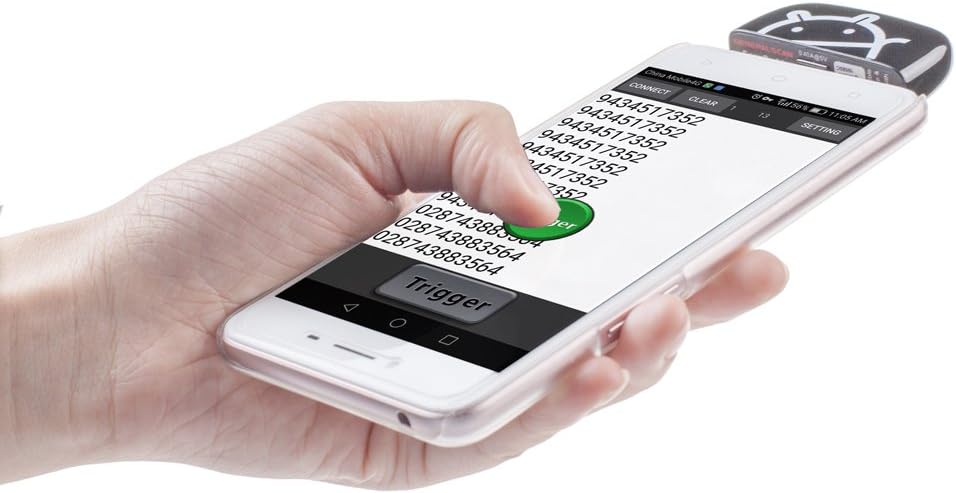
Figure 5: The GS X5 scanner connected to a smartphone, demonstrating the scanning process and the display of scanned data on the phone's screen.
For specific scanning modes or advanced configurations, refer to the documentation of your chosen barcode scanning software.
Maintenance
Proper maintenance ensures the longevity and performance of your GS X5 scanner.
- Cleaning: Use a soft, dry, lint-free cloth to clean the exterior of the scanner. For the scanning window, use a lens cleaning cloth and a small amount of lens cleaning solution if necessary. Avoid abrasive materials or harsh chemicals.
- Storage: Store the scanner in a cool, dry place away from direct sunlight and extreme temperatures. When not in use, consider using a protective case or the included lanyard for safe keeping.
- Handling: Avoid dropping the scanner or subjecting it to strong impacts. Do not attempt to disassemble the device.

Figure 6: The GS X5 scanner shown with its accompanying red Generalscan lanyard, useful for portability and preventing loss.
Troubleshooting
If you encounter issues with your GS X5 scanner, try the following solutions:
- Scanner Not Responding:
- Ensure the scanner is securely connected to your device's Micro USB port.
- Verify that your device supports USB OTG.
- Restart your connected phone or tablet.
- Try connecting the scanner to a different compatible device to rule out device-specific issues.
- Unable to Scan Barcodes:
- Check if the barcode is damaged, smudged, or poorly printed.
- Ensure there is adequate lighting on the barcode.
- Verify that the scanning application is open and ready to receive input.
- Confirm the scanner's window is clean and free of obstructions.
- Incorrect Data Scanned:
- Ensure the barcode is fully within the scanning area.
- Check the settings of your scanning application for correct barcode symbology interpretation.
If problems persist, consult the support resources provided by Generalscan or your application vendor.
Specifications
| Feature | Detail |
|---|---|
| Brand | Generalscan |
| Model | GS X5 |
| Product Dimensions | 14.5 x 8 x 12.5 cm |
| Product Weight | 500 g |
| Operating System Compatibility | Android, Windows |
| Compatible Devices | Desktop PC, Laptop, Tablet, Android Phone |
| Power Source | Electric Cable (via USB) |
| Connector Type | Micro USB |
| Barcode Type Support | 2D Imager (supports 1D and 2D barcodes) |
| UPC | 642954877866 |
Warranty and Support
For information regarding product warranty, technical support, or service, please refer to the documentation included with your purchase or visit the official Generalscan website. Specific warranty terms and support channels may vary by region and retailer.
Related documentsGS X5

Ask a question about this manual
Ask about setup, troubleshooting, compatibility, parts, safety, or missing instructions. Manuals+ will review the question and use this page’s manual context to help answer it.