
1. Introduction
This manual provides instructions for the LEXIBOOK LBOXA501 Wireless Game Controller. This controller is designed as an additional input device for the Play Droid TV (LBOX500) system, enhancing the gaming experience for various game genres including racing, first-person shooters (FPS), and sports games. Please read this manual thoroughly before using the product to ensure proper operation and to prevent damage.
2. Package Contents
Verify that all items listed below are present in your package:
- 1 x LEXIBOOK LBOXA501 Wireless Game Controller
- 1 x USB Charging Cable
- 1 x Instruction Manual (this document)
3. Product Overview
The LEXIBOOK LBOXA501 controller features an ergonomic design for comfortable handling and a non-slip coating for secure grip during gameplay. Below is an illustration of the controller with its main components.
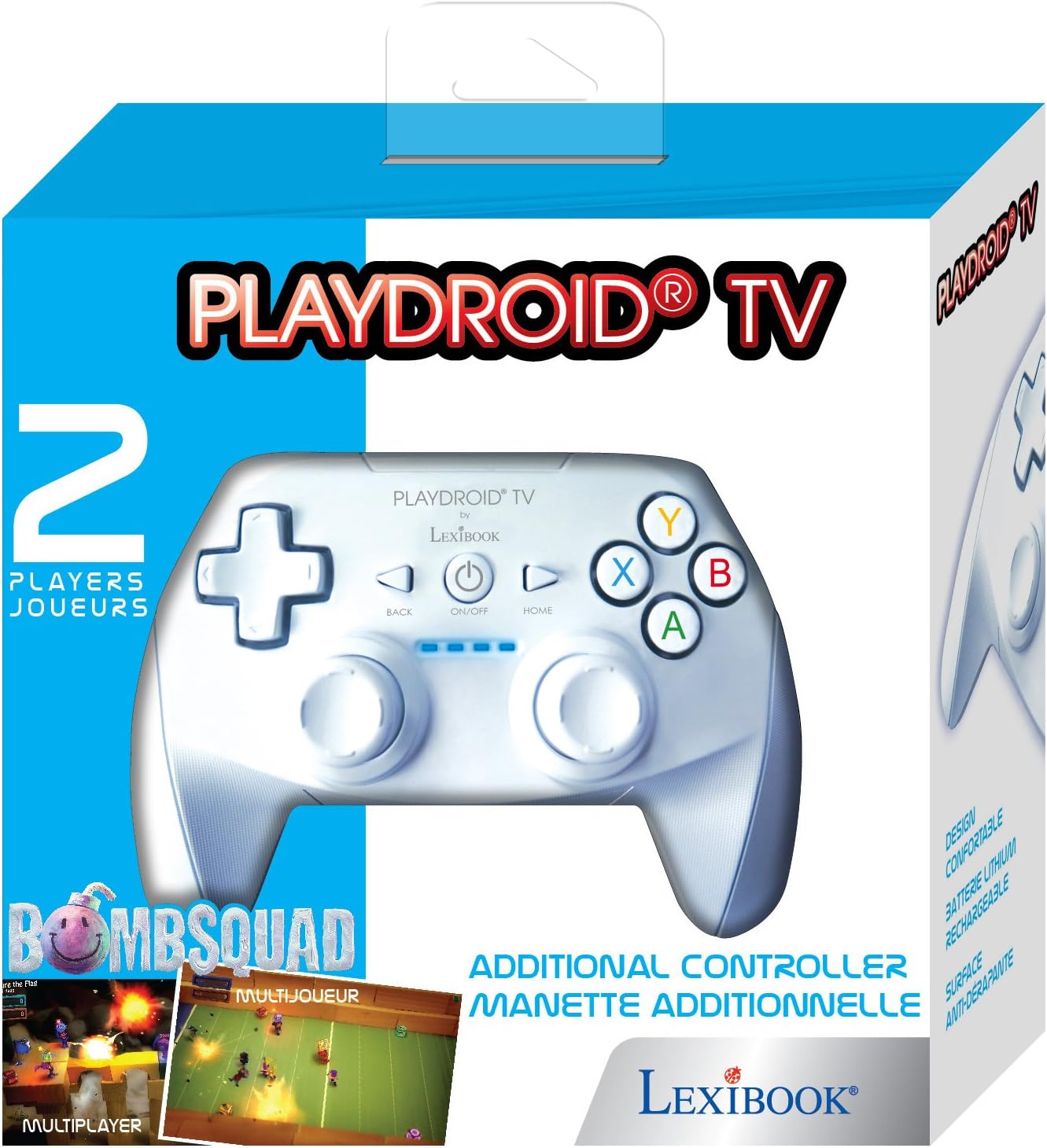
Figure 1: Front view of the LEXIBOOK LBOXA501 Wireless Game Controller. This image displays the directional pad (D-pad) on the left, two analog sticks, and the A, B, X, Y action buttons on the right. Central buttons include BACK, ON/OFF, and HOME.
Controller Components:
- Directional Pad (D-pad): Used for directional input in games and menu navigation.
- Analog Sticks (Left & Right): Provide precise 360-degree movement control.
- Action Buttons (A, B, X, Y): Primary input buttons for in-game actions.
- BACK Button: Typically used for returning to previous menus or functions.
- ON/OFF Button: Powers the controller on or off.
- HOME Button: Returns to the main menu of the connected device.
- Shoulder Buttons (L1, R1) & Triggers (L2, R2): Located on the top edge for additional in-game actions.
- Charging Port: For connecting the USB charging cable.
4. Setup
4.1 Initial Charging
Before first use, fully charge the controller. Connect the supplied USB charging cable to the controller's charging port and the other end to a USB power source (e.g., a computer USB port or a USB wall adapter). The charging indicator light will illuminate during charging and turn off or change color when fully charged. A full charge typically takes approximately 2-3 hours.
4.2 Pairing with Play Droid TV (LBOX500)
- Ensure your Play Droid TV (LBOX500) is powered on and in its main menu.
- On the LEXIBOOK LBOXA501 controller, press and hold the ON/OFF button for a few seconds until the indicator lights begin to flash, indicating it is in pairing mode.
- On your Play Droid TV, navigate to the Bluetooth settings or device pairing menu. Refer to your Play Droid TV manual for specific instructions on how to access this menu.
- Select the LEXIBOOK LBOXA501 controller from the list of available devices.
- Once paired, the indicator lights on the controller will stop flashing and remain solid, confirming a successful connection.
- If pairing fails, repeat the steps. Ensure the controller is sufficiently charged and within range of the Play Droid TV.
5. Operating Instructions
5.1 Power On/Off
- To turn on: Press the ON/OFF button. The controller will attempt to connect to the last paired device.
- To turn off: Press and hold the ON/OFF button for approximately 3 seconds until the indicator lights turn off. The controller will also automatically power off after a period of inactivity to conserve battery.
5.2 Basic Control Functions
- Navigation: Use the D-pad or Left Analog Stick to navigate through menus and game environments.
- Selection/Confirmation: The A button is typically used for selection or confirmation.
- Cancellation/Return: The B button or BACK button is often used to cancel an action or return to a previous screen.
- Home Menu: Press the HOME button to return to the main menu of your Play Droid TV.
- In-Game Actions: The A, B, X, Y buttons, Analog Sticks, Shoulder Buttons, and Triggers are used for specific actions within games. Refer to individual game instructions for button assignments.
6. Charging the Battery
The LEXIBOOK LBOXA501 controller is equipped with a built-in rechargeable lithium-ion battery. When the battery level is low, the indicator lights on the controller may flash or change color to alert you.
- Connect the small end of the USB charging cable to the charging port on the controller.
- Connect the larger end of the USB charging cable to a powered USB port (e.g., on your Play Droid TV, a computer, or a USB wall adapter).
- The charging indicator lights will show the charging status. Once fully charged, disconnect the USB cable.
Note: Do not use damaged charging cables or adapters. Only use the provided cable or a certified equivalent.
7. Maintenance
7.1 Cleaning
- Ensure the controller is powered off before cleaning.
- Use a soft, dry cloth to wipe the surface of the controller.
- For stubborn dirt, slightly dampen the cloth with water. Avoid using harsh chemicals, solvents, or abrasive cleaners, as these can damage the surface and internal components.
- Do not allow liquids to enter the controller's openings.
7.2 Storage
- Store the controller in a cool, dry place away from direct sunlight and extreme temperatures.
- Avoid placing heavy objects on the controller.
- If storing for an extended period, charge the battery periodically (e.g., every 3-6 months) to maintain battery health.
8. Troubleshooting
| Problem | Possible Cause | Solution |
|---|---|---|
| Controller does not turn on. | Battery is depleted. | Charge the controller using the USB cable. |
| Controller does not pair with Play Droid TV. | Controller not in pairing mode; Out of range; Interference; Play Droid TV Bluetooth issue. |
|
| Buttons or analog sticks are unresponsive. | Low battery; Connection issue; Software glitch; Physical damage. |
|
| Controller disconnects frequently. | Low battery; Out of range; Wireless interference. |
|
9. Specifications
| Model Number | LBOXA501 |
| Brand | LEXIBOOK |
| Compatibility | Play Droid TV (LBOX500) |
| Connectivity | Wireless |
| Battery Type | Rechargeable Lithium-Ion |
| Dimensions (L x W x H) | 12 x 16 x 7 cm (4.7 x 6.3 x 2.8 inches) |
| Weight | 210 g (0.46 lbs) |
10. Warranty and Support
LEXIBOOK products are manufactured to high standards and are subject to quality control. This product is covered by a limited warranty against defects in materials and workmanship. The specific terms and duration of the warranty may vary by region. Please retain your proof of purchase for warranty claims.
For technical support, warranty service, or further information, please visit the official LEXIBOOK website or contact their customer service department. Contact details can typically be found on the LEXIBOOK website or on the product packaging.
Online Support: www.lexibook.com/support (Example link, actual link may vary)