
Lenco TFT-1028
Lenco TFT-1028 Portable DVB-T2 TV User Manual
Model: TFT-1028
Introduction
This manual provides essential information for the safe and efficient operation of your Lenco TFT-1028 Portable DVB-T2 TV. Please read it thoroughly before using the device and retain it for future reference.
The Lenco TFT-1028 is a 10.1-inch HD LED TV equipped with a DVB-T2 tuner, allowing reception of free-to-air terrestrial TV channels. It features multiple connectivity options including USB and HDMI, and offers portable use with its built-in lithium battery or via external power sources.
Package Contents
Upon opening the package, ensure all the following items are present:
- Lenco TFT-1028 TV Unit
- DVB-T Antenna
- Remote Control
- 12 Volt Car Adapter
- 230 Volt Power Supply
- Instruction Manual

Image: The Lenco TFT-1028 portable TV, its remote control, and the included DVB-T antenna, laid out on a reflective surface.
Product Overview
Familiarize yourself with the various components and connection points of your Lenco TFT-1028 TV.
Rear Panel and Stand
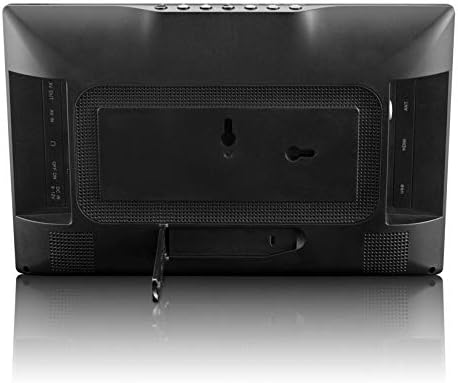
Image: The back of the Lenco TFT-1028 TV, featuring the integrated foldable stand and recessed areas for connectivity ports on both sides.
Left Side Connections
- AV OUT: Audio/Video output for connecting to external display or audio system.
- Headphone Output: 3.5mm jack for private listening.
- ON/OFF Switch: Main power switch for the device.
- DC IN: Power input for the 12V car adapter or 230V power supply.

Image: A detailed view of the left side of the TV, highlighting the AV OUT, headphone, ON/OFF switch, and DC IN ports.
Right Side Connections
- ANT: Antenna input for connecting the DVB-T antenna.
- HDMI: High-Definition Multimedia Interface output for connecting to compatible devices.
- USB: USB input for media playback from USB storage devices.

Image: A close-up of the right side of the TV, showing the ANT, HDMI, and USB ports. A USB stick is shown inserted into the USB port.
Top Panel Buttons

Image: An angled view of the top edge of the Lenco TFT-1028 TV, displaying the physical control buttons for power, volume, channel, and menu navigation.
Setup
Powering On the Device
- Using the 230V Power Supply:
- Connect the 230V power supply to the DC IN port on the left side of the TV.
- Plug the power supply into a standard wall outlet.
- Using the 12V Car Adapter:
- Connect the 12V car adapter to the DC IN port on the left side of the TV.
- Insert the other end of the adapter into your vehicle's 12V power socket.
- Using the Internal Battery:
- Ensure the internal lithium battery is charged. The TV can operate for approximately 2 hours on a full charge.
- Once connected to a power source or if the battery is charged, slide the ON/OFF switch on the left side of the TV to the 'ON' position.
- Press the POWER button on the remote control or the top panel to turn on the TV.
Connecting the DVB-T Antenna
For receiving terrestrial TV channels, connect the included DVB-T antenna:
- Locate the ANT port on the right side of the TV.
- Connect the DVB-T antenna cable to the ANT port.
- Position the antenna for optimal signal reception. Signal strength can vary based on location.
Note on DVB-T2 Reception:
The TFT-1028 supports DVB-T2 HD. However, in some regions like Austria, reception may not work due to specific encryption requirements (e.g., SIMPIL TV and CI card), as this model does not have a CI slot.
Operating Instructions
Initial Channel Scan
After connecting the antenna and powering on the TV for the first time, you will need to perform a channel scan:
- Press the MENU button on the remote control.
- Navigate to the 'Channel' or 'Setup' menu using the arrow keys.
- Select 'Auto Scan' or 'Auto Tuning' and confirm.
- The TV will now search for available DVB-T2 channels. This process may take several minutes.
- Once complete, the TV will save the found channels and tune to the first available channel.
Basic TV Functions
- Channel Selection: Use the CH+ / CH- buttons on the remote or top panel to change channels. You can also enter channel numbers directly using the numeric keypad on the remote.
- Volume Control: Use the VOL+ / VOL- buttons on the remote or top panel to adjust the volume.
- Mute: Press the MUTE button on the remote to temporarily silence the audio. Press again to restore.
- Source Selection: Press the SOURCE button on the remote to switch between TV, HDMI, and USB input modes.
Media Playback via USB
The TV supports media playback from USB storage devices.
- Insert a USB flash drive into the USB port on the right side of the TV.
- Press the SOURCE button on the remote and select 'USB'.
- Navigate through the folders and files on your USB device using the arrow keys and ENTER button.
- Select the desired media file (e.g., video, audio, image) to play. Supported audio formats include MP3.
Connecting External Devices via HDMI
You can connect external devices such as DVD players or game consoles via the HDMI output.
- Connect an HDMI cable from your external device to the HDMI port on the right side of the TV.
- Press the SOURCE button on the remote and select 'HDMI'.
- The content from your external device should now be displayed on the TV screen.
Note: The HDMI port on this model is an output, not an input. This means it is designed to send the TV's signal to another display, not to receive a signal from an external source like a Chromecast. Please refer to the specifications for clarification.
Maintenance
Cleaning the TV
- Always unplug the TV from the power source before cleaning.
- Use a soft, dry, lint-free cloth to wipe the screen and exterior surfaces.
- For stubborn marks, slightly dampen the cloth with water or a mild, non-abrasive screen cleaner. Do not spray liquid directly onto the screen or into any openings.
- Avoid using abrasive cleaners, waxes, or solvents as they can damage the finish.
Battery Care
- To prolong the life of the built-in lithium battery, avoid fully discharging it frequently.
- If storing the TV for an extended period, charge the battery to approximately 50% before storage.
- Store the TV in a cool, dry place away from direct sunlight and extreme temperatures.
Troubleshooting
| Problem | Possible Cause | Solution |
|---|---|---|
| No power | Power cable not connected; ON/OFF switch off; Battery depleted. | Ensure power supply is securely connected and plugged in. Check ON/OFF switch on the side of the TV. Charge the battery if operating wirelessly. |
| No signal / No channels found | Antenna not connected; Poor antenna position; No DVB-T2 broadcast in area; Channel scan not performed. | Connect the DVB-T antenna to the ANT port. Adjust antenna position for better reception. Perform an auto channel scan. Verify DVB-T2 availability in your location. |
| No sound | Volume too low; Mute function active. | Increase volume using VOL+ button. Press MUTE button to deactivate mute. |
| USB media not playing | Incorrect source selected; Unsupported file format; USB device not recognized. | Ensure 'USB' is selected as the source. Check if the file format is supported (e.g., MP3 for audio). Try a different USB device or reformat the current one (FAT32 recommended). |
| Remote control not working | Batteries depleted or incorrectly inserted; Obstruction between remote and TV. | Replace remote control batteries. Ensure correct polarity. Remove any obstructions. Point remote directly at the TV's IR sensor. |
Specifications
| Feature | Detail |
|---|---|
| Model Name | TFT-1028 |
| Screen Size | 10.1 inches (25.5 cm) |
| Display Resolution | 1024 x 600 Pixels |
| Aspect Ratio | 16:9 |
| TV Tuner | DVB-T2 (H.265) |
| Connectivity | HDMI Output, USB Input, AV Output, Headphone Output |
| Power Source | 230V AC Power Supply, 12V DC Car Adapter, Built-in Lithium Polymer Battery |
| Battery Life | Approx. 2 hours (on battery) |
| Supported Audio Formats | MP3 |
| Dimensions (W x D x H) | 24.5 x 2.4 x 15.7 cm (approx.) |
| Weight | 560 g (approx.) |
Warranty and Support
Lenco products are designed and manufactured to the highest quality standards. For information regarding warranty terms and conditions, please refer to the warranty card included in your product packaging or visit the official Lenco website.
For technical support, troubleshooting assistance beyond this manual, or spare parts inquiries (e.g., remote control replacement), please contact Lenco customer service. Contact details can typically be found on the official Lenco website or in the product documentation.
Please note: The availability of spare parts, such as remote controls, may vary by region and over time.
Related documentsTFT-1028


Ask a question about this manual
Ask about setup, troubleshooting, compatibility, parts, safety, or missing instructions. Manuals+ will review the question and use this page’s manual context to help answer it.