1. Introduction
This manual provides comprehensive instructions for the GAMDIAS ZEUS E1 Optical Gaming Mouse and the accompanying NYX E1 Gaming Mouse Mat. Please read this manual carefully before using your new gaming mouse to ensure optimal performance and longevity.
Package Contents:
- GAMDIAS ZEUS E1 Optical Gaming Mouse
- GAMDIAS NYX E1 Gaming Mouse Mat
Key Features:
- Double Level Multi-Color Streaming Lighting: Dynamic lighting effects on both sides of the mouse.
- Textured Rubber Design: Provides enhanced grip and comfortable operation.
- 6 Smart Keys: Programmable buttons for macros, profiles, media controls, and Windows functions.
- Adjustable DPI: Up to 3200 DPI for precise cursor control.
- Ergonomic Design: Engineered to prevent wrist strain and promote smoother movement.
2. Setup
2.1 Connecting the Mouse
- Unpack the GAMDIAS ZEUS E1 Optical Gaming Mouse and NYX E1 Gaming Mouse Mat from their packaging.
- Place the NYX E1 Gaming Mouse Mat on a flat, stable surface.
- Connect the USB cable of the ZEUS E1 mouse to an available USB port on your computer.
- Your operating system (Windows, macOS, Linux) should automatically detect and install the necessary basic drivers.
2.2 Software Installation (Optional)
For advanced customization of buttons, DPI settings, and lighting effects, it is recommended to download and install the GAMDIAS HERA software from the official GAMDIAS website. This software allows for comprehensive configuration of your mouse.
- Visit the official GAMDIAS website.
- Navigate to the support or downloads section for the ZEUS E1 mouse.
- Download and install the HERA software.
- Follow the on-screen instructions to complete the installation.

Image: The GAMDIAS ZEUS E1 Optical Gaming Mouse resting on the NYX E1 Gaming Mouse Mat, showcasing its ergonomic design and blue LED lighting.
3. Operating the Mouse
3.1 Basic Functions
- Left Click: Primary action button.
- Right Click: Secondary action button, typically for context menus.
- Scroll Wheel: Scroll up or down through documents and web pages. Can also be pressed for a middle-click function.

Image: A top-down view of the GAMDIAS ZEUS E1 mouse on its mat, highlighting the scroll wheel and DPI button.
3.2 DPI Adjustment
The ZEUS E1 mouse features an adjustable DPI button, allowing you to change the cursor sensitivity on the fly. This is useful for switching between tasks that require different levels of precision, such as general browsing and gaming.
- Press the DPI button (located behind the scroll wheel) to cycle through available DPI settings.
- The maximum DPI supported is 3200.
- Specific DPI levels can be configured and assigned via the HERA software.
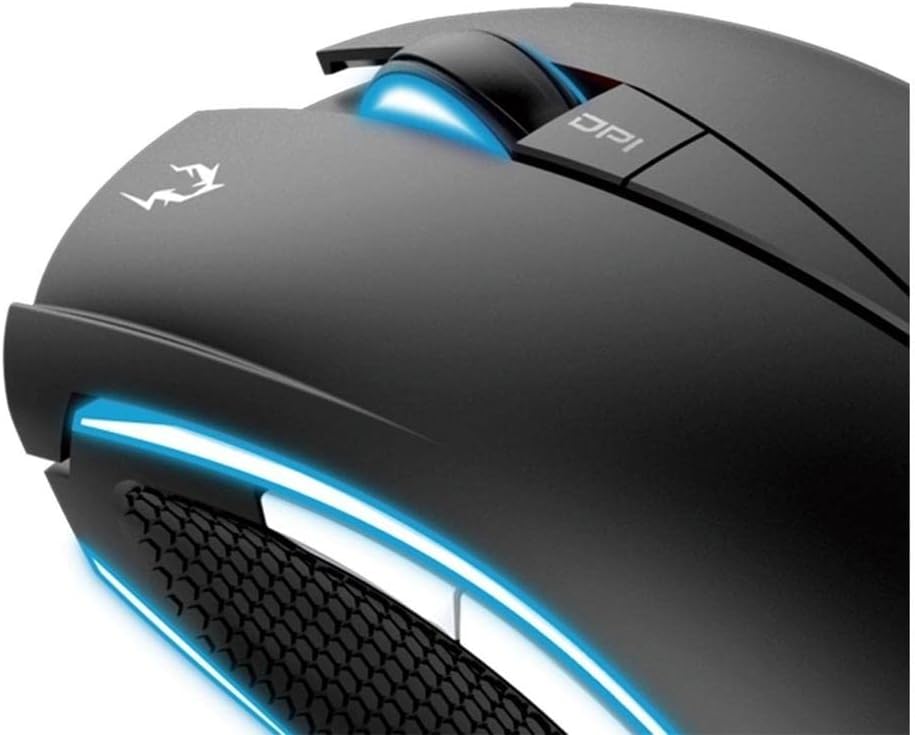
Image: A close-up view of the DPI button and the illuminated scroll wheel on the GAMDIAS ZEUS E1 mouse.
3.3 Programmable Smart Keys
The ZEUS E1 mouse is equipped with 6 smart keys that can be customized for various functions. These keys provide quick access to macros, profile switching, media controls, and Windows functions, enhancing your efficiency in games and applications.
- Utilize the GAMDIAS HERA software to assign specific functions to each of the 6 smart keys.
- Create and save multiple profiles for different games or applications.

Image: A detailed view of the side buttons and the textured rubber grip on the GAMDIAS ZEUS E1 mouse, designed for comfort and control.
3.4 Lighting Effects
The ZEUS E1 features double-level multi-color streaming lighting on both sides. These lighting effects can be customized through the HERA software to match your preferences or gaming setup.
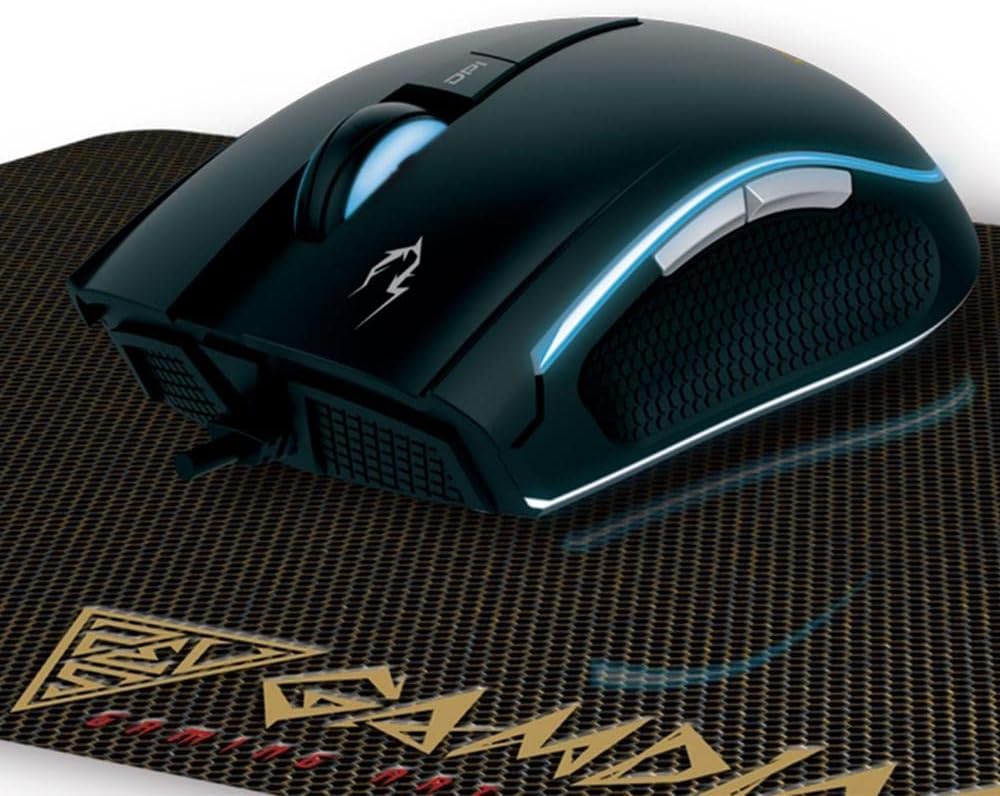
Image: An angled view of the GAMDIAS ZEUS E1 mouse on its mat, showcasing the vibrant blue streaming lighting along its sides.
4. Maintenance
4.1 Cleaning the Mouse
To maintain optimal performance and appearance, regularly clean your ZEUS E1 mouse.
- Disconnect the mouse from your computer before cleaning.
- Use a soft, dry, lint-free cloth to wipe the surface of the mouse.
- For stubborn dirt, slightly dampen the cloth with water or a mild cleaning solution. Avoid harsh chemicals.
- Use a cotton swab or compressed air to clean around buttons and the optical sensor.
4.2 Cleaning the Mouse Mat
The NYX E1 Gaming Mouse Mat can also be cleaned to ensure smooth mouse movement.
- Wipe the surface with a damp cloth and mild soap if necessary.
- Allow the mat to air dry completely before use.
5. Troubleshooting
5.1 Mouse Not Responding
- Ensure the USB cable is securely connected to your computer.
- Try connecting the mouse to a different USB port.
- Restart your computer.
- Check if the mouse works on another computer to rule out a system-specific issue.
5.2 Lighting Not Working or Incorrect
- Verify that the HERA software is installed and configured correctly.
- Check lighting settings within the HERA software.
- Ensure the mouse firmware is up to date. Firmware updates can often resolve unexpected behavior.
5.3 Buttons Not Functioning as Expected
- Open the GAMDIAS HERA software and check the button assignments for the active profile.
- Ensure no conflicting software or drivers are interfering with mouse functions.
- Perform a firmware update if available.
6. Specifications
| Brand | GAMDIAS |
| Model Number | GD-ZEUS E1 |
| Hardware Platform | PC |
| Operating System Compatibility | Windows, macOS, Linux |
| Item Weight | 6.9 ounces |
| Product Dimensions (LxWxH) | 1.61 x 1.61 x 2.85 inches |
| Color | Black |
| Power Source | Corded Electric (USB) |
| Connectivity Technology | USB |
| Special Feature | Ergonomic Design |
| Movement Detection Technology | Optical |
| Maximum DPI | 3200 |

Image: A clear top-down view of the GAMDIAS ZEUS E1 Optical Gaming Mouse, showcasing its sleek design and branding.
7. Warranty and Support
For warranty information, technical support, or to download the latest drivers and software, please visit the official GAMDIAS website or contact GAMDIAS customer service. Keep your purchase receipt as proof of purchase for warranty claims.
GAMDIAS Official Website: www.gamdias.com


