
1. Setup
1.1 Unpacking
Carefully remove the TV from its packaging. Ensure all components are present:
- Hitachi 65R8 65-Inch 4K Ultra HD Roku Smart LED TV
- Remote Control
- TV Stand (2 pieces)
- Screws for Stand
- Power Cord
1.2 Attaching the Stand
Place the TV screen-down on a soft, flat surface to prevent damage. Align the stand pieces with the designated slots on the bottom of the TV. Secure the stand using the provided screws. Ensure the stand is firmly attached before proceeding.

Image: Front view of the Hitachi 65R8 TV with its stand.
1.3 Connecting External Devices
Locate the input ports on the back of the TV. Connect your external devices such as cable boxes, gaming consoles, or Blu-ray players to the HDMI ports. For antenna or cable TV, connect the coaxial cable to the ANT/CABLE input.

Image: Side view of the Hitachi 65R8 TV, illustrating its profile and port area.
1.4 Power Connection and Initial Setup
Plug the power cord into the TV and then into a wall outlet. Press the power button on the remote control or on the TV. Follow the on-screen instructions to complete the initial setup, which includes selecting your language, connecting to a Wi-Fi network, and scanning for channels.
2. Operating
2.1 Remote Control Functions
The included remote control provides access to all TV functions. Familiarize yourself with the button layout:
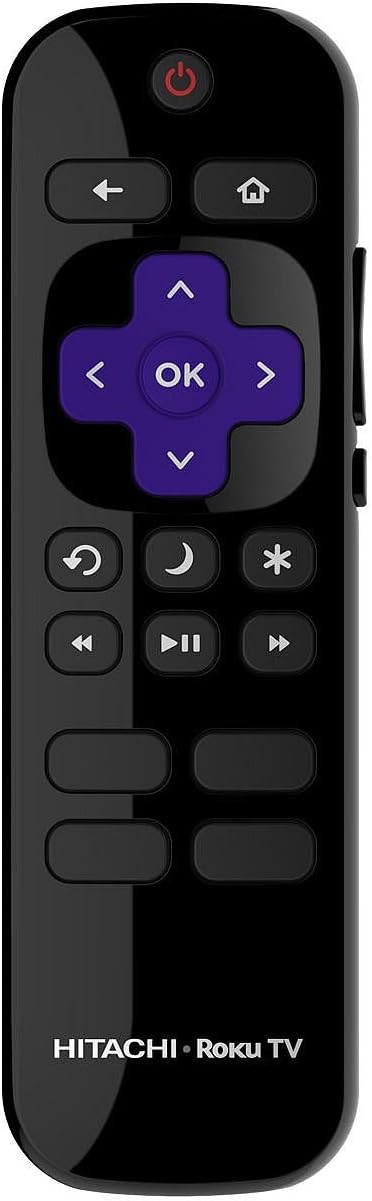
Image: Hitachi Roku TV Remote Control.
- Power Button: Turns the TV on or off.
- Directional Pad (D-Pad) and OK Button: Navigate menus and select options.
- Home Button: Returns to the Roku Home screen.
- Back Button: Returns to the previous screen or menu.
- Options Button (*): Accesses context-sensitive options.
- Voice Search Button: Activates voice control for searching content.
- Playback Controls: Play, Pause, Fast Forward, Rewind.
- Volume Up/Down: Adjusts the TV volume.
2.2 Roku OS Navigation
The Hitachi 65R8 features the Roku OS. From the Home screen, you can access installed streaming channels, input selections, and settings. Use the D-Pad to highlight an item and the OK button to select it.
2.3 Streaming Content
Access a wide range of streaming services like Netflix, Amazon Video, and Hulu directly from the Roku Home screen. Ensure your TV is connected to the internet for streaming functionality.
2.4 Input Selection
To switch between connected devices (e.g., HDMI 1, HDMI 2, Antenna), navigate to the 'Inputs' section on the Roku Home screen and select the desired source.
3. Maintenance
3.1 Cleaning the TV
To clean the screen, gently wipe it with a soft, dry, lint-free cloth. For stubborn marks, slightly dampen the cloth with water. Avoid using harsh chemicals or abrasive cleaners. Clean the TV body with a soft, dry cloth.
3.2 Software Updates
The Roku OS automatically checks for and installs software updates when connected to the internet. Ensure your TV remains connected to Wi-Fi for optimal performance and access to the latest features.
3.3 Remote Battery Replacement
If the remote control becomes unresponsive, replace the batteries. Open the battery compartment on the back of the remote and insert two new AAA batteries, ensuring correct polarity.
4. Troubleshooting
4.1 No Power
- Check if the power cord is securely plugged into both the TV and the wall outlet.
- Ensure the wall outlet is functional by testing it with another device.
- Press the power button on the TV itself, not just the remote.
4.2 No Picture or Sound
- Verify that the correct input source is selected (e.g., HDMI 1, Antenna).
- Check all cable connections between the TV and external devices.
- Ensure the volume is not muted or set to minimum.
- Restart the TV by unplugging it from the power outlet for 30 seconds, then plugging it back in.
4.3 Remote Control Not Working
- Replace the batteries with new ones.
- Ensure there are no obstructions between the remote and the TV's IR sensor.
- Point the remote directly at the TV.
4.4 Wi-Fi Connection Issues
- Restart your Wi-Fi router and modem.
- Go to the TV's network settings and try reconnecting to your Wi-Fi network.
- Ensure the TV is within range of your Wi-Fi router.
5. Specifications
| Feature | Specification |
|---|---|
| Model Name | 65R8 |
| Screen Size | 65 Inches |
| Resolution | 4K Ultra HD (3840 x 2160p) |
| Display Technology | LED |
| Operating System | Roku OS |
| Connectivity Technology | Wi-Fi |
| Supported Internet Services | Roku TV |
| Included Components | Remote, Stand, TV |
| Item Weight | 47.4 Pounds |
| Control Method | Voice |
| Manufacturer | Hitachi |
6. Warranty Information
For detailed warranty information regarding your Hitachi 65R8 TV, please refer to the warranty card included with your product or visit the official Hitachi website. Warranty terms and conditions may vary by region and purchase date.
7. Support
If you require further assistance or encounter issues not covered in this manual, please contact Hitachi customer support. Contact details can typically be found on the official Hitachi website or in the documentation provided with your TV.