
1. Introduction
The Lenovo Professional Wireless Combo is a sleek and stylish keyboard and mouse offering exceptional quality wirelessly. This manual provides detailed instructions for setting up, operating, maintaining, and troubleshooting your new wireless keyboard and mouse combo.
Key features include:
- A reliable 2.4 GHz wireless connection with multi-pairing protocol.
- Plug and play wireless receiver for easy connection of both keyboard and mouse.
- LED indicators for battery life status.
- Full-size, low-profile 3-zone keyboard layout with responsive and silent keys.
- Ergonomic laser mouse designed for comfort and precision.
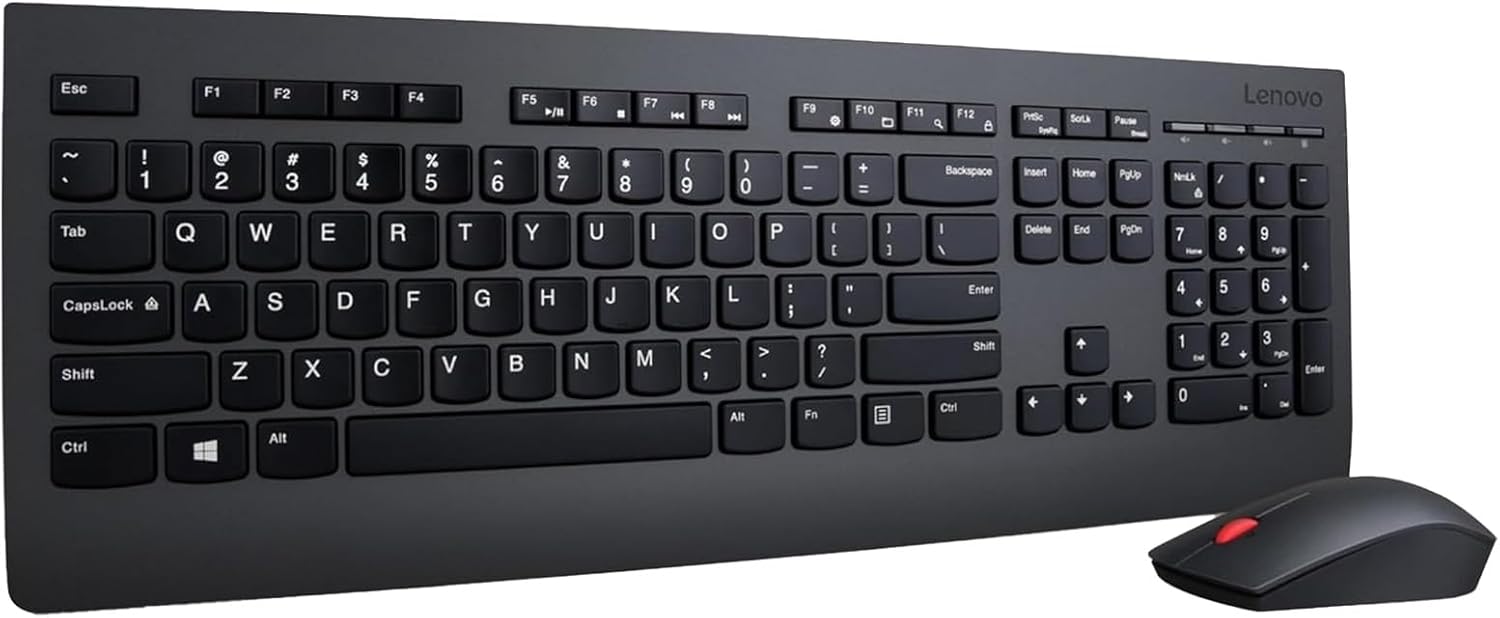
Image 1.1: The Lenovo Professional Wireless Keyboard and Mouse Combo, showcasing the full-size keyboard and the ambidextrous mouse.
2. Setup
2.1 Package Contents
Before you begin, ensure all items are present in the package:
- Lenovo Professional Wireless Keyboard
- Lenovo Professional Wireless Mouse
- USB Wireless Receiver
- AA Batteries (included)
2.2 Battery Installation
The keyboard and mouse require AA batteries for operation. Batteries are included with the product.
- Locate the battery compartment on the underside of the keyboard and mouse.
- Open the battery compartment cover.
- Insert the AA batteries, ensuring correct polarity (+/-).
- Close the battery compartment cover securely.

Image 2.1: The keyboard and mouse indicating power requirements. The mouse and keyboard each require 2 AA batteries.
2.3 Connecting the Wireless Receiver
The Lenovo Professional Wireless Combo uses a single USB wireless receiver for both the keyboard and mouse.
- Locate an available USB port on your computer.
- Insert the USB wireless receiver firmly into the USB port.
- Your computer should automatically detect and install the necessary drivers. This is a plug-and-play device, requiring no manual driver installation.
- Once detected, the keyboard and mouse will be ready for use.
3. Operating the Device
3.1 Keyboard Usage
The keyboard features a full-size, 3-zone layout with a dedicated number pad, designed for a premium typing experience. It is compatible with Windows 7, Windows 8, Windows 8.1, Windows 10, and Windows 11 operating systems.
- Responsive and Quiet Keys: The keys are designed for comfortable and silent typing.
- Dedicated Media Controls: Access media functions directly from the keyboard.
- Adjustable Tilt Legs: Customize the typing angle for ergonomic comfort.
- Spill-Resistant Design: Provides protection against accidental liquid spills.

Image 3.1: The Lenovo Professional Wireless Keyboard, highlighting its full-size 3-zone layout and durable construction.
3.2 Mouse Usage
The ergonomic mouse is designed for comfort and precision, suitable for all-day use. It features an ambidextrous design, making it comfortable for both left and right-handed users.
- 4-Way Scroll Wheel: Navigate documents and web pages with ease.
- Ambidextrous Five-Button Design: Includes left-click, right-click, scroll wheel click, and two side buttons for enhanced functionality.
- Precise 1600dpi Laser Sensor: Ensures accurate and smooth cursor movement.

Image 3.2: A close-up view of the Lenovo Professional Wireless Mouse, emphasizing its ergonomic design and 4-way scroll wheel.
4. Maintenance
4.1 Battery Life
The Lenovo Professional Wireless Combo is designed for extended battery life, offering up to 24 months of usage. LED indicators on the devices will notify you when battery levels are low, prompting replacement.
4.2 Cleaning Instructions
To maintain the performance and appearance of your keyboard and mouse:
- Use a soft, lint-free cloth slightly dampened with water or a mild cleaning solution.
- Avoid using harsh chemicals, abrasive cleaners, or solvents, as these can damage the surfaces.
- For the keyboard, you may use compressed air to remove debris from between the keys.
- Ensure devices are powered off before cleaning.
5. Troubleshooting
If you encounter issues with your Lenovo Professional Wireless Keyboard and Mouse Combo, refer to the following common problems and solutions:
| Problem | Possible Cause | Solution |
|---|---|---|
| Keyboard or mouse not responding | Low or dead batteries; USB receiver not properly connected; interference. | Replace batteries. Ensure USB receiver is fully inserted into a working USB port. Try a different USB port. Move closer to the receiver to reduce interference. |
| Lag or intermittent connection | Distance from receiver; interference from other wireless devices. | Reduce the distance between the devices and the receiver. Remove other wireless devices that may be causing interference. |
| Mouse cursor erratic or not moving smoothly | Dirty sensor; unsuitable surface. | Clean the mouse's optical sensor with a soft cloth. Use the mouse on a clean, non-reflective surface or a mouse pad. |
| Keyboard keys not registering | Debris under key; software issue. | Use compressed air to clear debris. Restart your computer. |
6. Specifications
Detailed technical specifications for the Lenovo Professional Wireless Keyboard and Mouse Combo:
| Feature | Detail |
|---|---|
| Brand | Lenovo |
| Series | Professional |
| Model Number | 4X30H56796 |
| Hardware Platform | PC |
| Operating System Compatibility | Windows 7, Windows 8, Windows 8.1, Windows 10, Windows 11 |
| Item Weight | 1.9 pounds |
| Product Dimensions (LxWxH) | 17.72 x 6.46 x 0.79 inches |
| Color | Black |
| Power Source | Battery Powered |
| Batteries Required | 1 Lithium Ion batteries (included) - Note: Product images indicate AA batteries for keyboard and mouse. |
| Connectivity Technology | 2.4 GHz Wireless |
| Special Feature | Wireless |
| Compatible Devices | Laptop, Personal Computer |

Image 6.1: Dimensional specifications for the Lenovo Professional Wireless Keyboard and Mouse.
7. Warranty & Support
7.1 Warranty Information
The Lenovo Professional Wireless Keyboard and Mouse Combo comes with a 2-year commercial battery life guarantee, indicating the expected lifespan of the included batteries under normal commercial use. For specific warranty terms and conditions related to the product hardware, please refer to the documentation included with your purchase or visit the official Lenovo support website.
7.2 Customer Support
For further assistance, technical support, or to inquire about replacement parts, please visit the official Lenovo support website or contact their customer service. You can find more information and resources at the Lenovo Store on Amazon.