
Introduction
This manual provides detailed instructions for the setup, operation, maintenance, and troubleshooting of your Brightsign XT243 True 4K Dual Video Decode HTML5 Player. Please read this manual thoroughly before using the device to ensure proper functionality and to prevent damage.
Safety Information
Always follow basic safety precautions when using this product to reduce the risk of fire, electric shock, and injury to persons. Keep this manual for future reference.
- Do not expose the device to moisture or extreme temperatures.
- Use only the power adapter supplied or recommended by Brightsign.
- Do not attempt to open or repair the device yourself. Refer all servicing to qualified personnel.
- Ensure proper ventilation around the device to prevent overheating.
Package Contents
Verify that all items are present in your package:
- Brightsign XT243 Player
- Power Adapter
- Quick Start Guide (if applicable)
- Other accessories (e.g., mounting brackets, cables)
Device Overview
Familiarize yourself with the ports and indicators on your Brightsign XT243 player.
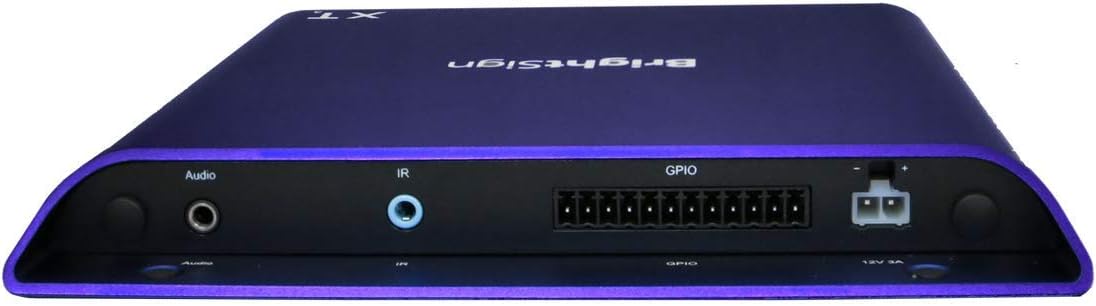
Image: Front and side view of the Brightsign XT243 player, highlighting the HDMI, Ethernet, and USB ports for connectivity.

Image: Rear view of the Brightsign XT243 player, displaying the Audio output, IR input, GPIO port, and 12V 3A power input.
Front/Side Panel Connections:
- HDMI Out: Connects to a display device (TV, monitor).
- Ethernet (RJ45): Connects to a network for content updates and control. Supports Power over Ethernet (PoE+).
- USB: For connecting peripherals like touchscreens, keyboards, or storage devices.
- SVC/Reset Button: Service port and reset functionality.
Rear Panel Connections:
- Audio Out: 3.5mm jack for analog audio output.
- IR In: 3.5mm jack for infrared remote control input.
- GPIO: General Purpose Input/Output port for interactive controls.
- 12V 3A Power Input: For connecting the external power adapter.
Setup
Follow these steps to set up your Brightsign XT243 player:
- Connect to Display: Connect an HDMI cable from the XT243's HDMI Out port to an HDMI input on your display device.
- Connect to Network:
- For wired network: Connect an Ethernet cable from the XT243's Ethernet port to your network router or switch. If your network supports PoE+, the device may power on automatically.
- For Wi-Fi (if supported by an optional module, not included with standard I/O package): Refer to the Wi-Fi module's instructions for setup.
- Connect Power: If not using PoE+, connect the provided power adapter to the 12V 3A Power Input port on the XT243, then plug the adapter into a power outlet. The device will power on automatically.
- Insert SD Card (Optional): If using an SD card for content storage, insert it into the designated slot. Ensure the card is properly formatted.
- Initial Boot: The player will boot up. Follow any on-screen prompts for initial configuration, such as network settings or content loading.
Operating the Brightsign XT243
The Brightsign XT243 is designed for digital signage applications. Content is typically managed and deployed using Brightsign's BrightAuthor software or BrightSign Network.
Content Deployment:
- BrightAuthor: Create presentations using BrightAuthor software on a Windows PC. Publish the presentation to an SD card or directly to the player via a local network.
- BrightSign Network: For remote management and content updates, subscribe to BrightSign Network. This allows for cloud-based content deployment and player monitoring.
Basic Operation:
- Once content is loaded, the player will automatically begin playback according to the presentation schedule.
- The player operates continuously. To power off, disconnect the power adapter or disable PoE+.
- For interactive presentations, ensure all connected peripherals (e.g., touchscreens, buttons via GPIO) are properly configured in your BrightAuthor project.
Maintenance
Regular maintenance ensures optimal performance and longevity of your Brightsign XT243 player.
- Cleaning: Use a soft, dry cloth to clean the exterior of the device. Do not use liquid cleaners or aerosols.
- Ventilation: Ensure that the ventilation openings are not blocked. Maintain adequate airflow around the device.
- Firmware Updates: Periodically check the Brightsign website for firmware updates. Keeping the firmware updated can improve performance and add new features. Follow the instructions provided by Brightsign for firmware update procedures.
- Content Management: Regularly review and update your digital signage content to keep it fresh and engaging.
Troubleshooting
If you encounter issues with your Brightsign XT243, refer to the following common problems and solutions:
| Problem | Possible Cause | Solution |
|---|---|---|
| No video output |
|
|
| Player not powering on |
|
|
| Content not updating |
|
|
Specifications
Key technical specifications for the Brightsign XT243 player:
- Model: XT243
- Video Decoding: True 4K, Dual Video Decode
- Connectivity: Ethernet, HDMI, USB
- Power: PoE+ (Power over Ethernet Plus) or 12V 3A external power adapter
- Dimensions: 7.08 x 8.03 x 0.86 inches (180 x 204 x 22 mm)
- Weight: 1.24 pounds (0.56 kg)
- Color: Purple
- Supported Internet Services: Netflix, Hulu, Amazon Prime Video (Note: Player primarily for digital signage; these services may require specific configurations or apps not typically used in standard signage deployments.)
- Controller Type: Button Control (Refers to physical buttons on the device and external controls via GPIO/IR.)
- Warranty: 12 months
Warranty and Support
Warranty Information:
The Brightsign XT243 comes with a 12-month warranty from the date of purchase. This warranty covers defects in materials and workmanship under normal use. It does not cover damage caused by misuse, accidents, unauthorized modifications, or external causes such as power surges.
For warranty claims, please retain your proof of purchase and contact Brightsign customer support.
Customer Support:
For technical assistance, troubleshooting, or further information, please visit the official Brightsign support website or contact their customer service department.
Brightsign Official Website: www.brightsign.biz
Support Resources: www.brightsign.biz/support


