
1. Introduction
The NETGEAR Nighthawk X10 AD7200 Smart WiFi Router (R9000) is designed for high-performance networking, offering advanced features for media streaming, gaming, and extensive wireless coverage. This manual provides essential information for setting up, operating, maintaining, and troubleshooting your router.
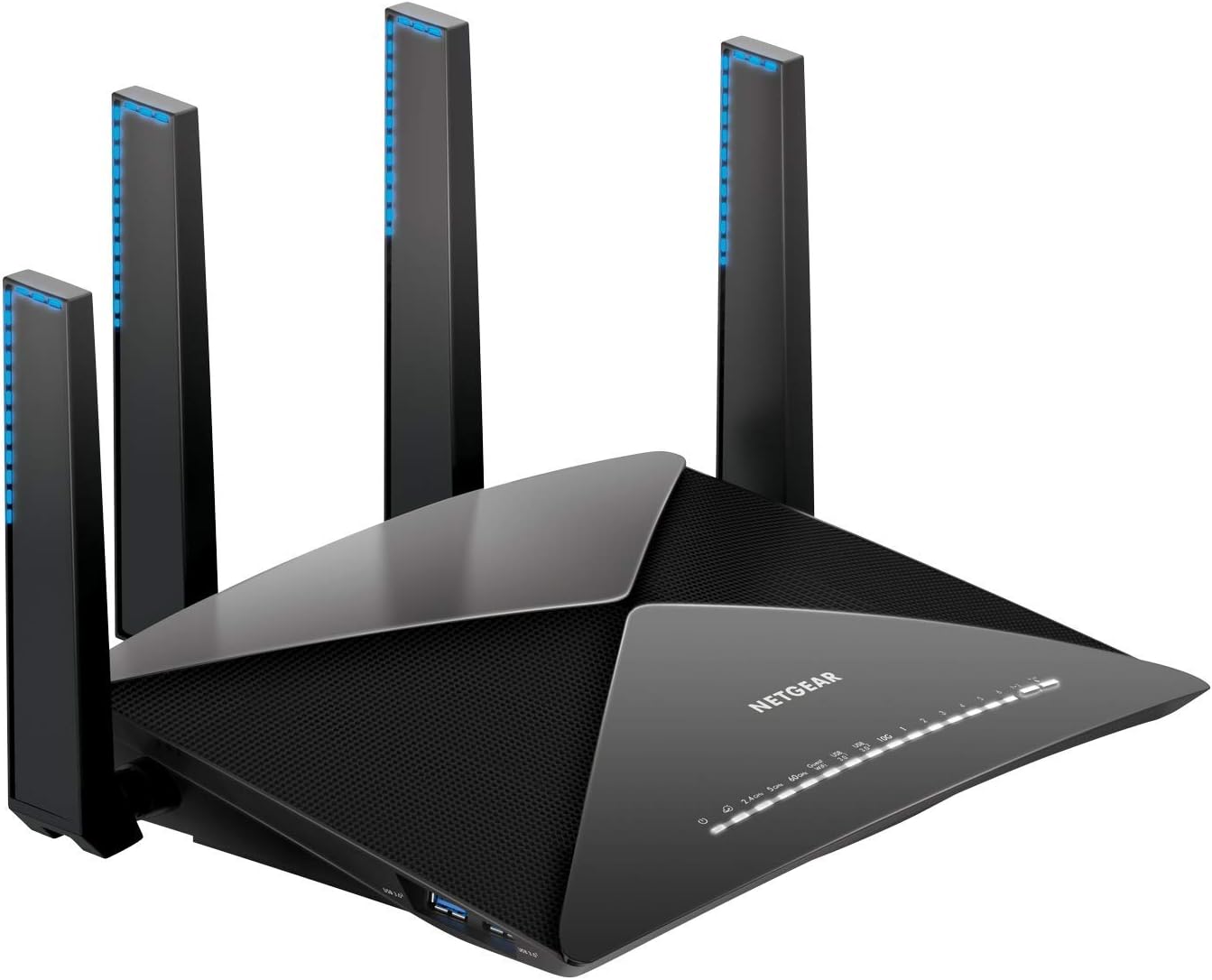
Image 1.1: Front view of the NETGEAR Nighthawk X10 R9000 Smart WiFi Router with four antennas extended.
2. Package Contents
Ensure all items are present in your package:
- Nighthawk® X10 AD7200 Smart WiFi Router (R9000)
- Ethernet cable
- Quick start guide
- Power adapter
3. Setup
Follow these steps for initial router setup:
- Positioning the Router: Place the router in a central location for optimal Wi-Fi coverage. Avoid placing it near large metal objects, concrete walls, or other devices that may cause interference.
- Connect to Power: Connect the power adapter to the router and plug it into an electrical outlet. Wait for the power LED to stabilize.
- Connect to Modem: Use the provided Ethernet cable to connect the router's Internet (WAN) port to your modem's Ethernet port.
- Connect Devices: You can connect devices wirelessly or via Ethernet cables to the router's LAN ports.
- Initial Configuration: Open a web browser on a connected device and navigate to routerlogin.net or www.routerlogin.com. Follow the on-screen instructions to set up your Wi-Fi network name (SSID) and password.

Image 3.1: Diagram illustrating the rear ports and active antennas of the Nighthawk X10 router, including 6 Gigabit Ethernet LAN ports, 10G LAN SFP+ port, and 2 USB 3.0 ports.
3.1. Link Aggregation Setup
For advanced users, the Nighthawk X10 supports Link Aggregation (LACP) to combine two Gigabit LAN ports for faster file transfers. This feature is particularly useful when connecting to a compatible switch like the NETGEAR S8000.
Video 3.1: This video demonstrates how to set up Link Aggregation on the Nighthawk X10 Router and S8000 Switch for enhanced network performance.
3.2. Unboxing and Initial Overview
For a visual guide to what's included and the physical aspects of the router, refer to the unboxing video.
Video 3.2: This video provides an unboxing experience and initial overview of the NETGEAR Nighthawk X10 Smart WiFi Router.
4. Operating the Router
The Nighthawk X10 offers AD7200 wireless speed across three bands (800 + 1733 + 4600 Mbps for 60Ghz band devices), providing coverage up to 2500 sq ft and supporting up to 45 devices. It features a 1.7GHz quad-core processor, 4 amplified antennas, Beamforming+, MU-MIMO, and Dynamic QoS for optimized performance.
4.1. Nighthawk App
Manage your router settings, monitor network activity, and control features conveniently using the NETGEAR Nighthawk app on your mobile device.

Image 4.1: A smartphone displaying the NETGEAR Nighthawk app interface, showing network status and options for Wi-Fi settings, device list, guest Wi-Fi, and parental controls.
4.2. Voice Control with Amazon Alexa
The Nighthawk X10 supports Amazon Alexa voice controls for certain functions, such as enabling a guest network.
Video 4.2: This video demonstrates how to use Amazon Alexa to enable the guest network feature on your NETGEAR router.
4.3. Connectivity and Ports
The router is equipped with 6 x 1 Gigabit Ethernet ports, 1 x 10G SFP+ port, and 2 x USB 3.0 ports. The USB ports allow you to share a storage drive and printer with connected devices, and create personal cloud storage.

Image 4.3: Side view of the Nighthawk X10 R9000 router, highlighting the two USB 3.0 ports.
4.4. Product Tour
Explore the features and design of the Nighthawk X10 router with this product tour.
Video 4.4: A comprehensive product tour of the NETGEAR R9000 Nighthawk X10 AD7200 Smart WiFi Router, showcasing its design and key features.
5. Maintenance
Regular maintenance ensures optimal performance and longevity of your router.
- Firmware Updates: Periodically check for and install the latest firmware updates through the router's web interface or the Nighthawk app to ensure security and performance improvements.
- Backup Settings: It is recommended to back up your router's configuration settings after making significant changes.
- Physical Cleaning: Keep the router free from dust and ensure proper ventilation to prevent overheating.
5.1. Password Recovery
If you forget your router's password, you can use the password recovery feature. This requires the router's serial number and answers to pre-set security questions.
Video 5.1: This video explains how to use the router password recovery feature for your NETGEAR device.
6. Troubleshooting
If you encounter issues with your router, consider the following general troubleshooting steps:
- Restart the Router: Power cycle your router by unplugging it for 10-15 seconds and then plugging it back in.
- Check Connections: Ensure all Ethernet cables are securely connected to the correct ports on both the router and your modem/devices.
- Verify Internet Service: Confirm that your Internet Service Provider (ISP) is not experiencing an outage.
- Firmware: Ensure your router's firmware is up to date.
- Interference: Move the router away from potential sources of interference such as cordless phones, microwaves, or other wireless devices.
7. Specifications
| Feature | Detail |
|---|---|
| Brand | NETGEAR |
| Model Name | R9000-100NAS |
| Wireless Type | 802.11ac, 802.11ad (60Ghz) |
| Frequency Band Class | Tri-Band (2.4GHz, 5GHz, 60GHz) |
| Wireless Speed | Up to 7200 Mbps (800 + 1733 + 4600 Mbps) |
| Coverage | Up to 2500 sq ft |
| Ethernet Ports | 6 x 1 Gigabit Ethernet, 1 x 10G SFP+ |
| USB Ports | 2 x USB 3.0 |
| Processor | 1.7GHz Quad-core |
| Antennas | 4 Amplified External Antennas |
| Special Features | QoS, WPS, Beamforming+, MU-MIMO, Amazon Alexa Voice Controls, Plex Media Server |
| Operating System | Linux |
| Item Weight | 4.11 pounds |
| Product Dimensions | 8.81 x 6.61 x 2.91 inches |
8. Warranty and Support
NETGEAR provides support for its products. For assistance, you can visit the official NETGEAR support website. Complimentary technical support is typically offered for a limited period from the purchase date.
For further information and community support, please visit: community.netgear.com


