
Introduction
This manual provides comprehensive instructions for the Amcrest UltraHD 2K WiFi Camera (IP3M-941W). Designed for indoor surveillance, this camera offers high-resolution video, dual-band WiFi connectivity, and advanced features to ensure the security of your property and loved ones. Please read this manual thoroughly before operating the device to ensure proper setup and functionality.
Package Contents
Verify that all items listed below are included in your package:
- 1 x Amcrest UltraHD 3MP Indoor Wireless Security Camera White (IP3M-941W)
- 1 x 5V Power Supply White
- 1 x Cat5 Ethernet Cable
- 1 x Mount White
- Quick Start Guide

Image: Contents of the Amcrest UltraHD 2K WiFi Camera package.
Key Features
The Amcrest UltraHD 2K WiFi Camera is equipped with a range of features for optimal surveillance:
- Dual-Band Ultra-HD Video: Supports 5GHz/2.4GHz WiFi, delivering magnificent 2K / 3MP (2304x1296P at 20fps | 1080P at 30fps) video.
- Superior Low Light Capability: Utilizes Aptina AR0330 image sensor and Ambarella S3LM chipset for enhanced performance in dim conditions.
- Extra-Wide 90° Viewing Angle: Provides extensive coverage of your monitored area.
- Remote Pan/Tilt and Digital Zoom: Control the camera's view remotely to cover more ground.
- Night Vision: Built-in IR LEDs provide clear night vision up to 32 feet.
- Two-Way Audio: Talk and listen through the camera via the Amcrest View app.
- Multiple Storage Options: Record and playback footage using Amcrest Surveillance Pro (Windows/MAC), AmcrestCloud, MicroSD card, Amcrest NVRs, Synology, QNAP NAS, and FTP.
- Alexa Integration: Works with Alexa through AmcrestCloud for convenient voice control.
- Secure Connectivity: Features SSL/HTTPS connection and wireless AES/WPA2 encryption.

Image: Visual representation of the camera's main features.
Setup Guide
Initial Setup
- Power On: Connect the 5V power supply to the camera and plug it into a power outlet. The camera will begin its startup sequence.
- Download Amcrest View Pro App: Search for "Amcrest View Pro" on your smartphone's app store (iOS or Android) and install it.
- Network Connection:
- Wireless Setup: Open the Amcrest View Pro app, create an account or log in, and follow the on-screen prompts to add your camera. Select your 2.4GHz or 5GHz WiFi network and enter the password.
- Wired Setup (Optional): For initial setup or a more stable connection, connect the camera to your router using the provided Cat5 Ethernet cable. The app will detect the camera automatically.
- Change Default Password: For security, the app will prompt you to change the default password upon first login. Choose a strong, unique password.

Image: Setting up the Amcrest camera with a smartphone for live viewing.
Video Demonstration
Video: An official Amcrest video demonstrating the ease of setup and various uses of their security cameras, including monitoring loved ones, preserving business, and monitoring property day or night. It highlights remote viewing capabilities via tablet and smartphone.
Operating Instructions
Remote Viewing and Control
Once connected, you can access your camera remotely using the Amcrest View Pro app or Amcrest Surveillance Pro software on your computer.
- Live View: Tap on the camera in the app to view the live feed.
- Pan/Tilt/Zoom: Use the on-screen controls in the app to adjust the camera's viewing angle and digitally zoom in/out.
- Two-Way Audio: Use the microphone and speaker icons in the app to enable two-way communication.
- Recording and Playback: Access recorded footage from your MicroSD card, AmcrestCloud, or connected NVR/NAS directly through the app or software.
- Motion Alerts: Configure motion detection settings and receive notifications on your smartphone when activity is detected.
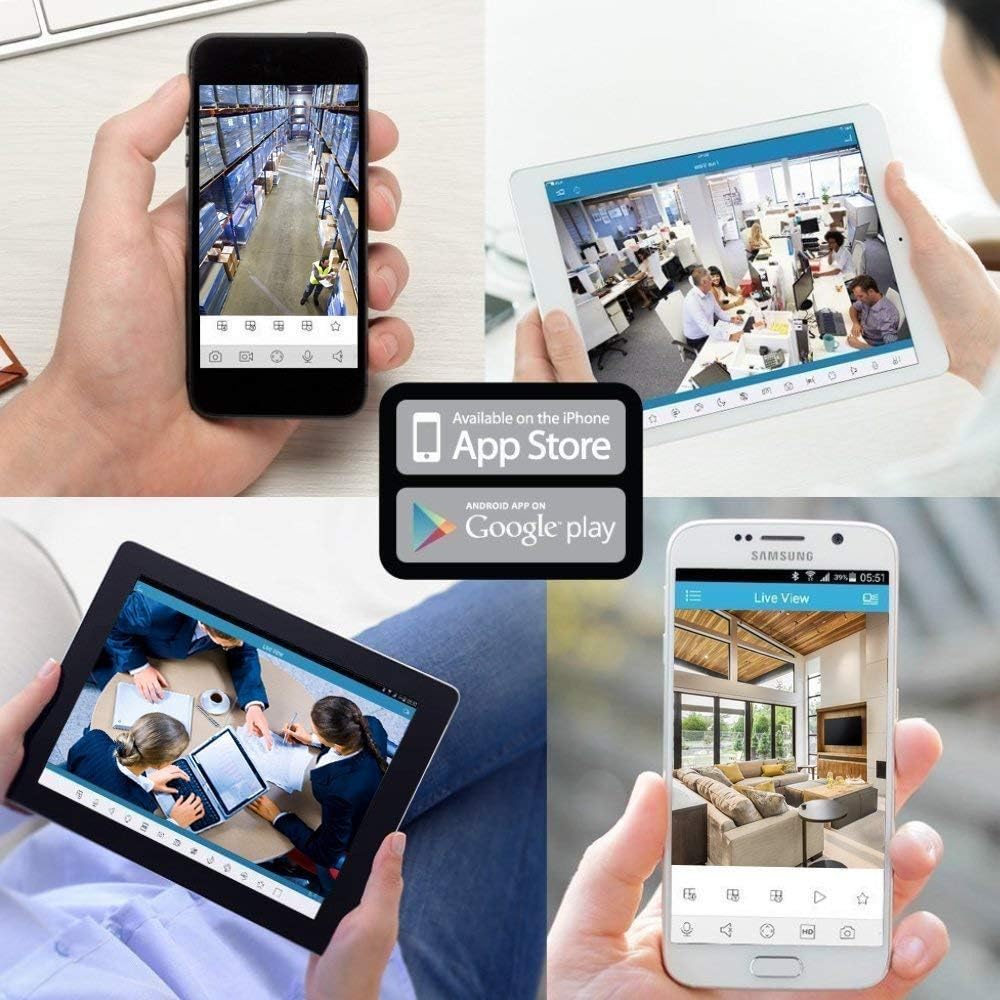
Image: Multiple devices displaying live feeds from Amcrest cameras.
Maintenance
To ensure optimal performance and longevity of your Amcrest camera:
- Cleaning: Gently wipe the camera lens and body with a soft, dry cloth. Avoid abrasive cleaners or solvents.
- Firmware Updates: Regularly check for and install the latest firmware updates through the Amcrest View Pro app or Amcrest website. Updates often include security enhancements and new features.
- Power Supply: Use only the original 5V power supply provided with the camera.
- Placement: Ensure the camera is placed in a stable, indoor environment, away from direct sunlight, extreme temperatures, and moisture.
Troubleshooting
If you encounter issues with your Amcrest camera, refer to the following common solutions:
- No Connection/Offline:
- Ensure the camera is powered on and the power adapter is securely connected.
- Verify your WiFi network is active and the camera is within range. Try moving the camera closer to the router.
- Check if your router's 2.4GHz or 5GHz band is enabled and the camera is connected to the correct one.
- If using Ethernet, ensure the cable is securely connected to both the camera and the router.
- Restart the camera and your router.
- Poor Image Quality:
- Clean the camera lens with a soft cloth.
- Ensure adequate lighting in the monitored area, especially for night vision.
- Check your internet connection speed; a slow connection can affect streaming quality.
- Software/Browser Compatibility:
- For web access, the camera works with Pale Moon (32bit) and SeaMonkey Browsers, IE, Safari 11, Firefox 49.0, and Chrome with the Amcrest Web View Extension. Ensure you are using a compatible browser and have installed any necessary plugins/extensions.
- If using Amcrest Surveillance Pro, ensure it is the latest version.
- Pan/Tilt/Zoom Issues:
- Ensure the camera has a clear line of sight and is not obstructed.
- Check for any physical obstructions preventing movement.
- Recording Issues:
- If using a MicroSD card, ensure it is properly inserted and formatted (refer to app settings for formatting).
- If using cloud storage, verify your subscription status and internet connection.
- For NVR/NAS/FTP, ensure correct configuration and network connectivity.
Specifications
| Feature | Specification |
|---|---|
| Model | IP3M-941W |
| Indoor/Outdoor Usage | Indoor |
| Video Capture Resolution | 3 MP (2304x1296P) |
| Effective Video Resolution | 1080 Pixels |
| Connectivity Protocol | Ethernet, Wi-Fi (2.4GHz & 5GHz Dualband) |
| Viewing Angle | 90 Degrees |
| Night Vision Range | 32 Feet |
| Frame Rate | 20 fps (3MP), 30 fps (1080P) |
| Power Source | Corded Electric (5V) |
| Dimensions (L x W x H) | 4 x 3.9 x 4.5 inches |
| Item Weight | 0.6 Pounds (9.6 ounces) |
| Control Method | App, Voice (Alexa) |
| Alert Type | Motion Only |
| Video Capture Format | H.264/H.265 |

Image: Camera dimensions and compatible storage options.
Warranty and Support
Amcrest provides a 2-year UK Warranty for this product, ensuring peace of mind regarding manufacturing defects and performance issues. Additionally, Lifetime Support is provided directly from Amcrest to assist with any technical queries or operational guidance you may need.
For further detailed information, you can refer to the official PDF user guides:

