
ORICO FBA_ORICO 2189U3-BK-US
ORICO USB 3.0 to SATA III 2.5" External Hard Drive Enclosure User Manual
Brand: ORICO | Model: FBA_ORICO 2189U3-BK-US
1. Introduction
This user manual provides detailed instructions for the ORICO USB 3.0 to SATA III 2.5" External Hard Drive Enclosure. This device allows you to easily connect 2.5-inch 7mm/9.5mm SATA SSDs and HDDs up to 6TB to your computer, laptop, router, or game console, transforming them into portable external storage. It features ultra-fast USB 3.0 with UASP support for efficient data transfer and a tool-free design for simple installation.

Image: The ORICO 2.5-inch external hard drive enclosure shown with its accompanying USB 3.0 cable.
2. Key Features
- Portable Data Storage: Supports most 2.5-inch 7mm/9.5mm SATA SSD and HDD up to 6TB (Max). Easily connect old drives to transfer files or use as a USB external hard drive.
- Ultra-fast USB 3.0 & UASP: Features a USB 3.0 interface for data transmission rates up to 5Gbps, 20% faster than USB 2.0. UASP support further increases transfer speeds by 20% compared to ordinary USB 3.0 when both drive and output device support it.
- Easy to Use: Tool-free installation allows for quick insertion and removal of internal SSDs/HDDs. Hot-swappable with an LED indicator for working status.
- Wide Compatibility: Compatible with Windows 2000/98/XP/Vista/7/8/10, Linux, Mac OS 9.1/10.8.4 and above. Plug & play, no driver installation required. Ideal for booting old drives and recovering files.
- Friendly Design: Made of high-quality ABS plastic, compact size (4.9x3x0.5in) for portability. Brushed surface prevents fingerprints. Built-in shockproof sponge pad protects the hard drive.

Image: The enclosure supports both 7mm and 9.5mm 2.5-inch SATA HDDs and SSDs.

Image: The enclosure supports up to 6TB of storage, capable of holding millions of photos, hundreds of thousands of songs, or thousands of movies.

Image: Demonstrates the 5Gbps ultra-fast transfer speed of USB 3.0, which is 10 times faster than USB 2.0.
3. What's Included
The package for your ORICO 2.5" External Hard Drive Enclosure includes the following components:
- 1 x ORICO 2.5 Inch Hard Drive Enclosure
- 1 x EVA Foam Pad (for drive stability)
- 1 x Micro B to USB A Cable (USB 3.0)
- 1 x User Manual

Image: Visual representation of the package contents, including the enclosure, EVA foam pad, USB cable, and user manual.
4. Setup Guide
4.1. Hardware Installation (Tool-Free)
- Slide and Open the Cover: Gently slide the top cover of the enclosure to open it.
- Insert Your 2.5-inch Disk: Carefully insert your 2.5-inch SATA HDD or SSD into the enclosure, ensuring it connects firmly to the SATA port.
- Slide and Close the Cover: Slide the cover back into place until it clicks securely.
- Connect to Your Device: Use the provided USB 3.0 cable to connect the enclosure to your computer, laptop, router, or other compatible device.
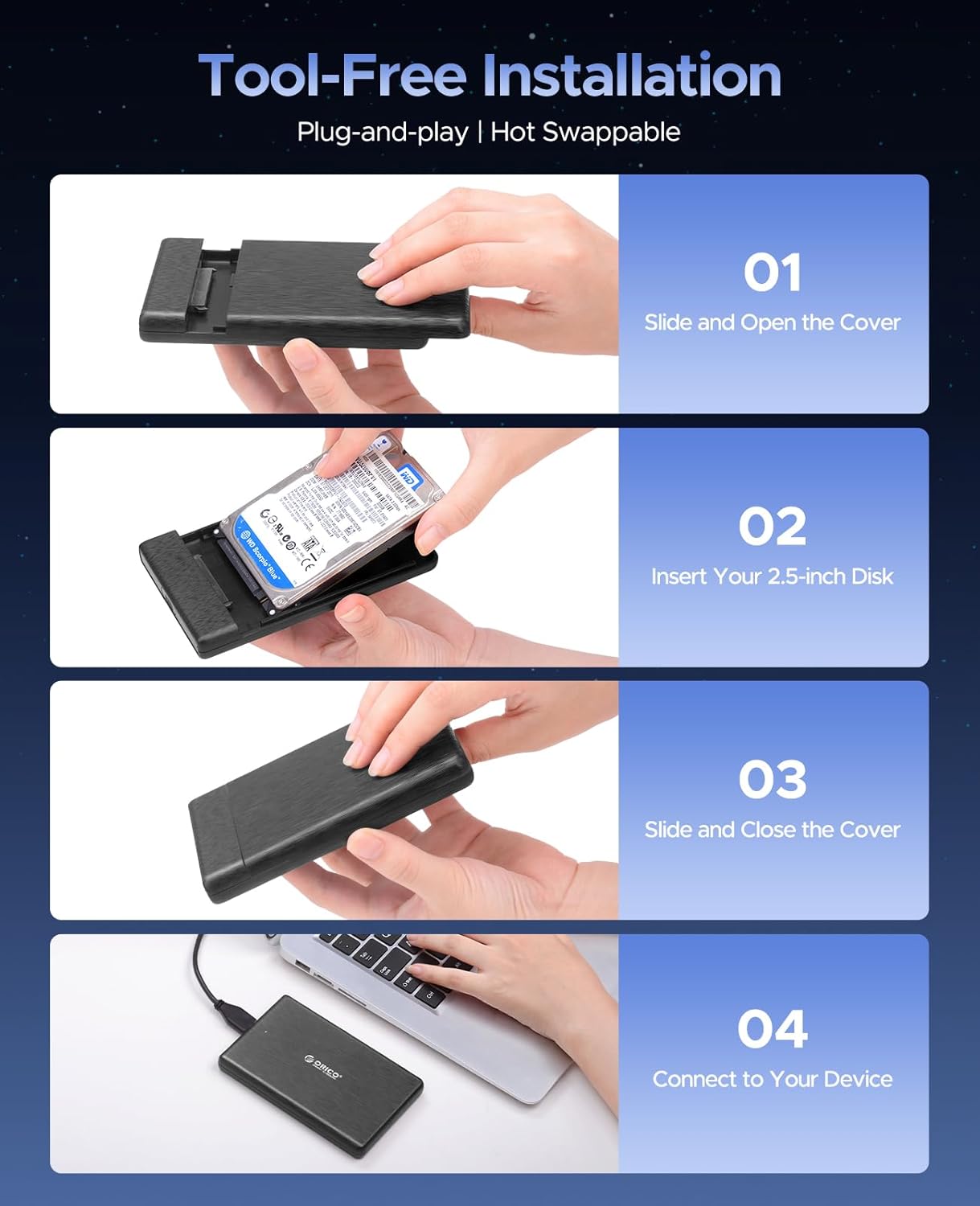
Image: Visual steps for installing a 2.5-inch hard drive into the enclosure: slide open, insert disk, slide close, and connect.
4.2. Disk Initialization and Formatting
For new hard drives or drives that are not recognized, you may need to initialize and format them. This process creates a partition that your operating system can read and write to.
Watch the official ORICO video guide below for detailed steps on formatting and partitioning your hard drive in both Windows and Mac OS systems.
Video: Official ORICO guide on how to format and partition a hard drive for use with the enclosure on Windows and Mac OS systems. This video demonstrates accessing Disk Management (Windows) or Disk Utility (Mac OS), initializing the disk, creating new volumes, and selecting appropriate file systems like ExFAT for cross-platform compatibility.
5. Operating Instructions
Once the hard drive is installed and formatted (if necessary), the ORICO enclosure operates as a standard external storage device. Simply connect it to a USB 3.0 port on your computer or compatible device. The blue LED indicator on the enclosure will illuminate when connected and blink during data transfer activity.
- Data Transfer: Drag and drop files to and from the drive, or use your operating system's copy/paste functions.
- UASP Acceleration: For optimal performance, ensure your computer's USB port and operating system support UASP (USB Attached SCSI Protocol). This will significantly boost data transfer speeds.
- Safe Removal: Always safely eject the drive from your operating system before disconnecting the cable to prevent data corruption.

Image: The enclosure is compatible with a wide range of devices including PCs, laptops, TVs, game consoles, routers, and streaming devices, and supports Windows, Mac OS, and Linux operating systems.

Image: Examples of how the enclosure can be used for office computers, travel backups, home backups, and game entertainment.
6. Maintenance
- Cleaning: Use a soft, dry cloth to clean the exterior of the enclosure. Avoid liquid cleaners or abrasive materials.
- Storage: Store the enclosure in a cool, dry place away from direct sunlight and extreme temperatures.
- Handling: Handle the enclosure with care to prevent drops or impacts, which could damage the internal drive.
- Firmware Updates: Periodically check the official ORICO website for any available firmware updates for your model to ensure optimal performance and compatibility.
7. Troubleshooting
| Problem | Possible Cause | Solution |
|---|---|---|
| Drive not recognized by computer. |
|
|
| Slow data transfer speeds. |
|
|
| Enclosure disconnects randomly. |
|
|
8. Specifications
| Feature | Detail |
|---|---|
| Brand | ORICO |
| Model Number | FBA_ORICO 2189U3-BK-US |
| Material | Acrylonitrile Butadiene Styrene (ABS) |
| Compatible Devices | Desktop PC, Laptop, Smartphone, Tablet |
| Hard Disk Form Factor | 2.5 Inches (7mm/9.5mm SATA HDD/SSD) |
| Max Storage Capacity | 6 TB |
| Data Transfer Rate | 5 Gigabits Per Second (USB 3.0) |
| Hardware Interface | Micro USB 3.0 Type B, USB 3.0, USB 3.2 Gen 1 |
| Product Dimensions | 4.92 x 3.15 x 0.55 inches |
| Item Weight | 3.17 ounces (90 Grams) |
| Color | Black |
| Features | Tool-Free, UASP Supported, Hot-Swappable, LED Indicator, Auto-Sleep Mode, Fingerprint-Free Design, EVA Foam Pad |
9. Warranty and Support
ORICO products typically come with a standard manufacturer's warranty. For specific warranty terms and conditions, please refer to the warranty card included in your product packaging or visit the official ORICO website. If you encounter any issues or require technical assistance, please contact ORICO customer support through their official channels. You can often find support contact information on the ORICO website or within the product documentation.
For additional resources and product information, visit the ORICO Store on Amazon.
Related documentsFBA_ORICO 2189U3-BK-US


Ask a question about this manual
Ask about setup, troubleshooting, compatibility, parts, safety, or missing instructions. Manuals+ will review the question and use this page’s manual context to help answer it.