
1. Introduction
This manual provides comprehensive instructions for the AGPTEK A02S MP3 Player. It covers device setup, operation, maintenance, and troubleshooting to ensure optimal performance and user experience. The AGPTEK A02S is a portable music player designed for high-quality audio playback, featuring a compact design and extended battery life.
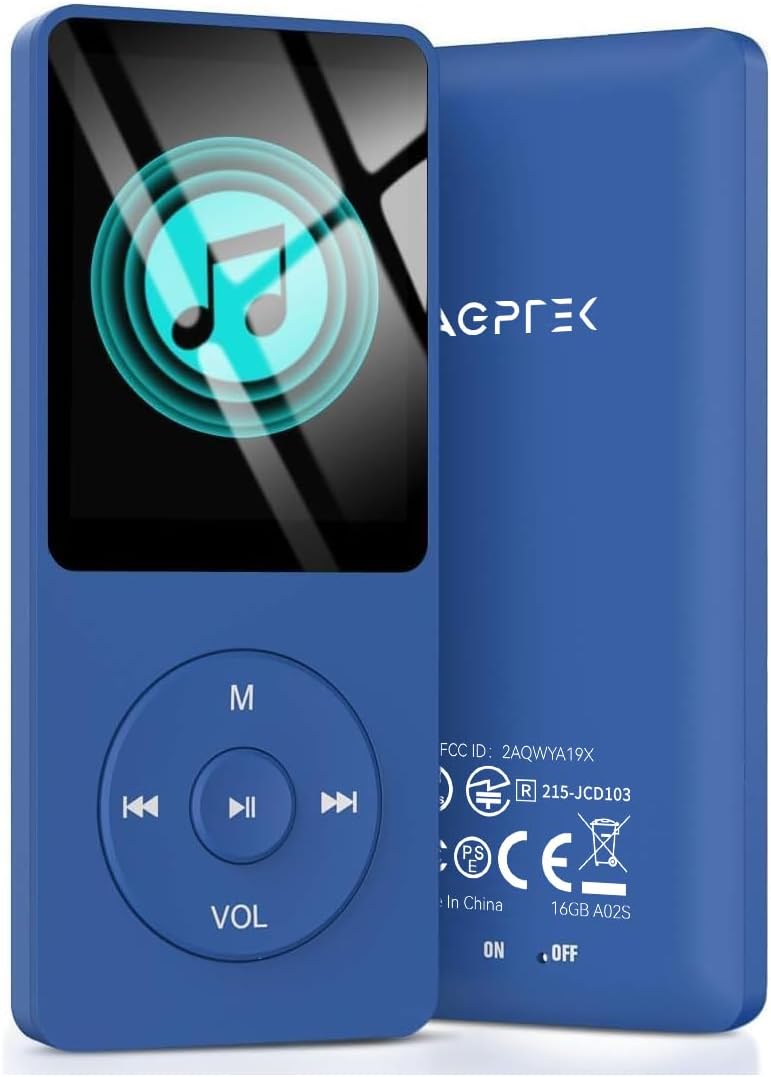
Image 1.1: Front and back view of the AGPTEK A02S MP3 Player in Deep Blue.
2. Package Contents and Device Overview
2.1 Package Contents
Upon unpacking, please verify that all items are present:
- AGPTEK A02S MP3 Player
- USB Cable (for charging and data transfer)
- Earphones (may vary by package)
- User Manual (this document)
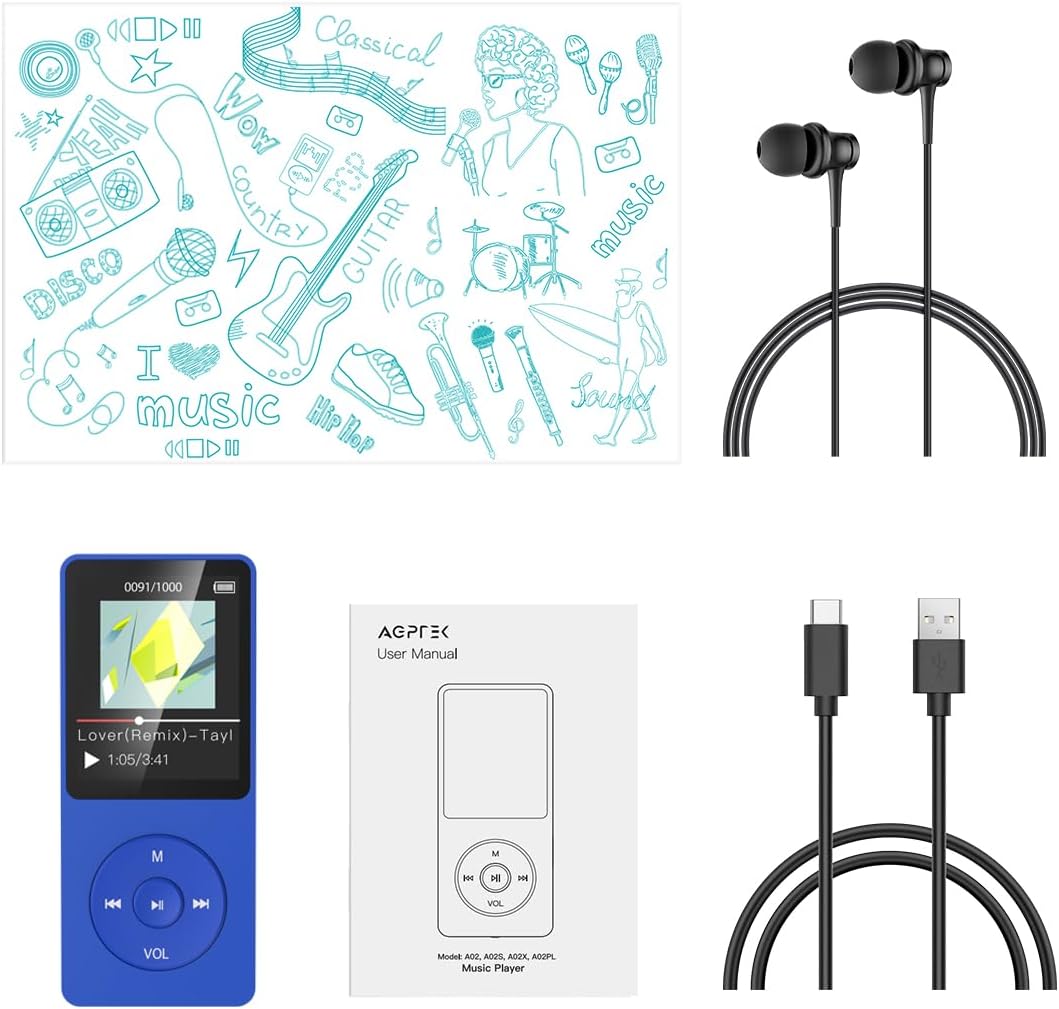
Image 2.1: The typical contents included with the AGPTEK A02S MP3 Player: the player, earphones, USB cable, and user manual.
2.2 Device Layout
Familiarize yourself with the buttons and ports on your AGPTEK A02S MP3 Player:
- Screen: Displays menus, music information, and settings.
- M Button: Menu/Back button.
- Play/Pause Button: Center button for playback control and selection.
- Previous/Next Buttons: Navigate tracks or menu options.
- VOL Button: Activates volume control.
- Volume Up/Down: Controlled via Previous/Next buttons after pressing VOL.
- Power Switch: Located on the bottom for physical power control.
- USB Port: For charging and data transfer.
- Headphone Jack: 3.5mm audio output.
- Micro SD Card Slot: For expandable storage.
3. Setup
3.1 Charging the Device
Before first use, fully charge your MP3 player. A full charge typically takes 1.5 to 3 hours.
- Connect the provided USB cable to the player's USB port.
- Connect the other end of the USB cable to a computer's USB port or a compatible USB wall adapter (not included).
- The battery icon on the screen will indicate charging status.
- Once fully charged, disconnect the USB cable.
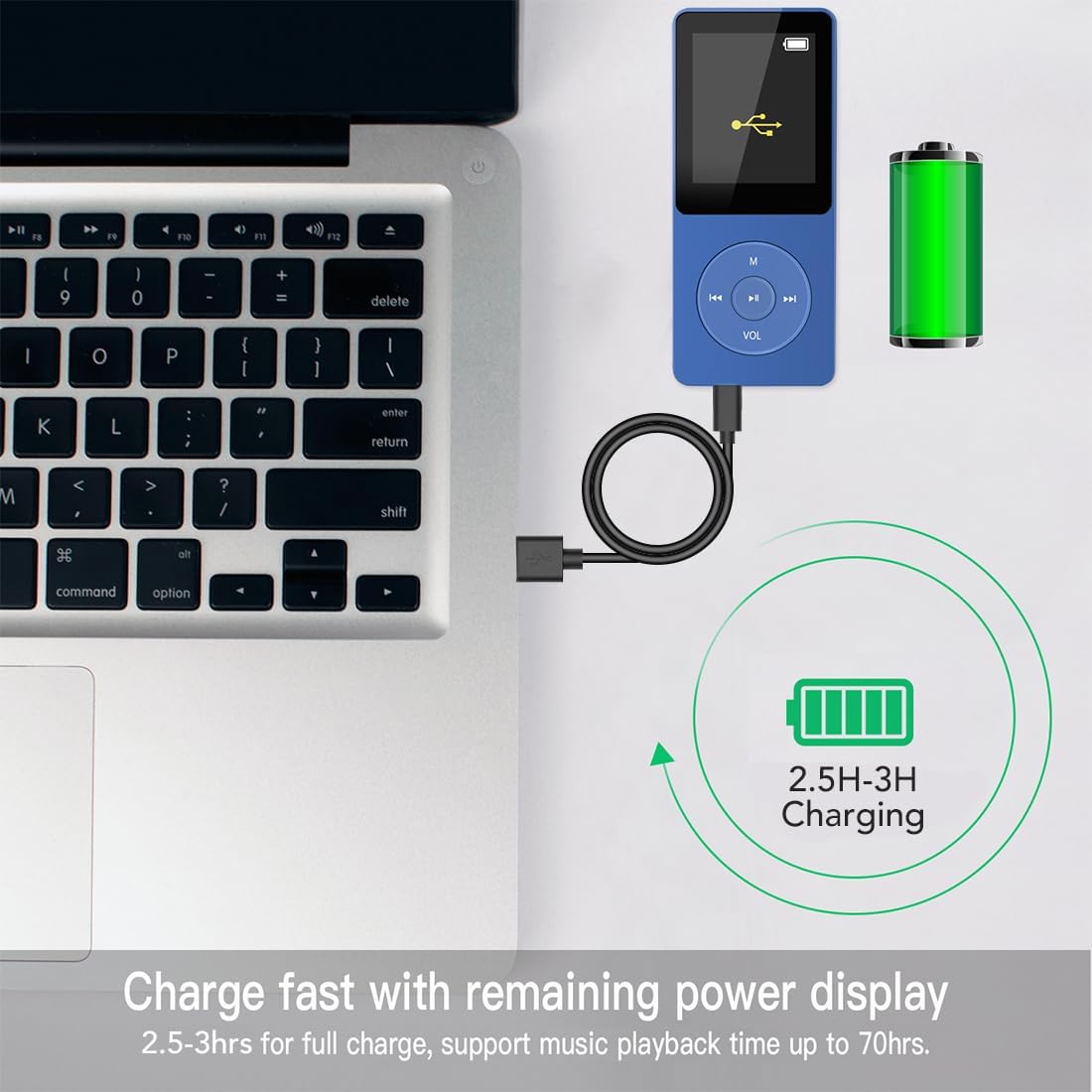
Image 3.1: The MP3 player connected to a laptop for charging, illustrating the charging process.
3.2 Transferring Music and Files
The AGPTEK A02S supports simple drag-and-drop file transfer.
- Ensure the player is powered on and connected to your computer via the USB cable.
- The player will appear as a removable disk drive on your computer.
- Open the player's drive. You can create folders to organize your music.
- Drag and drop your desired music files (MP3, WMA, OGG, WAV, APE, FLAC, AAC-LC, ACELP) or other supported files directly into the player's storage or a folder.
- Once transfer is complete, safely eject the removable disk from your computer before disconnecting the USB cable.
Note: The device does not directly support iTunes or certain audiobook formats.
3.3 Inserting a Micro SD Card
The player has 16GB of built-in memory and supports up to 128GB Micro SD cards for expanded storage.
- Locate the Micro SD card slot on the side of the player.
- Gently insert the Micro SD card into the slot until it clicks into place.
- To remove, gently push the card inward until it clicks, then release, and it will spring out.
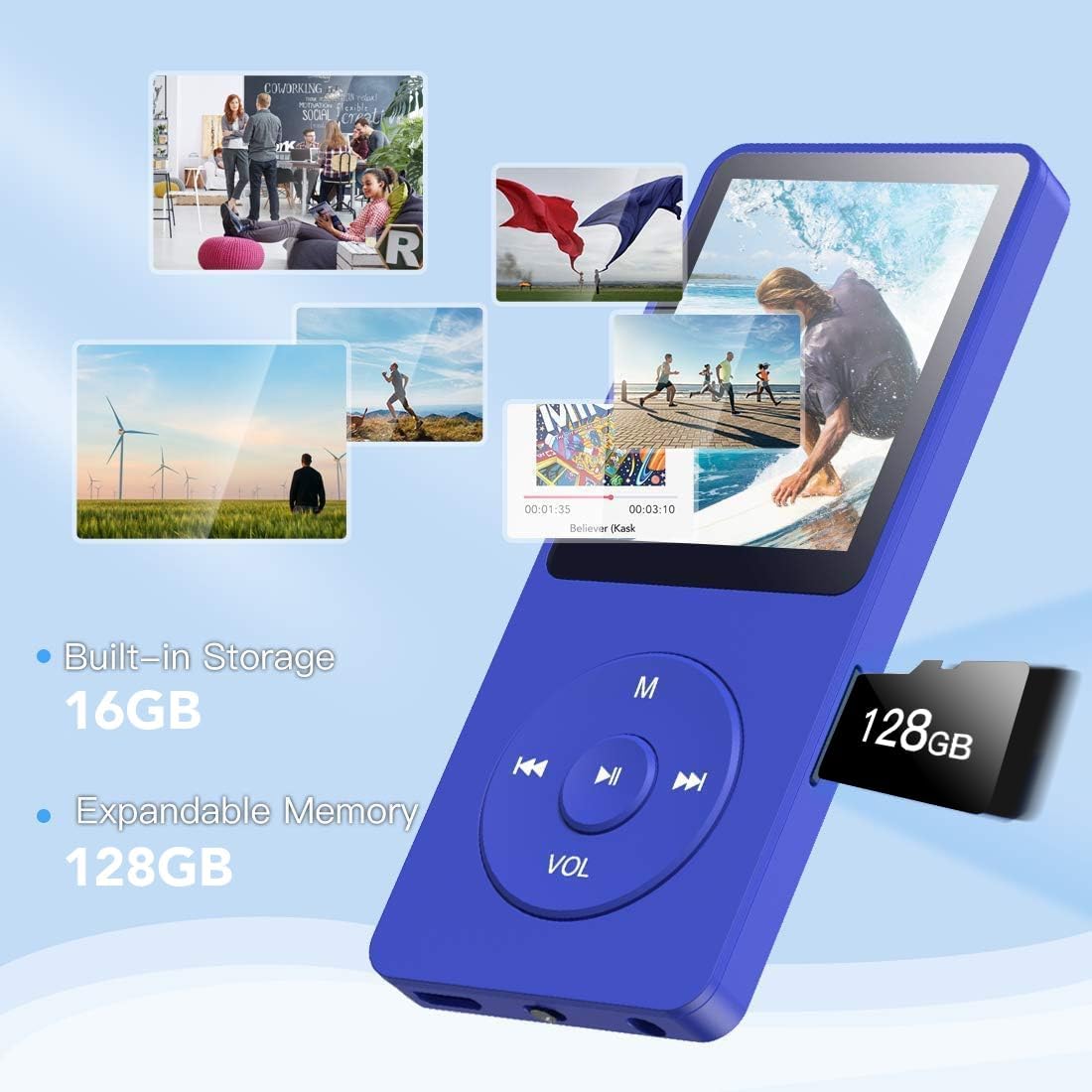
Image 3.2: Illustrates the insertion of a Micro SD card into the player's dedicated slot, expanding its storage capacity.
4. Operating Instructions
4.1 Power On/Off
- To Power On: Slide the physical power switch on the bottom of the device to the "ON" position.
- To Power Off: Slide the physical power switch to the "OFF" position. Alternatively, you can long-press the center Play/Pause button to turn off the device.
Note: The player will automatically power off after 5 minutes of inactivity to save battery. This setting can be adjusted in the device's menu.
4.2 Basic Navigation
Use the physical buttons to navigate through menus and control playback:
- M Button: Press to go back to the previous menu or access the main menu from a sub-menu.
- Play/Pause Button (Center): Press to select an option in the menu or to play/pause music.
- Previous/Next Buttons: Use to scroll through menu options or skip tracks during playback.
4.3 Music Playback
Enjoy your music collection with high-fidelity lossless sound.
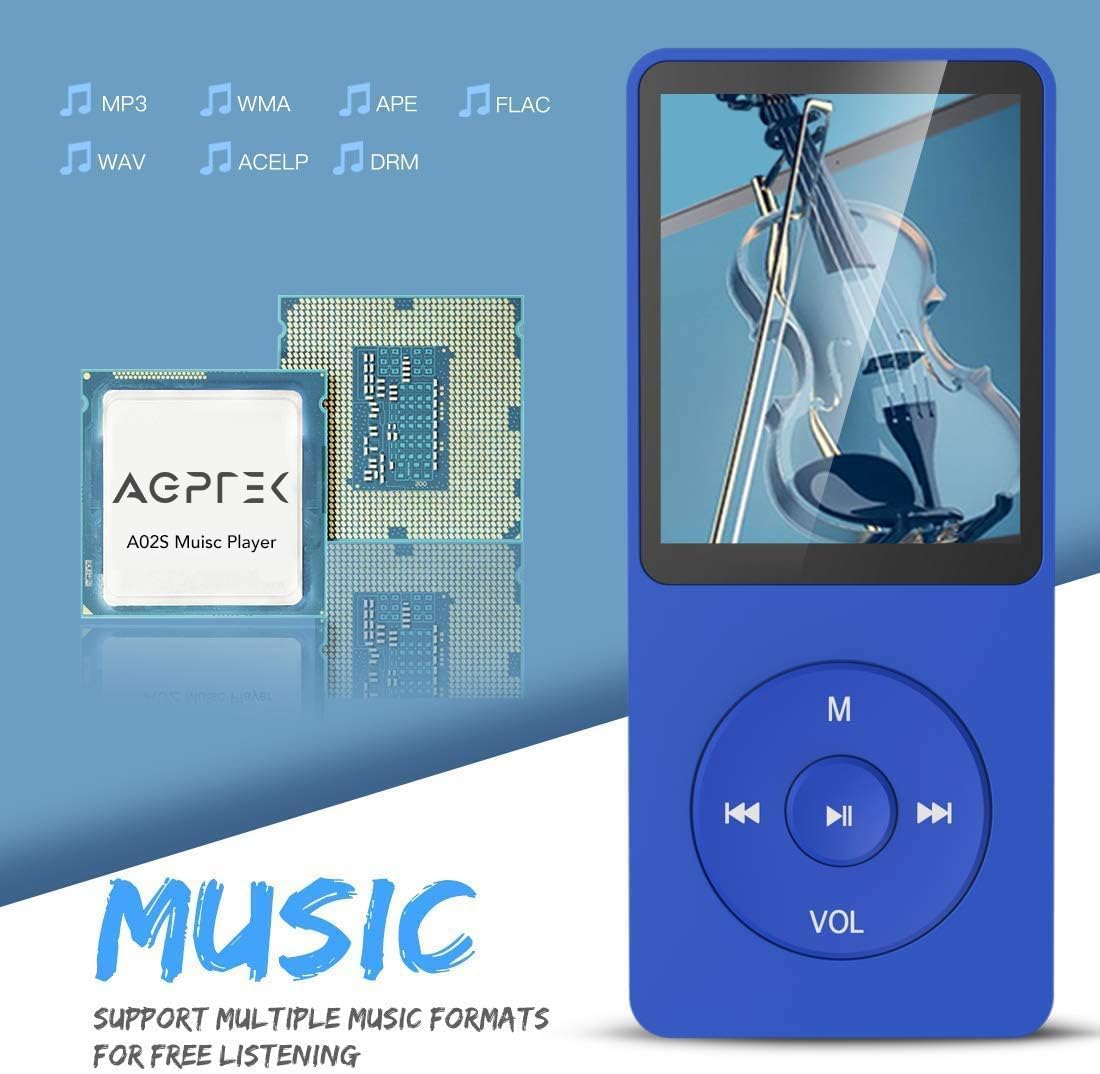
Image 4.1: The player's screen showing various supported audio formats including MP3, WMA, APE, FLAC, WAV, and ACELP.
- From the main menu, select "Music".
- Navigate to your desired song, artist, album, or folder.
- Press the Play/Pause button to start playback.
- Volume Control: Long-press the "VOL" button, then use the Previous/Next buttons to adjust the volume. Press "VOL" again to exit volume adjustment mode.
- Skip Tracks: Use the Previous/Next buttons to skip to the previous or next track.
- A-B Repeat: This function allows you to repeat a specific segment of an audio track. While playing music, press the 'M' button to access playback options, then select A-B Repeat. Press the Play/Pause button to set point A, then again to set point B.

Image 4.2: Icon representing the A-B Repeat function, useful for studying or learning music segments.
4.4 FM Radio
The player includes an FM radio tuner.
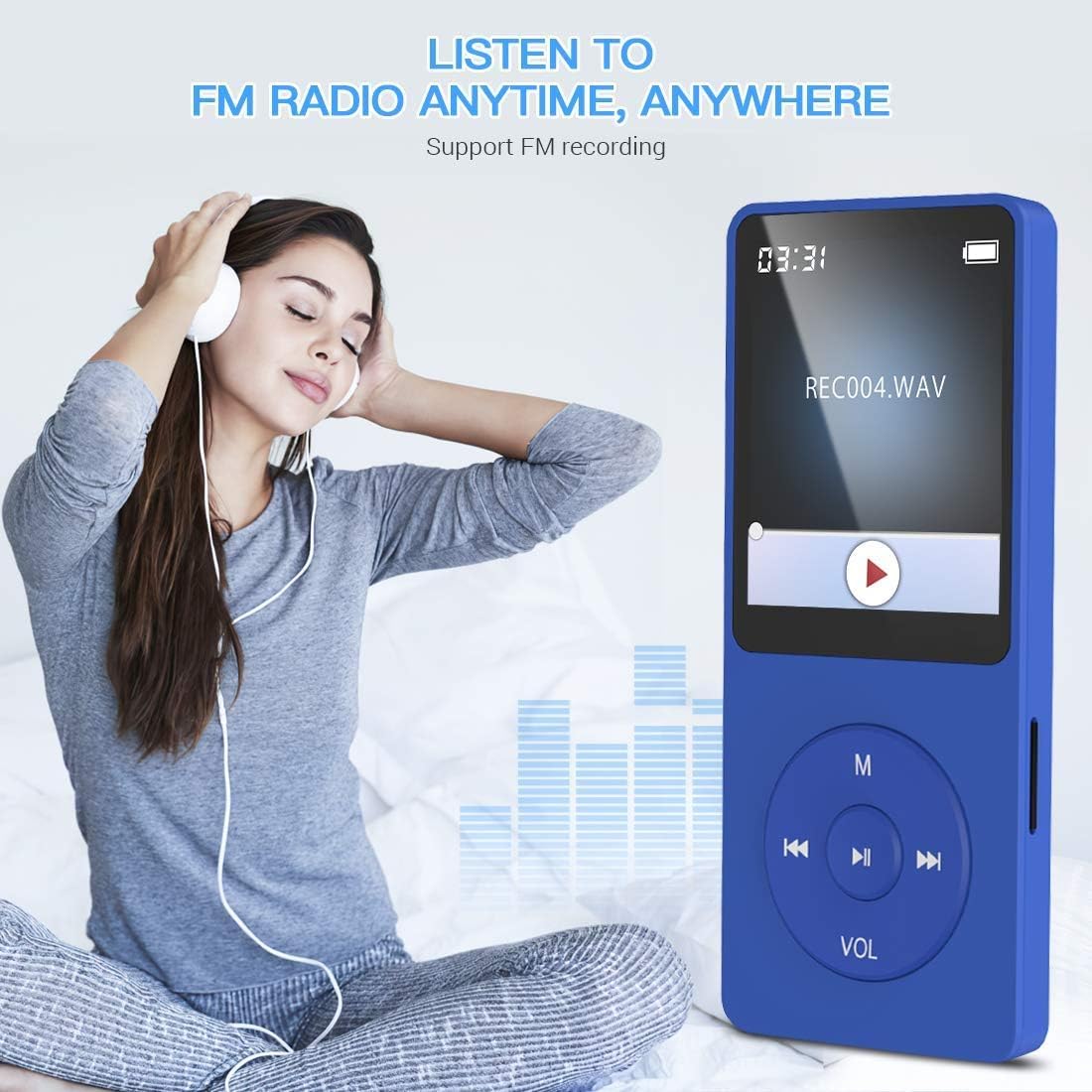
Image 4.3: A user enjoying the FM radio feature on the AGPTEK A02S MP3 Player, highlighting its portability.
- Connect earphones to the player; they act as the antenna for the FM radio.
- From the main menu, select "FM Radio".
- Use the navigation buttons to scan for stations or manually tune.
- The player supports FM recording, allowing you to record radio broadcasts.

Image 4.4: Visual representation of the FM radio tuning interface, showing frequency range.
4.5 Voice Recorder
The AGPTEK A02S includes a built-in voice recorder.

Image 4.5: Icon indicating the voice recording function, useful for capturing notes or lectures.
- From the main menu, select "Record".
- Follow the on-screen prompts to start, pause, and save recordings.
4.6 Other Functions
The player offers additional features:

Image 4.6: Screen showing icons for E-Book, Folder, Music, Video, Record, FM Radio, A-B Repeat, and Alarm functions.
- E-Book: Read text files (.TXT format).
- Video: Play supported video formats (conversion may be required for some files).
- Alarm: Set alarms for reminders.
- Folder View: Browse files directly by folder structure.
5. Maintenance
5.1 Cleaning
- Use a soft, dry, lint-free cloth to clean the device's screen and body.
- Do not use abrasive cleaners, alcohol, or chemical solvents, as these may damage the surface.
5.2 Storage
- Store the player in a cool, dry place away from direct sunlight and extreme temperatures.
- Avoid exposing the device to moisture or dust.
- If storing for an extended period, ensure the battery is partially charged (around 50%) to prolong its lifespan.
6. Troubleshooting
| Problem | Possible Cause | Solution |
|---|---|---|
| Device does not power on. | Battery is depleted. Power switch is OFF. | Charge the device for at least 30 minutes. Ensure the power switch is in the "ON" position. |
| Cannot transfer files to the player. | Loose USB connection. Player not recognized by computer. | Ensure the USB cable is securely connected. Try a different USB port or cable. Restart both the player and computer. |
| No sound during playback. | Volume is too low or muted. Earphones not connected properly or faulty. File format not supported. | Adjust the volume (long-press VOL, then use Previous/Next). Check earphone connection. Try different earphones. Verify music file format is supported. |
| Player freezes or becomes unresponsive. | Software glitch. | Press and hold the power button for 10-15 seconds to force a restart. If unresponsive, let the battery drain completely and then recharge. |
| Micro SD card not detected. | Card not inserted correctly. Card is faulty or incompatible. | Reinsert the Micro SD card firmly. Try a different, known-good Micro SD card. Ensure the card is formatted correctly (FAT32 recommended). |
7. Specifications
| Feature | Detail |
|---|---|
| Brand | AGPTEK |
| Model Name | A02S |
| Product Dimensions | 0.31 x 1.54 x 3.54 inches |
| Item Weight | 1.12 ounces |
| Memory Storage Capacity | 16 GB (Built-in) |
| Expandable Memory | Supports up to 128GB Micro SD Card |
| Battery Life | Up to 70 hours playback |
| Charging Time | Approx. 1.5 - 3 hours |
| Battery Type | Lithium Polymer (420mAh) |
| Screen Size | 1.8 Inches |
| Connectivity Technology | Aux, USB |
| Supported Audio Formats | MP3, WMA, OGG, WAV, APE, FLAC, AAC-LC, ACELP |
| Special Feature | Voice Recorder, FM Radio, E-Book, Video Playback |
8. Warranty and Support
AGPTEK products are designed for reliability and performance. For specific warranty details, please refer to the warranty card included in your product packaging or visit the official AGPTEK website. If you encounter any issues not covered in this manual, or require further assistance, please contact AGPTEK customer support through their official channels.
You can often find additional support and FAQs on the AGPTEK Store on Amazon.


