1. Introduction
The Blaupunkt IRK 1620 is an Internet radio designed to provide access to a vast array of online radio stations and podcasts. It features a 3.2-inch color LCD, Wi-Fi connectivity for streaming, USB playback, and integrated functions such as an alarm clock, weather forecast display, and sleep timer. This manual provides detailed instructions for the proper setup, operation, and maintenance of your device.

Image 1.1: Front view of the Blaupunkt IRK 1620 Internet Radio, showcasing the display and control buttons.
2. Safety Information
Please read all safety instructions before operating the device. Keep this manual for future reference.
- Do not expose the device to rain or moisture.
- Do not disassemble the unit. Refer all servicing to qualified personnel.
- Ensure proper ventilation around the device.
- Use only the provided power adapter.
- Avoid placing the device near heat sources or in direct sunlight.
3. Package Contents
Verify that all items are present in the package:
- Blaupunkt IRK 1620 Internet Radio
- Power Adapter
- User Manual (this document)
- Warranty Card

Image 3.1: The included power adapter for the Blaupunkt IRK 1620.
4. Product Overview
4.1 Front Panel Controls and Display
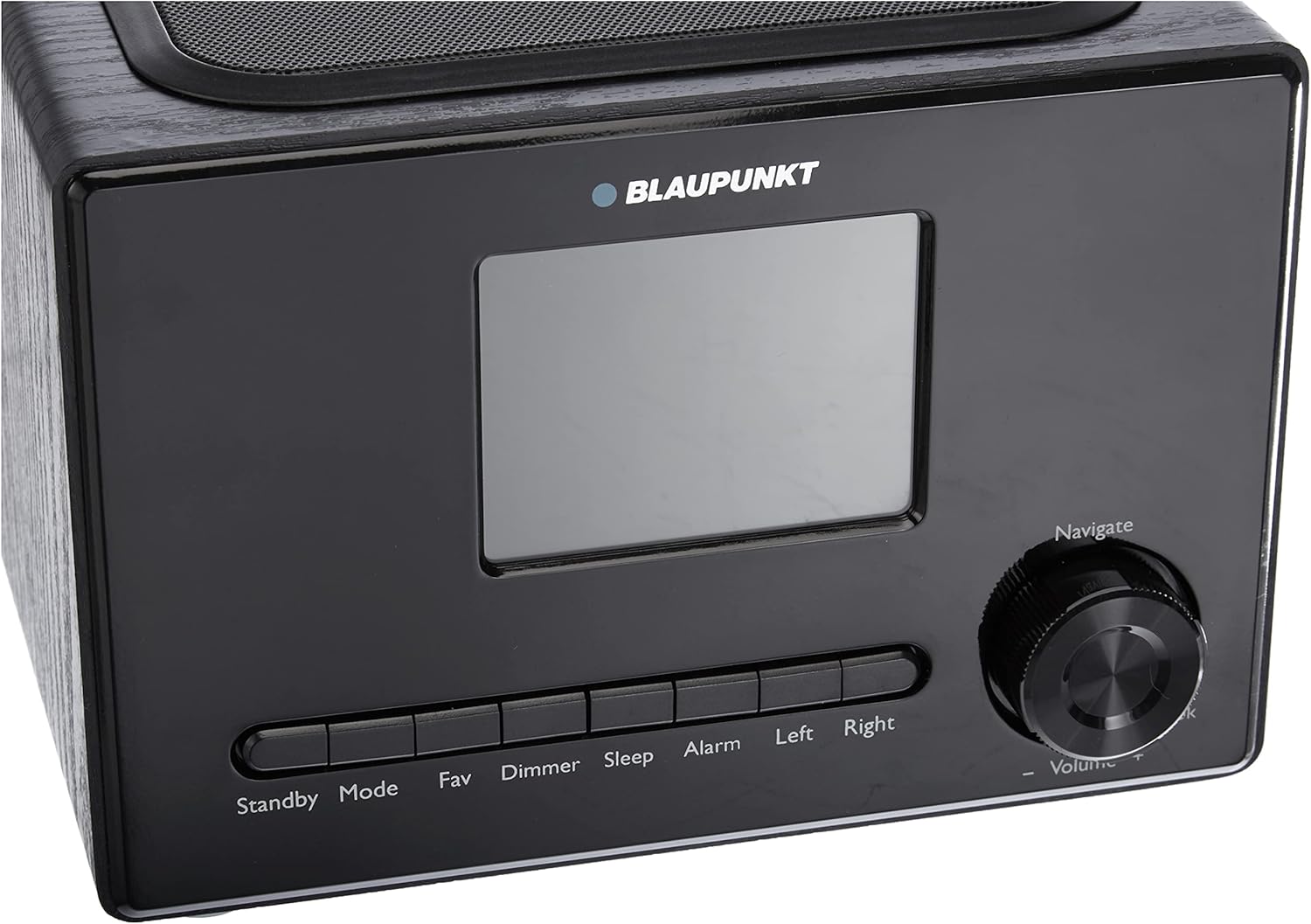
Image 4.1: Detailed view of the front panel, showing the 3.2-inch LCD and control buttons.
- Display: 3.2-inch color LCD for navigation and information.
- Standby Button: Powers the unit on/off.
- Mode Button: Switches between operating modes (e.g., Internet Radio, USB, UPnP).
- Fav Button: Accesses and saves favorite radio stations.
- Dimmer Button: Adjusts display brightness or turns it off.
- Sleep Button: Activates the sleep timer function.
- Alarm Button: Sets and manages alarms.
- Left/Right Buttons: Navigates through menus and options.
- Navigate/Volume Knob: Rotary knob for menu navigation and volume control. Press to confirm selections.
4.2 Rear Panel Connections

Image 4.2: Rear panel connections, including power input, auxiliary input, and USB port.
- ON/OFF Switch: Main power switch for the device.
- DC IN: Power input for the supplied adapter (5.9V 1.2A).
- LINE OUT: Audio output for connecting to external amplifiers or speakers.
- AUX IN: Auxiliary input for connecting external audio sources.
- USB Port: For playing audio files from a USB flash drive (5V 0.5A).
5. Setup
5.1 Power Connection
- Connect the supplied power adapter to the DC IN port on the rear of the radio.
- Plug the power adapter into a wall outlet.
- Flip the ON/OFF switch on the rear panel to the "ON" position.
- Press the Standby button on the front panel to turn on the radio.
5.2 Initial Setup and Network Connection
Upon first power-on, the radio will guide you through an initial setup process.
- Language Selection: Use the Navigate knob to select your preferred language (e.g., English) and press the knob to confirm.
- Network Wizard: The radio will prompt you to connect to a Wi-Fi network.
- WPS (Wi-Fi Protected Setup): If your router supports WPS, select this option and follow the on-screen instructions to connect automatically. This is often the simplest method.
- Manual Scan: Select "Scan" to view available Wi-Fi networks. Use the Navigate knob to select your network and press to confirm.
- Password Entry: If prompted, enter your Wi-Fi password using the Navigate knob to select characters and the knob press to confirm. Use the Left/Right buttons to move the cursor.
- Once connected, the radio will display a confirmation message.

Image 5.1: The radio displaying a station name after successful setup.
6. Operating Instructions
6.1 Basic Operation
- Power On/Off: Press the Standby button.
- Volume Control: Rotate the Navigate/Volume knob.
- Menu Navigation: Rotate the Navigate/Volume knob to scroll through options. Press the knob to select. Use Left/Right buttons to go back or move between fields.
6.2 Internet Radio
- Press the Mode button until "Internet Radio" is selected.
- Use the Navigate knob to browse categories (e.g., Location, Genre, Popular Stations).
- To find stations by location, select "Europe" then "France" (or your country) and then "Top 10" or other categories.
- Press the Navigate knob to select a station.
- Saving Favorites: While a station is playing, press and hold the Fav button until the favorites list appears. Select an empty slot and press the Navigate knob to save the current station.
- Accessing Favorites: Briefly press the Fav button to view your saved stations.
6.3 UPnP (Universal Plug and Play) Streaming
The UPnP function allows you to stream music wirelessly from compatible media servers (e.g., a PC or laptop) on your local network.
- Ensure your media server software is running and sharing media.
- Press the Mode button until "UPnP" is selected.
- The radio will scan for available media servers. Select your server from the list.
- Browse your music library and select tracks to play.
6.4 USB Playback
- Insert a USB flash drive into the USB Port on the rear panel.
- Press the Mode button until "USB" is selected.
- The radio will display the contents of the USB drive. Use the Navigate knob to browse and select audio files.
6.5 Alarm, Sleep Timer, and Weather Forecast
- Alarm: Press the Alarm button to set up or manage alarms. Follow the on-screen prompts to configure alarm time, source (buzzer, internet radio), and frequency.
- Sleep Timer: Press the Sleep button to activate the sleep timer. Rotate the Navigate knob to select the desired duration (e.g., 15, 30, 60 minutes) after which the radio will automatically turn off.
- Weather Forecast: Access the weather forecast feature through the main menu. You may need to set your location for accurate forecasts.
6.6 Equalizer Settings
The integrated equalizer allows you to adjust the audio output to your preference.
- Navigate to the "Settings" menu.
- Select "Equalizer" or "Sound Settings".
- Choose from preset equalizer modes (e.g., Voice, Music) or customize bass and treble levels.
7. Maintenance
To ensure the longevity and optimal performance of your Blaupunkt IRK 1620, follow these maintenance guidelines:
- Cleaning: Use a soft, dry cloth to clean the exterior of the radio. Do not use liquid cleaners or abrasive materials.
- Dust: Regularly dust the unit, especially the speaker grille and ventilation openings, to prevent overheating.
- Storage: If storing the device for an extended period, disconnect it from power and store it in a cool, dry place.
8. Troubleshooting
If you encounter issues with your Blaupunkt IRK 1620, refer to the following common problems and solutions:
| Problem | Possible Cause | Solution |
|---|---|---|
| No Power | Power adapter not connected; ON/OFF switch is off. | Ensure the power adapter is securely connected and the ON/OFF switch on the rear is in the "ON" position. |
| Cannot connect to Wi-Fi | Incorrect password; router too far; network issues. |
|
| No sound or low volume | Volume too low; mute activated; external speakers not connected properly. |
|
| Poor sound quality / Distortion | Internet connection unstable; equalizer settings. |
|
| USB playback not working | Unsupported file format; USB drive not recognized. |
|
9. Specifications
| Feature | Detail |
|---|---|
| Brand | BLAUPUNKT |
| Model Number | IRK 1620 |
| Color | Black |
| Connectivity Technology | Wi-Fi, USB, Auxiliary |
| Special Features | Integrated Clock, Alarm, Weather Forecast, Sleep Timer |
| Display | 3.2-inch Color LCD |
| Audio Output Power | 3 W RMS |
| Power Source | Corded Electric (5.9V 1.2A) |
| Dimensions (L x W x H) | 25.8 x 15.4 x 17.4 cm |
| Supported Radio Bands | Internet Radio, Weather |
10. Warranty and Support
Your Blaupunkt IRK 1620 Internet Radio comes with a warranty. Please refer to the included Warranty Card for specific terms and conditions.
For technical support or service inquiries, please contact the free service hotline provided by Blaupunkt. Contact details can typically be found on the warranty card or the manufacturer's official website.
Manufacturer: Blaupunkt