
Introduction
The Otamatone Cube Techno is a touch-sensitive electronic musical instrument designed for creative sound expression. It features an OTM Link standard for connecting with smartphones or tablets, allowing users to change tones and expand musical possibilities through a dedicated app. This manual provides essential information for proper setup, operation, and care of your Otamatone Cube Techno.
Safety Information
- Keep the device away from water and moisture.
- Do not attempt to disassemble or modify the instrument.
- Use only the specified battery type (AA). Ensure correct polarity when inserting batteries.
- Keep batteries out of reach of small children.
- Avoid dropping the instrument or subjecting it to strong impacts.
Product Overview
The Otamatone Cube Techno features a unique note-shaped design with a touch-sensitive stem and an expressive mouth. Familiarize yourself with its components:
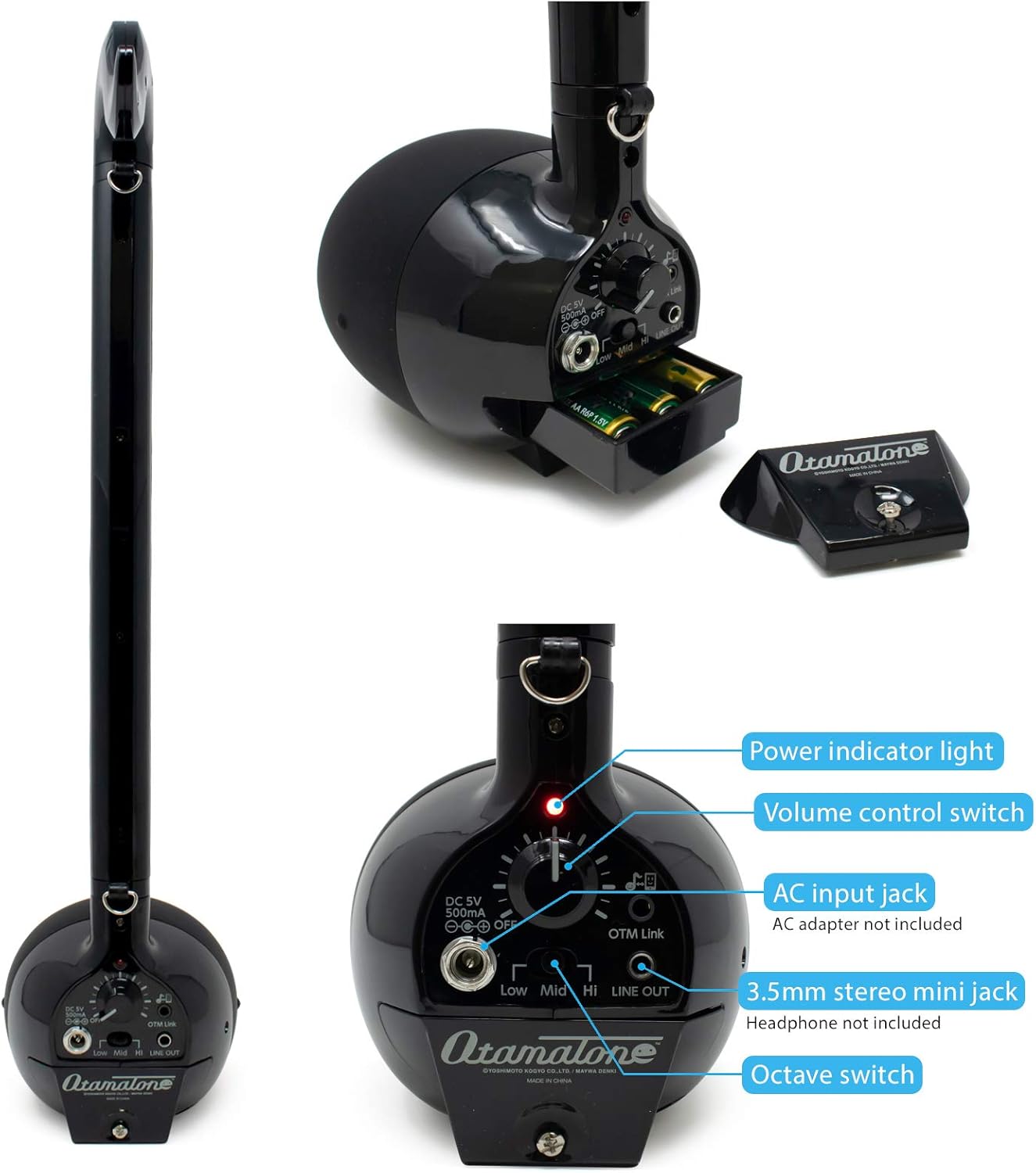
Image: Rear view of the Otamatone Cube Techno, highlighting the power indicator light, volume control switch, AC input jack, 3.5mm stereo mini jack, and octave switch. The battery compartment is also visible.
- Stem: The long, black, touch-sensitive area used to select notes.
- Mouth: The lower, oval-shaped part that opens and closes to create a 'Wah' effect.
- Power Indicator Light: Illuminates when the device is on.
- Volume Control Switch: Adjusts the output volume.
- AC Input Jack: For optional AC adapter (not included).
- 3.5mm Stereo Mini Jack: For headphones or line out (headphones not included).
- Octave Switch: Selects between Low, Mid, and High octave ranges.
- OTM Link Terminal: Connects to smartphones or tablets.
Setup
1. Battery Installation
The Otamatone Cube Techno requires 3 AA batteries (included). Ensure the device is turned off before installing batteries.
- Locate the battery compartment on the back of the instrument.
- Open the battery compartment cover.
- Insert 3 AA batteries, observing the correct polarity (+/-) as indicated inside the compartment.
- Close the battery compartment cover securely.
2. Connecting to a Smartphone or Tablet (OTM Link)
The OTM Link standard allows you to connect your Otamatone Cube Techno to a smartphone or tablet for enhanced functionality, such as changing tones via an app.
- Ensure your smartphone or tablet has a compatible audio input jack (e.g., 3.5mm headphone jack). For devices without a 3.5mm jack, an appropriate adapter (e.g., Lightning to 3.5mm for iPhone, USB-C to 3.5mm for Android) may be required.
- Connect one end of a 3.5mm audio cable (not included) to the OTM Link terminal on your Otamatone Cube Techno.
- Connect the other end of the audio cable to the audio input jack of your smartphone or tablet.
3. App Download
To utilize the full range of tone-changing features, download the official Otamatone app from your device's app store.
- Search for "Otamatone" in the Apple App Store (for iOS devices) or Google Play Store (for Android devices).
- Download and install the official Otamatone app.
Operating Instructions
1. Power On/Off
Locate the power switch on the back of the instrument. Slide it to the 'ON' position to power on the device. The power indicator light will illuminate. Slide to 'OFF' to power off.
2. Basic Playback

Image: A diagram demonstrating how to play the Otamatone. It shows pressing the stem switch for notes, sliding fingers for smooth transitions, and squeezing the mouth for the 'Wah' effect.
- Playing Notes: Press and hold the stem switch with your finger. Moving your finger up and down the stem will change the pitch. The instrument produces sound with a unique analog-to-digital motion.
- Slide Technique: For smooth transitions between notes, press and hold the stem switch, then slide your finger up or down the stem without lifting it.
- 'Wah' Effect: While pressing the stem switch to produce a note, open and close the Otamatone's mouth by squeezing the head. This creates a distinctive 'Wah' effect.
3. Octave Selection
Use the Octave Switch on the back of the instrument to select between three pitch ranges: Low, Mid, and High. This allows for a wider musical range and dynamic ensemble play.
4. Volume Adjustment
Adjust the Volume Control Switch on the back of the instrument to set your desired output level.
5. Using with the App
Once connected via OTM Link and with the app installed, you can use the app to change the tone of your Otamatone Cube Techno. Refer to the app's specific instructions for detailed tone customization and additional features.
6. Headphone/Line Out
Connect headphones to the 3.5mm Stereo Mini Jack for private practice, or use it as a line out to connect to external audio equipment (e.g., amplifiers, mixers).
Maintenance
Cleaning
Wipe the instrument with a soft, dry cloth. Do not use abrasive cleaners or solvents, as these may damage the surface. Avoid getting moisture into any openings.
Storage
When not in use, store the Otamatone Cube Techno in a cool, dry place, away from direct sunlight and extreme temperatures. Remove batteries if the instrument will not be used for an extended period to prevent leakage.
Troubleshooting
- No Sound:
- Ensure the power switch is in the 'ON' position.
- Check if batteries are correctly installed and not depleted. Replace if necessary.
- Verify the volume control is not set to minimum.
- Ensure your finger is firmly pressing the stem switch.
- App Connectivity Issues:
- Confirm the 3.5mm audio cable is securely connected to both the Otamatone's OTM Link terminal and your smartphone/tablet's audio input.
- Ensure the Otamatone app is open and correctly configured for OTM Link input.
- Some third-party music apps may require specific settings or may not be fully compatible with the OTM Link standard. Compatibility may vary between iOS and Android devices, and specific adapters might be needed for newer phone models without a dedicated 3.5mm jack.
- Distorted Sound:
- Adjust the volume control on the Otamatone and/or your connected device.
- Check for low battery power.
Specifications
| Model Number | 1287 |
| Product Dimensions | 5 x 5 x 18 inches |
| Item Weight | 2.08 ounces |
| Battery Type | 3 AA batteries (included) |
| Recommended Age | 6 years and up |

Image: A visual comparison of different Otamatone models, showing the relative sizes of Deluxe/Techno (17.3"), Neo (11.2"), Regular (10.7"), and Melody (3.8").
Warranty and Support
For warranty information or technical support, please refer to the official Otamatone website or contact your retailer. Keep your purchase receipt for warranty claims.


