
Introduction
Welcome to your new Zelotes C-12 Wired Gaming Mouse. This manual provides comprehensive instructions for the setup, operation, customization, and maintenance of your device. The C-12 mouse is engineered for both gaming and office environments, featuring 12 programmable buttons, adjustable DPI settings up to 8000, a customizable weight system, and an ergonomic design for extended comfort.

Image: Zelotes C-12 Wired Gaming Mouse with red LED lighting, showcasing its ergonomic shape and button layout.
Product Overview
The Zelotes C-12 mouse is equipped with a variety of buttons and features designed to enhance your computing and gaming experience. Familiarize yourself with the layout below:

Image: Detailed diagram illustrating the 12 buttons of the Zelotes C-12 mouse, each numerically labeled for identification.
- (1) Left Click: Standard primary mouse button.
- (2) Right Click: Standard secondary mouse button.
- (3) Middle Click (Scroll Wheel): Functions as a scroll wheel and a clickable button.
- (4) Single Key-Num 4: Programmable side button.
- (5) Single Key-Num 5: Programmable side button.
- (6) Single Key-Num 6: Programmable side button.
- (7) Single Key-Num 7: Programmable side button.
- (8) Single Key-Num 8: Programmable side button.
- (9) Single Key-Num 9: Programmable side button.
- (10) DPI+: Increases the mouse's DPI sensitivity.
- (11) DPI-: Decreases the mouse's DPI sensitivity.
- (12) Triple Click (Fire Button): Performs a rapid triple-click action by default.
Setup
Connecting the Mouse
To begin using your Zelotes C-12 mouse, simply plug the USB connector into an available USB port on your computer. The mouse is designed for plug-and-play functionality, allowing basic operation without additional drivers.

Image: The Zelotes C-12 mouse's braided USB cable, featuring a ferrite bead for signal stability.
Software Installation
For full customization of buttons, DPI, and lighting, install the Zelotes C-12 driver software:
- Using the Included CD: Insert the provided mini-CD into your computer's CD drive and follow the on-screen instructions to install the software.
- Online Download: If your computer lacks a CD drive, search online for the official Zelotes C-12 driver software to download the latest version.
Note: The programming software may have limited functionality or compatibility issues with Mac OS.
Operating Instructions
Basic Mouse Functions
Once connected, the mouse will function immediately for basic tasks. Use the Left Click for primary actions, Right Click for secondary actions, and the Scroll Wheel for navigation.
DPI Adjustment
The DPI (Dots Per Inch) buttons (DPI+ and DPI-) allow you to quickly switch between four preset sensitivity levels: 1000, 1500, 2000, and 4000 DPI. Press the DPI+ button to increase sensitivity or DPI- to decrease it, adapting to different tasks or game scenarios.
Fire Button
The dedicated 'Fire' button (often red and labeled) is pre-configured to perform a rapid triple-click action, useful in certain gaming situations.

Image: The Zelotes C-12 mouse illuminated with red LED lighting, demonstrating its visual appeal during operation.
Customization
Unlock the full potential of your Zelotes C-12 mouse through its extensive customization options using the dedicated software.
Programmable Buttons
All 12 buttons on the C-12 mouse are programmable. Use the Zelotes software to assign custom functions, complex macros, or specific key combinations to any button, including the side buttons (1-9) and the fire button. This allows for personalized control tailored to your specific needs.
Advanced DPI Settings
Beyond the hardware DPI buttons, the software enables fine-grained DPI adjustments up to 8000 DPI. You can create multiple DPI profiles and customize the LED indicator colors associated with each profile for quick visual identification.
Adjustable Weight System
The mouse features an adjustable weight system with 8 removable weights, each weighing 2.5g. This allows you to fine-tune the mouse's overall weight and balance to suit your preference. To adjust, open the weight compartment located on the underside of the mouse and add or remove weights as desired.

Image: The underside of the Zelotes C-12 mouse, highlighting the circular compartment for adjustable weights and individual weights.
RGB Lighting Customization
Personalize the mouse's aesthetic with customizable RGB lighting. The software offers various lighting modes, including a 7-color breathing cycle and static monochromatic colors. You can also adjust the brightness and speed of the lighting effects.
Software Interface
The Zelotes C-12 driver software provides an intuitive interface for managing all customization options, including key mapping, DPI settings, polling rate, and RGB effects.

Image: A screenshot of the Zelotes C-12 driver software interface, showing options for key settings, DPI adjustment, and RGB effects.
Maintenance
Cleaning the Mouse
To ensure optimal performance and longevity, regularly clean your mouse:
- Wipe the mouse surface with a soft, dry, lint-free cloth.
- For the optical sensor, gently clean the area with a cotton swab lightly dampened with isopropyl alcohol.
- Avoid using harsh chemicals, abrasive cleaners, or excessive moisture, as these can damage the mouse.
Mouse Feet Replacement
The Zelotes C-12 package includes replacement mouse feet. If the existing feet become worn, affecting the mouse's glide, carefully peel off the old feet and apply the new ones in their place to restore smooth movement.
Troubleshooting
If you encounter any issues with your Zelotes C-12 mouse, refer to the following troubleshooting tips:
- Mouse Not Responding:
- Ensure the USB cable is securely connected to your computer.
- Try plugging the mouse into a different USB port.
- Restart your computer.
- DPI Not Changing:
- Verify that the DPI+ and DPI- buttons are functioning correctly.
- Check the Zelotes software settings to ensure DPI profiles are configured as desired.
- Programmable Buttons Not Working:
- Ensure the Zelotes C-12 software is installed and running in the background.
- Verify button assignments within the software.
- Remember that software functionality may be limited on Mac OS.
- Scroll Wheel Issues (e.g., skipping, unresponsiveness):
- Clean any dust or debris from around the scroll wheel.
- If the issue persists, it may indicate internal wear. Some users have reported success by carefully disassembling the mouse and reinforcing the scroll wheel's axle with a thin, non-adhesive material (e.g., plumber's tape) to improve grip. This procedure requires technical skill and may void your warranty.
- Software Installation Issues:
- If the included CD is unreadable or your computer lacks a CD drive, download the latest drivers from the official Zelotes support website.
- Ensure your operating system meets the software's compatibility requirements.
Specifications
Below are the technical specifications for the Zelotes C-12 Wired Gaming Mouse:
| Feature | Specification |
|---|---|
| Brand | Zelotes |
| Model | C-12 |
| Connectivity | Wired USB |
| Number of Buttons | 12 (Programmable) |
| DPI Settings | 1000/1500/2000/4000 (Adjustable up to 8000 via software) |
| Tracking Technology | Optical |
| Polling Rate | 125-1000 Hz |
| Acceleration | 24G |
| Switch Life | 12 million clicks |
| Cable Length | 1.8 meters (braided) |
| Adjustable Weights | 8 x 2.5g (total 20g) |
| Dimensions (L x W x H) | 130mm x 81.5mm x 39.8mm |
| Weight | 160 ± 5g (without weights) |
| Compatibility | Windows 7/8/10/11, Mac OS, Linux (Software programming limited on Mac OS) |
| Included Components | Gaming Mouse, Instruction Manual, Software CD, Replacement Mouse Feet |
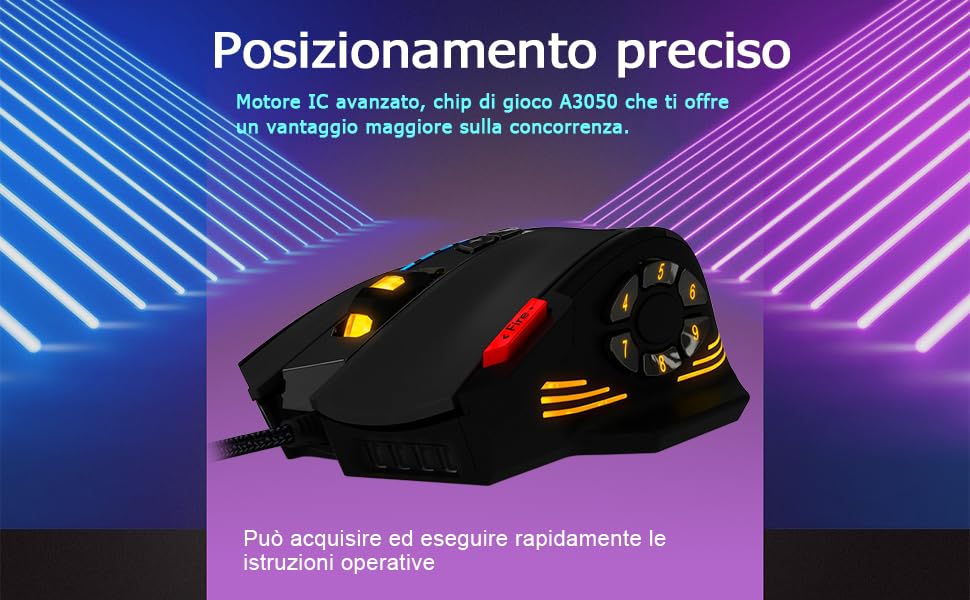
Image: A technical diagram detailing the dimensions and key specifications of the Zelotes C-12 mouse.
Warranty and Support
Warranty Information
For detailed information regarding the warranty coverage for your Zelotes C-12 Wired Gaming Mouse, please refer to the warranty card included in your product packaging. Alternatively, you may contact Zelotes customer support directly for specific warranty terms and conditions.
Customer Support
Should you require technical assistance, have questions about product functionality, or need to report an issue, please visit the official Zelotes website for support resources. When contacting customer service, please have your purchase receipt and the product model number (C-12) readily available to expedite the support process.