1. Product Overview
The ASUS RT-ACRH13 is a dual-band AC1300 Super-Fast WiFi 4-Port Gigabit Router designed to provide enhanced wireless coverage and stability for your home network. It features MU-MIMO technology and a USB 3.0 port for versatile connectivity. This router is ideal for bandwidth-intensive activities and supports a wide range of devices.
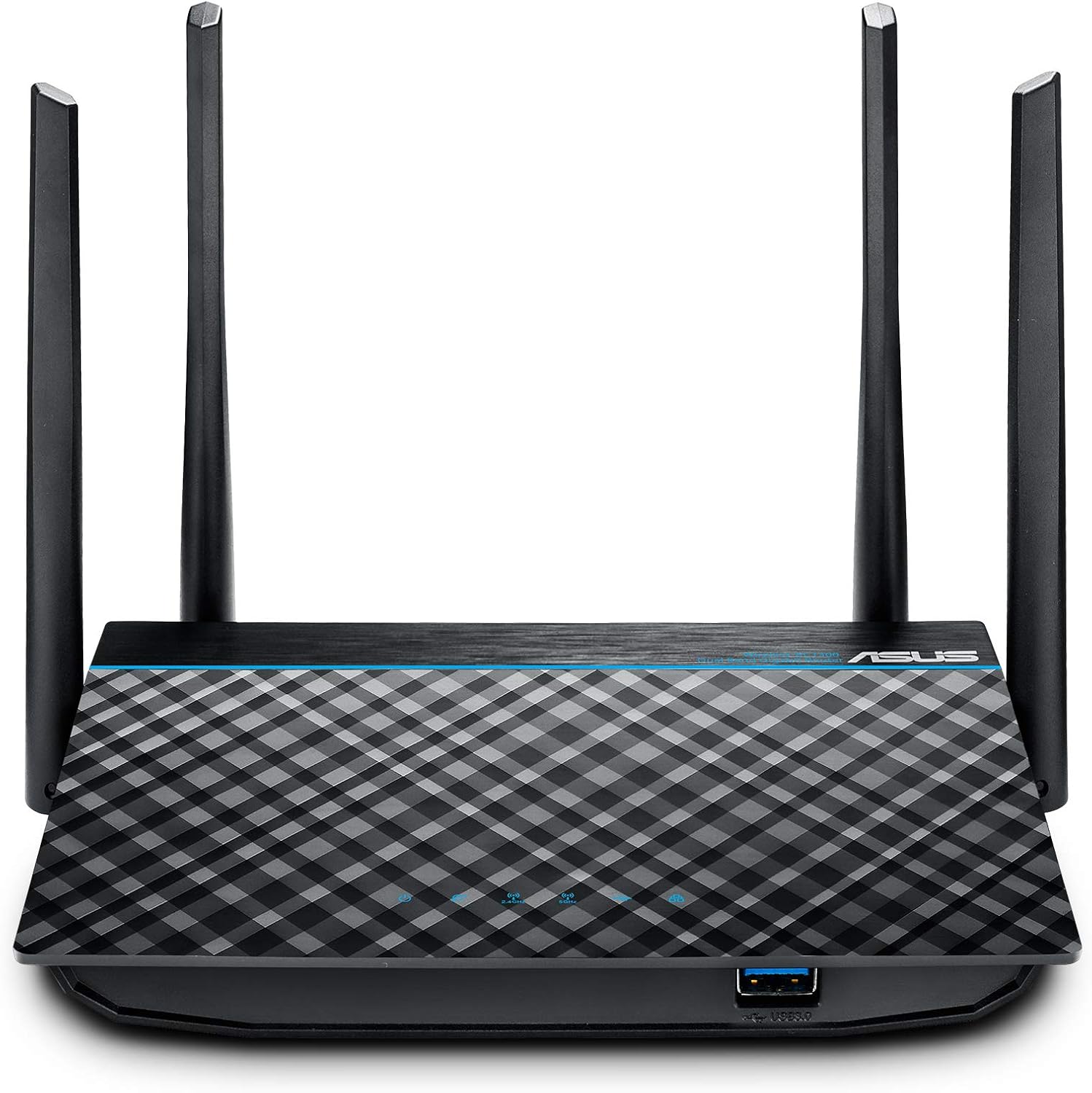
Figure 1.1: Front view of the ASUS RT-ACRH13 Router, showcasing its four external antennas and sleek design.
Key Features:
- Dual-band AC1300 with 2x2 MU-MIMO technology for combined speeds up to 1267 Mbps.
- Four external 5dBi antennas for improved Wi-Fi range and multi-device performance.
- Integrated USB 3.0 port for sharing external drives/flash drives across your network.
- Easy network monitoring and management via the intuitive ASUS Router App.
- Effortless router setup using the ASUSWRT web-based interface.
- Supports Wireless router mode and Access point mode.
2. Package Contents
Before proceeding with the setup, please ensure all items listed below are present in your package:
- ASUS RT-ACRH13 Wireless-AC1300 Dual Band Gigabit Router
- Networking cable (Ethernet cable)
- Power adapter
- Quick start guide
- Support CD (containing user manual and utilities)

Figure 2.1: All components included in the ASUS RT-ACRH13 router package.
3. Physical Features and Ports
Familiarize yourself with the ports and buttons on your RT-ACRH13 router for proper connection and operation.

Figure 3.1: Rear view of the ASUS RT-ACRH13, highlighting the various ports and buttons for connectivity and control.
Port Descriptions:
- DC-IN Socket: Connect the power adapter here.
- LAN 1-4 Ports: Connect your wired devices (e.g., computers, gaming consoles) to these Gigabit Ethernet ports.
- WAN Port: Connect your modem's Ethernet cable to this port to receive internet access.
- RESET Button: Press and hold for 5-10 seconds to restore factory default settings.
- POWER Button: Turns the router on or off.
- WPS Button: Used for Wi-Fi Protected Setup to quickly connect WPS-compatible devices.
- USB 3.0 Port: Connect USB storage devices for network sharing.
4. Setup Guide
4.1 Initial Hardware Setup
- Positioning: Place your router in a central location to maximize Wi-Fi coverage. Avoid placing it near large metal objects, concrete walls, or other electronic devices that may cause interference.
- Connect Modem: Connect one end of the provided networking cable to the WAN port of your RT-ACRH13 router and the other end to your modem's LAN port.
- Connect Power: Plug the power adapter into the DC-IN socket of the router and then into a power outlet. Press the POWER button to turn on the router.
- Wait for Indicators: Allow a few minutes for the router to boot up. Observe the LED indicators on the front panel. The Power LED should be solid blue, and the WAN LED should indicate an active internet connection.
4.2 Network Configuration via ASUS Router App
The ASUS Router App provides an intuitive way to set up and manage your network.
- Download App: Download the ASUS Router App from your mobile device's app store (App Store for iOS, Google Play for Android).
- Connect to Router's Wi-Fi: On your mobile device, connect to the default Wi-Fi network name (SSID) broadcast by the router. This information is usually found on a label on the bottom of the router.
- Launch App: Open the ASUS Router App and follow the on-screen instructions to detect and configure your new router. You will be guided through setting up your Wi-Fi name (SSID) and password, as well as the router's administration password.

Figure 4.1: The ASUS Router App simplifies the setup and management of your home network.
4.3 Network Configuration via Web Interface (ASUSWRT)
Alternatively, you can configure your router using a web browser.
- Connect Device: Connect your computer to the router via an Ethernet cable (to any LAN port) or wirelessly to the default Wi-Fi network.
- Access Web Interface: Open a web browser and type router.asus.com or the router's default IP address (e.g., 192.168.1.1) into the address bar and press Enter.
- Login: Enter the default username and password (usually admin/admin, check the router's label or quick start guide).
- Follow Setup Wizard: The ASUSWRT setup wizard will guide you through the internet connection setup, Wi-Fi settings, and administrator password creation.
5. Operating Instructions
5.1 Optimizing Network Performance
The RT-ACRH13 is designed for optimal performance in various home environments.

Figure 5.1: The RT-ACRH13 provides extensive coverage for large homes and supports multiple connected devices.
- Dual-Band Operation: Utilize the 5GHz band for high-bandwidth activities like gaming and streaming, and the 2.4GHz band for general internet use and wider coverage.
- MU-MIMO Technology: This technology allows the router to communicate with multiple compatible devices simultaneously, improving overall network efficiency. Ensure your devices support MU-MIMO for best results.
- USB 3.0 Sharing: Connect a USB storage device to the USB 3.0 port to create a network-attached storage (NAS) for easy file sharing among connected devices.
5.2 Security Features
The router offers robust security options to protect your home network.

Figure 5.2: Manage and secure your network with features like parental controls.
- Parental Controls: Manage internet access times and content filtering for specific devices or users.
- WPA/WPA2 Encryption: Secure your wireless network with strong encryption protocols.
- Guest Network: Create separate Wi-Fi networks for guests, keeping your main network secure and private.
- Firewall: The built-in firewall protects your network from external threats.
- Automatic Updates: Enable automatic firmware updates to ensure your router has the latest security patches and features.
6. Maintenance
Regular maintenance ensures optimal performance and longevity of your router.
- Firmware Updates: Periodically check for and install the latest firmware updates via the ASUSWRT web interface or ASUS Router App. Firmware updates often include performance improvements, bug fixes, and security enhancements.
- Rebooting: If you experience network slowdowns or connectivity issues, try rebooting the router by unplugging the power adapter for 10 seconds and then plugging it back in.
- Cleaning: Keep the router clean and free from dust accumulation, especially around ventilation areas, to prevent overheating. Use a soft, dry cloth.
- Password Management: Regularly change your Wi-Fi and router administration passwords to strong, unique combinations.
7. Troubleshooting
This section addresses common issues you might encounter with your RT-ACRH13 router.
| Problem | Possible Cause | Solution |
|---|---|---|
| No Internet Connection | Modem issue, incorrect cable connection, ISP problem, incorrect router settings. |
|
| Weak Wi-Fi Signal or Dead Zones | Router placement, interference from other devices, physical obstructions. |
|
| Cannot Access Router's Web Interface | Incorrect IP address, network configuration issue, browser cache. |
|
| Forgotten Wi-Fi Password or Admin Password | Password lost or forgotten. |
|
8. Specifications
Detailed technical specifications for the ASUS RT-ACRH13 router.
| Feature | Detail |
|---|---|
| Model Name | RT-ACRH13 |
| Wireless Standard | 802.11ac |
| Frequency Band Class | Dual-Band (2.4 GHz and 5 GHz) |
| Data Rate | AC1300 (up to 400Mbps on 2.4GHz, 867Mbps on 5GHz) |
| Antennas | 4 x External 5dBi Antennas |
| Ethernet Ports | 1 x WAN Gigabit, 4 x LAN Gigabit |
| USB Port | 1 x USB 3.0 |
| Dimensions (L x W x H) | 14.73 x 3.56 x 20.57 cm |
| Weight | 249.48 g |
| Operating Modes | Wireless router mode, Access point mode |
| Power Input | AC Input: 110V~240V (50~60Hz) |
Supported Operating Systems:
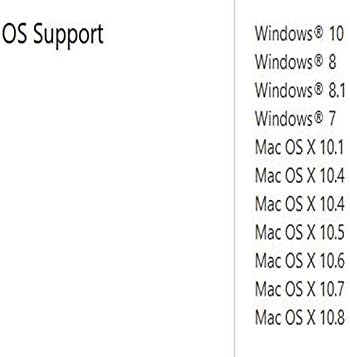
Figure 8.1: The ASUS RT-ACRH13 supports a wide range of operating systems.
- Windows 10
- Windows 8
- Windows 8.1
- Windows 7
- Mac OS X 10.1
- Mac OS X 10.4
- Mac OS X 10.5
- Mac OS X 10.6
- Mac OS X 10.7
- Mac OS X 10.8
9. Warranty Information
ASUS products are manufactured to the highest quality standards. This product is covered by a limited warranty provided by ASUS. Please refer to the "VIP Member Warranty Notice" included in your package or visit the official ASUS support website for detailed warranty terms and conditions specific to your region.
Keep your proof of purchase (receipt or invoice) as it will be required for any warranty claims.
10. Support
For further assistance, technical support, or to download the latest drivers and firmware, please visit the official ASUS support website:
You may also find helpful resources and FAQs on the product support page for the RT-ACRH13 model.


