
LINQ A-S050C
LinQ PRO GO (A-S050C) Videocamera User Manual
Model: A-S050C
1. Introduction
Thank you for choosing the LinQ PRO GO (A-S050C) Videocamera. This manual provides essential information for setting up, operating, and maintaining your device. Please read it carefully before use to ensure optimal performance and longevity of your camera.
The LinQ PRO GO (A-S050C) is a versatile action camera designed to capture high-definition videos and photos. It features a 2-inch HD LCD display, a 170-degree wide-angle fisheye lens, and a robust waterproof casing allowing submersion up to 30 meters. With its 12-megapixel sensor and Full HD 1080p video recording at 30fps, it is suitable for various outdoor activities and sports.
2. Package Contents
Please verify that all items listed below are included in your package:
- LinQ PRO GO (A-S050C) Videocamera with Waterproof Housing
- USB Charging Cable
- Power Adapter
- Rechargeable Lithium Battery (900mAh)
- Various Mounting Accessories (e.g., helmet mounts, bicycle mounts, clips, straps)
- Cleaning Cloth

Figure 2.1: LinQ PRO GO (A-S050C) Videocamera in its protective waterproof housing.
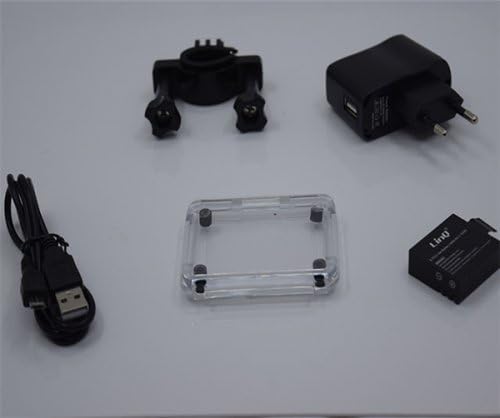
Figure 2.2: Essential accessories including the USB cable, power adapter, rechargeable battery, and an additional frame for the waterproof housing.
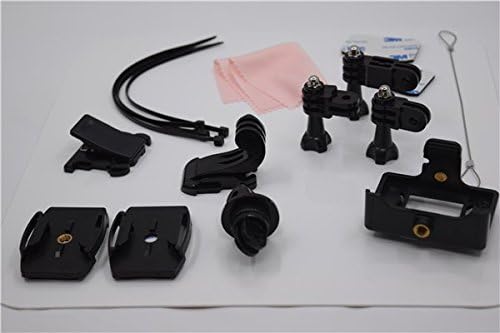
Figure 2.3: A selection of mounting accessories, including clips, adhesive mounts, and straps, for attaching the camera to various surfaces and gear.
3. Setup
3.1. Charging the Battery
- Insert the provided 900mAh lithium battery into the camera's battery compartment.
- Connect the camera to the power adapter using the USB cable.
- Plug the power adapter into a wall outlet. The charging indicator light will illuminate.
- Allow approximately 3 hours for a full charge. The indicator light will change or turn off once charging is complete. A fully charged battery provides approximately 90 minutes of recording at 1080p@30fps.
3.2. Inserting a Micro SD Card
The camera supports Micro SD cards up to 32GB. A Class 10 or higher speed rating is recommended for optimal video recording performance.
- Open the Micro SD card slot cover on the side of the camera.
- Insert the Micro SD card with the gold contacts facing the back of the camera until it clicks into place.
- Close the card slot cover securely.
- It is recommended to format the Micro SD card using the camera's settings menu before first use.
3.3. Powering On/Off
- To power on: Press and hold the Power/Mode button (usually on the front or top) for a few seconds until the screen illuminates.
- To power off: Press and hold the Power/Mode button again until the screen turns off.
4. Operating Instructions
4.1. Basic Operation
- Mode Switching: Press the Power/Mode button briefly to cycle through different modes (Video, Photo, Playback, Settings).
- Shutter/OK Button: Press the Shutter/OK button (usually on top) to start/stop recording video or to take a photo. In menu mode, this button confirms selections.
- Navigation Buttons: Use the Up/Down buttons (if available, often on the side) to navigate through menu options or zoom in/out.
4.2. Video Recording
In Video mode, the camera can record at various resolutions:
- 1920x1080 (1080p) at 30fps
- 1280x720 (720p) at 60fps
- 848x480 (WVGA) at 30fps
- 640x480 (VGA) at 30fps
Press the Shutter/OK button once to start recording. A red indicator light or on-screen icon will typically flash. Press it again to stop recording.
4.3. Photo Capture
In Photo mode, the camera supports image resolutions up to 12 megapixels:
- 12M
- 10M
- 8M
- 5M
Press the Shutter/OK button once to take a photo.
4.4. Advanced Settings
Access the settings menu to adjust various parameters:
- Video Settings: Loop recording, time-lapse, motion detection.
- Photo Settings: Single shot, self-timer (5s/10s/20s), continuous shooting.
- Exposure: Adjust EV compensation for brighter or darker images.
- White Balance: Select appropriate white balance for different lighting conditions (Auto, Daylight, Cloudy, Tungsten, Fluorescent).
- ISO: Adjust light sensitivity.
- Sharpness: Control image sharpness.
- Date/Time: Set the correct date and time.
- Language: Select your preferred language.
- Format SD Card: Erase all data on the Micro SD card.
4.5. Playback
In Playback mode, you can review your captured videos and photos on the 1.5-inch LCD screen. Use the navigation buttons to scroll through files. Press the Shutter/OK button to play videos. Fast forward and rewind functions are supported for videos.
4.6. Connecting to a Computer/TV
- USB Connection: Connect the camera to a computer using the USB cable. The camera will appear as a removable disk, allowing you to transfer files. It can also function as a webcam.
- HDMI Connection: Connect the camera to an HDMI-compatible display (e.g., TV) using an HDMI cable (not included) to view your content on a larger screen.
5. Maintenance
- Cleaning: Use the provided cleaning cloth or a soft, lint-free cloth to clean the camera lens and LCD screen. Do not use harsh chemicals or abrasive materials.
- Waterproof Housing: Regularly inspect the waterproof housing for any cracks, damage, or debris on the O-ring seal. Ensure the O-ring is clean and properly seated before each use in water. Rinse the housing with fresh water after saltwater use and allow it to air dry.
- Storage: Store the camera in a cool, dry place away from direct sunlight and extreme temperatures. Remove the battery if the camera will not be used for an extended period.
- Battery Care: Avoid fully discharging the battery frequently. Recharge the battery periodically even if not in use to maintain its health.
6. Troubleshooting
- Camera does not power on: Ensure the battery is fully charged. Reinsert the battery.
- Cannot record video/take photos: Check if a Micro SD card is inserted and properly formatted. Ensure there is sufficient space on the card.
- Poor video/image quality: Ensure the lens is clean. Check the selected resolution settings. Ensure adequate lighting.
- Water leakage in housing: Immediately remove the camera from water. Inspect the waterproof housing for damage, ensure the O-ring is clean and correctly seated, and that all latches are securely closed.
- Camera freezes: Press and hold the Power/Mode button for 10-15 seconds to force a shutdown. If the issue persists, remove and reinsert the battery.
7. Specifications
| Feature | Specification |
|---|---|
| Model Number | A-S050C (6970334022037) |
| Display | 2-inch HD LCD |
| Lens | 170-degree Wide-Angle Fisheye, 6-glass lens |
| Chipset | Novatek 96650 + AR0330 |
| Video Resolution | 1920x1080 (30fps), 1280x720 (60fps), 848x480 (30fps), 640x480 (30fps) |
| Video Format | MOV (H.264 compression) |
| Image Resolution | 12M/10M/8M/5M |
| Image Format | JPG |
| Photo Modes | Single Shot, Self-timer (5s/10s/20s), Continuous |
| Special Functions | Loop Recording, Time-lapse, Motion Detection, Dashcam/Webcam function |
| Waterproof Depth | Up to 30 meters (with waterproof housing) |
| Storage | Micro SD card, up to 32GB (Class 10 recommended) |
| Battery | 900mAh Rechargeable Lithium Battery |
| Battery Life | Approx. 90 minutes (1080p@30fps) |
| Connectivity | USB 2.0, HDMI |
| Dimensions | 59.2mm x 41mm x 29.8mm |
| Weight | 60g |
8. Legal Information
This product is accompanied by a regular fiscal receipt for the cost of the product. If you require an invoice, please submit a request indicating all your details by sending a message through the 'Contact Seller' option. Warranty information should be obtained directly from your point of purchase or the seller.
Related documentsA-S050C

Ask a question about this manual
Ask about setup, troubleshooting, compatibility, parts, safety, or missing instructions. Manuals+ will review the question and use this page’s manual context to help answer it.