
1. Introduction
The UGREEN USB Bluetooth 4.0 Adapter provides a convenient and efficient way to add Bluetooth connectivity to your Windows computer. This compact dongle enables wireless communication with various Bluetooth-enabled devices, offering a cable-free solution for enhanced productivity and entertainment.
2. Product Overview
The UGREEN USB Bluetooth 4.0 Adapter features advanced Bluetooth 4.0 technology with Enhanced Data Rate (EDR) and Bluetooth Low Energy (BLE) protocol support. It is designed for high-speed data transfer and stable connections, making it ideal for connecting headphones, speakers, keyboards, mice, and other peripherals.

Image 1: UGREEN USB Bluetooth 4.0 Adapter
Its nano-sized design ensures it remains discreetly plugged into your USB port without obstructing other ports or adding bulk.
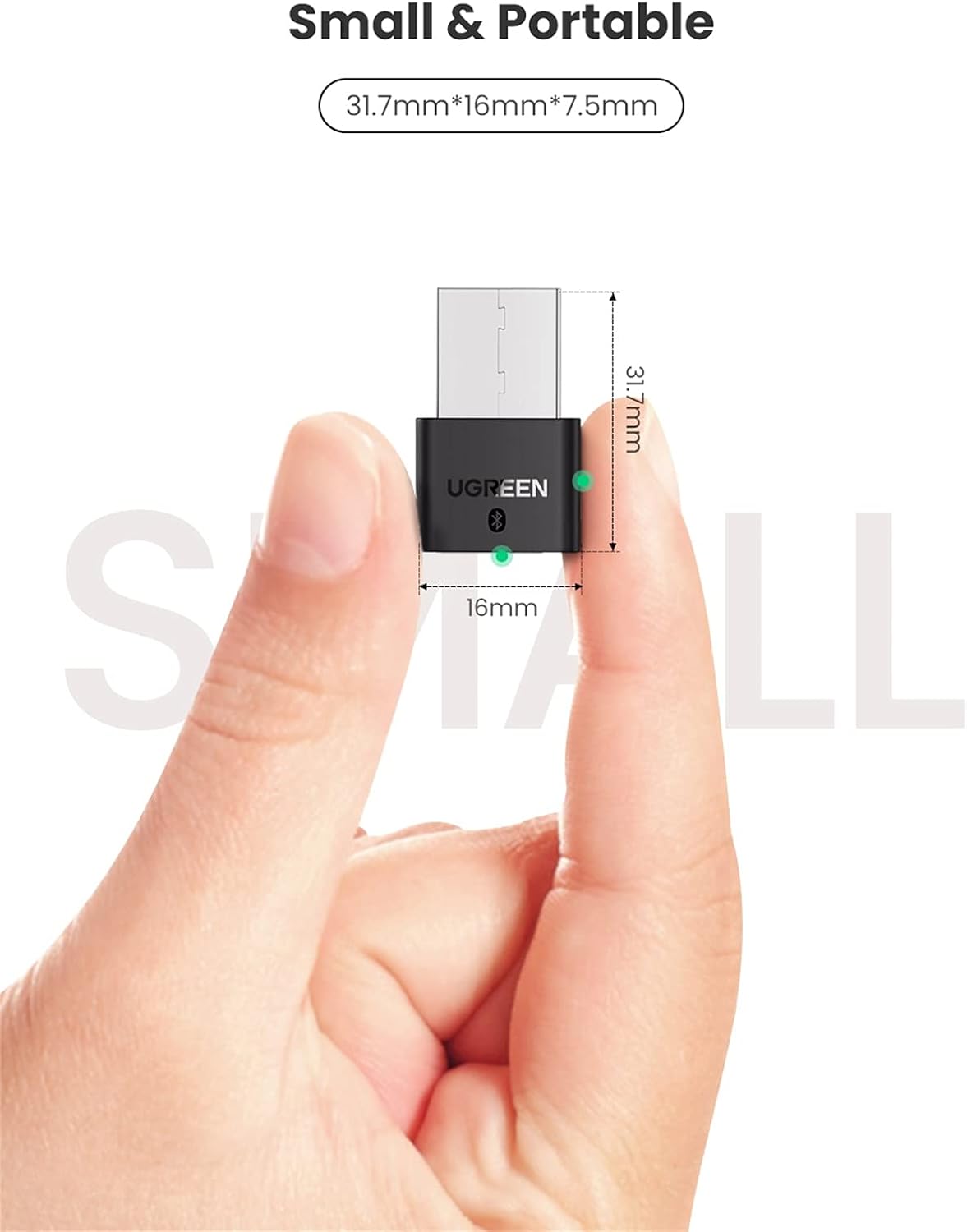
Image 2: Compact and portable design of the adapter.
3. Package Contents
- 1 x UGREEN USB Bluetooth 4.0 Adapter
- 1 x User Manual
4. Setup Instructions
4.1. Connecting the Adapter
Insert the UGREEN USB Bluetooth 4.0 Adapter into an available USB port on your desktop or laptop computer. Ensure the adapter is fully seated in the port.

Image 3: The UGREEN Bluetooth adapter plugged into a laptop's USB port, demonstrating its compact size.
4.2. Driver Installation
- For Windows 10/8.1/8: The adapter is plug-and-play. Your operating system should automatically detect and install the necessary drivers. No manual driver installation is typically required.
- For Windows 7/XP/Vista: You may need to install the driver from the included mini-CD or download the latest driver from the UGREEN official website. Follow the on-screen instructions to complete the installation.
4.3. Disabling Native Bluetooth (If Applicable)
If your computer has a built-in Bluetooth module and you experience connectivity issues or conflicts after installing the UGREEN adapter, it is recommended to disable the native Bluetooth module. This can usually be done through your computer's Device Manager or Bluetooth settings.
- Open Device Manager (Right-click the Start button and select 'Device Manager').
- Expand the 'Bluetooth' category.
- Right-click on your computer's native Bluetooth adapter (e.g., 'Realtek Bluetooth Adapter') and select 'Disable device'. Confirm your choice if prompted.
- Ensure the 'Generic Bluetooth Adapter' (representing the UGREEN dongle) is enabled.
5. Operating Instructions
5.1. Pairing with Bluetooth Devices
Once the adapter is installed and recognized by your system, you can begin pairing your Bluetooth devices:
- Ensure your Bluetooth device (e.g., headphones, speaker, mouse) is in pairing mode. Refer to your device's manual for specific instructions on how to enter pairing mode.
- On your Windows computer, go to 'Settings' > 'Devices' > 'Bluetooth & other devices'.
- Ensure Bluetooth is turned 'On'.
- Click 'Add Bluetooth or other device' and select 'Bluetooth'.
- Select your device from the list and follow any on-screen prompts to complete the pairing process.

Image 4: Visual representation of connecting various Bluetooth devices to a PC.
5.2. Using Paired Devices
After successful pairing, your Bluetooth device should be ready for use. For audio devices, you may need to select the UGREEN adapter as the default playback device in your sound settings.
6. Compatibility
6.1. Supported Operating Systems
- Windows 10 (Plug and Play)
- Windows 8.1 (Plug and Play)
- Windows 8 (Plug and Play)
- Windows 7 (Driver installation required)
- Windows Vista (Driver installation required)
- Windows XP (Driver installation required)

Image 5: Operating systems compatible with the adapter.
6.2. Compatible Bluetooth Devices
The adapter supports a wide range of wireless Bluetooth-enabled devices, including:
- Smartphones
- Keyboards
- Mice
- Headsets and Headphones
- Speakers
- Printers
- Modems and Serial Devices
- Game Controllers

Image 6: Examples of devices compatible with the UGREEN Bluetooth adapter.
6.3. Not Supported
- ARM-Based Windows RT
- Chromebook
- Mac OS
- Linux
- Home theater systems
- Automotive systems
7. Specifications
| Bluetooth Version | 4.0 with EDR (Enhanced Data Rate) |
| ISM Band | 2.4GHz |
| Operation Range | Up to 20 meters (50 feet) |
| Data Transfer Rate | Up to 3Mbps |
| Supported Profiles | A2DP v1.2, GAP, HFPv1.5, HID OVER CATT, AVRCP V1.4, HSP V1.2, APTX, SPP V1.2, DUN V1.1, OPP 2.2, BLE (Bluetooth Low Energy) |
| Backward Compatibility | Classic Bluetooth V3.0/2.1/2.0/1.1 |
| Model Number | 30722 |
8. Troubleshooting
- Adapter not detected: Ensure the adapter is firmly plugged into a working USB port. Try a different USB port.
- Cannot pair with device: Ensure your device is in pairing mode and within the 20-meter operating range. Check if your computer's native Bluetooth is disabled if you are experiencing conflicts.
- Driver issues (Windows 7/XP/Vista): If the adapter is not functioning, ensure the correct drivers have been installed. You can download the latest drivers from the UGREEN official website.
- Poor connection quality or range: Ensure there are no significant physical obstructions (walls, large metal objects) between the adapter and your Bluetooth device. Move the device closer to the adapter.
- Audio skipping/distortion: This can sometimes occur with high-bandwidth audio applications. Ensure the adapter is in a clear line of sight with the audio device and minimize other wireless interference.
9. Warranty and Support
UGREEN products typically come with a 2-year warranty. For technical support, user guides, and other information, please visit the UGREEN official website or contact UGREEN customer service.
Video 1: Official UGREEN product overview for the USB Bluetooth Adapter. This video demonstrates the adapter's features and basic usage.