Introduction
Thank you for purchasing the kwmobile Wooden LED Alarm Clock. This digital clock combines modern design with practical features, making it a perfect addition to any room. It displays time, date, and temperature, and offers multiple activation modes for convenience. This manual provides detailed instructions for setup, operation, and maintenance to ensure optimal performance of your device.
Package Contents
- 1 x kwmobile Wooden LED Alarm Clock
- 1 x USB Power Cable (Power adapter not included)
- 1 x User Manual (English/German)

Setup
Powering the Device
The alarm clock can be powered in two ways:
- USB Power: Connect the provided USB cable to the DC 5V port on the back of the clock and plug the other end into a USB power adapter (not included) or a computer USB port. This is the recommended method for continuous operation.
- Battery Power: For portable use, insert 3 AAA batteries (not included) into the battery compartment on the back of the clock. Note that battery operation is for a limited duration due to energy-saving features.

Operating Instructions
Basic Display Modes
The clock can display time, date, and temperature. Press the SET button to cycle through display modes:
- dP-1: Time and Temperature display alternately.
- dP-2: Time, Date, and Temperature display alternately.
- dP-3: Time display only.


Setting Time and Date
- Press and hold the SET button until the display flashes.
- Use the UP and DOWN buttons to adjust the value.
- Press SET again to confirm and move to the next setting (Year, Month, Day, 12/24 Hour Format, Hour, Minute).
- Once all settings are adjusted, press SET to exit the setting mode.
Setting Alarms
The clock supports up to three independent alarms (A1, A2, A3).
- In normal display mode, press the UP button to toggle alarm ON/OFF. An alarm icon will appear when active.
- To set an alarm time, press and hold the UP button until "A1" flashes.
- Use UP and DOWN to adjust the hour, then press SET.
- Adjust the minute, then press SET.
- Repeat for A2 and A3 if desired.
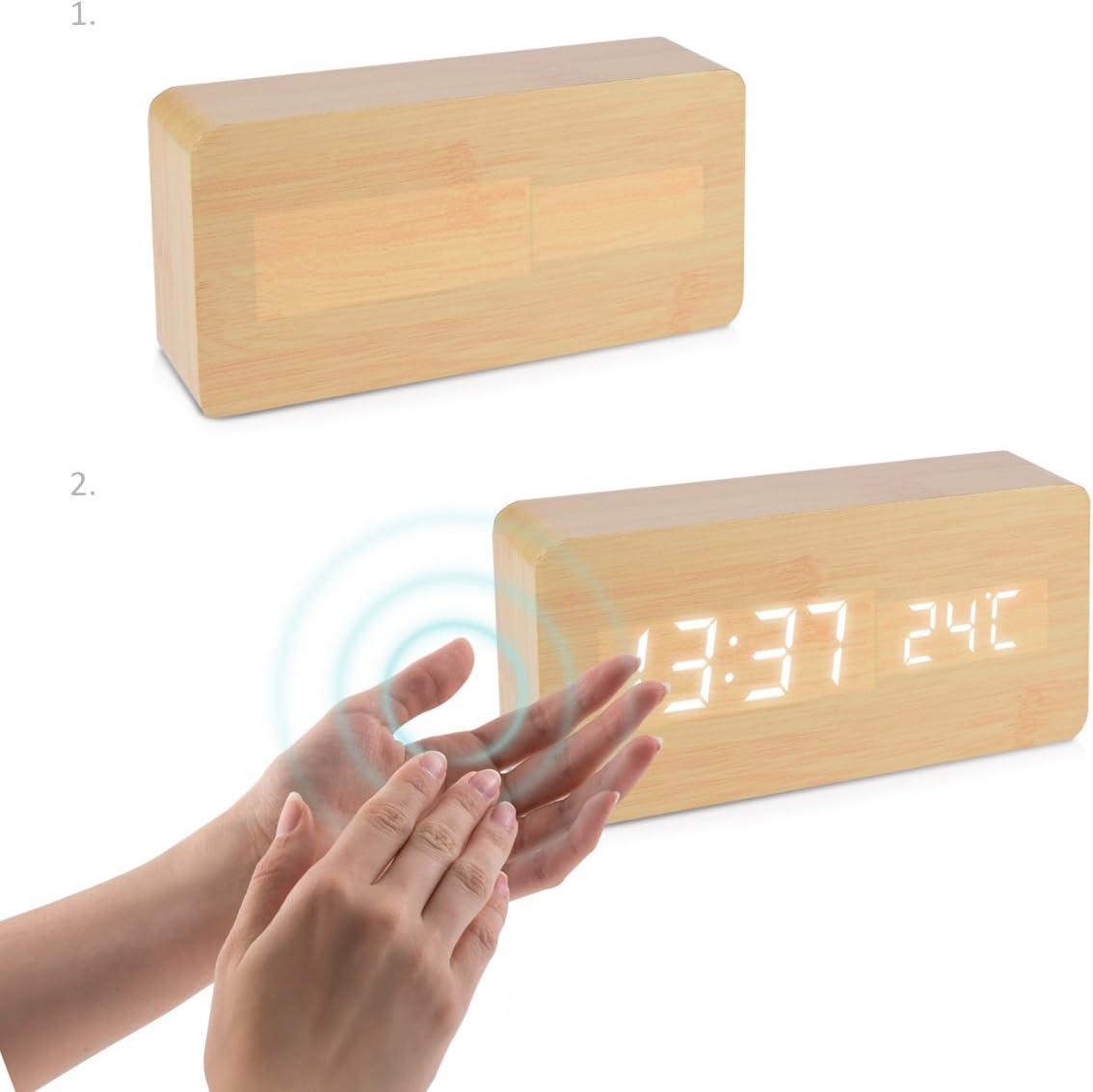
Sound and Touch Activation
To conserve energy, especially when running on batteries, the display can be set to turn off automatically and reactivate with sound or touch.
- Touch Activation: Gently tap the top of the clock to activate the display.
- Clap Activation: Make a sound (e.g., clap your hands) near the clock to activate the display.

Maintenance
- Clean the clock surface with a soft, dry cloth. Do not use abrasive cleaners or solvents.
- Avoid exposing the clock to direct sunlight, extreme temperatures, or high humidity.
- If using batteries, remove them if the clock will not be used for an extended period to prevent leakage.
Troubleshooting
| Problem | Possible Cause / Solution |
|---|---|
| Display is dim or off. |
|
| Clock not responding to touch/clap. |
|
| Alarm does not sound. |
|
Specifications
| Brand | kwmobile |
| Model Number | 38876 |
| Color | Birch - White |
| Dimensions (L x W x H) | 15 x 7 x 4.2 cm |
| Weight | 220 g |
| Material | Synthetic materials |
| Display Type | Digital |
| Special Features | Temperature display, Calendar display, Alarm |
| Power Source | Battery powered (USB cable included for external power) |
Warranty and Support
For warranty information or technical support, please refer to the contact details provided with your purchase documentation or visit the official kwmobile website. Keep your proof of purchase for any warranty claims.